Windows 11 remains in the evolving stage as the official OS of Microsoft. Such updates are not limited to patch updates that are rolled out every month. But are also because of the inclusion of various new features, enhanced performance, as well as extensive use of AI in such updates. There is a need to understand the overall range of updates for Windows 11 that have occurred, especially within the first phase of the year 2026.
In the following article, there will be a description and information regarding all the key updates within Windows 11. Including the most important aspects of Windows 11 improvements, Windows 11 version 25H2, up until the security updates, use-related changes, controversy, and much more within the future timeline connected to the updates.
Why Windows 11 Updates Matter More Than Ever?
Microsoft is tackling the development of Windows 11 on two tracks:
- Feature updates: Large annual updates (like update 25H2, etc.).
- Monthly Cumulative Updates: Security, Bug Fix, and Minor Release updates.
Microsoft is to discontinue its support of Windows 10 by 2025. So, by 2025, the only Version of Windows will be Windows 11.
So, updating Windows 11 is now not an option but a necessity. Windows 11 updates are important for stability, security, performance, and to avail new features.
Major Features in the Latest Windows 11 Update: Version 25H2
All Users can install Windows 11, Version Code 25H2, up until the year 2025. For the most part, this is a big change to Windows 11.
These are the following points that you need to know:
1. Redesigned Start Menu & Taskbar
The Start menu gets an upgrade with a new design for the display of both pinned applications and all applications. This proves helpful in finding apps quickly and is less fragmented than before.
It also includes:
- Enable or disable “Recommended.”
- The layout can be adjusted according to screen size and device type.
Without a doubt, this is one of the most visible changes Windows 11 has had in a very long time.
2. Smarter AI & Enhanced Productivity Tools
Additionally, Microsoft has further integrated AI into its OS. The most prominent improvements offered in this version are:
- AI-powered “Click to Do” actions — giving users the benefit to summarize text, draft content, or perform smart suggestions directly in context menus.
- Copilot experiences fixed in workflows — providing suggestions and assistance relevant to the task at hand.
These are all very helpful to the writing process, getting work completed, communication, and the utilization of the computer generally.
3. New File Explorer Enhancements
Windows 11 now includes:
- AI-powered context actions in File Explorer (like image editing and file summarization).
- Improved recommendations interfaces (though some are phased or paused).
This helps make everyday tasks more efficient and intelligent.
4. Gaming & Copilot Support
For gamers and creative users, version 25H2 brings:
- Gaming Copilot Beta in the Xbox Game Bar.
- Better network quality indicators and performance insights.
- Enhanced AI assistance for tips, recommendations, and personalization.
These tools come in very handy during high-performance games being run on Windows 11 computers.
Important Changes – Accessibility & Narration
Windows, however, is also adding support for accessibility:
- The Braille viewer in Narrator makes content accessible for users relying on Braille output.
- Enhanced voice quality and natural language commands.
- Improved smoother document navigation announcer.
Such technologies are an important milestone in the world of inclusive computing.
Security & Protection: What’s New?
It seems clear that security is one area where Windows 11 has given significant importance and has emerged, and it has been triggered because of Microsoft.
Passkeys and Modern Authentication
Windows 11 supports passwordless login methodologies such as passkeys. This is expected to provide a more secure and seamless login experience to users with or without biometric/PIN.
The above uses cryptographically secure credentials as opposed to password mechanisms that are very easy to crack.
Administrator Protection
A new feature designed to add another layer of defense when apps request elevated privileges — improving upon the traditional User Account Control (UAC) mechanism.
Although it is possible to switch this feature off, this functionality is an integral part of a strong security policy for Windows PCs.
Presence Sensing & Adaptive Dimming
The newly introduced adaptive dimming function has a human detection function to reduce energy consumption in addition to helping in focusing. Overall, it is a security and productivity tool.
Monthly Patch Notes & Quality Updates
However, the bi-monthly updates within Windows 11 itself, also referred to as ‘Patch Tuesday updates,’ are also trying to optimize and fix loopholes:
November and December 2025
- Redesigned battery icons and system graphics.
- Windows Security Patches for PowerShell Vulnerabilities and Critical Bugs.
- Many Improvements on Bug Fixes and Performance Improvements.
You should use these Updates as soon as they become available!
Users Report Problems after Installing Recent Updates
Though update packs are supposed to enhance Windows OS, not everything works as expected.
Bug Reports and RollBack problems
Certain people have also reported the following:
- Problems with Cumulative Updates.
- Update failures or boot repair loops on select hardware.
User Frustration & Feedback
It was indicated that there are users who have been overwhelmed by the number of changes that have been forced upon them through Windows updates. Of course, there is a need for more control to be given to the users with respect to the changes that have been identified within the recent analysis.
As with any update that is imminent, you need to ensure that you have copied all of your files. It is important to have a restore point.
How to Improve Windows 11 Performance After Updates
However, despite the installation of big Windows 11 updates, the presence of holdups, slowdowns, or unnecessary items observed due to the running of residual update files in the background has still been experienced. These issues can be avoided or prevented with the help of a system optimizer and proper system maintenance.
The following are the steps to optimize your PC using Advanced System Optimizer:
Step 1: Download and install the Advanced System Optimizer for the post update cleanup and optimization.
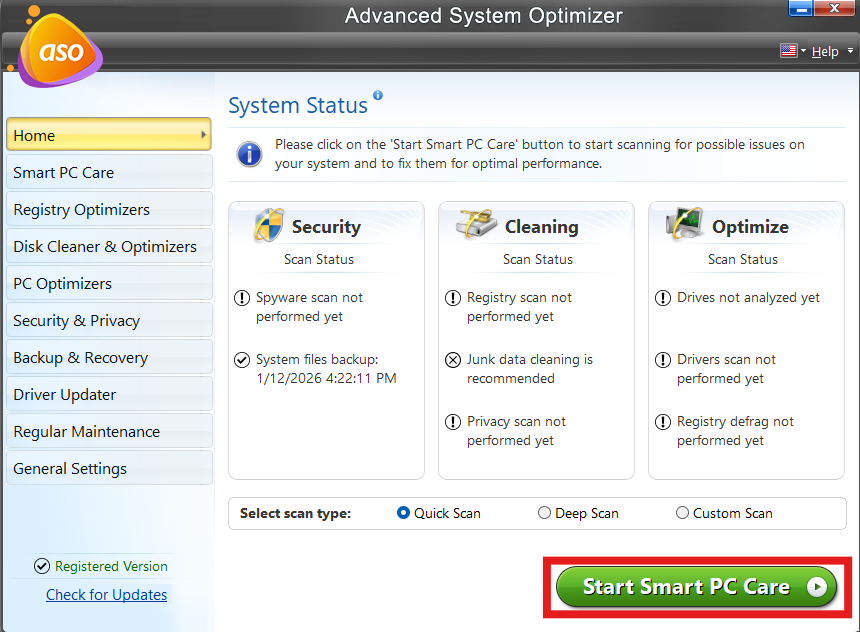
Step 2: Start a system scan by clicking on Start Smart PC Scan. This will help in finding leftover update files, temporary data, and other unnecessary system clutter created after Windows Update.
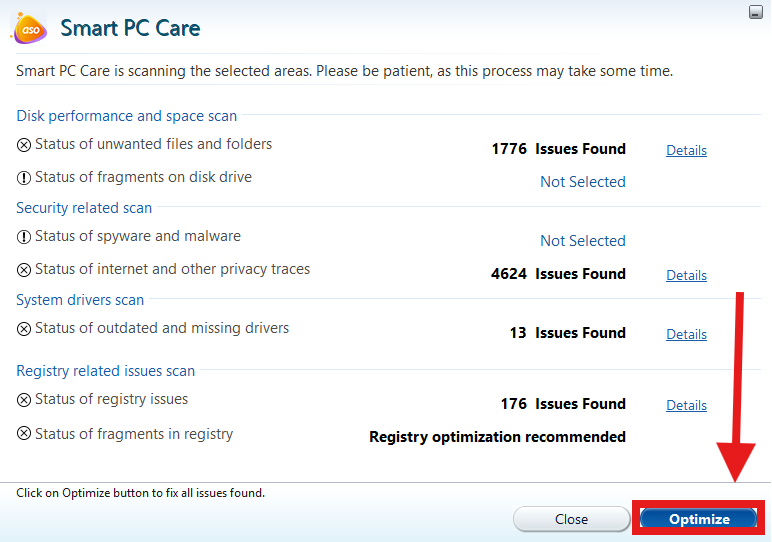
Step 3: Clear junk files by clicking on Optimize and fix all issues at once.
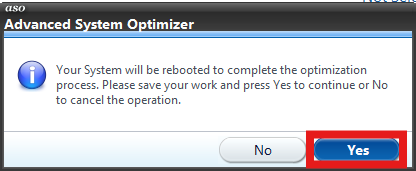
Step 4: Give confirmation by clicking on Yes after installing the Windows 11 update. This will maintain the stability and improve the system speed of your PC.
What the Future Holds for Windows 11
What Lies Ahead For The Future of Windows 11 In 2026:
- Microsoft is also enhancing distribution so that there are no barriers to Windows Update Functions.
- AI experiences appear set to even more fully integrate themselves into the workflow and applications.
- It will include various security components, such as Zero Trust and advanced threat analytics.
- Gaming features, as well as the functionality of Copilot, are also likely to develop.
Tips for Managing Windows Updates
This is how you can take control of the Windows update process:
1. Common check for updates:
- Settings > Windows Update > Search for updates
2. Turn On Active hours to prevent system restart.
- Settings > Windows Update > Advanced options
3. Suspend delivery of updates in case something goes wrong.
- Settings > Windows Update > Pause updates
4. Correct errors appearing in the Windows Update Troubleshooter
- Settings > System > Troubleshoot > Other Troubleshooters
You will also be led through the completion of all the steps in the update management with no issues.
Final Words
Windows 11 updates are shaping Windows into an intelligently built, secure, and future-driven operating system. This may range from major updates like Windows 25H2 feature updates to Windows updates in general. Regardless of which kind of updates they may release, it is always to provide value to consumers, sometimes with a bug that may sneak past.
Whether it be a consumer, gamer, system admin, or professional, staying updated ensures that one gets the best possible experience out of performance, security, and productivity in the Windows 11 computer.
FAQs
What is the major update in Windows 11 for 2026?
The key update is Windows 11 version 25H2, bringing redesigned Start Menu and Taskbar for better app organization, AI-powered “Click to Do” actions for text summarization and suggestions, enhanced File Explorer with context-aware tools, Gaming Copilot Beta for performance insights, and security features like passkeys and Administrator Protection. This evolution focuses on productivity, gaming, and accessibility.
How can I manage and install Windows 11 updates safely?
Check for updates in Settings > Windows Update. Enable Active Hours to avoid untimely restarts, pause updates if needed, and use the Troubleshooter for errors. Always create a restore point and backup files beforehand to prevent issues like boot loops. Post-update, optimize with tools like Advanced System Optimizer to clear junk and fix performance dips for a stable experience.
What are the new AI integrations in Windows 11?
AI enhancements include “Click to Do” for contextual actions like drafting content, Copilot for task suggestions in writing and workflows, File Explorer AI for image editing and file summaries, and Gaming Copilot Beta with network indicators and personalized tips. Future updates promise deeper integration into apps and security, making Windows more intuitive and efficient.
What security improvements come with the latest Windows 11 updates?
Updates introduce passkeys for passwordless logins with biometrics or PINs, Administrator Protection to secure elevated privileges (extending UAC), and adaptive dimming with presence sensing for energy savings. Monthly patches fix vulnerabilities like those in PowerShell, emphasizing Zero Trust and threat analytics to protect against modern threats.
Why should I keep Windows 11 updated in 2026?
With Windows 10 support ending in 2025, updates ensure security, stability, and access to new features like AI tools and UI enhancements. They address bugs, boost performance, and integrate productivity aids. Neglecting them risks vulnerabilities; regular installation via Patch Tuesday keeps your system optimized for gaming, work, and daily use.