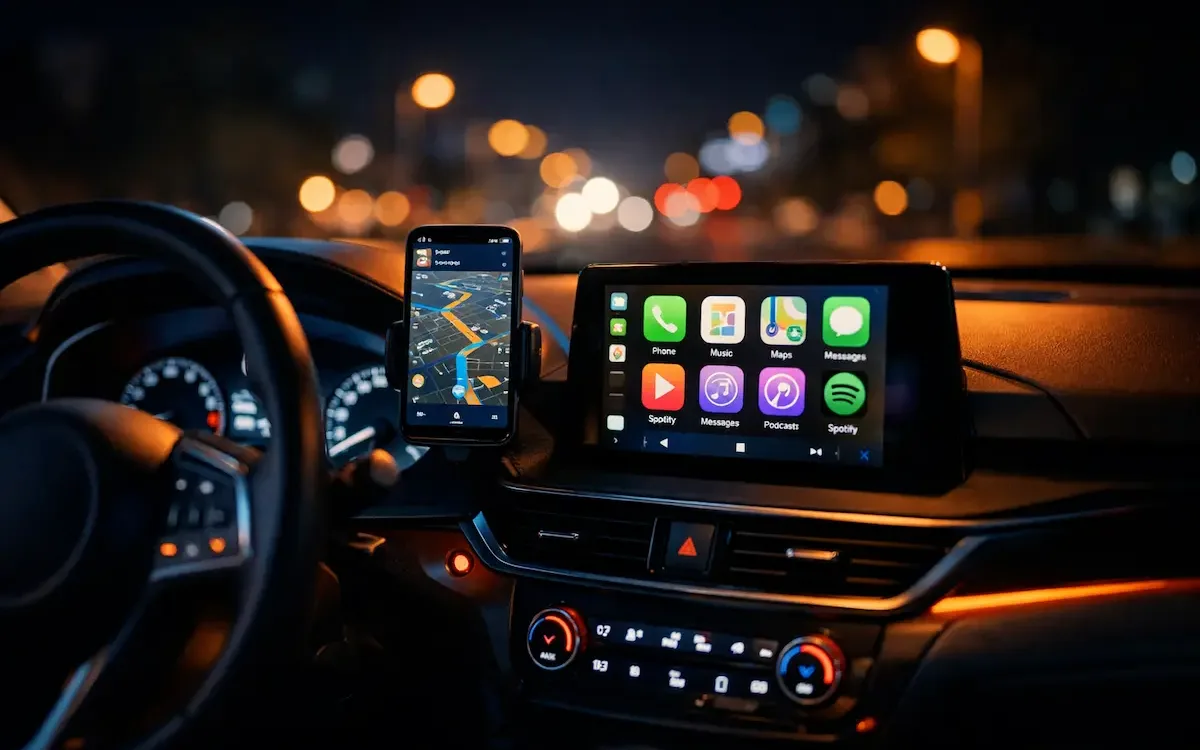
Connecting your phone to your car should make driving safer and simpler—hands-free calls, turn-by-turn navigation on the dash, and easy music control. The best method depends on what your vehicle actually supports. In this guide, you’ll learn four reliable ways to connect a smartphone to a car system: Bluetooth, USB, built-in Apple CarPlay/Android Auto (wired), and an upgrade to wireless CarPlay/Android Auto (when your car already supports the wired version). We’ll compare convenience, stability, and features so you can pick the option that matches your daily routine—short trips, commuting, or long drives. You’ll also get a quick compatibility checklist and step-by-step setup instructions for the two most common approaches. If you want the full “apps on your car screen” experience without plugging in every time, later sections explain how a wireless adapter can help—without changing your car’s factory head unit.
What Your Car Supports
Before choosing a method, confirm what your car can do. Many drivers assume “I have a USB port, so I have CarPlay/Android Auto”—but that’s not always true.
Check these 5 things
1. Head unit menu: Look for CarPlay, Android Auto, Smartphone Integration, or Projection settings.
2. USB labeling: Some cars label a specific port with a phone/icon or “CarPlay.”
3. Owner’s manual /trim level: CarPlay/Android Auto may depend on the trim package or model year.
4. Phone prompt: When you connect via USB, your phone may ask to allow CarPlay/Android Auto.
5. Bluetooth behavior: Bluetooth alone usually supports calls and audio, not full app projection on the car screen.
Common misconception
· USB port ≠ smartphone projection. Many USB ports provide only charging or basic audio playback.
4 Ways to Connect Your Phone to Your Car
| Method | Best For | What You Get | Convenience | Stability | Requirements |
| Bluetooth | Hands-free calling, basic music | Calls + audio streaming | High (auto-connect) | Medium (varies by car) | Bluetooth head unit |
| USB (basic) | Stable audio + charging | Audio playback + charging | Medium (plug-in) | High | Data-capable USB cable + compatible port |
| Wired CarPlay / Android Auto | Full dashboard app experience | Maps, voice, messages, music apps | Medium (plug-in) | High | Car supports CarPlay/AA + data USB |
| Wireless CarPlay / Android Auto (upgrade) | Daily convenience without plugging in | Same as above, but wireless | Very High | High (depends on environment) | Car must support wired CarPlay/AA first |
Method 1: Connect via Bluetooth (Simple + Widely Compatible)
Bluetooth is the most common solution, especially for older vehicles or drivers who only need calling and music.
Who Bluetooth is best for
· Your car does not support CarPlay/Android Auto
· You mainly want hands-free calling and music streaming
· You want automatic connection when you start the car
Pros
· Quick setup and usually works with most cars
· Auto-reconnect when you enter the vehicle
· No cable clutter
Limitations
· Not a full “apps on the car screen” experience
· Audio quality and latency can vary
· Sometimes more prone to random disconnects in crowded wireless environments
Bluetooth setup (step-by-step)
1. Enable Bluetooth on your phone.
2. On your car screen, open Phone / Bluetooth / Pair New Device.
3. Select your car’s name on the phone list.
4. Confirm the pairing code on both phone and car.
5. Allow contacts and call access if prompted (optional but helpful for caller ID and voice dialing).
If connection is unstable, delete the pairing from both phone and car, then pair again.
Method 2: Connect via USB (Stable Audio + Charging)
USB is often the most reliable connection for audio playback and charging. It’s also the foundation for wired CarPlay/Android Auto in many vehicles.
When USB is the right choice
· You want stable playback with fewer dropouts than Bluetooth
· You need charging during navigation
· You prefer a plug-and-go setup over wireless troubleshooting
Two types of USB connections (important)
1. Basic USB (audio/charging): Plays audio or reads files; may not support projection.
2. CarPlay/Android Auto USB: Enables full smartphone projection.
Pros
· Very stable connection and low latency
· Charges your phone at the same time
· Often better audio consistency than Bluetooth
Cons
· Requires plugging in every trip
· Cable wear and tear (ports and connectors)
· A bad cable can cause “random” issues that look like car problems
USB setup checklist
· Use a data-capable cable (some cables charge only).
· Plug into the correct USB port (some cars have multiple, but only one supports data/projection).
· Unlock your phone and approve any prompts (trust device / allow access).
Tip: If the connection is inconsistent, try a different cable first—this solves a large portion of USB issues.
Method 3: Use Built-in Apple CarPlay or Android Auto (Wired)
If your car supports Apple CarPlay or Android Auto, this is usually the best “complete” experience: navigation, messaging, voice control, and your favorite apps optimized for driving—all displayed on the car’s screen.
What you get with CarPlay / Android Auto
· Maps on the dashboard (Apple Maps, Google Maps, Waze—depending on platform/app availability)
· Hands-free voice control (Siri / Google Assistant)
· Safer messaging (read aloud + voice replies)
· Music and podcasts (Spotify, Apple Music, YouTube Music, Audible, etc.)
· Unified driving-friendly UI designed to reduce distraction
Why most cars start with wired CarPlay/Android Auto
Wired projection is easier for manufacturers to certify and tends to be more consistent. It also ensures your phone stays charged during long navigation sessions.
Requirements
· Your car must support CarPlay and/or Android Auto (feature varies by model year + trim)
· A data-capable USB cable
· A compatible phone:
o iPhone: CarPlay supported on most modern iOS devices
o Android: Android Auto supported on many modern Android devices (features vary by OS/device)
Setup steps for wired CarPlay (iPhone)
1. Start the car and turn on the infotainment screen.
2. Plug your iPhone into the CarPlay-enabled USB port.
3. On iPhone, unlock it and approve prompts such as “Allow CarPlay while locked?”
4. On the car screen, select CarPlay if it doesn’t open automatically.
5. Optional: go to iPhone Settings → General → CarPlay and confirm your car appears.
Setup steps for wired Android Auto (Android)
1. Start the car and plug in your Android phone via USB.
2. Unlock the phone and approve permissions (contacts, location, notifications).
3. If prompted, install/update Android Auto or required services.
4. On the car screen, select Android Auto if it doesn’t launch automatically.
Troubleshooting (fast checks)
· CarPlay/Android Auto doesn’t appear: try a different USB port (some are charge-only).
· Random disconnects: replace the cable first (most common culprit).
· App projection is blocked: ensure phone is unlocked and permissions are allowed.
· Still not working: check the car settings menu for “Projection / Smartphone Integration.”
Method 4: Upgrade to Wireless CarPlay / Android Auto (Most Convenient)
If your vehicle supports wired CarPlay or Android Auto, you can often upgrade to a wireless experience—so you get the same on-screen apps without plugging in every time.
Why drivers choose wireless
· Start the car → connects automatically
· No daily cable plugging/unplugging
· Cleaner cabin (no dangling cables)
· Less wear on the phone port and the car’s USB port
· Great for short trips and frequent stop-and-go driving
How wireless CarPlay/Android Auto works
Most wireless solutions use:
· Bluetooth for initial handshake/pairing
· Wi-Fi for high-bandwidth projection (maps, UI, audio, notifications)
That’s why wireless projection can feel like a “real” extension of your phone—because it’s not relying on Bluetooth alone.
The most important prerequisite
Your car must already support wired CarPlay or wired Android Auto.
A wireless upgrade typically “converts” that wired capability into wireless convenience.
Wireless setup steps
1. Plug the wireless adapter into the car’s CarPlay/Android Auto USB port.
2. On your phone, enable Bluetooth and Wi-Fi.
3. Pair your phone to the adapter when it appears.
4. Approve prompts (CarPlay / Android Auto permissions).
5. After the first setup, it should reconnect automatically on future drives.
Product mention
If you’re looking to reduce cable hassle while keeping your factory head unit, a wireless adapter is a practical option. Ottocast offers wireless CarPlay/Android Auto solutions designed for drivers who want plug-and-play convenience without replacing the infotainment system. You can explore compatible options at ottocast.com.
Which Method Fits Your Driving Routine?
| Your Driving Scenario | Best Option | Why It Works | Notes |
| Short trips / errands | Wireless upgrade | Auto-connect, no cable hassle | Make sure your car supports wired CarPlay/AA first |
| Daily commuting | CarPlay/Android Auto (wired or wireless) | Maps + voice + messages on-screen | Wireless is best for convenience |
| Long road trips | Wired CarPlay/AA or USB | Stability + charging during navigation | Carry a spare cable |
| Older car / basic head unit | Bluetooth | Easiest compatibility | Limited to calls/audio |
| You share the car with others | Bluetooth or wired CarPlay/AA | Simple switching | Wireless may auto-connect to the last paired phone |
FAQ
Which connection method has the best audio quality?
In many cases, USB and wired CarPlay/Android Auto provide the most consistent audio quality and lowest latency. Bluetooth quality can vary depending on the car’s codec support and signal conditions.
Why does Bluetooth sometimes lag or sound worse?
Bluetooth compresses audio and can be affected by interference and codec limitations. That’s why some drivers prefer USB or CarPlay/Android Auto for consistency.
Does wireless CarPlay/Android Auto drain the phone battery faster?
Wireless projection typically uses Wi-Fi, which can increase battery use compared to wired connections. Many drivers offset this by using a car charger or a quick top-up on longer trips.
My car has USB ports—why don’t I see CarPlay or Android Auto?
Some USB ports are charging-only, and some vehicles require a specific trim level or infotainment package for smartphone projection. Check the head unit menu and try the correct port with a data-capable cable.
Can I turn a wired CarPlay/Android Auto system into wireless?
Often yes—if your car supports wired CarPlay/Android Auto, a wireless adapter may enable a wireless experience without replacing the head unit. You can review adapter options at ottocast.com.
Will a wireless adapter affect my factory infotainment system?
Most adapters are designed to use your existing wired CarPlay/Android Auto interface rather than replacing it. Compatibility depends on the vehicle and phone, so it’s important to verify supported models before purchasing.
What should I check first when connections keep failing?
Start with the simplest fixes:
· Replace the cable (for USB/CarPlay/Android Auto)
· Delete and re-pair (for Bluetooth/wireless)
· Confirm the correct USB port and permissions These resolve the majority of common issues.
Can I use voice commands for messages and navigation?
Yes—CarPlay and Android Auto are built for that. Enable Siri/Google Assistant and grant permissions so you can request directions, play music, or reply to messages hands-free.
Key Takeaway
If you want the simplest solution, start with Bluetooth. For stability and charging, go USB. For the full on-screen driving experience, use CarPlay/Android Auto. And if your car already supports wired projection but you want more daily convenience, a wireless upgrade can remove the cable routine—options are available at ottocast.com.