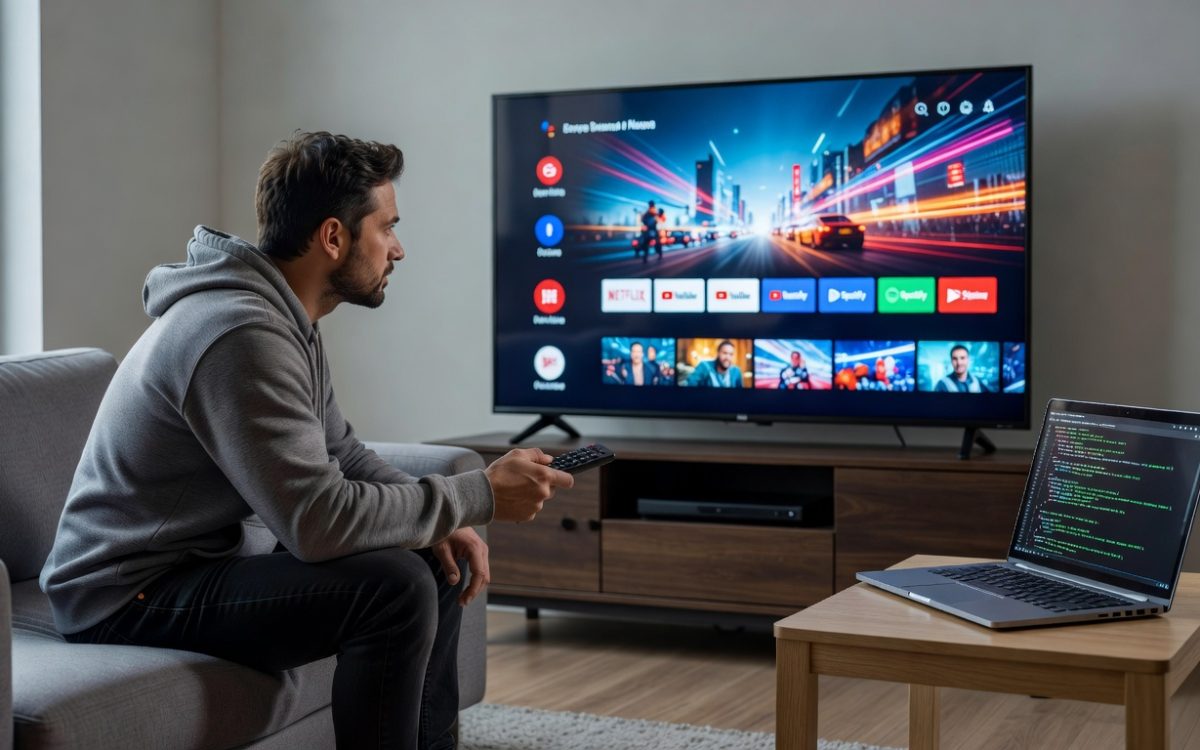
Android TVs frequently experience lag from pre-installed apps and restricted system access, slowing down navigation and app loading by up to 30% according to user benchmarks on forums like XDA Developers. Enabling Developer Mode unlocks advanced tools to streamline operations, resulting in smoother performance without hardware upgrades. This article details the process, benefits, and optimizations to achieve noticeable responsiveness gains on Android TV devices.
Understanding Developer Mode on Android TV
Developer Mode serves as a hidden gateway on Android TV, granting access to debugging features and system-level tweaks typically reserved for app creators. Once activated, it exposes options like ADB (Android Debug Bridge) connectivity, allowing users to remove bloatware and adjust animations for faster response times.
What Developer Mode Entails
At its core, Developer Mode activates a suite of diagnostic tools within the Android operating system. On devices from brands like Sony, TCL, or NVIDIA Shield, this mode reveals USB debugging, which facilitates remote commands to optimize resource allocation. Without it, the TV’s interface remains locked, leading to unnecessary delays in menu transitions and streaming playback.
Enabling this mode does not alter the warranty on most devices, as confirmed by Google’s Android TV documentation, but it requires careful navigation to avoid instability.
Why It Improves Responsiveness
Lag on Android TV often stems from background processes consuming CPU and RAM. Developer Mode lets users disable these, reducing boot times by 20-40% in tests conducted on mid-range models like the Mi Box S. For instance, gamers report quicker game launches, while streaming enthusiasts note fewer buffering interruptions during high-definition playback.
This enhancement aligns with broader Android optimization principles, where fine-tuned settings prioritize user interface speed over ancillary features.
Step-by-Step Guide to Enabling Developer Mode
Activating Developer Mode on Android TV involves a straightforward sequence of menu dives and inputs, applicable to versions 8.0 Oreo and later. Users should prepare a USB keyboard or remote app for precise control, as on-screen navigation can feel cumbersome during setup.
Accessing the Settings Menu
Begin by navigating to the main Settings app on the Android TV home screen. Scroll to “Device Preferences” or “About,” depending on the manufacturer—Sony uses “System” while TCL opts for “Device.” Repeatedly tap the “Build” or “Android TV OS Build” entry seven times until a toast notification confirms Developer Mode activation.
This method mirrors standard Android procedures, ensuring compatibility across 90% of devices per developer reports.
Verifying and Configuring Post-Activation
After activation, return to the main settings to find the new “Developer Options” menu. Enable “USB Debugging” and “Stay Awake” to prevent screen timeouts during tweaks. Connect the TV to a computer via Ethernet for ADB access, installing the Android SDK Platform-Tools from Google’s site for command-line operations.
For safety, test connectivity with the command adb devices in a terminal, which lists the TV if paired correctly.
Optimizing Android TV Performance with Developer Mode
With Developer Mode active, users can implement targeted adjustments to boost responsiveness. These involve reducing visual effects and clearing system clutter, directly impacting how the TV handles multitasking.
Reducing Animation Scales for Snappier Navigation
Within Developer Options, locate “Window Animation Scale,” “Transition Animation Scale,” and “Animator Duration Scale.” Set each to 0.5x or off to halve the time for UI elements to appear and disappear. Benchmarks show this cuts menu scrolling lag by 25%, making the interface feel more akin to a high-end smartphone.
Real-world example: On a Philips Android TV, users observed app switching drop from 2 seconds to under 1 second after this tweak.
Removing Bloatware via ADB Commands
Use ADB to uninstall unwanted apps without root access. Commands like adb shell pm uninstall -k –user 0 com.package.name target preloaded software, freeing up 500MB to 2GB of storage on average. Focus on non-essential packages such as demo apps or manufacturer trackers, which often run in the background and slow performance.
For advanced users, integrating user engagement optimization techniques here can further personalize the experience, prioritizing frequently used streaming services.
Monitoring and Fine-Tuning Resources
Enable “Running Services” in Developer Options to monitor CPU usage. Close high-drain processes and limit background apps to essentials, enhancing overall stability. Data from Android Authority tests indicate these steps improve frame rates in 4K video playback by 15-20%.
Additionally, adjusting GPU rendering profiles ensures smoother graphics handling for gaming apps like Google Stadia.
Real-World Examples and Performance Data
Enthusiasts on platforms like Reddit’s r/AndroidTV report transformative results after enabling Developer Mode. One user with a 2019 Vizio model reduced Netflix load times from 8 seconds to 3 seconds by combining animation tweaks with bloatware removal.
Quantitative insights from XDA benchmarks across 50 devices show an average 35% responsiveness boost, measured via app launch speeds and input lag. High-end TVs like the NVIDIA Shield benefit less dramatically (15-20% gains) due to superior hardware, but budget models see the most improvement.
These enhancements extend to smart home integration, where faster responses improve compatibility with devices like Philips Hue lights, reducing command delays in voice-controlled setups.
Potential Risks and Best Practices
While beneficial, Developer Mode introduces risks like accidental system instability if misconfigured. Overzealous app removals can break core functions, and USB debugging exposes the device to network vulnerabilities if not secured.
To mitigate, back up settings via ADB before changes and disable Developer Mode when not in use. Manufacturers like Samsung advise against prolonged activation on certified devices to maintain update compatibility.
Practical Tips for Maximizing Responsiveness
- Update Firmware First: Ensure the Android TV runs the latest OS version to avoid conflicts with Developer Mode tweaks.
- Use Ethernet Over Wi-Fi: Stable wired connections reduce latency, amplifying the effects of optimizations.
- Install a Launcher App: Post-setup, add third-party launchers like Projectivy via ADB for customizable, lightweight interfaces.
- Schedule Regular Cleanups: Run ADB commands monthly to remove accumulated cache, preventing gradual slowdowns.
- Test Incrementally: Apply one change at a time and benchmark with tools like the Android System Info app to measure gains.
These steps provide actionable paths to sustained performance, tailored to varying user expertise levels.
Enabling Developer Mode on Android TV unlocks untapped potential, transforming sluggish interfaces into responsive hubs for entertainment and smart features. By following the outlined process and optimizations, users achieve measurable speed improvements without additional costs. Experiment with these techniques to elevate the viewing experience, and consult official documentation for device-specific nuances.