Got a small, blurry picture that needs to be bigger and cleaner? You’re not alone. It’s a common problem for anyone working on a project, from building an online store to creating social media posts. You need a high-resolution image, but you also need a clean, transparent background. In the past, this meant using two different, often complicated, pieces of software. It was a slow process that required a lot of manual work.
Thankfully, technology has made this entire process much simpler. Today, you can upscale an image and remove its background in a single, streamlined workflow. This guide will show you how to do just that, saving you time and effort while delivering professional results. We’ll cover how modern tools handle these tasks, making it easy for anyone to get the perfect image.
Why Upscale and Remove Backgrounds Together?
Combining these two tasks into one process isn’t just about speed; it’s about efficiency and quality. Marketers, e-commerce owners, and creators often need to repurpose images for different platforms. A product photo might need to be enlarged for a website banner, and its background must be removed to place it in a promotional graphic. Doing these tasks separately creates more files and more room for error.
By using an integrated approach, you maintain better control over the final image. Modern tools often use the same AI engine to analyze the picture for both enlargement and object detection. This means the upscaling process can actually help improve the accuracy of the background removal. For example, an advanced AI Image Upscaler can sharpen the edges of your main subject, making it much easier for the tool to distinguish it from the background. This results in cleaner cutouts and a more polished final product.
Think about creating product listings. You need crisp, clear photos that customers can zoom in on. You also need a uniform, clean background (usually white or transparent) to maintain a professional look across your store. An integrated workflow lets you take a single source image, enlarge it to the required size, and strip away the background in just a few clicks. This is a huge time-saver compared to the old way of doing things.
Step 1: Upscaling Your Image with AI
The first step in our workflow is increasing the image’s resolution without losing quality. If you’ve ever tried to just stretch a small photo, you know it ends up looking pixelated and blurry. This is where AI upscaling comes in.
What is AI Image Upscaling?
Traditional upscaling methods simply stretched the existing pixels, which created that blocky, distorted look. AI upscaling is different. It uses machine learning models trained on millions of images. The AI analyzes your picture, recognizes objects and textures, and then intelligently adds new pixels that look natural. Similar techniques are also used in detecting AI-generated images, where visual patterns are analyzed to determine whether an image is authentic or synthetically created.
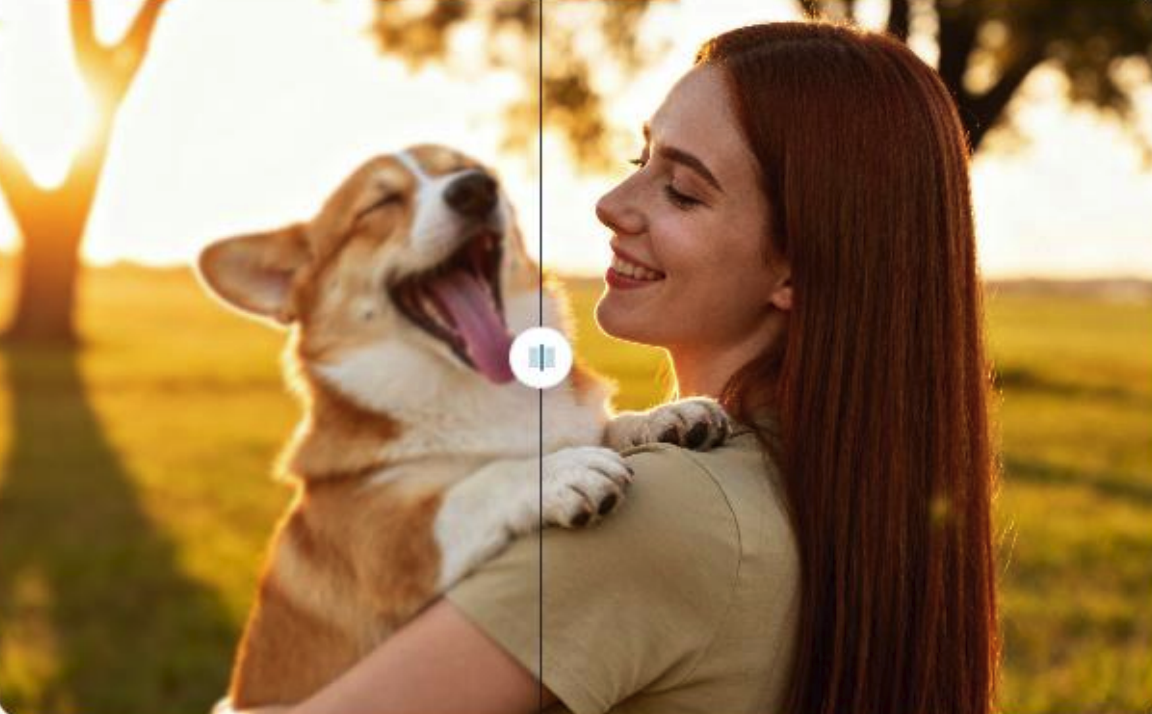
Instead of just guessing, it predicts what the image should look like at a higher resolution. It can recreate fine details in faces, textures in fabric, and sharp lines in graphics. The result is a larger image that looks clean, sharp, and detailed, as if it were taken with a much better camera. This technology allows you to turn a low-resolution thumbnail into a high-quality, print-ready file. For anyone needing clean images, a Free Image Background Remover that works in tandem with an upscaler is the ideal solution.
How to Get the Best Upscaling Results
While AI does the heavy lifting, you can help it produce even better results. Follow these simple tips for the best outcome:
* Start with the Best Possible Source: The better your starting image, the better the final result will be. Even a small, clear image is better than a large, blurry one. The AI can work wonders, but it can’t create detail that was never there to begin with.
* Choose the Right Upscale Factor: Most tools let you choose to upscale by 2x, 4x, or even more. Think about your final use case. For a web graphic, 2x might be enough. For a large print, you might need 4x or higher. Avoid upscaling more than necessary, as it can sometimes introduce minor artifacts.
* Check the Details: After upscaling, zoom in and check important areas like text, faces, and logos. A good AI upscaler will keep these elements sharp and clear.
Step 2: Removing the Background Seamlessly
Once your image is upscaled to the perfect size and quality, the next step is to isolate the subject. Removing the background gives you a clean canvas to work with, allowing you to place your subject into any design.
The Power of AI in Background Removal
Just like with upscaling, AI has transformed background removal. Forget the tedious process of manually tracing outlines with a lasso or pen tool. Modern AI tools can identify the main subject in your photo in seconds.
The AI is trained to distinguish between the foreground (like a person, product, or pet) and the background. It accurately detects complex edges, including tricky areas like hair, fur, and semi-transparent objects. With just one click, the tool automatically removes the background, leaving you with a clean, precise cutout on a transparent layer.
This technology is incredibly useful for:
* E-commerce: Create clean, consistent product photos for sites like Amazon, Shopify, or Etsy.
* Marketing: Place products or people into advertisements, banners, and social media posts.
* Graphic Design: Easily composite different images together for creative projects.
* Personal Use: Make custom stickers, t-shirts, or personalized profile pictures.
The One-Workflow Guide: Upscale and Remove in Minutes
Now, let’s put it all together. Here’s a simple, step-by-step guide to upsizing your image and removing its background using a modern, integrated tool.
1. Upload Your Image
Start by navigating to an all-in-one tool. You’ll typically see a simple interface with an “Upload Image” button. Select the image file you want to work on from your computer. Most platforms support common file types like JPG, PNG, and WEBP.
2. Choose Your Upscaling Settings
After uploading, you’ll be presented with options for upscaling. This is where you decide how much larger you want the image to be. A 2x upscale will double the width and height, while a 4x upscale will quadruple it. Select the option that best fits your needs and let the AI process the image. This usually only takes a few seconds.
3. Remove the Background Instantly
Once the upscaling is complete, you can move directly to the background removal step. On a well-designed platform, this is often as simple as clicking a single button labeled “Remove Background.” The same AI that analyzed your image for upscaling will now use that information to identify and remove the background. The result is a high-resolution image with a transparent background.
4. Download Your Final Image
With the processing finished, you’ll see a preview of your final image. It will be larger, clearer, and have a transparent background. If you’re happy with the result, simply click the “Download” button. The image is typically saved as a PNG file to preserve the transparency. Your new, high-quality asset is now ready to be used in any project you can imagine.
Frequently Asked Questions (FAQ)
Q1: Can I upscale any image?
You can upscale almost any image, but the results will vary based on the quality of the original. A clear but small image will produce a much better result than a low-quality, heavily compressed, or blurry image. It’s always best to start with the highest quality source file you have available.
Q2: Will upscaling and removing the background reduce my image quality?
No, quite the opposite. Using a quality AI tool will significantly enhance the image quality by increasing its resolution and sharpening details. The background removal process is designed to be precise, preserving the quality of the main subject while cleanly cutting it out.
Q3: What format should I use for images with transparent backgrounds?
PNG (Portable Network Graphics) is the best format for images with transparent backgrounds. Unlike JPGs, which do not support transparency and will fill the background with white, PNGs preserve the transparent layer. This makes it easy to place your image onto any other background or design.
Q4: Is this process beginner-friendly?
Absolutely. The beauty of modern AI-powered tools is that they automate complex tasks. The entire workflow, from uploading an image to downloading the final result, is designed to be intuitive. You don’t need any technical skills or design experience to get professional-grade results.
Q5: How does this workflow help with e-commerce photos?
This workflow is perfect for e-commerce. You can take standard product photos, upscale them so customers can zoom in on details, and remove the background to meet the requirements of online marketplaces. This creates a clean, consistent, and professional look across all your product listings, which can help build trust and increase sales.