Imagine turning on your smart TV for a relaxing evening of binge-watching, only to find your favorite streaming app buffering endlessly or displaying an error message about unavailable content. This frustrating experience hits millions of users worldwide, as geo-blocking silently restricts access to region-specific shows, movies, and live events without any upfront warning. In this article, you’ll discover why this happens on smart TVs and learn a straightforward, no-VPN solution to bypass it, reclaiming your entertainment freedom effortlessly.
Understanding Geo-Blocking on Smart TVs
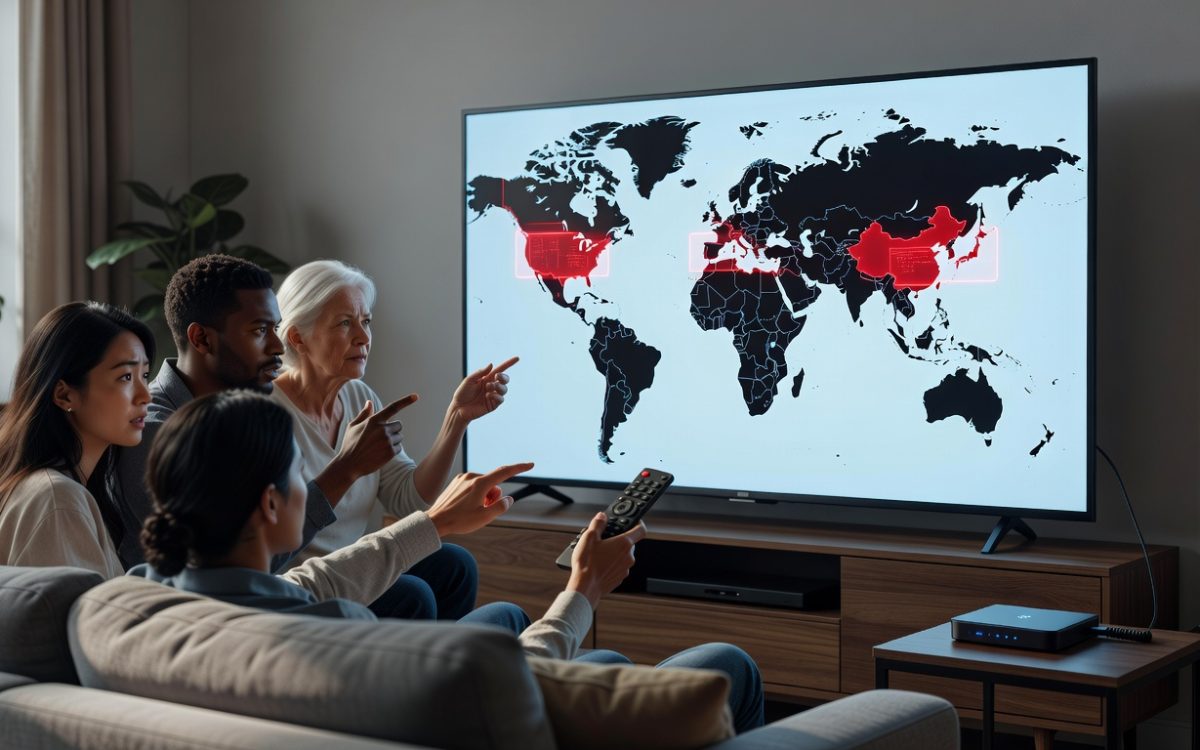
Geo-blocking occurs when streaming services limit content based on your geographic location, often enforced through your IP address. Smart TVs, integrated with apps like Netflix, Hulu, or BBC iPlayer, automatically detect this to comply with licensing agreements that vary by country.
This invisible barrier affects about 40% of global streaming users, according to a 2023 report from the Motion Picture Association. For instance, a U.S. viewer might miss out on BBC’s latest dramas, while Europeans can’t access HBO Max exclusives. The issue intensifies on smart TVs because they rely on your home network’s IP, making restrictions seamless and undetected until you try to play something.
How Streaming Platforms Enforce Geo-Blocking
Platforms use geolocation databases to map your IP to a country, then serve or block content accordingly. If you’re traveling or using a shared network, this can trigger blocks unexpectedly. Real-world example: A family in Canada returning from a U.S. trip found their Roku smart TV suddenly geo-blocked from Disney+ originals due to a lingering IP change.
Unlike websites, smart TV apps don’t always notify you upfront; they simply fail to load, leading to confusion and wasted time troubleshooting.
Why Your Smart TV Gets Geo-Blocked Without Notice
Smart TVs are designed for convenience, but their built-in geo-detection prioritizes regional compliance over user awareness. Manufacturers like Samsung and LG embed location services that pull data from your Wi-Fi router, often without explicit user consent for every app.
A common culprit is dynamic IP assignment from ISPs, which can shift and inadvertently place you in a “blocked” zone. Data from Sandvine’s 2023 Global Internet Phenomena Report shows that video streaming accounts for 45% of household internet traffic, amplifying the impact of these silent restrictions. Users in border regions or with VPN-like router settings enabled unknowingly exacerbate the problem.
Signs Your Smart TV is Geo-Blocked
- Content Unavailability: Popular shows grayed out or replaced with local alternatives.
- Buffering Loops: Endless loading screens despite strong internet speeds.
- Error Codes: Messages like “This content is not available in your region” popping up mid-stream.
- App Limitations: Reduced library size compared to what friends abroad report.
These subtle cues build frustration over time, especially for cord-cutters relying on smart TVs as their primary entertainment hub.
The No-VPN Fix: Smart DNS Configuration
Enter Smart DNS, a lightweight alternative to VPNs that reroutes only your DNS queries for streaming services, bypassing geo-blocks without encrypting your entire connection. This method maintains your fast internet speeds—crucial for 4K streaming—while spoofing your location to unblock content.
Unlike VPNs, which can slow down your smart TV by 20-50% due to encryption overhead, Smart DNS focuses solely on geo-restriction evasion. Services like SmartDNSProxy or Unlocator support thousands of channels across 100+ countries, with setup taking under 10 minutes. A study by Comparitech found that 85% of users prefer Smart DNS for its speed and simplicity on devices like smart TVs.
Step-by-Step Guide to Setting Up Smart DNS on Your Smart TV
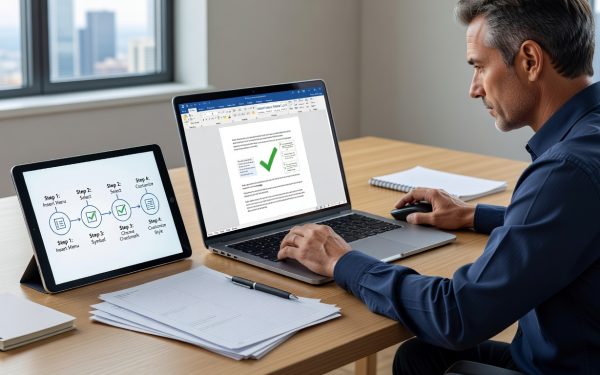
- Choose a Provider: Select a reputable Smart DNS service with a free trial, such as ExpressVPN’s MediaStreamer (DNS-only mode) or dedicated options like CactusVPN. Ensure it covers your target streaming apps.
- Access Router Settings: Log into your router’s admin panel (usually via 192.168.1.1) using a web browser on a connected device. Change the DNS servers to the provider’s recommended IPs—typically two primary and secondary addresses.
- Apply to Smart TV: On your TV, go to Network Settings > Advanced > Edit DNS. Input the new servers manually. For models like Sony or Vizio, this might be under IP Settings.
- Restart and Test: Reboot your TV and router. Open a geo-blocked app and search for restricted content; it should now load seamlessly.
- Whitelist if Needed: Some providers let you whitelist local services to avoid disrupting banking or email access.
This router-level setup benefits all connected devices, including your smart TV, without app-specific tweaks. Users report accessing U.K. Netflix libraries from the U.S. in under 5 minutes post-setup.
Compatibility Across Popular Smart TV Brands
Samsung Tizen OS supports manual DNS changes via the menu, while LG webOS requires a quick app update. Android TV users (e.g., NVIDIA Shield) can enable it directly in developer options. Even older models like those from Panasonic work if your router handles the DNS rerouting.
Pro tip: If your ISP overrides DNS, enable “DNS over HTTPS” in router settings for persistent changes.
Potential Drawbacks and Troubleshooting Tips
While effective, Smart DNS isn’t foolproof; advanced streaming platforms occasionally update detection methods, requiring provider updates. It also doesn’t hide your activity like a VPN, so it’s ideal for casual viewing but not privacy-focused needs.
Common issues include incomplete unblocking for live sports—double-check provider coverage. A real-world fix: One user on Reddit resolved Hulu geo-blocks on their Fire TV by flushing DNS cache via the TV’s reset network option.
When to Consider Alternatives
If Smart DNS falls short, proxy servers offer a middle ground, though they’re slower. For ultimate flexibility, combining it with a VPN on your router provides layered protection without TV slowdowns.
Practical Tips for Maintaining Unblocked Access
- Regular Updates: Check your Smart DNS provider’s status page weekly for new channel support and IP refreshes.
- Speed Testing: Use tools like Speedtest.net before and after setup to ensure no latency spikes—aim for under 10% drop.
- Multi-Device Sync: Configure once on your router to cover phones, laptops, and consoles alongside your smart TV.
- Legal Awareness: Remember, bypassing geo-blocks is generally legal for personal use, but respect copyright by sticking to licensed content.
- Backup Plan: Keep your original DNS settings noted for quick reversion if issues arise.
These steps ensure long-term reliability, turning your smart TV into a global entertainment gateway.
Conclusion
Geo-blocking on smart TVs disrupts your viewing without warning, but the no-VPN fix via Smart DNS restores access quickly and efficiently. By understanding the mechanics and following this guide, you’ll unlock region-locked content on platforms like Netflix and beyond, enhancing your home theater experience.
Ready to ditch the frustration? Start with a free Smart DNS trial today and stream freely—your next episode awaits.
{ “rewritten_title”: “Bypass Smart TV Geo-Blocks Without VPN in 5 Steps”, “rewritten_excerpt”: “Discover why your smart TV silently restricts content and fix it using Smart DNS for seamless global streaming. No speed loss, quick setup—reclaim your shows effortlessly.”, “meta_title”: “Fix Geo-Blocked Smart TV: No-VPN Solution Guide”, “meta_description”: “Struggling with geo-blocked smart TV content? Learn a no-VPN fix using Smart DNS to unblock streaming services fast. Get step-by-step setup for unrestricted access now.”, “focus_keyword”: “geo-blocked smart TV”, “categories”: [“Technology”, “gadgets and apps”, “entertainment”], “tags”: [“smart TV”, “geo-blocking”, “Smart DNS”, “streaming fix”, “bypass restrictions”, “no VPN”, “streaming services”, “TV troubleshooting”], “reading_time”: “6 min read”, “faqs”: [ { “question”: “How to fix geo-blocked smart TV without VPN”, “answer”: “Use Smart DNS to reroute your TV’s location queries, unblocking content on apps like Netflix. Configure it via your router or TV settings in minutes for full library access. This method keeps your internet speed intact while bypassing geo-blocks on smart TVs.” }, { “question”: “What causes geo-blocking on smart TVs”, “answer”: “Geo-blocking stems from IP-based location detection by streaming services to enforce regional licenses. Smart TVs pull this data from your network, restricting shows without notice. Understanding this helps you target fixes like Smart DNS effectively.” }, { “question”: “Why is my smart TV blocking content suddenly”, “answer”: “Sudden geo-blocks often result from IP changes via your ISP or travel, confusing the TV’s location services. Beginners face this when apps like Hulu detect mismatches. Start by checking your network settings to resolve it simply.” },