
Outlook is one of the most widely used email clients on Windows, and the PST file plays a critical role in storing your emails, contacts, calendar, and other mailbox data. However, accidentally deleting your Outlook PST file can feel like a disaster, especially when you realize it’s no longer sitting in the Recycle Bin.
At that moment, it’s easy to think everything is lost for good. But take a breath. Your Outlook data might still be recoverable. Here, we’ll walk you through the most reliable ways to recover your Outlook PST file step-by-step, using built-in tools, backups, and other safe options that anyone can follow. Let’s delve into the world of PST file data recovery!
Part 1: Overview of PST File Data Recovery
1.1 What Happens if I Delete a PST File?
A PST file holds all your Outlook essentials — emails, contacts, calendar events, tasks, notes, and even attachments. Once the file is deleted, Outlook loses access to everything stored inside it.
This can lead to issues such as:
- Emails not loading or sending
- Missing contacts
- Calendar entries disappearing
- Outlook refusing to open or behaving strangely
1.2 Can You Recover Deleted PST Files?
Yes, it’s often possible to recover a PST file in Windows. The actual recovery method depends on how the file was deleted:
- If it was removed temporarily, you may be able to restore it directly from the Recycle Bin.
- If it was permanently deleted, recovery depends on whether you have a Windows backup, File History, or a copy saved somewhere else.
- If no backup exists, you can still attempt recovery using dedicated PST file recovery tools designed to scan your drive for lost Outlook files.
So even if it feels hopeless, there’s still a good chance to get your Outlook data back.
Part 2: 5 Proven Methods to Recover Deleted PST Files
2.1 Recover Outlook PST File From Recycle Bin
If you’ve just deleted a PST file, don’t panic — it usually goes straight to your Windows Recycle Bin. Unless you’ve emptied the bin, the file is still recoverable. Here’s how to recover outlook PST file from Recycle Bin:
Step 1: Open the Recycle Bin on your desktop.
Step 2: Then, look for the deleted PST file in the list of items.
Step 3: Right-click the file you need and pick “Restore” from the menu.
2.2 Use a PST File Recovery Tool
If PST files no longer exist in the Recycle Bin, they are typically gone for good. Without a backup, the only way to retrieve them is by using a dedicated data recovery tool such as Tenorshare 4DDiG. This software can recover PST files that have been permanently deleted or corrupted, even without a backup, and offers a high success rate. Here’s what it provides:
- Reclaim PST files lost due to accidental deletion, system crashes, virus attacks, or formatting.
- Retrieves files from various internal/external storage, such as Recycle Bin, hard drives, SD cards, USBs, and more.
- It retrieves corrupted, formatted, hidden, lost, etc., PST files.
- Free preview of PST files before recovery.
- No technical knowledge required.
- A free version is available for Windows users.
Here’s how you can use this utility to reclaim permanently deleted PST files:
Step 1: Download, install, and run the 4DDiG Data Recovery tool on your PC. Pick the drive where you deleted PST files. Tap “Scan.”

Step 2: You can also select specific file types like PST to scan for. Pause or stop scan if you find PST files you need to recover. Files are categorized under Path View or Type View. Use search or Filter options to narrow down your search.
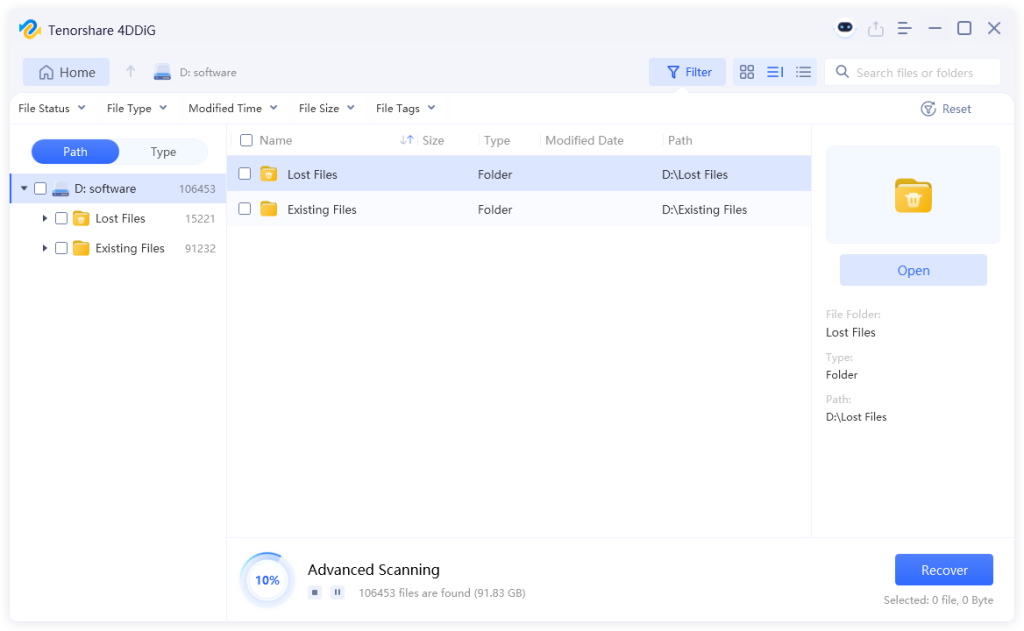
Step 3: Once you find PST files you lost, preview them. If satisfied, hit “Recover” to transfer them to a different place on your computer to avoid overwriting.

2.3 Recover Outlook PST File via File History
If you’re running Windows 8 or later, File History can be a lifesaver for recovering lost PST files. This feature automatically keeps previous versions of your PST files, allowing you to restore them if something goes wrong. Note that File History must have been enabled beforehand to use this method.
Here’s how to recover data from PST using File History:
Step 1: Open the folder where your PST file was located. Right-click on empty space and pick “Properties.”
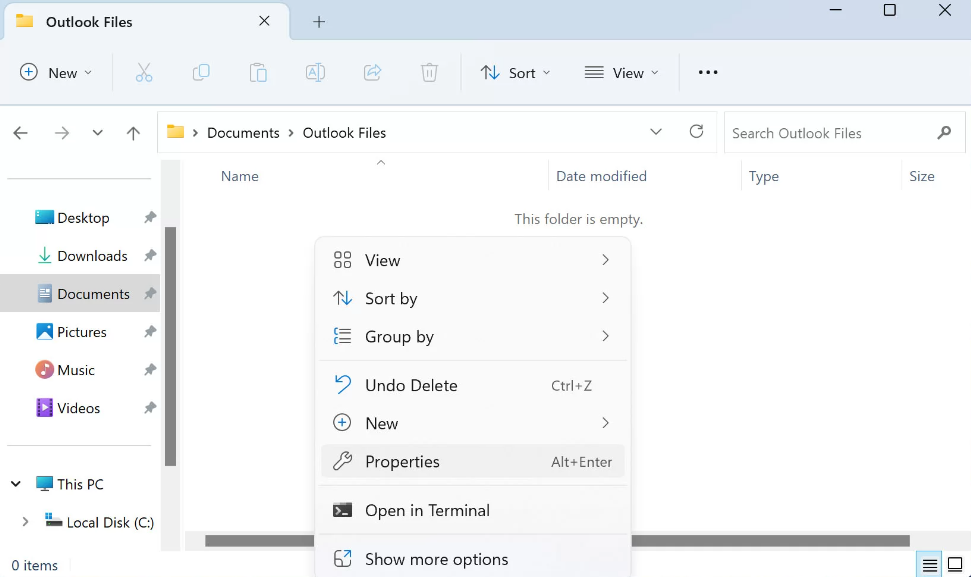
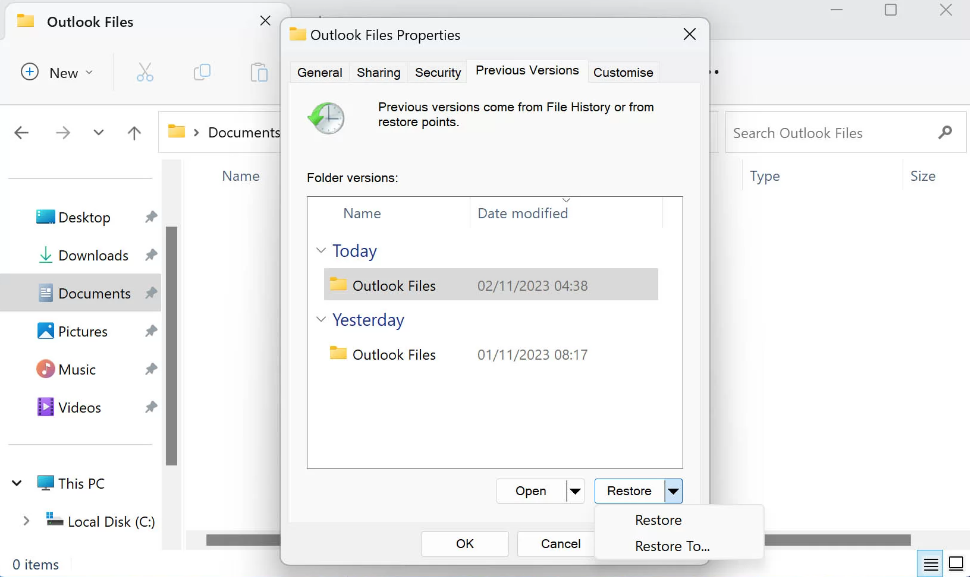
Step 2: Go to the “Previous Versions” tab. Select the folder which contains the PST version you want to recover. Finally, click “Restore.”
2.4 Recover Outlook PST File by Windows Backup
Backup and Restore was the primary Windows backup tool in Windows 7 and has since been replaced by File History in later versions. If you had previously set it up to back up your Outlook folder before permanently deleting the PST file, you can use it to restore your data. Follow these steps to recover PST file:
Step 1: Type “Control Panel” in the Windows search box and open it.
Step 2: Click on Backup and Restore (Windows 7), then select “Restore my files.”
Step 3: Browse and select the PST file you want to recover.
Step 4: Click “Next,” choose a location to restore the file, and then click “Restore” to complete the process.
2.5 Use the AutoArchive Feature
Outlook 2003 and later versions include an AutoArchive feature that automatically moves older PST files to an archive folder, freeing up space without deleting them. If AutoArchive was enabled, you can recover outlook PST files from this archive by following these steps:
Step 1: First of all, open Outlook and go to “File.”
Step 2: Select “Open & Export.”
Step 3: Click “Open Outlook Data File,” then navigate to the archive folder (the default location is Documents\Outlook Files) and select the archived PST file.
Step 4: Use the Outlook Data File dropdown under your mailbox to access and open the recovered PST file.
Extended Part: How to Recover Corrupted PST File?
If your PST file hasn’t been deleted but won’t open, it may be corrupted. Fortunately, you can recover it using the Inbox Repair Tool (SCANPST.exe), a free Microsoft Outlook utility designed to repair PST file issues. The detailed steps are as follows:
Step 1: Locate and open SCANPST.exe. Its location varies depending on your Outlook version.
Step 2: Click “Browse and select the corrupted PST file,” then click “Start.”
Step 3: Ensure the option “Make backup of scanned file before repairing” is checked, then click Repair. In some cases, you may need to run SCANPST.exe multiple times to fully resolve the corruption.
Conclusion
Now you should no longer worry about how to recover PST files in Windows. You can try several methods, including checking the Recycle Bin, using File History, or Backup and Restore. However, these options may have limitations. For a more reliable and comprehensive recovery, the Tenorshare 4DDiG Data Recovery tool is an excellent choice. It can recover PST files and many other file types from various data loss scenarios—including permanent deletion—without requiring a backup.
FAQs – PST File Data Recovery
Where are Outlook PST files saved?
For Outlook 2013 and later, PST files are usually saved in the “Outlook Files” folder inside your Documents.
For Outlook 2007 and earlier, PST files are stored in a hidden folder:
C:\Users\<YourUsername>\AppData\Local\Microsoft\Outlook
How to Restore a PST file in Outlook?
You can recover outlook PST file with help of Windows’ built-in backup tools, if you’ve turned on any of them. In the event, you don’t have a backup, consider using free data recovery software.