If you want to try Krea AI without jumping straight into a paid workflow, Videoinu is a practical place to begin. Krea is available in Videoinu’s AI video model lineup, and new users get free credits, which makes it easy to test ideas through a simple creation workflow.
That makes Krea a good choice when you want to test ideas fast. It fits especially well when you care about visual exploration, quick iteration, and trying different directions before locking in a final result.
On Videoinu, that workflow sits naturally next to broader creation tools, including a text-based video workflow for turning prompts into clips.
What Krea AI Is Good For
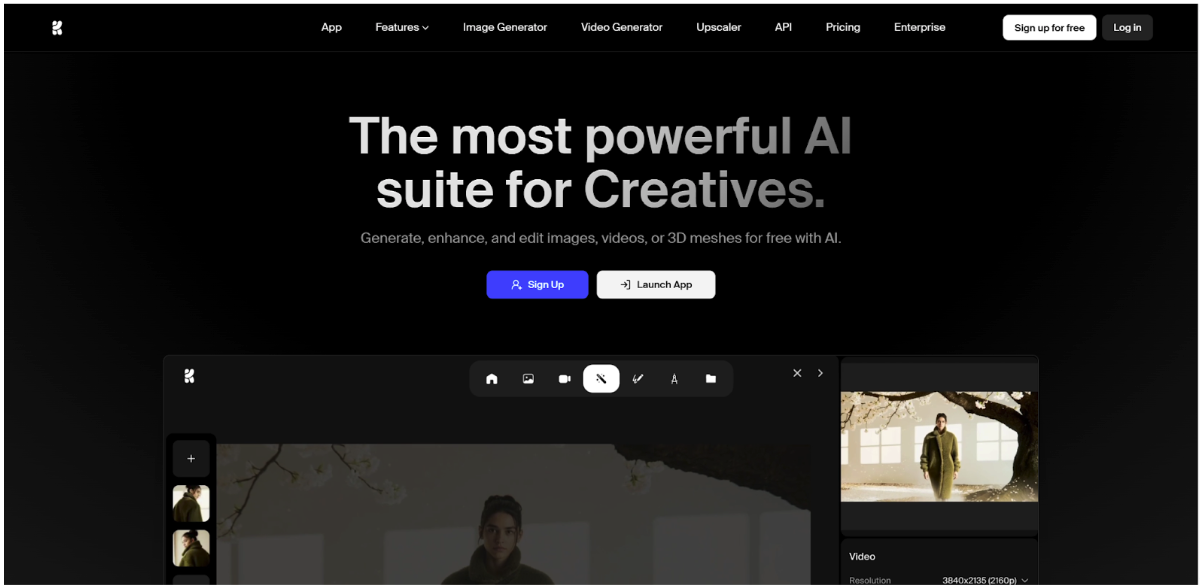
Krea is a strong fit for fast visual experimentation. Krea’s public video pages describe it as a tool for creating videos from text or images, and its broader creative suite emphasizes speed, controllability, and simple interfaces. Videoinu’s Krea page frames it similarly, highlighting real-time control, text and image inputs, and instant prompt adjustment.
In practice, that makes Krea useful for:
- quick concept videos
- stylized short clips
- visual testing before a bigger project
- image-led video creation
- prompt-based iteration when you want feedback fast
That last point is an inference based on Krea’s emphasis on fast generation and real-time control, plus Videoinu’s description of immediate prompt adjustment.
How to Use Krea AI on Videoinu
Step 1: Sign Up for Videoinu
Start by creating a Videoinu account. Once you are inside, you can use the platform’s normal video tools and choose from its supported model lineup. Videoinu’s broader product positioning centers on idea-to-video creation, including text, image, and longer storytelling workflows.
Step 2: Open a Video Tool and Choose Krea
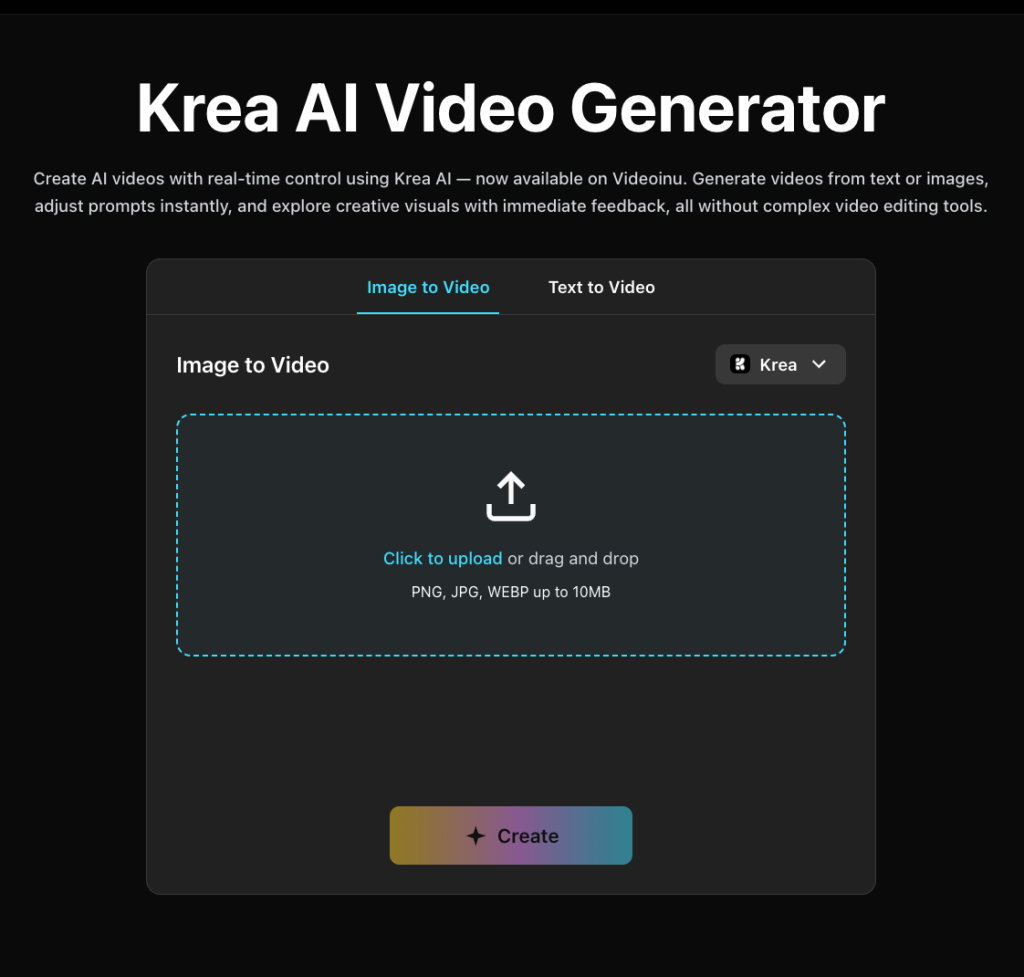
After signing in, open one of Videoinu’s video creation tools and choose Krea as the model. Videoinu’s Krea model page presents Krea as part of the same broader creation system used for other models, with both image-to-video and text-to-video options visible on the page.
If you only have an idea in your head, start with a prompt-based workflow. Videoinu’s text-based video tool is built for that exact use: you write a short prompt, define style and direction, then generate the result.
Step 3: Start with a Clear Prompt or Image
If you are starting from text, keep the first prompt simple and visual.
For example:
A woman stands on a rooftop at sunset, warm cinematic light, wind moving through her hair.
This kind of prompt works well because Krea supports text-to-video creation and is geared toward fast visual iteration. A clear subject, one setting, and one readable tone usually make it easier to judge what the model is doing well. That is an inference from Krea’s text-to-video workflow and Videoinu’s emphasis on prompt adjustment and real-time control.
If you already have a strong visual, start from an image instead. Krea supports image-based video creation, and Videoinu’s Krea workflow also includes an image entry point.
Step 4: Use a Text-Based Video Workflow to Shape the Result
One of the easiest ways to understand Krea on Videoinu is to use the platform’s workflow for turning written prompts into video clips. Videoinu describes this flow in three steps: write the prompt, define style and direction, then generate and download. It also explains that this workflow supports multiple AI video models and is designed for cinematic scenes, animated visuals, and social-ready clips.
This matters because Krea is strongest when you want to test and refine quickly. Instead of trying to control everything at once, it usually works better to set the scene first, then shape the tone with details like:
- motion
- mood
- camera feel
- pacing
- style direction
That recommendation is an inference based on Krea’s speed-focused design and Videoinu’s text-to-video workflow structure.
Step 5: Generate, Review, and Iterate
Generate the first version and treat it like a draft. Krea is especially useful when you want to compare directions quickly, so the real value often comes from trying a few variations instead of expecting the first output to be final. Krea’s product pages emphasize fast creation from text or images, and Videoinu’s Krea page specifically mentions immediate feedback and instant prompt adjustment.
If the first result is close but not right, change one thing at a time. Tighten the subject. Simplify the motion. Clarify the visual tone. That usually gives you a better sense of what Krea is doing than rewriting the whole prompt from scratch. This is an inference based on the real-time control positioning of Krea on both platforms.
Why Videoinu Is a Good Place to Try Krea
One reason is simplicity. Videoinu keeps Krea inside a broader AI video workflow, so you can try it through familiar creation flows instead of learning a separate setup. Another reason is flexibility: Krea can be used for fast prompt-driven testing, while the broader platform also includes image-to-video, story video, and other creation paths if the idea grows beyond one short clip.
That makes Videoinu a useful starting point for creators who want to test Krea in a practical way instead of treating it like a one-off experiment. This is an inference based on Videoinu’s multi-tool setup and Krea’s fast-iteration strengths.
Tips for Better Krea Results
Start with one clear idea. Krea tends to work better when the concept is easy to read quickly. That fits its fast, iteration-friendly workflow.
Use the text-based video workflow when you want to test ideas fast. If you are still shaping the concept, prompt-first creation is usually the quickest way to see whether the tone and motion feel right.
Use an image when the look already matters. Krea supports image-to-video, so a strong visual reference can give you more control over the starting point.
Think in short clips first. Videoinu’s main text-to-video generator expects short outputs, and Krea’s product flow is also oriented toward quick generation rather than slow, long-form assembly.
Final Thoughts
The easiest way to get started with Krea AI on Videoinu for free is to open a video tool, choose Krea, and begin with either a short prompt or a strong image. Krea is especially useful when you want fast creative feedback, quick iteration, and simple control over direction. If your goal is to test ideas quickly without a heavy setup, it is a natural model to explore inside Videoinu’s broader workflow.
FAQs
Can I use Krea AI on Videoinu?
Yes. Videoinu has a dedicated Krea AI model page and includes Krea in its AI video model lineup.
What is Krea AI best for?
Krea is best for fast visual experimentation, including videos from text or images, with an emphasis on speed, control, and quick iteration.
Can I start from text?
Yes. Krea supports text-to-video creation, and Videoinu’s text-based video workflow is built for turning prompts into short video clips.
Can I start from an image?
Yes. Krea supports image-to-video, and Videoinu’s Krea workflow also includes an image-based entry point.
Is Krea good for long story videos?
Krea is strongest as a fast creation and exploration tool. If your idea grows into a larger narrative, Videoinu also provides a separate story-video workflow designed for connected scenes and longer storytelling.