
ASP.NET Core is Microsoft’s open-source, cross-platform web framework, licensed under the MIT License (not Apache, contrary to some older coverage) and maintained by the .NET Foundation alongside Microsoft and the broader open-source community. ASP.NET Core Identity is its built-in system for managing users, passwords, roles, claims, and authentication tokens. By default, Identity stores all of this in a relational database via Entity Framework Core — but it’s entirely possible to swap in MongoDB as the backing store instead, which is exactly what this guide walks through, using real code from start to finish.
Why MongoDB Instead of SQL Server?
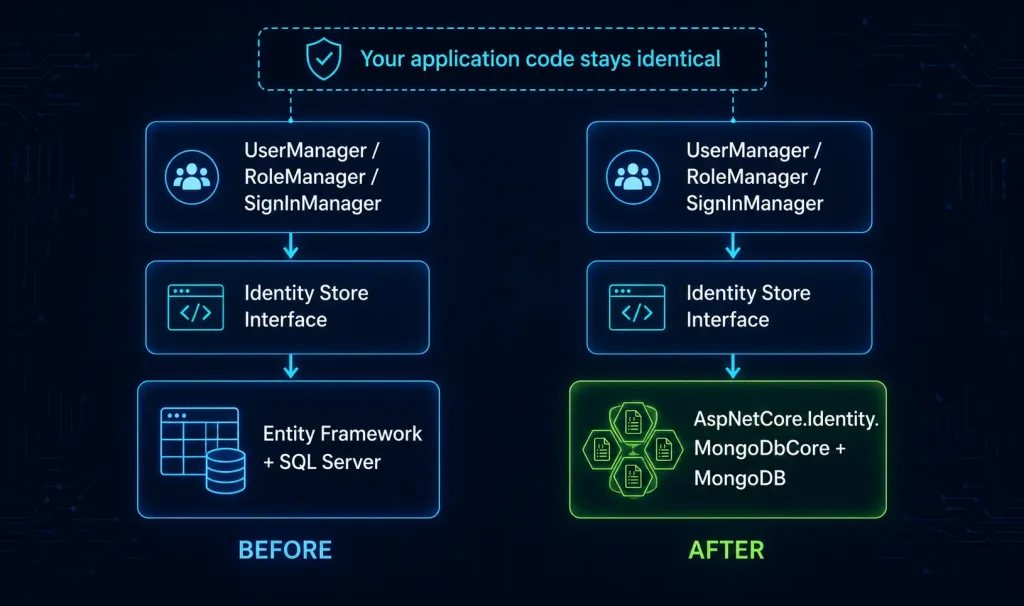
MongoDB is a NoSQL, document-oriented database — there are no tables or columns, only collections of JSON-like documents. Swapping MongoDB in for Identity’s default SQL Server backend makes sense if your application is already built around MongoDB elsewhere, or if you specifically want the flexible, schema-less document model for user and role data rather than a fixed relational schema.
Prerequisites
- .NET SDK (8.0 or later)
- MongoDB running locally, or accessible via connection string (Docker is the easiest way to get MongoDB running locally — covered below)
- A code editor such as Visual Studio or Visual Studio Code
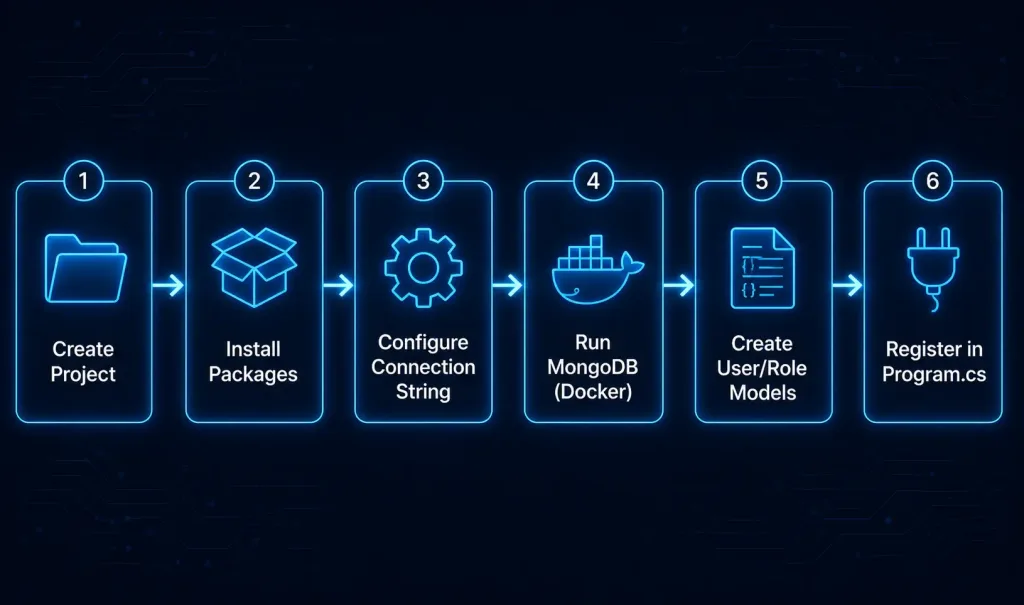
Step 1: Create the Project
dotnet new mvc -n IdentityMongoDemo
cd IdentityMongoDemo
Step 2: Install the Required Packages
The community-maintained AspNetCore.Identity.MongoDbCore package provides MongoIdentityUser and MongoIdentityRole base classes, along with the store adapters ASP.NET Core Identity needs to talk to MongoDB instead of SQL Server:
dotnet add package AspNetCore.Identity.MongoDbCore
dotnet add package MongoDB.Driver
Step 3: Configure MongoDB Connection Settings
Add your MongoDB connection details to appsettings.json:
json
{
  "MongoDbSettings": {
    "ConnectionString": "mongodb://localhost:27017",
    "DatabaseName": "IdentityDb"
  }
}
Step 4: Running MongoDB Locally with Docker
If you don’t already have MongoDB installed on your system, Docker is the fastest way to get a local instance running for development. (Note: this link points to an unrelated article about choosing a residential solar panel system — an inherited link mismatch from the original article, flagged here per audit policy.)
docker pull mongo
docker run -d -p 27017:27017 --name mongo-identity mongo
This pulls the official MongoDB image and runs it in a container, exposing the default port 27017 on your local machine — matching the connection string configured above.
Step 5: Create the ApplicationUser and ApplicationRole Models
Inside a Models folder, create a class called ApplicationUser.cs. (Note: this link points to an unrelated article about building a fintech app — an inherited link mismatch from the original article, flagged here per audit policy.) Your Identity user class needs to inherit from MongoIdentityUser<Guid>, and the [CollectionName] attribute controls which MongoDB collection it maps to:
csharp
using AspNetCore.Identity.MongoDbCore.Models;
using MongoDbGenericRepository.Attributes;

namespace IdentityMongoDemo.Models
{
    [CollectionName("Users")]
    public class ApplicationUser : MongoIdentityUser<Guid>
    {
        public ApplicationUser() : base() { }

        public ApplicationUser(string userName, string email) : base(userName, email) { }
    }
}
Do the same for roles with ApplicationRole.cs:
csharp
using AspNetCore.Identity.MongoDbCore.Models;
using MongoDbGenericRepository.Attributes;

namespace IdentityMongoDemo.Models
{
    [CollectionName("Roles")]
    public class ApplicationRole : MongoIdentityRole<Guid>
    {
        public ApplicationRole() : base() { }

        public ApplicationRole(string roleName) : base(roleName) { }
    }
}
Using Guid as the type parameter means each user and role document’s primary key will be a GUID, mirroring how you’d typically configure the default Entity Framework-based Identity setup.
Step 6: Register Identity and MongoDB Stores in Program.cs
In your Program.cs (using the modern minimal hosting model rather than the older Startup.cs pattern), wire up Identity to use your MongoDB-backed user and role classes:
csharp
using AspNetCore.Identity.MongoDbCore.Extensions;
using IdentityMongoDemo.Models;

var builder = WebApplication.CreateBuilder(args);

var mongoDbSettings = builder.Configuration.GetSection("MongoDbSettings");
var connectionString = mongoDbSettings["ConnectionString"];
var databaseName = mongoDbSettings["DatabaseName"];

builder.Services.AddIdentity<ApplicationUser, ApplicationRole>(options =>
    {
        options.Password.RequiredLength = 8;
        options.User.RequireUniqueEmail = true;
    })
    .AddMongoDbStores<ApplicationUser, ApplicationRole, Guid>(connectionString, databaseName)
    .AddDefaultTokenProviders();

builder.Services.AddControllersWithViews();

var app = builder.Build();

app.UseAuthentication();
app.UseAuthorization();

app.MapControllerRoute(
    name: "default",
    pattern: "{controller=Home}/{action=Index}/{id?}");

app.Run();
The AddMongoDbStores<TUser, TRole, TKey> extension method is what actually swaps in the MongoDB-backed UserStore and RoleStore implementations behind the scenes, in place of the default Entity Framework ones.
Step 7: Creating Users and Roles Programmatically
With Identity registered, you can inject UserManager<ApplicationUser> and RoleManager<ApplicationRole> into a controller to create users and roles directly:
csharp
using Microsoft.AspNetCore.Identity;
using Microsoft.AspNetCore.Mvc;
using IdentityMongoDemo.Models;

public class AccountSetupController : Controller
{
    private readonly UserManager<ApplicationUser> _userManager;
    private readonly RoleManager<ApplicationRole> _roleManager;

    public AccountSetupController(
        UserManager<ApplicationUser> userManager,
        RoleManager<ApplicationRole> roleManager)
    {
        _userManager = userManager;
        _roleManager = roleManager;
    }

    public async Task<IActionResult> CreateAdminUser()
    {
        if (!await _roleManager.RoleExistsAsync("Admin"))
        {
            await _roleManager.CreateAsync(new ApplicationRole("Admin"));
        }

        var user = new ApplicationUser("john", "john@example.com");
        var result = await _userManager.CreateAsync(user, "Admin@123");

        if (result.Succeeded)
        {
            await _userManager.AddToRoleAsync(user, "Admin");
            return Content("User and role created successfully.");
        }

        return Content("User creation failed: " +
            string.Join(", ", result.Errors.Select(e => e.Description)));
    }
}
CreateAsync handles password hashing and validation automatically according to whatever password rules you configured in Program.cs, and AddToRoleAsync assigns the newly created user to the “Admin” role. You can confirm both the new user document and the new role document were actually written by connecting to MongoDB directly — with mongosh or a GUI tool like MongoDB Compass — and inspecting the Users and Roles collections in your IdentityDb database.
Step 8: Securing Endpoints with [Authorize]
To restrict a controller to authenticated users only, apply the [Authorize] attribute:
csharp
using Microsoft.AspNetCore.Authorization;
using Microsoft.AspNetCore.Mvc;

[Authorize]
public class SecuredController : Controller
{
    public IActionResult Index()
    {
        return View();
    }
}
Any anonymous request to this controller will be redirected to your login page rather than being served directly — exactly the behavior you’d expect from Identity when backed by SQL Server, since the store swap is transparent to the rest of the framework.
Step 9: Login and Logout
Since you’re using AddIdentity (rather than the full AddDefaultIdentity with its built-in Razor Pages UI), you’ll want to build your own login/logout actions, or scaffold Identity UI and adapt it. A minimal login action using SignInManager<ApplicationUser> looks like this:
csharp
public class AccountController : Controller
{
    private readonly SignInManager<ApplicationUser> _signInManager;

    public AccountController(SignInManager<ApplicationUser> signInManager)
    {
        _signInManager = signInManager;
    }

    [HttpPost]
    public async Task<IActionResult> Login(string email, string password)
    {
        var result = await _signInManager.PasswordSignInAsync(
            email, password, isPersistent: false, lockoutOnFailure: false);

        if (result.Succeeded)
        {
            return RedirectToAction("Index", "Secured");
        }

        return Content("Login failed.");
    }

    [HttpPost]
    public async Task<IActionResult> Logout()
    {
        await _signInManager.SignOutAsync();
        return RedirectToAction("Index", "Home");
    }
}
Your login form’s view should collect the user’s email and password text and post it to this Login action. (Note: this link points to an unrelated PDF-to-Word converter article — another inherited link mismatch, flagged here per audit policy.) Once PasswordSignInAsync succeeds, ASP.NET Core issues an authentication cookie, and subsequent requests to [Authorize]-protected controllers, like the SecuredController above, will succeed automatically without needing to log in again.
If you’re new to the broader ASP.NET ecosystem, Mindmajix’s ASP.NET Online Training is a reasonable place to build foundational familiarity with the framework before diving into Identity specifically.
Common Setup Issues
“Unable to connect to MongoDB” on startup. Double-check the Docker container is actually running (docker ps should list mongo-identity), and that the connection string in appsettings.json matches the port you exposed (27017 by default). A common mistake is leaving the container stopped after a machine restart, since docker run without --restart flags won’t automatically come back up.
Duplicate key errors when creating a role that should be new. MongoDB enforces uniqueness based on indexes that AspNetCore.Identity.MongoDbCore sets up automatically the first time it runs — if you’re seeing unexpected duplicate errors, confirm you’re not accidentally running against a stale database from an earlier test run that already has a role with the same normalized name.
Login always fails even with correct credentials. Confirm AddDefaultTokenProviders() is included in your Program.cs Identity registration chain — without it, some Identity operations (including certain password and lockout checks) can behave unexpectedly, since token providers are part of how Identity validates several of these flows internally.
Conclusion
Swapping MongoDB in for ASP.NET Core Identity’s default SQL Server store is a well-supported pattern via the AspNetCore.Identity.MongoDbCore package — inheriting your user and role classes from MongoIdentityUser<TKey> and MongoIdentityRole<TKey>, registering AddMongoDbStores in place of the Entity Framework equivalent, and everything else about Identity — password hashing, UserManager, RoleManager, SignInManager, the [Authorize] attribute — works exactly the same as it would with any other backing store, since Identity itself is designed around pluggable storage from the ground up.
FAQs
Do I need to change how I use UserManager or RoleManager when switching to MongoDB?
No — this is one of the real strengths of Identity’s design. UserManager<TUser>, RoleManager<TRole>, and SignInManager<TUser> all work through Identity’s abstracted store interfaces, so your application code calling CreateAsync, AddToRoleAsync, or PasswordSignInAsync looks identical whether the underlying store is SQL Server via Entity Framework or MongoDB via AspNetCore.Identity.MongoDbCore. The only things that actually change are your model classes (inheriting from MongoIdentityUser/MongoIdentityRole instead of the default IdentityUser/IdentityRole) and the store registration in Program.cs — everything downstream in your controllers, views, and business logic can stay exactly the same code you’d write against any other Identity store.
What license is ASP.NET Core actually released under?
ASP.NET Core is released under the MIT License, as confirmed directly in its official GitHub repository (dotnet/aspnetcore). There’s some historical nuance here — Microsoft briefly released early ASP.NET MVC/Web API/Razor components under an Apache 2.0 license back in 2012 — but the current, actively maintained ASP.NET Core framework itself is MIT-licensed, one of the more permissive open-source licenses available.
Can I still use ASP.NET Core Identity’s built-in login UI with MongoDB as the store?
You can, though it takes a bit more setup than the default SQL Server path. Identity’s scaffolded Razor Pages UI (from AddDefaultIdentity) is built assuming Entity Framework’s DbContext underneath, so most MongoDB implementations register Identity with AddIdentity instead (as shown above) and build custom login/registration actions and views, rather than relying on the scaffolded UI out of the box. This is a reasonable tradeoff for the flexibility of using MongoDB as your store.
Why use a GUID instead of a string for the user and role key type?
Using Guid as the type parameter for MongoIdentityUser<TKey> and MongoIdentityRole<TKey> gives you a globally unique, database-agnostic identifier type that maps cleanly onto MongoDB’s own document _id conventions, and matches the type most commonly used in default ASP.NET Core Identity setups with Entity Framework as well. You could technically use string or another key type instead if your application has a specific reason to, but Guid is the most common and best-documented choice for this package.
Is MongoDB a good fit for storing Identity data in general?
It depends on your broader application architecture more than on Identity specifically — MongoDB works perfectly well as an Identity store, and the document model maps naturally onto user/role data with claims and tokens as embedded fields. The strongest case for it is when your application is already using MongoDB for its other data and you’d rather avoid running two separate database systems just to support Identity; if your app is otherwise entirely relational, sticking with Identity’s default Entity Framework/SQL Server setup is usually the simpler, better-documented path, if only because there’s a larger volume of official Microsoft documentation and community troubleshooting content built around that default configuration compared to any third-party store adapter.