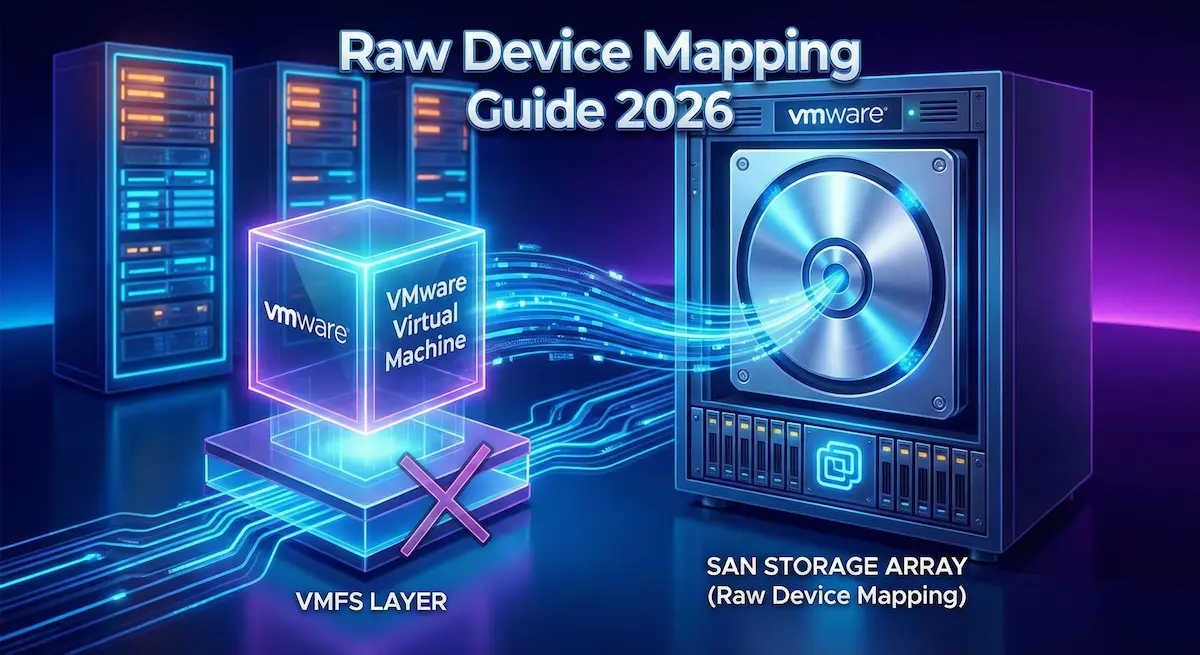
In the ever-evolving world of virtualization, efficient storage management is key to optimizing performance and scalability. If you’re an IT administrator, sysadmin, or virtualization enthusiast working with VMware vSphere, you’ve likely encountered the term “raw device mapping.” But what exactly is it, and when should you use it?
What is Raw Device Mapping?
Raw Device Mapping (RDM) is a VMware vSphere feature that allows a virtual machine (VM) to directly access a physical storage device, such as a Logical Unit Number (LUN) on a Storage Area Network (SAN) or a local disk. Instead of using a virtual disk file (VMDK) on a VMFS datastore, RDM creates a mapping file that acts as a proxy, enabling the VM to interact with the raw physical storage as if it were a native disk. This mapping file, typically a small .vmdk file, points to the physical device without storing actual data—making RDM ideal for scenarios requiring direct hardware access.
RDM remains a key tool in VMware environments for enterprise storage configurations, supporting advanced features like clustering and high-I/O workloads
Introduction to Raw Device Mapping in VMware vSphere
Raw Device Mapping bridges the gap between virtualized environments and physical storage hardware. Introduced in early versions of ESX/ESXi, RDM has evolved to support modern storage protocols like Fibre Channel, iSCSI, and NVMe-oF. In current vSphere releases, with Broadcom’s stewardship of VMware, RDM continues to be supported in vSphere 8.0 Update 2 and beyond, though VMware recommends using alternatives like Virtual Volumes (VVols) for new deployments where possible.
Why does RDM matter? In a virtualized setup, traditional VMDK files abstract storage through the VMFS or vSAN filesystem, which can introduce overhead for certain applications. RDM bypasses this abstraction, providing near-native performance for demanding workloads.
RDM Modes: Physical vs. Virtual Compatibility
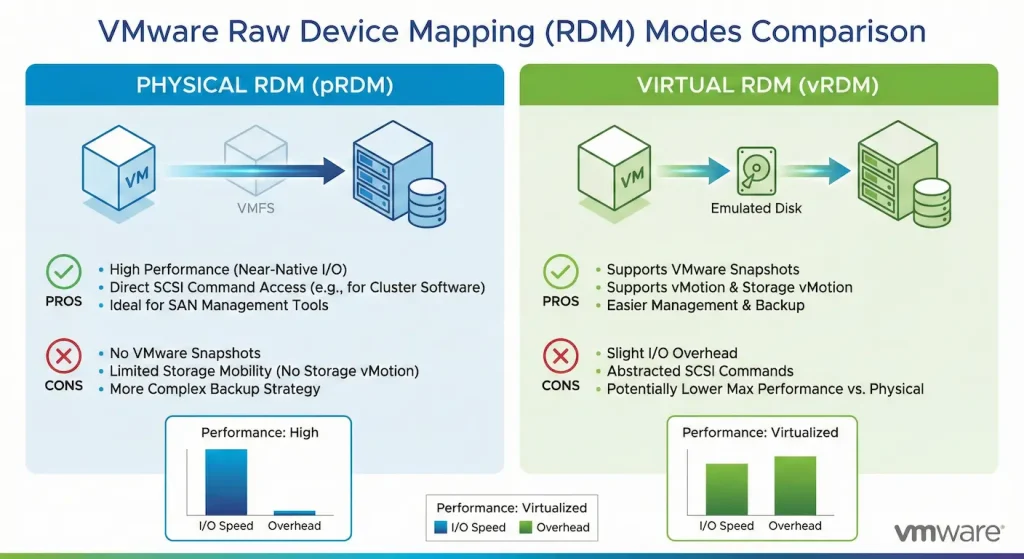
RDM operates in two primary modes, each tailored to different needs:
Physical Compatibility Mode (pRDM)
In physical mode, the VM gains almost direct access to the physical device. The hypervisor intercepts only SCSI commands related to reservations and locking, allowing the guest OS to handle most I/O operations. This mode is perfect for applications that require hardware-specific features, such as SAN management tools or clustering software.
- Key Features: Supports advanced SCSI commands, persistent reservations for clustering, and direct SAN snapshots.
- Limitations: No VM snapshots, limited vMotion support (requires shared storage), and no VMDK-like features like thin provisioning.
Virtual Compatibility Mode (vRDM)
Virtual mode emulates a standard virtual disk, where the hypervisor handles all SCSI commands. The mapping file behaves like a VMDK, but still points to raw physical storage.
- Key Features: Supports VM snapshots, full vMotion, Storage vMotion, and High Availability (HA).
- Limitations: Slightly higher overhead than pRDM, no direct access to physical SCSI commands, which can limit some clustering scenarios.
Choosing between modes depends on your workload: Use pRDM for performance-critical apps like databases, and vRDM for flexibility in VM management.
How Raw Device Mapping Works: Step-by-Step Setup
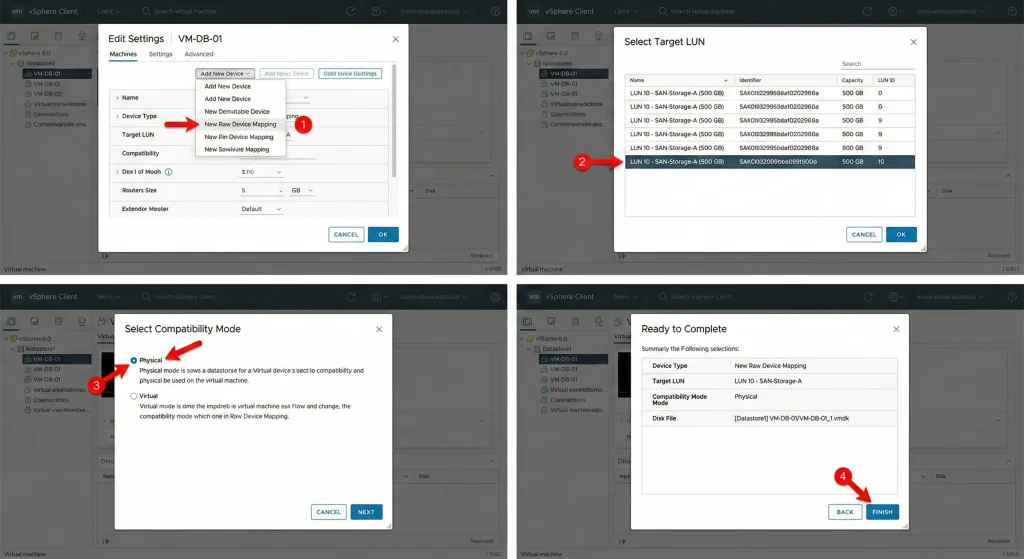
Setting up RDM in VMware vSphere is straightforward via the vSphere Client. Here’s a detailed guide in the vSphere Client:
- Prepare the Physical Device: Ensure the LUN or disk is presented to the ESXi host via your storage array through proper network infrastructure components (e.g., via zoning in Fibre Channel). Use the vSphere Client to rescan storage adapters under Host > Storage.
- Create or Edit a VM: Right-click the VM in the inventory, select “Edit Settings.”
- Add a New Hard Disk: Click “Add hard disk” > “New raw device mapping.”
- Select the Device: Choose the target LUN from the list of available devices. vSphere will display compatible physical disks.
- Choose Compatibility Mode: Select Physical or Virtual based on your needs.
- Configure Storage Options: Set the LUN policy (e.g., Multi-Writer for clustering) and confirm the mapping file location (typically on a VMFS datastore).
- Complete and Power On: Finish the wizard, power on the VM, and format the disk in the guest OS if needed.
vmkfstools -r /vmfs/devices/disks/naa.<device_id> /vmfs/volumes/datastore/vm-name/rdm-disk.vmdkReplace <device_id> with the actual NAA identifier.
Post-setup, verify with esxcli storage core device list to confirm the RDM mapping.
Pros and Cons of Raw Device Mapping
Like any technology, RDM has its strengths and trade-offs:
Advantages
- Performance: Direct access minimizes latency for I/O-intensive applications like Oracle RAC or Microsoft SQL Server.
- Clustering Support: Enables shared storage for failover clusters (e.g., Microsoft Cluster Service) without VMFS overhead.
- SAN Integration: Allows use of array-based features like replication, snapshots, and deduplication.
- Large Disk Support: Handles disks larger than 64TB, ideal for big data environments.
- Migration Flexibility: Facilitates physical-to-virtual (P2V) conversions by mapping existing physical disks.
Disadvantages
- Management Complexity: RDMs don’t support all vSphere features seamlessly (e.g., no snapshots in pRDM).
- Portability Issues: Moving RDMs requires careful LUN masking and zoning.
- Security Considerations: Direct access increases exposure to physical storage vulnerabilities.
- Deprecation Risks: VMware pushes VVols and vSAN for modern setups, so RDM might see reduced focus in future releases.
- Overhead in Mapping: The proxy file adds a minor layer, though negligible.
With ongoing advancements in storage tech like NVMe, RDM remains viable but evaluate if VVols can replace it for better abstraction.
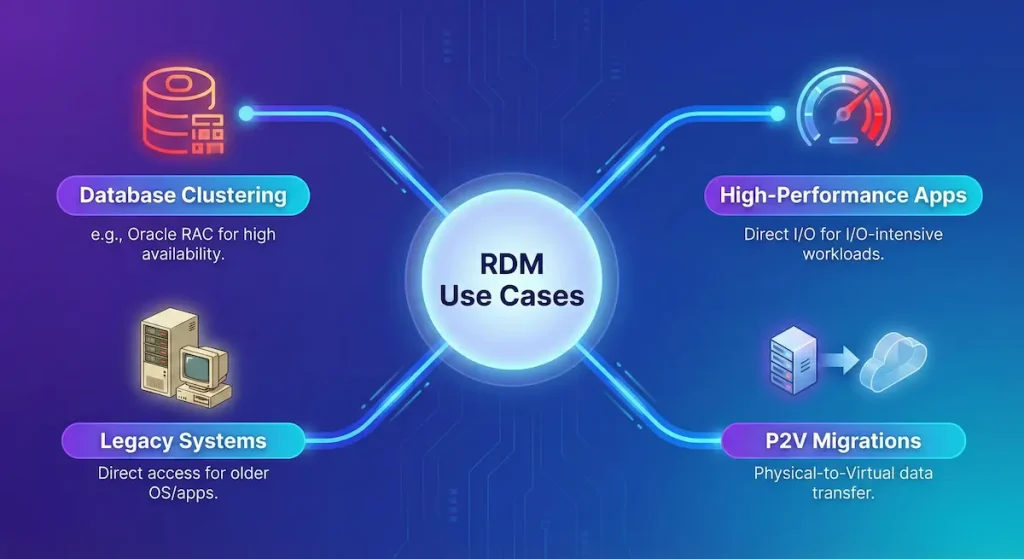
Use Cases for Raw Device Mapping
RDM shines in specific scenarios:
- Database Clustering: For Oracle Real Application Clusters (RAC) or Microsoft Failover Clustering, where shared raw disks are required for quorum and data.
- Legacy Applications: Apps that rely on physical disk signatures or SCSI reservations.
- High-Performance Storage: Workloads like video editing or scientific simulations needing raw throughput on enterprise server infrastructure.
- Hybrid Environments: Bridging on-premises SAN with vSphere for gradual cloud migration.
- Testing and Development: Simulating physical hardware in VMs for driver testing.
Real-world example: A financial firm uses pRDM for their SQL cluster to ensure sub-millisecond latency on a Fibre Channel SAN. example: A financial firm uses pRDM for their SQL cluster to ensure sub-millisecond latency on a Fibre Channel SAN.
Raw Device Mapping vs. Alternatives
How does RDM stack up against other storage options in vSphere?
| Feature | Raw Device Mapping (RDM) | Virtual Machine Disk (VMDK) | Virtual Volumes (VVols) | vSAN |
|---|---|---|---|---|
| Access Type | Direct to physical device | Abstracted via VMFS/vSAN | Policy-based on array | Hyper-converged |
| Performance | Near-native | Good, with overhead | Excellent, array-optimized | Scalable, software-defined |
| Snapshots | Limited (vRDM only) | Full support | Array-dependent | Full support |
| Clustering | Excellent (shared LUNs) | Limited | Good with VVols policies | Good for HCI clusters |
| Management | Complex | Simple | Advanced policies | Integrated |
| Use Case | Legacy/high-I/O | General-purpose | Modern enterprise | All-flash HCI |
RDM is best for direct hardware needs, while VMDK suits most VMs. VVols (introduced in vSphere 6) offer a modern alternative with per-VM granularity. vSAN is ideal for hyper-converged infrastructures.
Best Practices and Troubleshooting for RDM
To maximize RDM effectiveness:
- Multipathing: Enable Path Selection Policy (PSP) like Round Robin for redundancy.
- Security: Use LUN masking and zoning to restrict access.
- Monitoring: Track I/O with esxtop or vRealize Operations to ensure optimal network performance.
- Backups: Use array snapshots or agent-based backups, as VM snapshots are limited.
- Upgrades: Test RDM compatibility during vSphere updates—check Broadcom’s release notes.
Common Issues and Fixes:
- LUN Not Visible: Rescan adapters or check storage array configuration.
- Mapping File Errors: Ensure the .vmdk pointer is on a shared datastore for HA.
- vMotion Fails: Confirm shared storage and use vRDM for better mobility.
- Purple Screen Crashes: Update drivers if using older hardware; seen in pre-8.0 versions.
Ensure your ESXi hosts are patched to avoid known RDM bugs in earlier releases.
Conclusion
Raw Device Mapping remains a powerful tool in VMware vSphere for bridging virtual and physical worlds, offering unmatched performance for specialized workloads. While alternatives like VVols gain traction, RDM’s role in clustering and high-I/O scenarios ensures its relevance in modern vSphere environments and beyond. If you’re optimizing your storage stack, evaluate RDM against your needs— it could be the key to unlocking peak efficiency.
FAQs About Raw Device Mapping
What is raw device mapping in VMware?
Raw Device Mapping (RDM) is a feature that lets a VM directly access a physical storage device via a mapping file, providing near-native performance.
What is the difference between raw device mapping and virtual disk?
RDM maps to physical hardware for direct access, while virtual disks (VMDK) are files on a datastore with more abstraction and features like snapshots.
When should I use raw device mapping?
Use RDM for clustering, high-performance databases, or applications needing physical SCSI commands. Avoid for general VMs where VMDK suffices.
Can I convert a VMDK to RDM?
Yes, via Storage vMotion or CLI tools, but test thoroughly as it changes access methods.
Is raw device mapping supported in vSphere 8.0?
Yes, fully supported in vSphere 8.0 and later, with no major changes from previous versions.
What are the limitations of raw device mapping?
Limitations include restricted snapshots in physical mode, complex management, and potential incompatibility with some vSphere features.
Related Articles
- Types of Network: Understanding Storage Area Networks (SAN)
- Database Migration with AWS DMS: Oracle and SQL Server
- VPS Hosting and Virtualization Technology Guide
- Network Components and Infrastructure Essentials
- Network Layer Protocols and Performance Optimization
- Dedicated Server Hosting for Enterprise Infrastructure