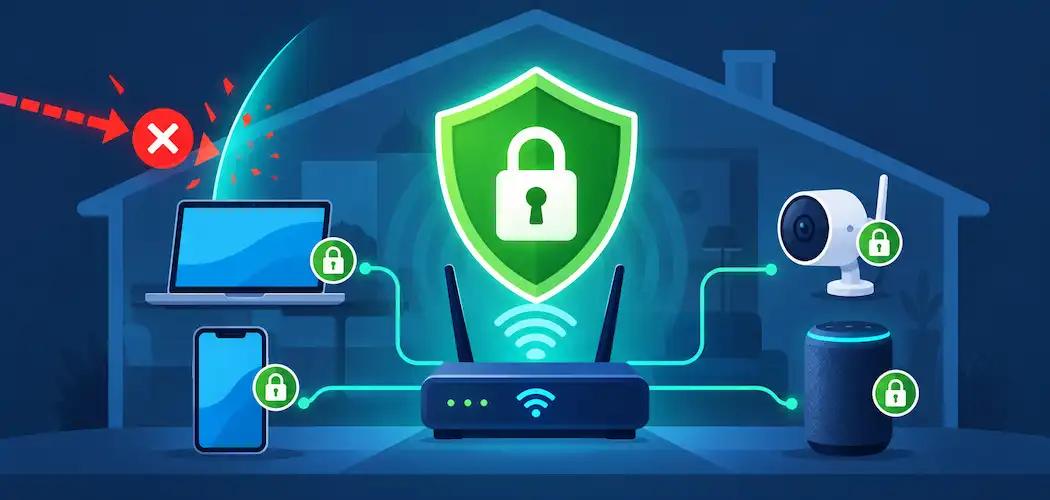
An unsecured home network isn’t a theoretical risk — it’s an unusually soft target, because most home routers leave their most important security settings at the factory default and most people never check. Here’s a practical, step-by-step way to actually secure your home network, using verified figures rather than the kind of alarming-sounding stats that don’t survive a fact-check.
What’s Actually at Stake
Connected households have more exposure than most people realize. According to a 2025 IoT security landscape study from NETGEAR and Bitdefender, drawing on data from 6.1 million households, the average connected home now has around 22 IoT devices and faces nearly 30 automated attack attempts every 24 hours — the large majority of which are blocked automatically scanning rather than targeted attacks, but the volume itself shows how constantly exposed an always-on home network is. Separately, Cybersecurity Ventures estimated global ransomware damage costs would reach roughly $57 billion in 2025 — a figure that includes businesses and individuals alike, and a reminder that “ransomware is a business problem” undersells how often it starts with a single compromised home device or account.
Two historical breaches are worth knowing accurately, since they’re commonly cited (and just as commonly misdated) in security writing: the Equifax breach, which exposed sensitive data on roughly 147 million people, happened in 2017, not any more recent year. And the widely-referenced LinkedIn data exposure happened in 2012, with a separate large dataset from that breach resurfacing and being sold again in 2016 — there wasn’t a new LinkedIn breach in 2024. Getting these dates right matters less for the dates themselves than for what they’re used to illustrate: how slowly stolen credentials from old breaches continue to circulate and get reused against new accounts, home networks included.
What You’ll Need
- A device connected to your home network (computer or phone)
- Your router’s admin login (check the label on the router, or your ISP’s app/documentation, if you’ve never changed it)
- About an hour, uninterrupted, for the full walkthrough below
Step 1: Assess What’s Actually on Your Network
Before changing settings, see what’s connected. Most routers list connected devices in their admin interface; third-party network scanning apps (such as Fing) can also show this from a phone. The goal is simple: identify every device on the network and confirm you recognize it. An unfamiliar device is worth investigating — it’s usually a forgotten old device or a guest’s phone, not evidence of an intrusion, but it’s worth checking rather than assuming either way.
Step 2: Update Firmware and Device Software
Router manufacturers release firmware updates that patch known security vulnerabilities, and many routers don’t check for these automatically unless you enable that setting. Log into the router’s admin panel, look for a firmware or software-update section, and install anything available. Do the same for connected devices with their own update mechanisms — smart cameras, smart speakers, and similar devices often have their own firmware separate from the router’s.

Step 3: Set a Strong Wi-Fi Password and Enable WPA3
Change your Wi-Fi password to something long and unique — a random passphrase of several unrelated words is generally easier to remember and harder to guess than a short complex string. Whatever you choose, treat it the way you’d treat any other account password: don’t reuse it anywhere else, since a password reused across services means one leaked database can expose all of them.
In the router’s wireless security settings, enable WPA3 if it’s supported by your router and devices; use WPA2 as a fallback only if WPA3 isn’t available. Avoid WEP and the original WPA entirely — both are outdated enough to offer little real protection against a motivated attacker.
Step 4: Enable the Router’s Firewall, and Use Reputable Antivirus Software
Most consumer routers include a basic firewall, usually enabled by default, that filters unsolicited incoming traffic — confirm it’s switched on in the admin settings rather than assuming. On the device side, reputable antivirus and anti-malware software (options include Bitdefender and similar established vendors) adds a layer of protection the router itself can’t provide, since a firewall controls network traffic but doesn’t inspect what’s already running on a device.
One caution worth stating plainly: if you’re choosing a password manager as part of your broader security setup, check its security track record first. LastPass, for example, disclosed a significant security incident in 2022 involving encrypted customer vault data; it’s worth knowing that history before adopting any specific password manager, and worth preferring a provider with a clean, transparent incident history and a clear explanation of how your data is encrypted.
Step 5: Set Up Guest Networks and Review Devices Regularly
Enable a separate guest network for visitors and, where supported, for IoT devices — this keeps those devices from reaching your main computers and files even if one of them is compromised. Beyond the initial setup, build a habit of periodically repeating Step 1: review connected devices every few months, since new devices join networks constantly (a new smart bulb, a visiting relative’s phone) and old, unused devices are easy to forget about entirely.
Common Mistakes That Undo This Work
- Never changing the router’s default admin password — the single most common and most preventable home-network vulnerability.
- Resetting the router without understanding what a reset does. A factory reset erases all custom settings, including the Wi-Fi password, firewall rules, and any port forwarding you’ve configured — it’s a legitimate troubleshooting step, but plan to redo your full setup afterward, not just the problem you were trying to fix.
- Reusing passwords across accounts, which turns one leaked database into exposure for every account using that same password.
- Leaving IoT devices on the main network instead of a guest or segmented network.
- Treating “set up once” as “done forever.” Firmware updates, password rotation, and device review are ongoing, not one-time tasks.
A Note on VPNs
A VPN can add a layer of privacy for traffic leaving your home network, particularly on devices that travel and connect to other networks, but it isn’t a substitute for the router and account security steps above — a VPN protects the path your traffic takes, not the devices and credentials sitting inside your home network. If you’re evaluating VPN providers, prioritize ones with an independently audited no-logs policy and a transparent, dated pricing page, since VPN pricing and feature sets change often enough that a specific price quoted in an article is usually stale by the time you read it.
Troubleshooting
- Can’t access the router’s admin page? Confirm you’re connected to the correct network and using the right local IP address — check the label on the router itself if you’re unsure.
- Locked out after changing the admin password? Most routers support a physical reset button for recovery, but remember this erases all settings, not just the password — you’ll need to redo the full setup described above.
- A device won’t reconnect after enabling WPA3? Some older devices don’t support WPA3. Check for a “mixed mode” (WPA2/WPA3) setting on the router, which lets older and newer devices coexist on the same network.
The Bottom Line
Securing a home network is a short, mostly one-time setup effort — change the defaults, enable WPA3, update firmware, turn on the firewall, segment IoT devices — followed by an ongoing habit of checking in every few months. The genuine risk here doesn’t need inflated statistics to make the case: a 2025 industry study already found the average connected home facing nearly 30 automated attack attempts a day, and global ransomware damage is estimated in the tens of billions of dollars annually. That’s reason enough to spend the hour.
Frequently Asked Questions
How many cyberattacks does an average smart home actually face?
According to a 2025 NETGEAR/Bitdefender IoT security study of 6.1 million households, the average connected home faces nearly 30 automated attack attempts every 24 hours — most blocked automatically, but the figure reflects constant background scanning rather than targeted hacking attempts.
When did the Equifax and LinkedIn breaches actually happen?
Equifax’s breach, which exposed data on roughly 147 million people, occurred in 2017. The major LinkedIn data exposure happened in 2012, with a related dataset resurfacing in 2016 — there was no new LinkedIn breach in 2024.
Does a factory reset fix router security issues?
It can, but it erases every custom setting on the router — Wi-Fi password, firewall rules, port forwarding — not just the specific problem you’re troubleshooting. Plan to redo your full security setup afterward.
Is a VPN enough to secure a home network on its own?
No. A VPN protects the privacy of your traffic in transit but doesn’t secure the router, your Wi-Fi password, or the devices connected to your network. It’s a useful addition to the steps above, not a replacement for them.