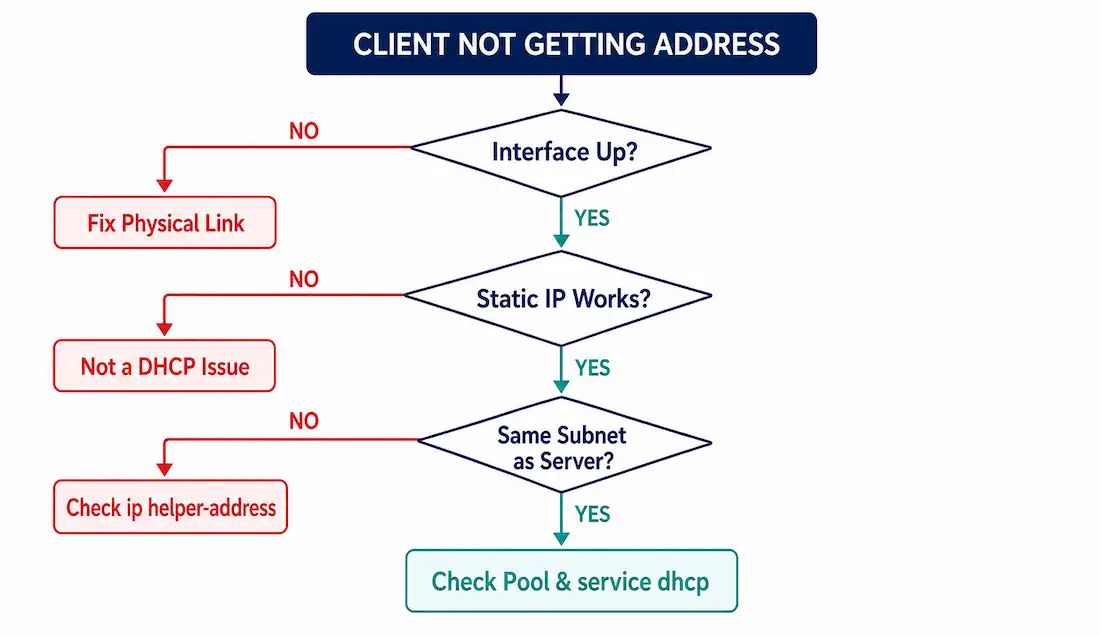
DHCP failures rarely announce their cause directly — a client just sits without an address, or ends up with the wrong one, and the actual reason could be anywhere from a bad cable to a missing relay command to a full address pool sitting quietly exhausted. What separates a fast fix from an hour of guessing is working through the possibilities in a consistent order, rather than jumping straight to the most complicated explanation available.
This guide walks through that order: physical connectivity first, then whether DHCP works at all versus only across subnets, then relay configuration, then the debugging tools for when the problem still isn’t obvious.
Start with Physical Connectivity
Before touching any DHCP configuration, confirm the interface acting as the client’s default gateway is actually up:
Router# show interfaces gigabitEthernet 0/1
GigabitEthernet0/1 is up, line protocol is up
If the interface shows down, administratively down, or up/down (line protocol down), no DHCP troubleshooting matters until that’s resolved first — a downed port doesn’t pass any traffic at all, DHCP requests included. This sounds obvious, but it’s genuinely the most common cause of “DHCP isn’t working” tickets, and checking it first saves real time otherwise spent chasing a configuration problem that doesn’t actually exist.
Confirm the Problem Is Actually DHCP
A quick, reliable way to isolate DHCP as the actual cause: configure the client with a static IP address in the correct subnet and test basic connectivity from there.
- Static IP works fine → the problem is specifically in the DHCP exchange. Continue troubleshooting DHCP directly.
- Static IP also fails → the problem is broader network connectivity (routing, switching, cabling), and fixing DHCP configuration won’t help until that’s resolved first.
This single test saves a lot of wasted effort chasing DHCP settings when the real issue is somewhere else entirely.
Same Subnet vs. Across Subnets
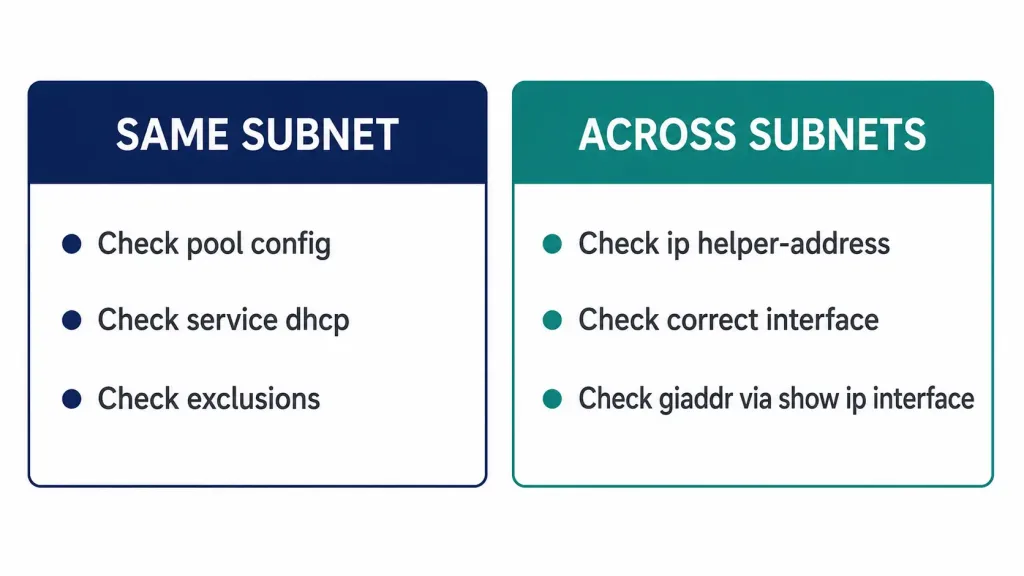
Once DHCP is confirmed as the actual problem, the next fork in the road is whether the client and DHCP server sit on the same subnet or VLAN, or are separated by a router somewhere in between.
- Same subnet, still failing → the problem is local: exclusions, pool configuration,
service dhcpstatus, or the pool being exhausted. Relay isn’t involved at all. - Different subnets, still failing → check
ip helper-addressconfiguration specifically, since a missing or misconfigured relay command is the single most common cause of DHCP failing across subnets while working fine locally.
Testing a client directly on the DHCP server’s own subnet (temporarily, if needed) is a fast way to confirm whether the server itself is healthy before assuming the problem is relay-related.
Verifying Relay Configuration
If the DHCP server sits on a different subnet than the client, the router interface facing the client needs ip helper-address pointing at the server:
Router# show running-config | include helper-address
 ip helper-address 172.16.0.1
Two things to confirm here: the command is actually present, and it’s on the correct interface — specifically the one facing the client subnet, not the one facing the server. A helper address configured on the wrong interface (or missing entirely) is functionally identical to having no relay at all from the client’s perspective.
Router# show ip interface gigabitEthernet 0/1show ip interface confirms which helper address is applied on a given interface — useful for catching a helper address that got applied to the wrong interface during initial setup, which produces exactly the same symptom as a missing one.
Verifying the DHCP Service Itself Is Running
Router# show running-config | include service dhcpIf this returns no service dhcp, both the DHCP server and the relay agent functionality are disabled on that router entirely — not just the server role. This is an easy thing to overlook, since a router can have a perfectly correct pool and a perfectly correct ip helper-address line and still fail completely if this one global setting happens to be off. service dhcp in global configuration mode re-enables it; by default, the running config won’t display this line at all when it’s already enabled, since that’s simply the default state.
Understanding IP Address Conflicts
An address conflict happens when two devices end up believing they’re both entitled to the same IP address — usually from a specific sequence of events: a client’s lease expires while it’s still connected but hasn’t renewed, the server reassigns that now-expired address to a different client, and then the original client reboots and — not realizing its old lease is gone — starts using that same address again from cached configuration rather than requesting a fresh one.
Conflict detection happens on both sides, using different mechanisms:
- The server checks with an ICMP ping before offering an address, to confirm nothing else on the network is already using it.
- The client checks with an ARP request after receiving an address, as a final confirmation before actually configuring it.
Router# show ip dhcp conflict
IP address       Detection method    Detection time
192.168.1.15     Ping                Aug 20 2026 09:14 AM
If a conflict is detected by either method, the server pulls that address from the pool entirely and won’t reassign it until an administrator manually clears the conflict — clear ip dhcp conflict <address> or clear ip dhcp conflict * for all recorded conflicts.
Debugging When the Cause Still Isn’t Clear
When none of the above points to an obvious cause, the next step is confirming whether DHCP requests are even reaching the router at all.
Filtering Debug Output with an ACL
Running debug ip packet unfiltered on a busy interface floods the console with irrelevant traffic almost immediately. Pairing it with an extended ACL matching only DHCP’s ports narrows the output to exactly what actually matters:
Router(config)# access-list 101 permit udp any any eq 67
Router(config)# access-list 101 permit udp any any eq 68
Router(config)# exit
Router# debug ip packet 101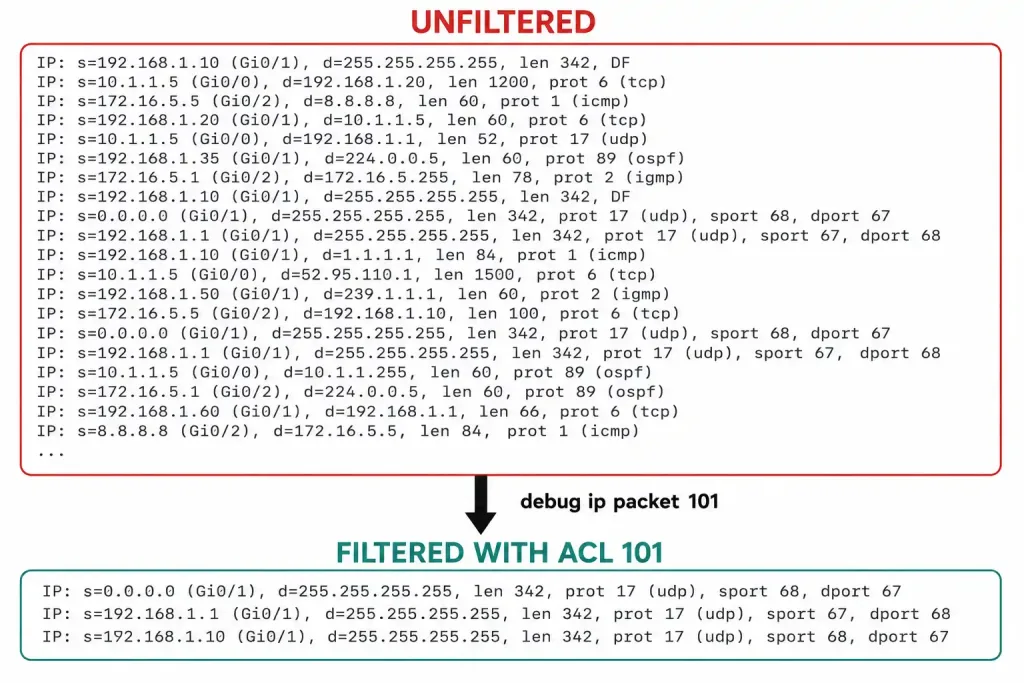
This shows only packets matching the ACL — in this case, DHCP client and server traffic on ports 67 and 68 — instead of every packet crossing the router. It’s a technique worth knowing beyond DHCP specifically: the same ACL-plus-debug ip packet pattern works for isolating debug output to any protocol or port.
Server-Side Event Debugging
Router# debug ip dhcp server eventsThis reports the DHCP server’s own actions directly — address assignments, database updates, and pool activity — which is the more direct tool when the question is specifically “is the server processing requests correctly,” rather than “is the traffic arriving at all.”
Always disable debugging once you’re done — no debug ip dhcp server events or undebug all — since debug output left running adds ongoing CPU load that matters on a production device.
Worked Scenario: A Branch VLAN Suddenly Stops Getting Addresses
This is a composite scenario built to walk through the troubleshooting order in practice, not a specific reported incident.
A branch office has three VLANs, all served by a single central DHCP server on VLAN 10. VLAN 20 and VLAN 30 clients suddenly stop receiving addresses, while VLAN 10 clients continue working normally.
Step 1 — physical connectivity. show interfaces on the affected VLANs’ SVIs shows both up/up. Ruled out.
Step 2 — confirm it’s actually DHCP. A test client on VLAN 20, configured with a static address in the correct range, reaches the rest of the network fine. Confirmed: this is a DHCP-specific problem, not general connectivity.
Step 3 — same subnet vs. relay. VLAN 10 (the server’s own subnet) still works, but VLAN 20 and VLAN 30 — both requiring relay — don’t. This pattern points directly at relay, not the server itself, since a genuinely broken server would affect all three VLANs equally, including its own local subnet.
Step 4 — verify relay configuration. show running-config | include helper-address on the VLAN 20 and VLAN 30 SVIs shows… nothing. The helper-address lines are missing on both interfaces, despite being present and correct on a similar branch router configured a week earlier as a template.
Root cause: during a recent SVI recreation (the interfaces were removed and re-added as part of unrelated VLAN cleanup), the ip helper-address lines were never re-applied — recreating an interface in IOS doesn’t carry forward its previous configuration automatically. Adding ip helper-address 172.16.0.1 back to both SVIs resolves the issue immediately, confirmed with debug ip dhcp server events showing successful DORA exchanges completing for new client requests on both VLANs within seconds.
This is exactly the kind of failure the same-subnet-vs-relay split in Step 3 is built to catch quickly — without it, this could easily turn into an hour of checking DNS, DHCP pool exhaustion, and switch port configuration before anyone thought to check whether the interface recreation had silently dropped a one-line command.
Troubleshooting Quick Reference
| Symptom | Check First | Likely Cause |
|---|---|---|
| No address at all, same subnet as server | show interfaces, then service dhcp status | Downed interface, or DHCP service disabled globally |
| No address at all, different subnet | show running-config | include helper-address | Missing or misplaced ip helper-address |
| Static IP also fails to reach resources | General connectivity troubleshooting | Not a DHCP problem — routing/switching issue elsewhere |
| Address assigned but conflicts with another device | show ip dhcp conflict | Stale lease reused after expiration and reassignment |
| Unsure if requests are reaching the router | ACL + debug ip packet <acl-number> | Confirms whether DHCP traffic is arriving at all |
| Server not responding to valid requests | debug ip dhcp server events | Server-side processing or pool exhaustion issue |
FAQs
What’s the first thing to check when a DHCP client isn’t getting an address?
Physical connectivity — confirm the relevant interface is actually up with show interfaces. A downed interface produces the exact same symptom as a DHCP configuration problem, and it’s the fastest thing to rule out first.
How do I tell if a problem is actually caused by DHCP or something else?
Configure the client with a static IP in the correct subnet and test connectivity. If that also fails, the problem is broader network connectivity, not DHCP — fixing DHCP settings won’t help until the underlying connectivity issue is resolved.
What’s the most common cause of DHCP failing across subnets but working locally?
A missing or misplaced ip helper-address command. It needs to be configured on the interface facing the client’s subnet specifically — not the one facing the DHCP server.
How does a DHCP address conflict actually happen?
Usually when a client’s lease expires while it’s still connected, the server reassigns that address to a different client, and the original client later reboots and starts using its old cached address again without realizing the lease is gone.
How do I filter debug output to show only DHCP traffic?
Create an extended ACL permitting UDP ports 67 and 68, then run debug ip packet <acl-number> referencing that ACL. This limits the debug output to DHCP traffic specifically instead of flooding the console with everything crossing the interface.
Does no service dhcp only disable the DHCP server role?
No — it disables both the local DHCP server function and DHCP relay (ip helper-address) functionality on that router. A router with a correctly configured pool and helper address can still fail completely if this one setting is off.
Why does a client sometimes keep using an address after its lease has actually expired?
If the client doesn’t receive a response to its renewal attempts — whether the unicast attempt to its original server or the broadcast fallback to any server — it may continue using its last known address rather than dropping connectivity entirely, especially if it hasn’t yet detected that the lease has lapsed. This is exactly the behavior that produces the address-conflict scenario described above once the server reassigns that same address elsewhere.