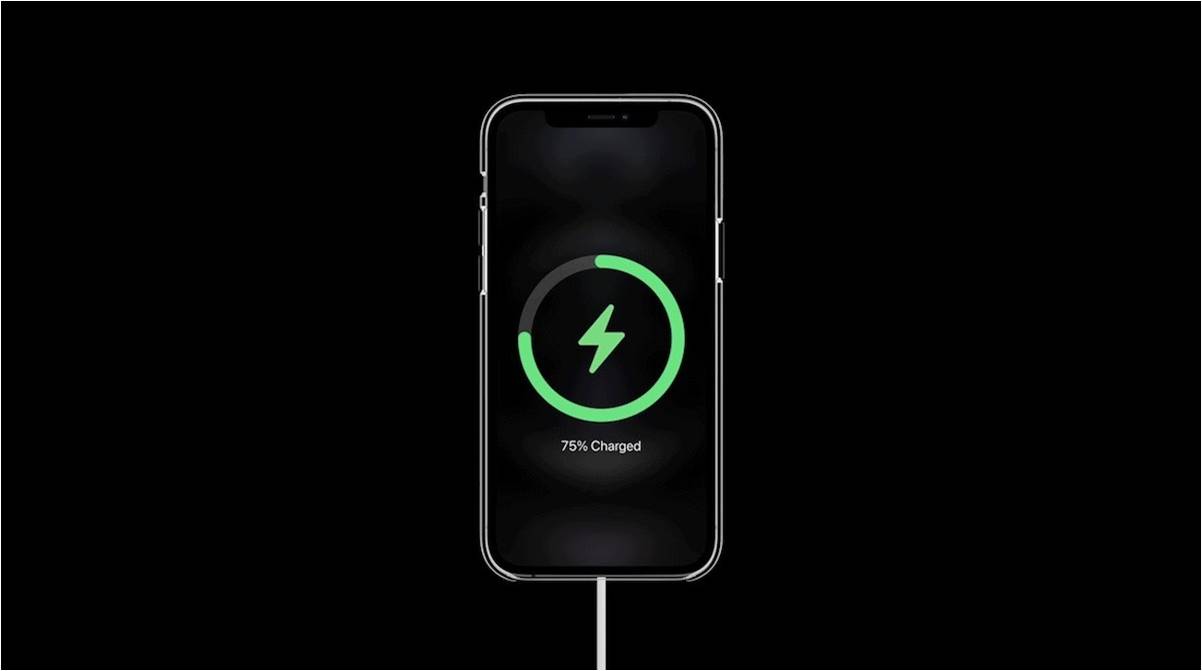
Plugging in your iPhone or iPad and watching the battery crawl upward is frustrating, especially when the device is supposed to support fast charging. Before assuming your battery is failing, it’s worth working through a short list of causes in order, since the fix is usually simpler than a hardware repair.
What “Fast Charging” Actually Requires
Apple defines fast charging as reaching roughly 50% battery in about 30 minutes. That speed depends on three things working together, and if any one of them is missing, your device silently falls back to slow, standard charging without necessarily telling you why.
- A USB-C power adapter that supports USB Power Delivery (PD). This is the protocol that lets your device and the charger negotiate a higher voltage and current. A standard 5W adapter — the kind that used to ship in the box with older iPhones — cannot fast charge, no matter how new your device is.
- The right cable. iPhone 15 and later, along with every current iPad, charge over USB-C to USB-C. Older iPhones (8 through 14) need a USB-C to Lightning cable specifically — a USB-A to Lightning cable will charge the device but will not fast charge it, even paired with a good adapter.
- Enough wattage for your specific device. A 20W PD adapter is Apple’s minimum recommendation for fast charging most iPhones. iPads vary more by model — smaller iPads are typically fine around 20–30W, while iPad Pro models can accept considerably more. Using a lower-wattage adapter than your device supports won’t damage anything, but it will cap your charging speed below what the device is capable of.
If fast charging has stopped working, the most common culprit is one of these three requirements quietly no longer being met — often because a cable got swapped, or an adapter that looks identical to the original one you had isn’t actually a PD charger.
Step 1: Confirm Your Charger Is Actually a Fast Charger
Check the fine print on the adapter itself, not just its shape. Look for “USB PD” or “Power Delivery” printed on the body, along with a wattage rating. If you’re using the small 5W square adapter Apple bundled with older iPhones, that’s your answer — it was never a fast charger, and no cable will change that.
If you’re not sure whether a charger is genuine or counterfeit, that matters too. Counterfeit or uncertified adapters sometimes claim PD support without properly negotiating it, resulting in charging that’s slow, inconsistent, or in rare cases unsafe.
Step 2: Check the Cable, Not Just the Charger
This is the step people skip most often. A cable can look fine and still be the wrong one:
- USB-A to Lightning (the older white cable with a rectangular USB end) does not support fast charging, even on a device that’s capable of it.
- USB-C to Lightning is required for fast charging on Lightning-port iPhones.
- USB-C to USB-C is required for iPhone 15 and later and for all current iPads.
- Damaged cables — frayed insulation, bent connectors, or exposed wiring — can still charge slowly while failing to sustain the higher current fast charging needs.
Inspect both ends of the cable and the charging port on the device itself. Lint, dust, or debris packed into the port is a common and easily overlooked cause of inconsistent charging, since it can prevent a full, stable connection.
Step 3: Rule Out Software and Background Activity
If the hardware checks out, a few software factors can also throttle charging speed:
- Low Power Mode reduces background activity but can also affect charging behavior on some iOS versions.
- Optimized Battery Charging, found in Settings under Battery > Battery Health, deliberately slows charging past 80% to reduce long-term battery wear. This is expected behavior, not a fault — if you need a full charge quickly, you can temporarily disable it.
- Heavy background app activity while the device is plugged in can compete with charging, particularly if the device is also warming up from use. Closing demanding apps or turning the screen off while charging often noticeably speeds things up.
- Ambient temperature matters more than most people expect. iPhones and iPads deliberately slow or pause charging if the device gets too hot or too cold, as a safety measure to protect the battery. Charging in direct sunlight or inside a closed car are common, easily fixed causes of this.
Step 4: Try a Different Combination
Once you’ve ruled out the obvious, isolate the problem by testing components independently rather than replacing everything at once:
- Try your cable with a different PD-certified charger.
- Try a different certified cable with your existing charger.
- Try charging from a wall outlet directly rather than through a computer’s USB port, which typically can’t supply PD power at all.
If fast charging works with a known-good cable and adapter combination but not your original set, you’ve isolated which component to replace.
Step 5: When It’s Likely a Hardware Issue
If you’ve confirmed you’re using a genuine PD charger, the correct cable type, a clean port, and current software — and charging is still slow or inconsistent — the remaining possibilities point toward the device itself:
- A battery that has degraded significantly with age and can no longer accept a fast charge safely.
- Physical damage to the charging port, often from dust, corrosion, or a bent connector pin.
- An internal fault that only Apple or an authorized repair provider can diagnose properly.
At this point, checking your device’s Battery Health status (Settings > Battery > Battery Health & Charging) is a useful next step — a battery showing significantly reduced “Maximum Capacity” is a common, honest explanation for chronically slow charging. If Battery Health looks normal but the problem persists, it’s worth booking a diagnostic with Apple Support or an authorized service provider rather than continuing to swap accessories.
Quick Recap
- Confirm your adapter is a genuine USB-C PD charger, not a legacy 5W adapter.
- Match the cable to your device: USB-C to USB-C for iPhone 15+ and iPads, USB-C to Lightning for older iPhones.
- Clean the port and inspect both cable ends for damage.
- Check for Optimized Battery Charging, Low Power Mode, and extreme temperatures.
- Test with a different known-good cable and adapter before assuming it’s a hardware fault.
- f everything checks out and charging is still slow, check Battery Health, then consider a professional diagnostic.