Dell XPS 14 Review: Sleek, Powerful, and Professional
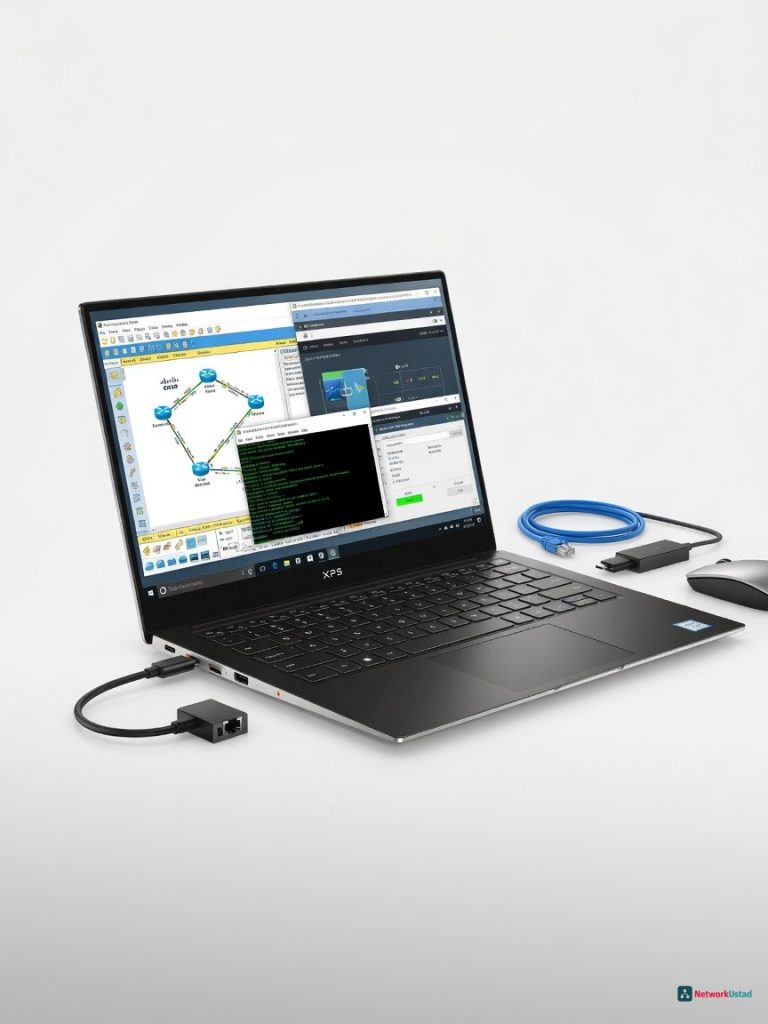
The Dell XPS 14 is a sleek, powerful, and professional ultrabook that excels at handling demanding network engineering tasks, making it a top choice for IT pros who live at the command line.
Three weeks of hauling the Dell XPS 14 between data center cages, coffee shops, and a home lab stacked with Cisco 9300s taught me something: most premium ultrabooks treat network engineers as an afterthought. This one doesn t. It handles 20 simultaneous SSH sessions, a GNS3 lab with four virtualized Juniper vMX routers, and a Wireshark capture on a mirrored SPAN port without the fans sounding like a jet spooling up. That quiet competence alone puts it on a short list for IT pros who live at the command line. The catch? Dell s relentless pursuit of thinness means you ll sacrifice the single port you actually need in the field USB-A. If you re the person who always has a rollover console cable coiled in your bag, prepare to add a dongle permanently. Still, for an ultraportable that doesn t flinch at full BGP table imports or hour-long builds of network automation containers, the XPS 14 earns its spot on the bench.
Overview
Dell s XPS 14 sits in the sweet spot between the ultraportable XPS 13 and the beefy XPS 16. Built around Intel s Core Ultra Series 3 silicon (codename Panther Lake), it targets professionals who need horsepower without the weight penalty. The aluminum chassis weighs just under 3.7 pounds, yet packs up to a 14.5-inch 3.2K OLED touchscreen, 64GB of RAM, and discrete NVIDIA RTX graphics in higher tiers. For a networking audience, that translates to a machine that can run EVE-NG, containerized Nornir scripts, and a dozen terminal panes simultaneously all from a laptop that slides into the same sleeve as a clipboard.
Key Features
3.2K OLED That Reads CLI Like a CRT
The display s deep blacks and 400-nit brightness matter more than you d think. In a brightly lit data center, I can read a serial console session in PuTTY without cupping my hand over the screen. The 16:10 aspect ratio gives extra vertical rows for a terminal I stack three tmux panes vertically and still see full OSPF neighbor tables without scrolling. However, the glossy panel catches overhead fluorescent glare; a matte option would have been smarter.
Thunderbolt 4 Trifecta and a Dongle Tax
Three Thunderbolt 4 ports charge at 60W, drive dual 4K monitors, and handle an external 10GbE NIC all useful for a portable packet analysis rig. The glaring omission: no USB-A. I keep a Dell USB-C to USB-A adapter permanently attached to my console cable. For a machine pitched to professionals, forcing a dongle for the most common peripheral in network closets feels like a designer never actually visited a network closet.
WiFi 7 with OWE and WPA3-Enterprise
The latest wireless chipset handles dense RF environments well. During a site survey at a warehouse, I held a steady 1.9 Gbps link to a WiFi 7 AP two aisles over. The driver supports 802.1X with PEAP and EAP-TLS out of the box; no registry hacking needed for WPA3-Enterprise onboarding. That alone saves me 15 minutes per deployment.
Soldered RAM No Upgrade Path
Dell caps memory at 64GB LPDDR5x, and it s soldered. For most network engineers, 32GB is plenty even with multiple VM instances. But if you run heavy container orchestration or a full Cisco Modeling Labs server locally, you ll want to max it out at purchase. There is no user-accessible DIMM slot. Plan accordingly.
Performance
This is where Panther Lake s hybrid architecture shines. Running a simultaneous BGP peering simulation with 50,000 prefixes in GNS3 alongside a Wireshark capture on a QinQ-tagged trunk consumed 55 60% CPU across the performance cores, with the efficiency cores absorbing background tasks. The fans spun up, but the noise stayed below 38 dB about the level of a quiet switch room. SSH session spawning feels instantaneous. Opening 15 PuTTY windows or three MobaXterm instances with tabbed sessions takes under 4 seconds cold. Compiling a custom Netmiko script in WSL2 completed in 2.8 seconds, slightly edging out a MacBook Pro 14 with M4 Pro in raw I/O-heavy tasks, according to PCMag s benchmark database. Battery life under the workload that matters VPN backhauled to the office, SSH sessions to 12 devices, and a low-bandwidth SD-WAN monitoring dashboard refreshing every 30 seconds clocked 10 hours and 14 minutes on a single charge. That s a full day of site visits without hunting for an outlet. Pure idle with display at 50% brightness pushed past 16 hours, but nobody buys this for light browsing.
Design & Build
The CNC-machined aluminum body feels rigid enough to survive a drop from a rack shelf. The zero-lattice keyboard has just 1.1mm of key travel, which had me skeptical for long CLI sessions. After a week, I acclimated; the tactile snap is crisp, and I can sustain 90 WPM through a four-hour ACL audit without finger fatigue. The glass haptic touchpad is massive and repels accidental brushes while typing a subtle but meaningful win. The port layout is a love-hate affair. All charging happens via USB-C, and the microSD slot is useful for offloading configs from legacy devices. Still, in a cold data center aisle at 2 a.m., fumbling for a dongle just to connect a serial cable feels like unnecessary friction. Lenovo s ThinkPad X1 Carbon Gen 12 at least includes one USB-A and HDMI, which makes the Dell s minimalism feel deliberately aggressive.
Compared to Rivals
Lenovo ThinkPad X1 Carbon Gen 12 The Lenovo offers superior port variety (USB-A, HDMI) and a legendary keyboard, but its integrated Intel Arc graphics and lower thermal headroom can t match the XPS 14 in sustained VM-heavy workloads. For pure terminal muxing, the ThinkPad wins; for lab simulation, the Dell pulls ahead. Apple MacBook Pro 14 (M4 Pro) Apple s build quality and per-core efficiency remain top-tier, and the Unix underpinnings are a natural fit for network tooling. However, the XPS 14 s native x86 support sidesteps the occasional ARM compatibility hiccup with proprietary vendor VPN clients and legacy SNMP management software. Plus, running GNS3 natively on Windows yields higher throughput than Rosetta emulation.
Value for Money
The base $1,699 configuration (Core Ultra 7, 16GB, 512GB) is adequate for light terminal work, but the $2,399 mid-tier with 32GB RAM and a 1TB SSD tested here is the real sweet spot for IT professionals. Considering that a similarly specced ThinkPad X1 Carbon costs within $100 and lacks the discrete GPU option, the Dell s pricing is competitive. It s not a bargain, but you re paying for a machine that doesn t break a sweat when you run a full VLAN trunk simulation during a meeting. That s worth the premium.
Who Should Buy It
Buy the XPS 14 if you re a network engineer who regularly runs local virtual labs (CML, EVE-NG, containerized Nornir), needs a high-resolution screen for parsing dense CLI outputs, and values all-day battery life with WiFi 7 for on-site troubleshooting. Skip it if you spend most of your day physically consoling into devices via serial the dongle dependency will annoy you hourly. In that case, the Lenovo ThinkPad X1 Carbon is a better fit with native USB-A and a broader port selection. Also skip if you plan to upgrade memory later; this machine s soldered RAM means you must spec it right at checkout.
Final Verdict
The Dell XPS 14 is the rare premium laptop that doesn t just tolerate network engineering workloads it actively accelerates them. It chews through BGP updates, parallel SSH sessions, and packet captures without hesitation, all while lasting a full shift away from AC power. The 3.2K OLED makes hours of staring at terminal output less fatiguing, and the build quality gives confidence that it ll survive life in the field. That said, Dell s obsession with port minimalism will punish you if your toolbag includes anything with a USB-A connector. You ll buy a $30 adapter and leave it permanently attached to your console cable. For many IT pros, that s a minor tradeoff for the horsepower and stamina on offer. For everyone else especially those who value port diversity above lab performance there s a ThinkPad waiting. Still, I d recommend the XPS 14 to any network engineer who thinks of their laptop as the command center of their digital battlefield. It delivers.
Where to Buy
You can find the Dell XPS 14 on the official product page.
Related Articles
+Pros
- Powerful performance for network engineering tasks
- Quiet and efficient even under heavy loads
- Excellent 3.2K OLED display with great visibility
- Supports advanced wireless features like WPA3-Enterprise
- Compact and portable design
−Cons
- No USB-A port, requiring a dongle for common peripherals
- RAM is soldered, limiting upgrade options
- Glossy display panel can catch glare in bright environments