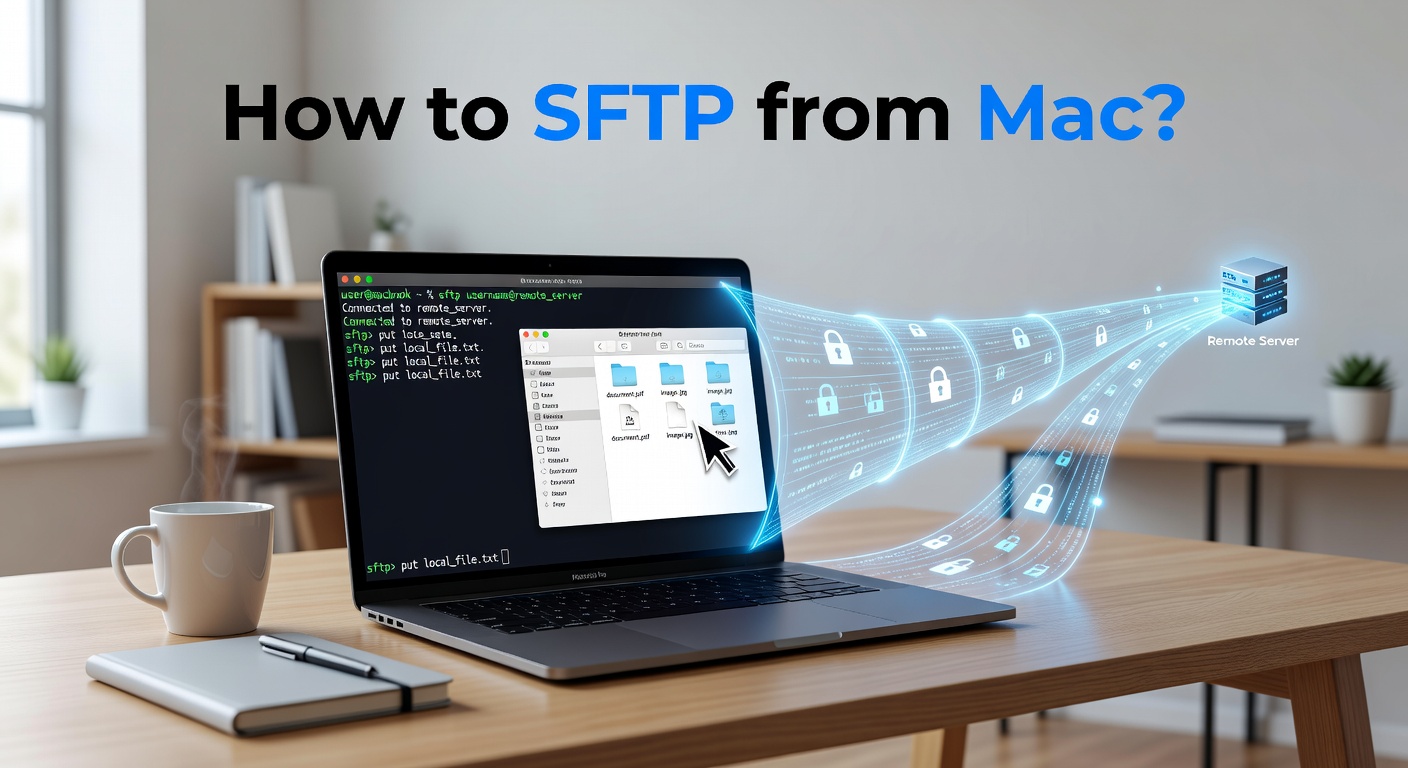
To move files over SFTP on a Mac sounds technical at first, but in real use it usually comes down to one practical task: connect to a remote server, upload or download what is needed, and do it without losing time on extra steps. Many Mac users initially encounter SFTP when interacting with websites, hosting panels, backups, development folders, or private server storage. The hard part is rarely the protocol itself. The larger challenge, however, has been to pick a way that seems straightforward enough to use when you are working on a small job but still important. Terminal is preferred by some for the direct control. Still others prefer a visual interface they want to show just what’s being moved and where it is going. Both have their merits, but choosing the more useful option normally depends on how frequently SFTP is part of the day.
A simple way to use SFTP with a visual interface
For people who do not want to type commands every time, SFTP client Commander One gives a more visual way to open a server connection and manage files on Mac. The value here is very practical. Local folders and remote folders can be handled in one clear workspace, which makes uploads, downloads, renaming, moving, and folder checks much easier to follow. That matters because SFTP jobs are rarely just one-click actions. Usually, it is open the server, compare files, move the correct version, confirm the right path, and continue working without second-guessing every step.
How to start with an app-based method on Mac
Most people download the app, form a connection according to the host, username, password, and port shared by the server or hosting environment. Once the connection is recorded, one can easily rejoin the same remote directory later rather than trying from scratch and going back to square one. This is important for repeated work. Web developers, site owners, and support teams typically revisit the same server several times, so removing setup repetition makes mundane tasks seem more lightweight. Additionally, visual setups also minimise the chance of accidentally placing something in the wrong folder; one of those little mistakes that occur more often than people realize in remote file work.
Other tools Mac users sometimes choose
Commander One is not the only route. Terminal is often used by some users because it is already part of their workflow and they are used to command-based sessions. Others rely on tools such as Cyberduck or Transmit when they want a dedicated desktop client with server connections saved in one place. The difference is typically all about comfort and routine. Terminal may intuitively feel right if that person is already working in the command line every day. If the individual wants a file-manager view with less window switching, a visual app more likely gives smoother access.
What to prepare before connecting to a remote server
The connection itself usually goes smoothly when the basic details are ready in advance. Most Mac users need four things before starting: the server address, a username, a password or SSH key, and the correct port. In many standard setups, the SFTP port is 22, though managed environments can use different settings. It also helps to know the destination folder before opening the connection. A surprising amount of time gets wasted after a successful login simply because the user starts browsing the wrong directory tree and has to work backward from there. A visual client helps here because local and remote paths can be checked side by side before anything important is moved.
The smoothest method depends on how often SFTP is part of the job
There is no single answer for all Mac users. A person, who opens one server twice a year, might be fine with a basic manual process. But people working with many environments each week typically require something cleaner and more repeatable. That’s where usability is more important than theory. A system that looks light on paper might be annoying at worst if too much repetition is necessary. On the practical side, the best SFTP solution means that tasks become normalized. Open the server. Check the folders. Move the files. Confirm the result. Continue working.
A useful SFTP setup should make the process feel ordinary
Most people are not looking for something dramatic here. They just want remote file transfer to stop feeling clumsy. That is why visual tools remain popular. They remove some of the distance between local and remote work and make the whole process easier to trust at a glance. If the workflow feels simple enough to repeat without irritation, it is already doing its job well.