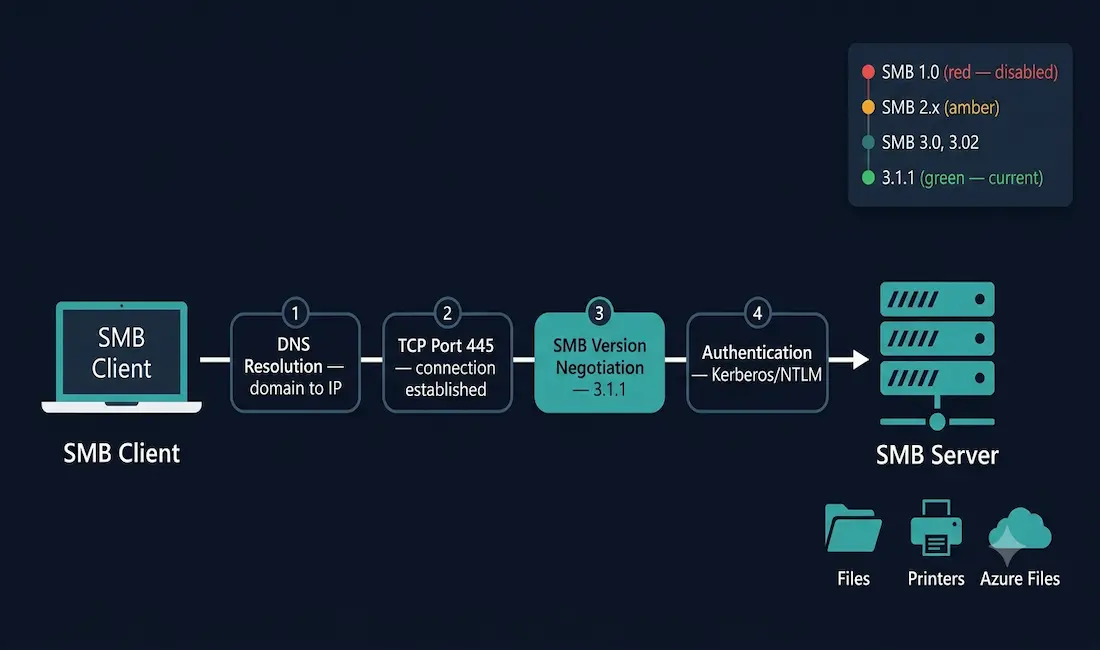
The Server Message Block (SMB) protocol enables hosts to share files, directories, printers, and other resources across a network as if those resources were local. It is a request-response protocol that operates at the Application layer, using TCP port 445 for direct communication. Every message in the SMB protocol follows a standard structure: a fixed-size header followed by variable-sized parameter and data components.
SMB is a foundational topic for the CCNA exam and for anyone working in Windows-based network environments. This guide covers how SMB works, its full version history, the security implications of each version, cross-platform support via Samba, and modern extensions including SMB over QUIC and Azure file integration.
What SMB Does
The protocol suite of SMB is built around commands that mirror what you would do locally on a disk or printer. Over an SMB connection, a client can:
- Create, open, close, read, write, edit, search, and delete files and directories
- Queue and dequeue print jobs through a print spooler
- Initiate, authenticate, and terminate network sessions
- Control access to shared files and printers
- Exchange messages between applications
SMB servers make file systems and resources available to network clients. Clients send SMB request messages specifying the operation they want to perform, and servers respond with SMB response messages confirming success, returning data, or reporting an error. Once the connection is established, the client user can access resources on the remote server as if they were local to the client host.
How SMB Establishes a Connection
When a client wants to reach a shared resource, the process follows these steps:
- The client resolves the server’s hostname to an IP address via DNS.
- The client establishes a TCP connection on port 445 to the server.
- The client and server negotiate the highest SMB version both support.
- Authentication takes place (Kerberos or NTLM depending on environment).
- The client accesses the shared resource — files, printers, or named pipes.
Before Windows 2000, SMB used a non-TCP/IP protocol (NetBIOS over NetBEUI or IPX) for name resolution, which limited it to local network segments. From Windows 2000 onward, all Microsoft products use DNS-based name resolution, allowing TCP/IP to fully support SMB resource sharing across routed networks. This is why modern SMB runs cleanly over standard IP infrastructure.
SMB Version History
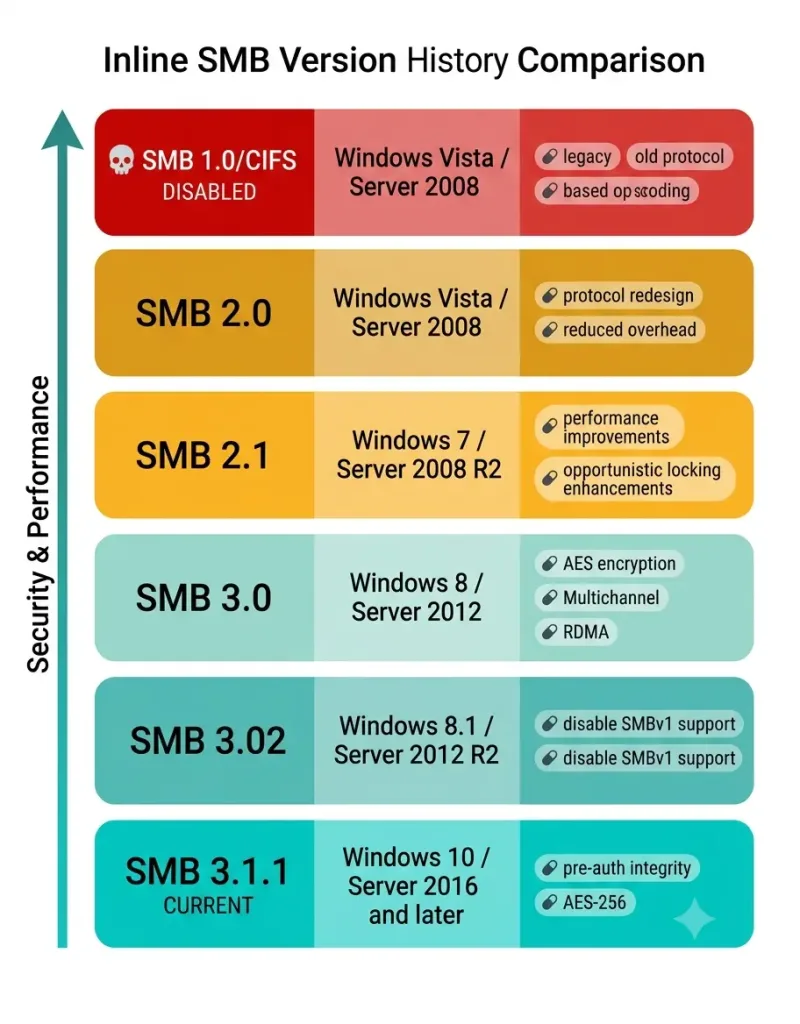
SMB has gone through multiple major versions, each addressing the security and performance weaknesses of the one before it.
SMB 1.0 / CIFS (1996)
The original SMB implementation was developed by IBM in the 1980s and later extended by Microsoft. When Windows NT 4.0 shipped in 1996, Microsoft released SMB 1.0 — also called CIFS (Common Internet File System) — which became the dominant version through the Windows XP and Windows Server 2003 era.
SMB 1.0 / CIFS has critical, unfixable security weaknesses. It lacks encryption, uses weak authentication, and contains vulnerabilities that were later weaponized in major attacks including EternalBlue, the exploit used by the WannaCry ransomware in 2017. WannaCry infected hundreds of thousands of systems globally by exploiting SMBv1 on unpatched Windows machines to spread laterally across networks without user interaction. SMBv1 should be disabled on all modern systems. Microsoft itself recommends and, on newer Windows installations, has disabled it by default.
SMB 2.0 (2006)
SMB 2.0 shipped with Windows Vista and Windows Server 2008. It was a near-complete redesign that significantly reduced the protocol’s command count (from over 100 commands in SMBv1 to 19), improved performance through request compounding (combining multiple operations into a single round trip), added larger buffer sizes, and introduced support for symbolic links.
SMB 2.1 (2010)
SMB 2.1 shipped with Windows 7 and Windows Server 2008 R2. It added client-side opportunistic locking (oplocks) improvements and increased the maximum transmission unit (MTU) to improve throughput on higher-bandwidth links.
SMB 3.0 (2012)
SMB 3.0 shipped with Windows 8 and Windows Server 2012 and introduced three major advances:
SMB Encryption — end-to-end encryption of SMB traffic using AES-128-CCM, without requiring IPsec. This was the first SMB version to protect data in transit against interception on the local network.
SMB Multichannel — allows SMB to use multiple network connections simultaneously, combining bandwidth across interfaces and providing automatic failover if one path fails.
SMB Direct (RDMA) — enables SMB to run over RDMA-capable network adapters (InfiniBand, iWARP, RoCE), delivering very high throughput with minimal CPU overhead for storage-intensive workloads.
SMB 3.02 (2014)
SMB 3.02 shipped with Windows 8.1 and Windows Server 2012 R2. It added performance improvements and, critically, introduced the ability to completely disable SMBv1 on a per-server basis, giving administrators a clean way to remove the legacy protocol from their environment.
SMB 3.1.1 (2015) — Current Standard
SMB 3.1.1 is the current version, introduced with Windows 10 and Windows Server 2016. Its key additions are:
Pre-authentication integrity — uses a cryptographic hash chain (SHA-512) to detect any tampering with the connection establishment sequence, protecting against man-in-the-middle attacks during negotiation.
Stronger encryption — adds support for AES-128-GCM in addition to AES-128-CCM, and from Windows 11 and Windows Server 2022, AES-256 encryption is available for connections requiring it.
Cluster dialect fencing — improves SMB behavior in Windows Server failover cluster environments.
When two Windows 10 or later computers connect, they negotiate SMB 3.1.1 automatically. A Windows 8 client connecting to a Windows 10 server negotiates SMB 3.0. The two endpoints always use the highest version both support.
SMB Version Comparison Table
| Version | Introduced | Key Platform | Key Features |
|---|---|---|---|
| SMB 1.0 / CIFS | 1996 | Windows NT 4.0 / XP / Server 2003 | Basic file/printer sharing — do not use |
| SMB 2.0 | 2006 | Windows Vista / Server 2008 | Reduced command set, request compounding |
| SMB 2.1 | 2010 | Windows 7 / Server 2008 R2 | Improved oplocks, larger MTU |
| SMB 3.0 | 2012 | Windows 8 / Server 2012 | AES encryption, Multichannel, RDMA support |
| SMB 3.02 | 2014 | Windows 8.1 / Server 2012 R2 | Ability to fully disable SMBv1 |
| SMB 3.1.1 | 2015 | Windows 10 / Server 2016+ | Pre-auth integrity, AES-GCM, AES-256 |
SMB Security: Disabling SMBv1
Disabling SMBv1 is a mandatory security hardening step on any modern Windows network. On Windows 10 and Windows Server 2016 and later, SMBv1 is disabled by default. On older systems still running it, you can disable it via PowerShell:
powershell
# Disable SMBv1 on a Windows Server:
Set-SmbServerConfiguration -EnableSMB1Protocol $false

# Verify SMBv1 is disabled:
Get-SmbServerConfiguration | Select EnableSMB1Protocol
SMBv1 should never be exposed to the internet. Even on internal networks, its absence is a meaningful reduction in attack surface.
Cross-Platform Support: Samba
Although SMB was created by Microsoft for Windows environments, it is now fully cross-platform thanks to Samba — an open-source implementation of the SMB protocol suite for Linux, Unix, and macOS. Samba allows Linux and Unix servers to share files and printers with Windows clients seamlessly, and vice versa.
With Samba, Linux, macOS, Windows, and Unix computers can all share files, folders, and printers across the same network without protocol translation. Samba is widely used in mixed-OS enterprise environments, NAS (Network Attached Storage) appliances, and home lab setups. It supports SMB 2.0 and SMB 3.x dialects, allowing modern security features to work in cross-platform deployments.
SMB Over QUIC
SMB over QUIC is a newer extension introduced in Windows Server 2022 and Windows 11 that allows SMB 3.1.1 traffic to run over the QUIC transport protocol (UDP port 443) instead of TCP port 445. This means:
- SMB file sharing works over the internet without a VPN, using TLS 1.3 encryption provided by QUIC.
- QUIC’s connection migration means SMB sessions survive network changes (such as switching from Wi-Fi to mobile data) without reconnecting.
- Port 443 is widely permitted through firewalls, making SMB over QUIC practical for remote and hybrid-work scenarios.
This is where the TLS 1.3 encryption mentioned in some SMB resources comes from — it applies specifically to the SMB over QUIC transport, not to standard TCP-based SMB 3.x (which uses AES encryption at the protocol level).
SMB and Cloud Integration
SMB 3.x is the protocol behind Azure Files, Microsoft’s cloud-based file share service. Azure file shares can be mounted directly on Windows, Linux (via Samba), and macOS systems using the same SMB client that mounts on-premises shares. For remote access and scalability for businesses extending into the cloud, Azure Files with SMB 3.1.1 provides encrypted, authenticated, enterprise-grade file access without requiring an on-premises file server.
SMB is also used internally by several Microsoft services including Hyper-V (for storing virtual machine files on SMB shares), SQL Server, Active Directory Group Policy processing, and Windows DFS (Distributed File System).
SMB Security: Broader Context
SMB has a dual reputation: it is the most practical file-sharing protocol in Windows environments, and it has historically been the most exploited protocol on corporate networks. Key points:
- Port 445 should never be open to the internet on a standard Windows server. SMB is designed for protected LAN environments. Exposing it directly to the internet has been the root cause of numerous ransomware outbreaks.
- SMBv1 is the primary attack surface for worm-style lateral movement (WannaCry, NotPetya). Disabling it is non-optional on any network that cares about security.
- SMB signing (available since SMB 2.0, enforced by default in SMB 3.1.1 from Windows 11 / Server 2022) prevents relay and man-in-the-middle attacks.
- The features for secure modern file sharing in SMB 3.1.1 — pre-authentication integrity, AES-256 encryption, and enforced secure negotiation — represent a significant improvement over every prior version.
SMB and the CCNA
For CCNA candidates, the key points to know about SMB are:
- SMB operates at the Application layer of both the TCP/IP and OSI models
- It uses TCP port 445 for direct host-to-host communication
- It is a request-response protocol
- Before Windows 2000, SMB used non-TCP/IP name resolution; after Windows 2000, it uses DNS
- Samba extends SMB to Linux, Unix, and macOS
- SMBv1 should be disabled due to critical security vulnerabilities including EternalBlue/WannaCry
Conclusion
The Server Message Block protocol has been the backbone of Windows file and printer sharing since the 1990s and remains essential in enterprise networking. Its evolution from SMBv1 through SMB 3.1.1 tracks a consistent story: each version addressed the security and performance failures of its predecessor. SMBv1 must be disabled, SMB 3.1.1 is the current standard for TCP-based deployments, and SMB over QUIC extends the protocol to internet-facing and hybrid-cloud scenarios. Understanding where SMB sits in the protocol stack — Application layer, TCP port 445, request-response model, DNS-based name resolution — and how its version history maps to security decisions is the practical foundation for any network professional.
Frequently Asked Questions
What is the primary function of the SMB protocol?
SMB enables hosts to share files, directories, printers, and other resources within a network, providing access as if those resources were local to the client. It operates at the Application layer using TCP port 445, following a request-response model where clients issue commands and servers return responses.
How has SMB evolved since Windows 2000?
Since Windows 2000, SMB shifted from non-TCP/IP to DNS-based name resolution, enabling it to work across routed IP networks. The protocol then evolved through SMB 2.0 (2006), 2.1 (2010), 3.0 (2012, adding AES encryption and Multichannel), 3.02 (2014), and SMB 3.1.1 (2015), which is the current standard and adds pre-authentication integrity and stronger AES-256 encryption.
What role does Samba play with SMB?
Samba is an open-source implementation of the SMB protocol for Linux, Unix, and macOS. It enables cross-platform file and printer sharing with Windows systems, allowing mixed-OS environments to share resources seamlessly over the same network.
Why is enabling SMB 3.x features important and why should SMBv1 be disabled?
SMB 3.x adds encryption, integrity checking, and stronger authentication that protect data in transit and prevent man-in-the-middle attacks. SMBv1 lacks these protections and contains critical vulnerabilities — most notably EternalBlue, which was exploited by the WannaCry and NotPetya ransomware attacks. Disabling SMBv1 is a foundational security step on any modern network.
What is SMB over QUIC?
SMB over QUIC, introduced in Windows Server 2022, runs SMB 3.1.1 over the QUIC transport protocol on UDP port 443 instead of TCP port 445. QUIC integrates TLS 1.3 encryption, making it suitable for secure SMB access over the internet without requiring a VPN, and supporting connection migration when a client switches networks.