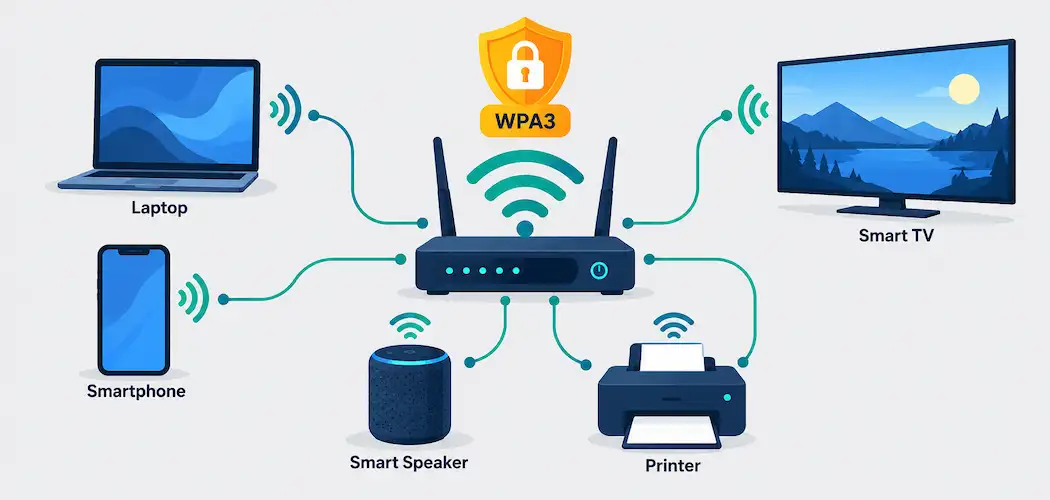
Setting up a home network used to mean plugging in a router and calling it done. That still technically works, but it leaves most of the real security and performance decisions on their factory defaults — and a few things that used to be standard advice, like Windows HomeGroup file sharing, don’t even exist anymore. Here’s what actually matters when setting up a home network today, from the first connection to the settings worth changing before you walk away from the router.
Connecting the Router
The router is the device that sits between your home network and your internet service provider’s connection, translating your ISP’s incoming signal into a local network that your devices can join — over Wi-Fi, Ethernet, or both. Most ISPs provide a modem/router combo device, or a separate modem that you connect your own router to; either way, the basic physical setup is the same: connect the router to the incoming internet line, power it on, and let it establish a connection before connecting your devices.
If you’re choosing your own router rather than using an ISP-provided one, look for Wi-Fi 6 (802.11ax) or newer support and WPA3 security — both are now standard on current mid-range and higher routers, and both matter more for day-to-day performance and security than most of the marketing language on the box.
Accessing and Securing the Router’s Admin Settings
Every router has an administrative interface, reachable by typing the router’s local IP address (commonly something like 192.168.1.1 or 192.168.0.1 — check the label on the router itself or your ISP’s documentation for the exact address) into a web browser on a device connected to that network. This is where the real setup work happens, and it’s worth doing in full rather than skipping straight to connecting devices:
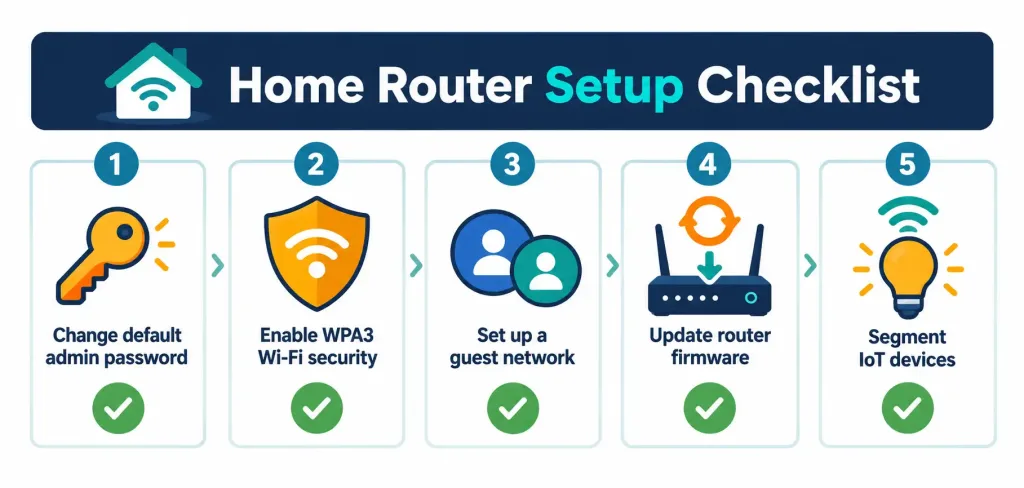
- Change the default admin username and password immediately. Default router credentials are published online by manufacturer and model, which makes an unchanged default password one of the most common ways home networks get compromised — not through sophisticated attacks, but simply because the password was never changed from “admin/admin” or similar.
- Set the Wi-Fi network name (SSID) and password separately from the admin login. These are two different credentials: one logs into the router’s settings, the other lets devices join the Wi-Fi network. Both need to be strong and distinct from each other.
- Enable WPA3 if your router and devices support it; use WPA2 as a fallback only if WPA3 isn’t available. WPA3 is the current Wi-Fi security standard, with stronger protection against password-guessing attacks than WPA2. Older security standards like WEP and the original WPA shouldn’t be used at all — they’re broken by modern standards and offer little real protection.
- Check for and install firmware updates. Router manufacturers periodically release firmware updates that patch security vulnerabilities, and many routers don’t update automatically unless you enable that setting. An unpatched router is a persistent, often invisible security gap.
Setting Up a Guest Network and Device Segmentation
Most current routers support a separate guest network — a second Wi-Fi network, with its own password, that gives visitors internet access without letting their devices see or reach anything on your main network. This is worth turning on by default, not just when guests are actually present, for one practical reason: it limits what an unknown or compromised device can reach.
The same logic extends to smart-home and IoT devices — smart bulbs, cameras, thermostats, and similar connected gadgets. These devices often have weaker security than a phone or laptop and are a common target for network intrusions specifically because they’re overlooked. Putting them on a guest network or a separate IoT-specific network (if your router supports multiple networks or VLANs) keeps a compromised smart plug from being a stepping stone into your main devices and files.
File and Printer Sharing Today
Older guidance for home network sharing often pointed to Windows HomeGroup, a built-in Windows feature for sharing files and printers between PCs on the same network. That advice no longer applies: Microsoft removed HomeGroup entirely starting with the Windows 10 April 2018 Update, and it isn’t present in any current version of Windows.
Instead, current options for sharing within a home network include:
- Standard Windows/macOS file sharing, set up through each operating system’s network sharing settings rather than a dedicated homegroup feature.
- Network-attached storage (NAS), a dedicated device for centralized file storage and backup that any device on the network can access — a more robust option than ad hoc file sharing between individual computers.
- Cloud storage services (such as a provider’s desktop sync client), which share files across devices through the internet rather than the local network, with the added benefit of access from outside the home.
- Shared printer setup, usually configured directly through the printer’s own network settings or the operating system’s printer-sharing options, independent of any file-sharing method chosen.
What a Well-Set-Up Home Network Actually Gets You
- One connection, many devices: TVs, game consoles, phones, laptops, smart speakers, and printers can all share a single internet connection and, where relevant, reach each other on the local network.
- Centralized control: changing the Wi-Fi password once updates access for every connected device, rather than managing separate credentials per device or connection type.
- Local access to shared resources: a NAS device, a shared printer, or files on another computer are reachable without needing to go through the internet at all.
- A foundation for smart-home devices, which generally assume a working home Wi-Fi network to connect to in the first place.
What Actually Puts a Home Network at Risk
- Unchanged default credentials on the router’s admin panel — the single most preventable risk, and one that requires no technical skill to fix.
- Weak or outdated Wi-Fi security — an old WEP or WPA network, or a weak shared password, makes unauthorized access meaningfully easier for anyone within range.
- Unpatched router firmware, which leaves known vulnerabilities open indefinitely if updates are never checked.
- Unsegmented IoT devices sitting on the same network as computers and phones, removing the barrier that a guest network or separate IoT network would otherwise provide.
- Oversharing on the local network — leaving file shares or printer access open more broadly than intended, especially on a network without a properly configured guest network to isolate visitor devices.
None of these require expensive equipment to fix — they’re configuration choices, not hardware limitations. The router that came from your ISP can be hardened just as effectively as a premium third-party model, provided the settings above are actually changed from their defaults.
Getting Setup or Service Help
For readers who’d rather have the physical setup and account work handled directly rather than doing it themselves, home network setup services are available for installation and configuration support, and providers of internet service can help with the connection itself where a new account or plan is needed. Either route still benefits from checking the security settings above once the network is live.
The Bottom Line
A home network is genuinely simple to get online, but getting it both online and reasonably secure takes a few extra minutes at the router’s admin page: a changed default password, WPA3 enabled where supported, a guest network turned on, and firmware kept current. The Windows HomeGroup feature that older guides point to for file sharing has been gone since 2018, so current sharing options — standard OS file sharing, a NAS device, or cloud sync — are what to set up instead. The setup effort is small; skipping it is what actually creates risk.
Frequently Asked Questions
Can I still use Windows HomeGroup to share files at home?
No. Microsoft removed HomeGroup entirely starting with the Windows 10 April 2018 Update, and it isn’t available in any current version of Windows. Use standard Windows/macOS file sharing, a NAS device, or a cloud storage service instead.
What’s the single most important router setting to change?
The default admin username and password. Default credentials are published online by router manufacturer and model, making an unchanged default one of the most common and easily preventable ways home networks get compromised.
Should I use WPA2 or WPA3 for my home Wi-Fi?
WPA3 if your router and devices support it — it’s the current Wi-Fi security standard with stronger protection against password-guessing attacks. WPA2 is an acceptable fallback if WPA3 isn’t available; older standards like WEP and original WPA shouldn’t be used.
Do I really need a separate guest network for smart-home devices?
It’s genuinely worth doing. Smart-home and IoT devices often have weaker built-in security than phones or computers, and keeping them on a guest or separate network limits what a compromised device could reach on your main network.