The Dangers of Weak Passwords and How a Password Manager Can Save You
In our hyper-connected world of 2026, weak or reused passwords are like leaving your front door unlocked—inviting thieves to steal your personal data, financial details, or even your identity. Cyberattacks are rampant, with reports showing that over 5 billion accounts were compromised in breaches last year alone, according to cybersecurity firms. This guide will equip you with the knowledge to create strong, unique passwords and manage them securely using a password manager, turning what seems overwhelming into a simple, everyday habit. By the end, you’ll feel confident handling your online security, reducing the risk of hacks and enjoying peace of mind in your digital life.
Prerequisites: What You’ll Need to Get Started
Before diving in, let’s gather the essentials. Think of this as packing for a trip: you need the right tools to make the journey smooth.
- A device with internet access: This could be a computer, smartphone, or tablet. You’ll use it to download and set up software, much like using a phone to call a friend.
- An email address: Most password managers require this for account verification, similar to how you need an ID to open a bank account.
- A password manager app: Popular free or paid options include Bitwarden (open-source and beginner-friendly), LastPass (great for syncing across devices), or 1Password (known for its user-friendly interface). We’ll compare a few in the steps below.
- Basic computer skills: Don’t worry if you’re new—just know how to click, download files, and enter text, as if you’re sending an email.
No prior tech experience is needed; we’ll explain everything as we go. If you’re curious about broader cybersecurity, check out Cybersecurity Fundamentals 2026: Build Strong Defense in 60 Days for a deeper dive.
Step-by-Step Instructions
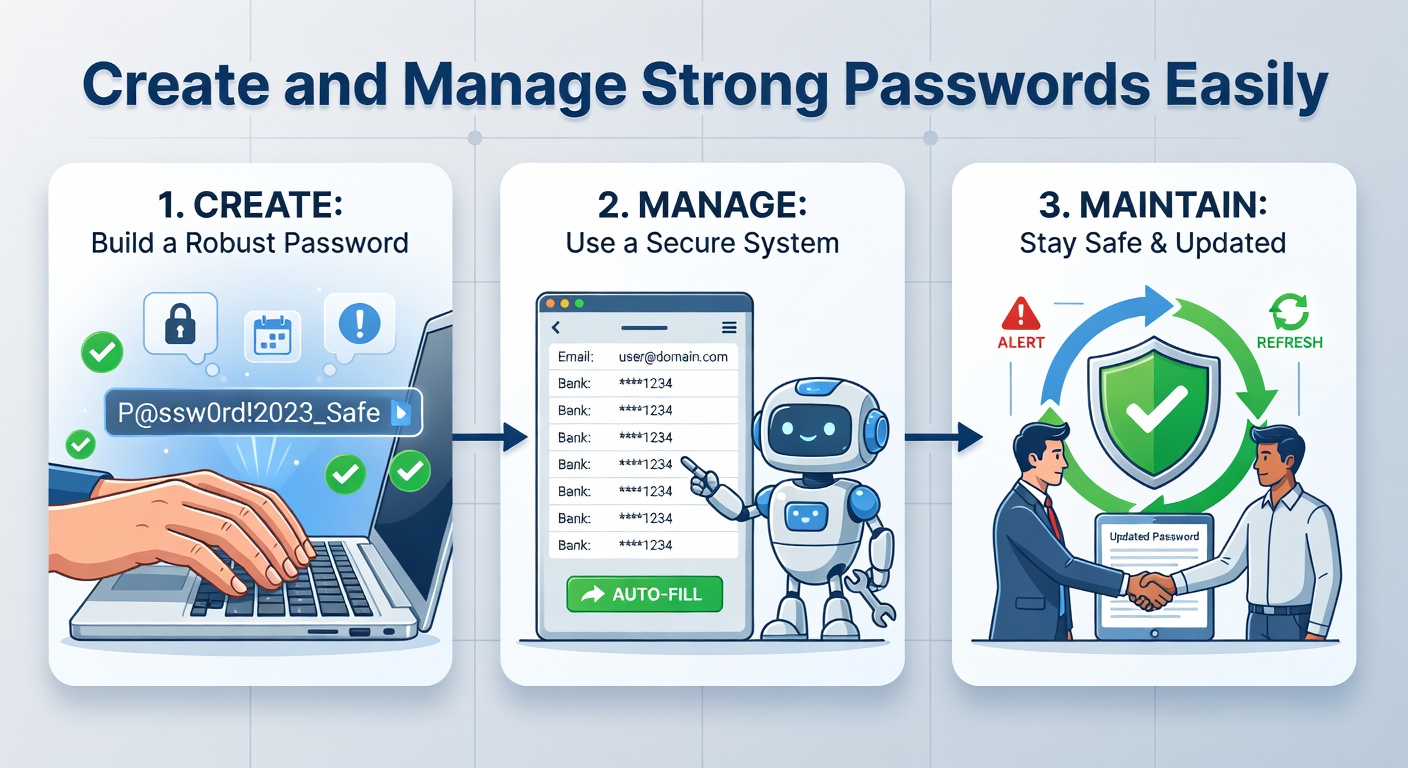
Now, let’s build your password fortress. We’ll break this down into major steps, each with clear actions and explanations. A password manager is like a digital vault that stores all your passwords in one secure place, protected by a single “master password.” It generates strong passwords for you and autofills them on websites, saving time and reducing errors.
Step 1: Choose the Right Password Manager
First, select a tool that fits your needs. This is like picking the best lock for your house—some are basic, others have extra features.
- Research and compare options: Visit the websites of popular password managers like Bitwarden, LastPass, or 1Password. For example, Bitwarden is free and open-source (meaning its code is publicly reviewed for security), while 1Password offers advanced features like secure sharing for families.
Why it matters: Choosing the wrong one could lead to compatibility issues or higher costs. A good manager encrypts your data (scrambles it so only you can read it) and works on all your devices.
Here’s a quick comparison table to help:
| Feature | Bitwarden (Free/Paid) | LastPass (Free/Paid) | 1Password (Paid Only) |
|---|---|---|---|
| Price | Free plan available | Free plan available | Starts at $3/month |
| Security | End-to-end encryption | End-to-end encryption | End-to-end encryption |
| Ease of Use | Simple & clean interface | Strong autofill features | Excellent family sharing |
| Best For | Budget-conscious users | Multi-device users | Advanced & family users |
Sign up for an account: Go to the website of your chosen manager, click “Sign Up,” and enter your email and a strong master password (we’ll cover this next). This creates your secure vault.
Step 2: Set Up Your Password Manager
Once chosen, install and configure it. This is like setting up a new phone—quick and straightforward.
- Download and install the app: On your device, go to the official website (e.g., bitwarden.com) and download the app. Follow the on-screen prompts to install it, then open it and log in with your account details.
Why it matters: Proper setup ensures your data is synced across devices, so you can access your passwords from your phone or computer without hassle.
- Create a master password: This is the key to your entire vault—make it long and unique, like a secret handshake only you know. Aim for at least 12 characters with a mix of letters, numbers, and symbols.
Why it matters: If someone guesses this, they access everything, so treat it as your most important password.
Step 3: Generate and Store Strong Passwords
Now, let’s create passwords that are hard for hackers to crack. A strong password is like a complex maze—random and unpredictable.
- Use the generator tool: In your password manager, find the “Generate Password” feature. For instance, in Bitwarden, click the generator icon and set it to create a 16-character password with uppercase, lowercase, numbers, and symbols.
Why it matters: Weak passwords, like “password123,” are easily guessed by hackers using software. A generated one, such as “X7p#JkL2Qm9@”, is random and unique, reducing breach risks.
- Add passwords to your vault: Visit a website (e.g., your email login), let the manager autofill or manually enter the new password, then save it in the app under the site’s name.
- Update existing passwords: For accounts you already have, use the manager to generate new ones and replace the old. For example, log into your bank account, change the password via the site, and save it in your vault.
Why it matters: Regular updates prevent attackers from using stolen passwords, especially after major breaches.
Step 4: Manage and Use Your Passwords Daily
This step is about making it a habit, like checking your locks before bed.
- Enable autofill and two-factor authentication (2FA): In your manager’s settings, turn on autofill so it automatically enters passwords on websites. Also, enable 2FA, which adds a second layer of security, like a texted code, to your logins.
- Regularly review and audit your vault: Open your manager weekly to check for unused accounts or weak passwords, and delete or update as needed.
Why it matters: This keeps your digital life organized and secure, like decluttering your home to spot potential problems.
Common Mistakes to Avoid
Even with the best intentions, pitfalls can trip you up. Here are four to steer clear of:
- Reusing passwords across sites: This is like using the same key for your house, car, and office—if one is compromised, everything is at risk. Always generate unique ones per account.
- Skipping 2FA: Without it, a stolen password gives full access, similar to leaving your wallet unprotected. Enable it everywhere possible.
- Sharing your master password: Treat it like your PIN—never write it down or tell anyone, as it could lead to unauthorized access.
- Using free Wi-Fi without caution: Logging into your manager on public networks is like shouting your secrets in a crowd; always use a VPN (virtual private network) for added encryption.
- Ignoring updates: Not updating your password manager app leaves vulnerabilities open, much like driving a car without maintenance.
Pro Tips & Optimization
Once you’re comfortable, level up your security game. These tips are like adding extra locks to your doors:
- Use biometric login: Many managers, like 1Password, allow fingerprint or face ID access, making it faster and more secure than typing a password.
- Sync across devices: Set up your manager on all your gadgets for seamless access, but ensure it’s encrypted end-to-end.
- Integrate with other tools: For e-commerce, pair it with secure practices from Cybersecurity Management for E-Commerce Businesses: A Complete Guide to protect online shopping.
- Enable password health checks: Apps like Bitwarden can scan for weak passwords and suggest improvements, helping you stay proactive.
- Consider digital identity management: For balancing security and convenience, explore Digital Identity Management: Balancing Security and User Convenience to extend your setup.
Troubleshooting: Solutions to Common Problems
If you hit a snag, don’t panic—these fixes are straightforward.
- Forgot your master password: Most managers offer recovery options via email or security questions. If not, you’ll need to reset and start over, so always use a password hint or write it in a secure physical location.
- App not syncing: Check your internet connection or log out and back in. If it persists, update the app or contact support, as outdated software can cause conflicts.
- Autofill not working: Ensure the extension is enabled in your browser (e.g., Chrome or Safari) and that the site is added to your vault. For example, if a website changes its layout, manually update the entry.
- Security alerts: If you get a breach notification, immediately change affected passwords through your manager and enable 2FA on those accounts.
Wrapping It Up: Secure Your Digital World
By now, you’ve learned how to choose, set up, and manage a password manager, creating a robust defense against cyber threats. Remember, strong passwords are your first line of protection, and with tools like Bitwarden or LastPass, maintaining them is effortless. Take the next step by exploring Secure Home Wi-Fi Setup for Beginners to extend your security to your network. Start today—your future self will thank you for this simple yet powerful habit.