The Risks of an Unsecured Home Wi-Fi Network and How to Fix It
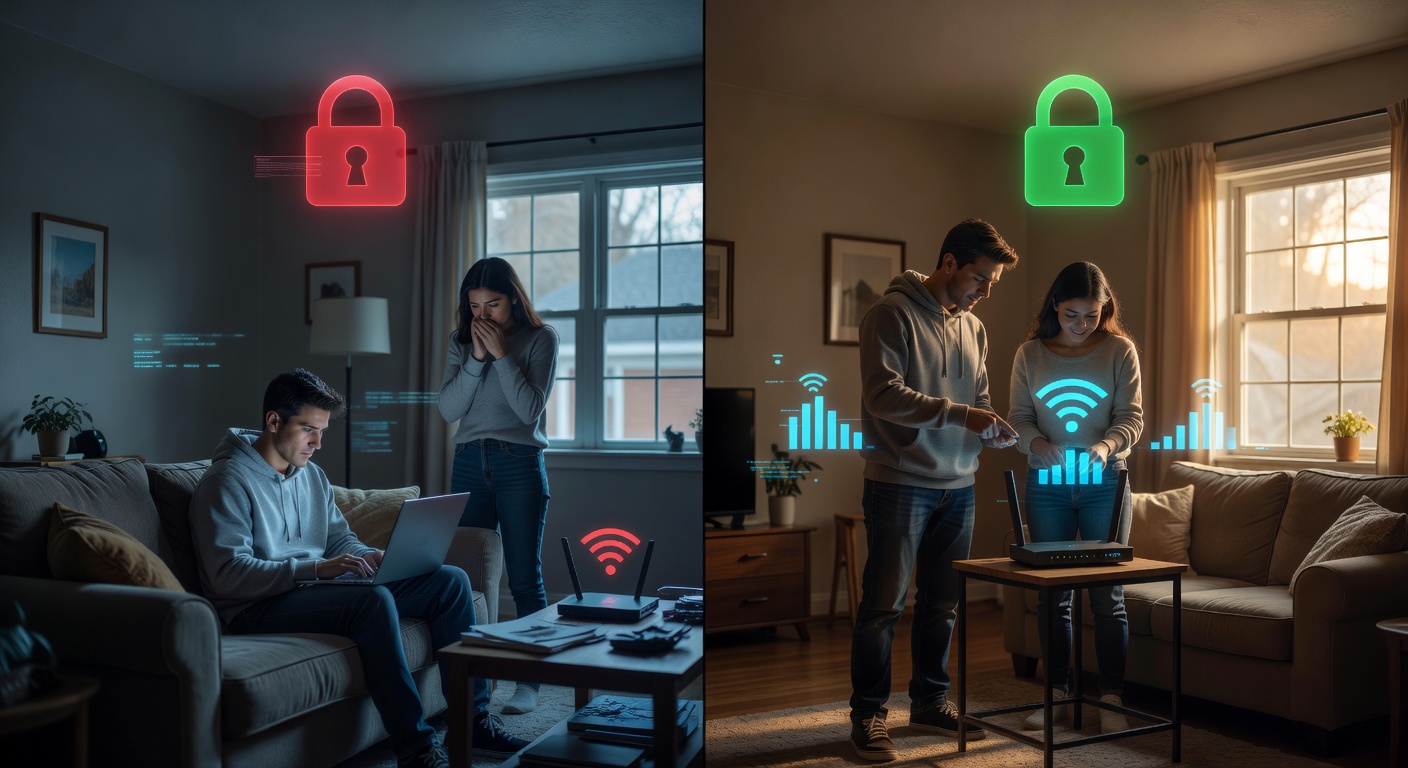
Imagine your home Wi-Fi as the digital equivalent of your front door. If it’s left unlocked, anyone nearby could walk in and access your personal files, steal your identity, or even use your internet for illegal activities. In 2025, a report from the Federal Trade Commission highlighted that over 50% of home network breaches started with weak Wi-Fi security, putting millions at risk. By following this guide, you’ll learn how to set up a secure home Wi-Fi network from scratch, protecting your devices, data, and privacy while ensuring a reliable connection for streaming, working from home, or browsing the web.
What You’ll Need: Prerequisites for Setting Up Your Network
Before diving in, gather a few essential items and basic understandings to make the process smooth. Think of this as packing for a trip—you wouldn’t leave without the right gear. Since you’re a beginner, I’ll explain everything clearly.
- A Router: This is the central device that creates your Wi-Fi network, like a traffic cop directing internet signals to your devices. You’ll need a modern router (e.g., from brands like TP-Link, Netgear, or Google Nest) that supports Wi-Fi 6 for faster speeds and better security. If you don’t have one, purchase a basic model for under $50 from stores like Amazon or Best Buy.
- A Modem: Often provided by your internet service provider (ISP), this device connects your home to the internet, acting like a bridge between your house and the outside world. If you’re renting one from your ISP (e.g., Comcast or AT&T), confirm it’s compatible with your router.
- A Computer or Smartphone: You’ll use this to configure settings. A laptop or phone with a web browser (like Chrome or Safari) is ideal. No special skills needed—just basic comfort with clicking buttons and typing.
- Ethernet Cable: This is a physical cord that connects your router to the modem, providing a stable, wired link. It’s like a direct highway compared to the wireless roads Wi-Fi uses. Get a standard Cat 5e or Cat 6 cable, available at any electronics store.
- Basic Knowledge: Zero prior experience is assumed, but you’ll need access to your ISP account details (like username and password) and a stable power source. Also, ensure you have about 30-60 minutes of uninterrupted time. If you’re curious about related topics, such as understanding potential threats, check out this resource on Types of Hackers: White Hat, Black Hat, Grey Hat, and Beyond to grasp why security matters.
Double-check that your ISP service is active; otherwise, contact them to activate it.
Step-by-Step Instructions: Building Your Secure Wi-Fi Network
Now, let’s get hands-on. I’ll break this down into numbered steps, with subheadings for clarity. Each step includes what to do, why it matters, and simple analogies to make it easy.
Step 1: Unbox and Connect Your Hardware
Why it matters: Proper setup ensures a strong foundation, like building a house before decorating it. A faulty connection can lead to slow speeds or no internet at all.
- Unbox your modem and router. Place them in a central location in your home, away from walls or metal objects, as these can block signals like trees blocking sunlight.
- Connect the modem to your wall outlet using the provided power cord. Wait for the lights on the modem to stabilize—this indicates it’s linked to your ISP.
- Use the Ethernet cable to connect the modem’s output port to the router’s WAN (Wide Area Network) port. This creates a secure, wired path for your internet signal, reducing the risk of wireless interference.
Step 2: Power Up and Initial Setup
Why it matters: This step activates your network, similar to turning on the lights in a room. Skipping it could leave your Wi-Fi exposed to default settings that hackers exploit.
- Plug in the router and wait for it to boot up. Look for a steady light on the router indicating it’s ready.
- On your computer or smartphone, connect to the router’s default Wi-Fi network (usually labeled on a sticker, like “Router-XYZ”). Use the default password provided—think of this as a temporary key you’ll change soon.
- Open a web browser and type in the router’s IP address (often 192.168.0.1 or 192.168.1.1). This takes you to the router’s admin page, where you’ll manage settings. It’s like entering a control room for your network.
Step 3: Configure Basic Network Settings
Why it matters: Customizing your network makes it unique and harder for outsiders to guess, much like changing your locks when you move into a new home.
- In the router’s admin page, set a new network name (SSID). For example, change “Router-XYZ” to “MyHomeNetwork.” Avoid personal info in the name to stay discreet.
- Choose a strong Wi-Fi password. Use a mix of letters, numbers, and symbols (e.g., “BlueSky#2026!”). Aim for at least 12 characters—passwords shorter than 8 are cracked in seconds, according to cybersecurity experts.
- Select your Wi-Fi band (2.4 GHz for wider range or 5 GHz for faster speeds). The 5 GHz band is less crowded, like a less busy highway, reducing interference.
Step 4: Enable Security Features
Why it matters: Security is your network’s shield. Without it, your data is vulnerable, like leaving valuables in an unlocked car. In 2024, the FBI reported that unsecured Wi-Fi led to over 1 million data breaches.
- Under the security settings, enable WPA3 encryption if available—it’s the latest standard, making it tougher for hackers to decode your signal compared to older WPA2.
- Set up a guest network. This creates a separate Wi-Fi for visitors, isolating them from your main devices. For instance, when friends visit, they connect to “MyHomeGuest” instead of your primary network.
- Update the router’s firmware (software) by checking for updates in the admin page. Firmware updates patch vulnerabilities, like fixing holes in a fence.
Step 5: Test and Optimize Your Connection
Why it matters: Testing ensures everything works smoothly, preventing future frustrations. It’s like test-driving a car before buying it.
- Disconnect and reconnect your devices to the new Wi-Fi. Use a speed test tool like Ookla’s Speedtest app to check your internet speed—aim for at least 50 Mbps for basic use.
- If you have smart devices (e.g., a smart TV), ensure they connect properly. In a real-world scenario, this means streaming videos without buffering.
- For email or other services, if you’re setting up related tools, refer to guides like GoDaddy Email Login: A Step-by-Step Guide to Effortless Access to secure your communications once your network is live.
Common Mistakes to Avoid: Pitfalls That Could Compromise Your Security
Even beginners can trip up, so here’s how to steer clear of common errors. These are like road signs warning of dangers ahead.
- Using Default Passwords: Many leave the router’s default admin password (e.g., “admin”) unchanged, making it easy for hackers to take control. Always change it to something unique.
- Neglecting Regular Updates: Skipping firmware updates leaves your network exposed to new threats. For example, a 2025 study showed that outdated routers were involved in 40% of home hacks.
- Overlooking Placement: Putting your router in a corner weakens the signal, leading to dead zones. Position it centrally for even coverage.
- Sharing the Network Password Freely: Treat your Wi-Fi password like your house key—don’t share it with strangers, as they could access your devices.
- Disabling Firewalls: The router’s built-in firewall acts as a gatekeeper; turning it off removes a key layer of protection.
Pro Tips & Optimization: Taking Your Network to the Next Level
Once basics are covered, enhance your setup with these advanced suggestions. Think of them as upgrades to a car for better performance.
- Use a VPN: Install a VPN app (e.g., ExpressVPN) to encrypt your internet traffic, making it invisible to prying eyes. In a work-from-home scenario, this protects sensitive data.
- Set Up Parental Controls: Most routers allow you to limit device access, like blocking certain websites for kids. It’s like a digital curfew.
- Compare Routers: If upgrading, here’s a quick table:
For more on integrated apps, explore Woof Apps: A Comprehensive Guide to Employee Portals and Pet Care Solutions in 2026, which might tie into smart home setups.
Troubleshooting: Fixing Common Problems
Issues can arise, but don’t worry—here’s how to resolve them, like a mechanic fixing a car.
- No Internet Connection: Check all cables and restart your modem and router (unplug for 30 seconds). If it persists, contact your ISP.
- Weak Signal: Reposition the router or use a Wi-Fi extender. For example, if your signal drops in the basement, an extender acts as a signal booster.
- Forgotten Password: Reset the router via the reset button, but note this erases custom settings, so keep backups.
- Device Not Connecting: Ensure the device is compatible with your Wi-Fi band. Update its software for fixes.
Wrapping It Up: Your Secure Wi-Fi Journey
By now, you’ve transformed your home Wi-Fi from a potential weak spot into a fortress of security and reliability. You’ve learned how to connect hardware, configure settings, and avoid common pitfalls, empowering you to browse, stream, and work with confidence. Next, explore more tech topics like document editing with How to Insert Right Mark in Word: Complete Guide or dive deeper into cybersecurity practices. Remember, staying vigilant is key—regularly check your settings to keep your network safe.