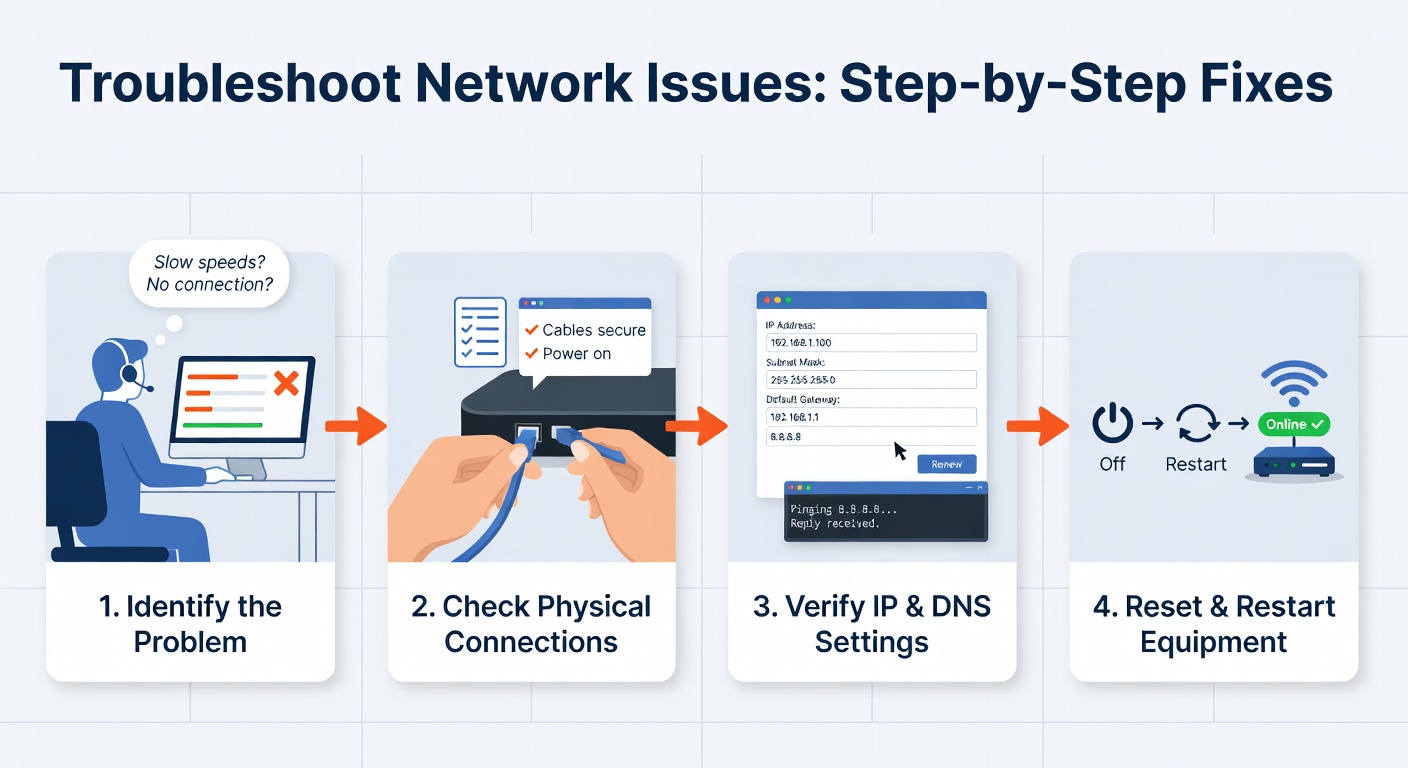
Picture this: You’re in the middle of an important video call, only for your internet to cut out unexpectedly, leaving you scrambling to reconnect. Network connectivity issues can disrupt work, gaming, streaming, and even daily tasks like checking emails. This guide will equip you with practical steps to diagnose and resolve these problems, transforming you from a frustrated user into a confident troubleshooter. By the end, you’ll have the skills to identify root causes, apply fixes, and maintain a stable connection, saving time and reducing reliance on tech support.
Prerequisites
Before diving in, ensure you have the essential tools and basic knowledge to tackle network issues effectively. You’ll need a computer or smartphone with administrative access, as many steps involve checking settings or running commands. Familiarity with your device’s operating system (like Windows, macOS, or Linux) is assumed, along with basic navigation of web interfaces.
Key items include:
- Hardware: An Ethernet cable for wired tests, a router (most homes have one from providers like Xfinity or AT&T), and optionally a Wi-Fi analyzer app like WiFi Analyzer for Android or Acrylic Wi-Fi for Windows to scan signals.
- Software: Command-line tools such as Command Prompt (Windows) or Terminal (macOS/Linux) for running diagnostics. Download free utilities like ping or traceroute if not built-in. For deeper analysis, tools like Wireshark (for packet capturing) can be useful, though it’s optional for beginners.
- Resources: Access to your router’s admin page (usually via 192.168.1.1 or 192.168.0.1—check your manual) and a stable power source. Ensure you have your network provider’s contact info for potential escalations. Basic understanding of IP addresses and network protocols, like TCP/IP, will help, as we’ll build on that without re-explaining fundamentals.
Gathering these upfront prevents interruptions and sets you up for success in applying real-world fixes.
Step-by-Step Instructions
Step 1: Verify Physical Connections
Start by ruling out simple hardware problems, as these are often the easiest to fix and account for up to 30% of connectivity issues according to networking studies.
- Inspect cables and ports: Check that all Ethernet cables are securely plugged in at both ends—your computer and router. Look for frayed wires or bent pins, which can cause intermittent drops. Why it matters: Loose connections lead to signal loss, mimicking more complex issues like router failure.
- Restart devices: Power cycle your modem, router, and computer. Unplug them for 30 seconds, then plug back in and wait for full reboot. This clears temporary glitches in device memory. Why it matters: Cached errors can accumulate, and a restart resets these without affecting your data.
Step 2: Check Network Status and Basic Diagnostics
Once physical checks are done, use software tools to diagnose the issue, helping you pinpoint whether the problem is local or external.
- Run a ping test: Open Command Prompt (Windows) or Terminal (macOS/Linux) and type `ping 8.8.8.8` (Google’s public DNS server). Look for response times under 100ms and zero packet loss. If it fails, note the error messages. Why it matters: Ping tests connectivity to external servers, revealing if your device can reach the internet or if there’s a blockage.
- Use traceroute for deeper insight: Enter `tracert 8.8.8.8` in the command line. This shows the path data takes to the destination, highlighting any hops with high latency. For example, if a hop times out, it could indicate a problem with your ISP. Why it matters: Traceroute uncovers routing issues that ping might miss, such as congested network paths.
Step 3: Examine Wireless Settings and Interference
Wireless networks are prone to interference, so optimize your Wi-Fi setup if you’re using it.
- Scan for signal strength: Use a Wi-Fi analyzer tool to check your network’s signal strength and channel. Switch to a less crowded channel (e.g., 1, 6, or 11 for 2.4GHz) via your router’s settings page. Why it matters: Overlapping channels from neighboring networks can cause interference, leading to slow speeds or disconnections.
- Adjust router placement: Move your router to a central location, away from walls, microwaves, or cordless phones, which emit signals that disrupt Wi-Fi. Why it matters: Physical barriers weaken signals, reducing range and reliability in larger homes.
Step 4: Update and Configure Software
Outdated software can introduce vulnerabilities and compatibility issues, so ensure everything is current.
- Update firmware and drivers: Log into your router’s admin interface and check for firmware updates. On your computer, update network drivers via Device Manager (Windows) or System Preferences (macOS). Why it matters: Firmware bugs can cause connectivity drops, and updates often include security patches that prevent exploits.
- Configure firewall and DNS settings: Temporarily disable your firewall to test if it’s blocking traffic, then re-enable and add exceptions as needed. Switch to a reliable DNS server like 8.8.8.8 for faster resolution. Why it matters: Misconfigured firewalls or DNS can block legitimate traffic, especially in home setups with multiple devices.
For a real-world scenario, imagine you’re working from home and your laptop loses connection during a download. By following these steps, you might discover outdated drivers as the culprit, fixing it in minutes and avoiding lost productivity.
Step 5: Test for External Factors
If internal checks fail, look outward to isolate ISP or broader network problems.
- Contact your provider: Use your ISP’s app or website to check for outages in your area. If none are reported, run a speed test via tools like Ookla’s Speedtest.net and compare results to your plan (e.g., 100Mbps download). Why it matters: ISPs handle backbone issues, and verifying service levels ensures you’re not paying for unreliable connections.
- Isolate devices: Connect directly to the modem with an Ethernet cable to bypass the router. If it works, the router is the problem. Why it matters: This differentiates between device-specific and network-wide issues, guiding your next actions.
In scenarios like rural areas with frequent outages, these steps can reveal if an ISP upgrade, such as switching to fiber optics, is needed for better reliability.
Common Mistakes to Avoid
Even with the best intentions, beginners often overlook key details that lead to prolonged frustration. Here are four common pitfalls:
- Skipping the restart step: Many users jump straight to advanced diagnostics without rebooting devices, missing simple fixes for temporary glitches. For instance, a router’s cache might hold corrupted data, which a restart clears instantly.
- Ignoring security settings: Forgetting to check firewall rules or antivirus interference can falsely indicate a hardware problem. Always verify these first, as unsecured networks are vulnerable to cyber threats, potentially causing unexplained disconnections.
- Overlooking environmental factors: Placing routers near electronic devices without scanning for interference often results in poor Wi-Fi performance. Remember, a 2.4GHz network can be disrupted by household appliances, leading to up to 50% signal degradation in busy environments.
- Relying solely on one tool: Using only ping without traceroute might miss routing issues. A comparison table can help:
| Tool | Best For | Pros | Cons | |—————|—————————|——————————-|——————————-| | Ping | Basic reachability | Quick and simple | Doesn’t show full path | | Traceroute | Path analysis | Reveals intermediate hops | Can be time-consuming | | WiFi Analyzer| Signal strength | Visual interface for channels | Limited to wireless issues |
Avoiding these mistakes will make your troubleshooting more efficient and effective.
Pro Tips & Optimization
To elevate your skills beyond basics, incorporate these advanced strategies for a more robust network.
- Implement network monitoring: Use tools like PRTG Network Monitor to track bandwidth usage in real-time, helping you spot patterns like peak-hour slowdowns. This ties into Mastering Modern Networking with AI: A Smarter Approach, where AI-driven tools predict issues before they occur.
- Secure your setup: Always enable WPA3 encryption on your router and regularly change passwords. For deeper security, refer to Optimize Home Network Security Step-by-Step to prevent unauthorized access that could disrupt connectivity.
- Optimize for speed: Prioritize traffic with Quality of Service (QoS) settings in your router for activities like video calls. In high-traffic homes, segment devices using VLANs, as outlined in Unveiling the Power of IP Routes: A Comprehensive Guide, to reduce congestion.
These tips not only fix issues but also future-proof your network against growing demands.
Troubleshooting Common Problems
Even with careful steps, specific issues can arise—here’s how to handle them:
- No internet access: If ping fails, check for IP conflicts using `ipconfig /release` and `ipconfig /renew` on Windows. If it’s an ISP issue, their outage map might show problems; escalate with your account details.
- Intermittent drops: Look for firmware bugs via router logs. For Wi-Fi, switch bands (e.g., 5GHz for less interference) and test with a wired connection.
- Slow speeds: Compare speed test results; if below your plan, reset modem settings or contact support. In dense areas, use mesh networks like Google Nest for better coverage.
In a real-world example, if you’re gaming and experiencing lag, traceroute might reveal a faulty hop, allowing you to reroute or alert your ISP.
Conclusion
By following this guide, you’ve gained the practical tools to troubleshoot and fix network connectivity issues, turning potential headaches into manageable tasks. You’ll now handle everything from cable checks to advanced diagnostics with confidence, ensuring smoother online experiences. Next, explore related topics like enhancing your network’s security through Optimize Home Network Security Step-by-Step or dive into routing details with Unveiling the Power of IP Routes: A Comprehensive Guide. Keep practicing these steps to build your expertise and maintain a reliable connection.