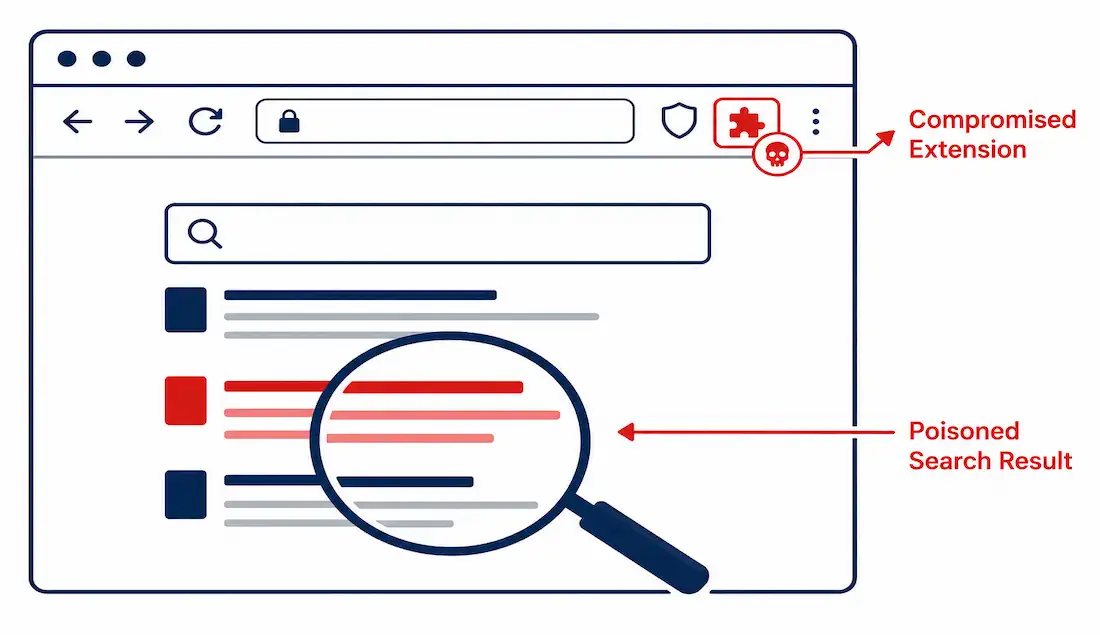
Browser security failures rarely announce themselves clearly — a compromised extension, a poisoned search result, or a hijacked homepage setting can all sit quietly in the background, collecting data or redirecting traffic long before a user notices anything wrong. Cybercriminals specifically target browser executables, core components, and extensions precisely because a single successful compromise there can affect everything a user does online afterward.
This guide covers browser plugins and their evolving risk profile, SEO poisoning, browser hijackers, and the practical steps that actually reduce exposure to all three.
Browser Plugins and Extensions
A browser plugin — now more commonly called an extension or add-on in modern browsers like Chrome, Firefox, and Edge — is software that adds functionality beyond the browser’s default capabilities. Legacy plugins like Adobe Flash Player and Shockwave once handled rich multimedia content directly in the browser; both are now obsolete, with Flash officially deprecated at the end of 2020.
Modern extensions cover an enormous range of functionality — ad blocking, password management, productivity tools — installed through official extension stores rather than the standalone installer downloads legacy plugins once required.
Historical context worth knowing: Flash’s decline wasn’t just about HTML5 making it technically unnecessary — it was also a genuine, ongoing security liability. CVE-2018-4878, a real, actively-exploited Flash zero-day vulnerability, was used in documented real-world attacks before Adobe patched it, and Flash’s history included numerous similar incidents over its lifetime. This pattern — a widely-installed plugin with a large, persistent attack surface — is exactly why browser vendors moved away from the entire plugin architecture Flash represented, not just away from Flash specifically.
Modern Extension Threats
Today’s extension-related risks look different from Flash-era plugin vulnerabilities, but they’re arguably more relevant given how many extensions the average user has installed:
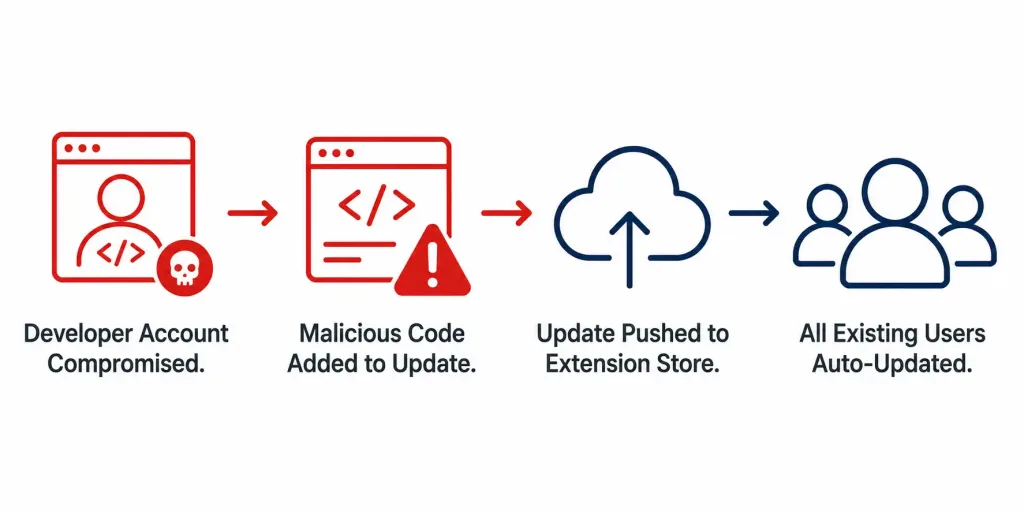
Extension supply chain compromise: attackers gain control of a legitimate extension — commonly by compromising a developer’s account or acquiring an extension outright — then push a malicious update through the extension’s existing update mechanism, instantly reaching every user who already trusted and installed it. This happened multiple times across 2023 through different specific incidents, each affecting different developer accounts and extensions, though sharing the same underlying supply-chain attack pattern.
A well-documented real example: The Great Suspender, a popular Chrome extension for suspending inactive tabs to save memory, was removed from the Chrome Web Store in 2021 after a change in ownership led to the extension being found tracking user browsing activity — a concrete illustration of how a trusted, widely-installed extension can turn malicious after a change in control, without the underlying code necessarily triggering an obvious red flag at update time.
Cross-site scripting (XSS) vulnerabilities in extensions: a poorly-secured extension can itself become an attack vector, allowing malicious sites to execute code with the extension’s elevated permissions rather than the page’s own limited ones.
Manifest V3 trade-offs: Chrome’s shift to the Manifest V3 extension platform restricted the webRequest API’s blocking capabilities, which meaningfully limited some ad-blocking and privacy-extension functionality that relied on it. This is a genuine, actively-debated trade-off in the browser security and privacy community — Manifest V3 does close off some categories of extension misuse, but it also constrains legitimate defensive extensions that used the same underlying mechanism.
SEO Poisoning
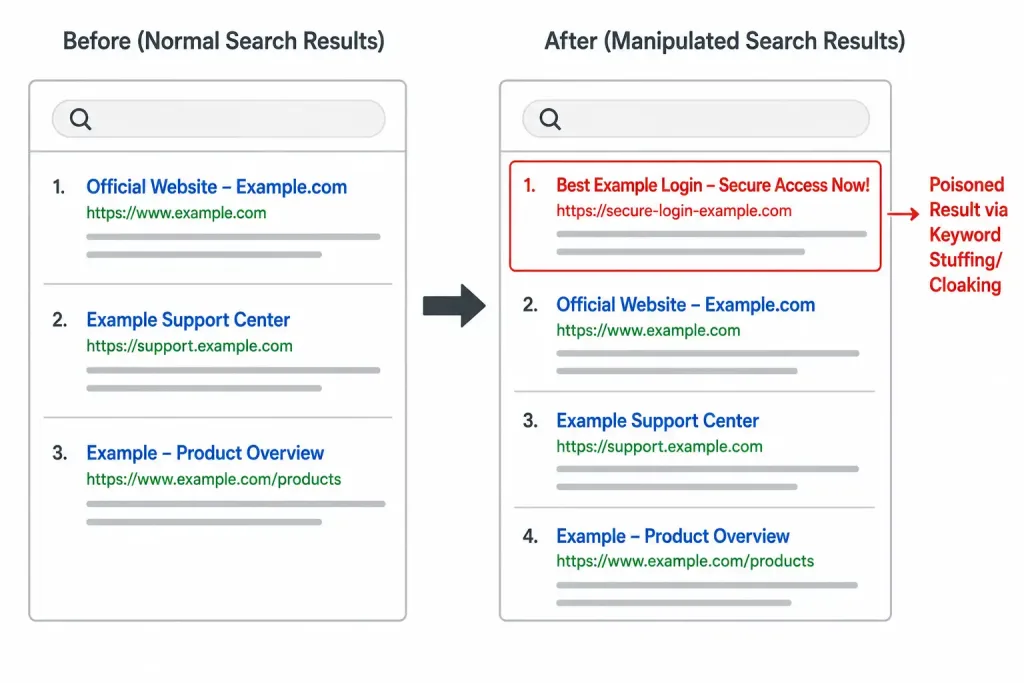
Search engines rank pages based on perceived relevance and quality, and legitimate SEO improves visibility through genuine content optimization, backlinks, and user experience improvements. SEO poisoning — also called black-hat SEO or search poisoning — is the cybercriminal version: artificially inflating a malicious site’s ranking to drive traffic toward malware, phishing pages, or scams.
Common techniques:
- Keyword stuffing: overloading a page with search terms to manipulate ranking algorithms, regardless of actual content relevance.
- Cloaking: showing search engine crawlers different content than what a human visitor actually sees, letting a malicious page appear legitimate to the ranking algorithm while delivering something else entirely to real visitors.
- Link farms: networks of low-quality sites linking to each other purely to inflate perceived authority and search ranking.
A recognizable pattern: attackers frequently target searches around high-profile, time-sensitive events — election results, major sporting events, breaking news — precisely because search volume spikes quickly and users are searching for genuinely current information they haven’t had time to verify against known-trustworthy sources yet.
Browser Hijackers
A browser hijacker is malware that alters browser settings without consent — changing the homepage, default search engine, or installing unwanted toolbars — typically to redirect traffic toward attacker-controlled sites for ad revenue or data collection.
Hijackers commonly arrive via drive-by downloads or bundled with freeware installers, exploiting both unpatched browsers and installation flows where a user clicks through default options without reading what’s actually being installed alongside the software they wanted.
Real, documented examples: CoolWebSearch was a notorious, widely-studied browser hijacker from the early 2000s. Search Marquis is a modern, actively-documented hijacker specifically targeting macOS systems, commonly arriving bundled with pirated or cracked software installers.
Symptoms: unexpectedly slow browser performance, a surge in pop-up ads, and searches or navigation redirecting somewhere other than the intended destination.
Practical Prevention Strategies
Auditing Extensions
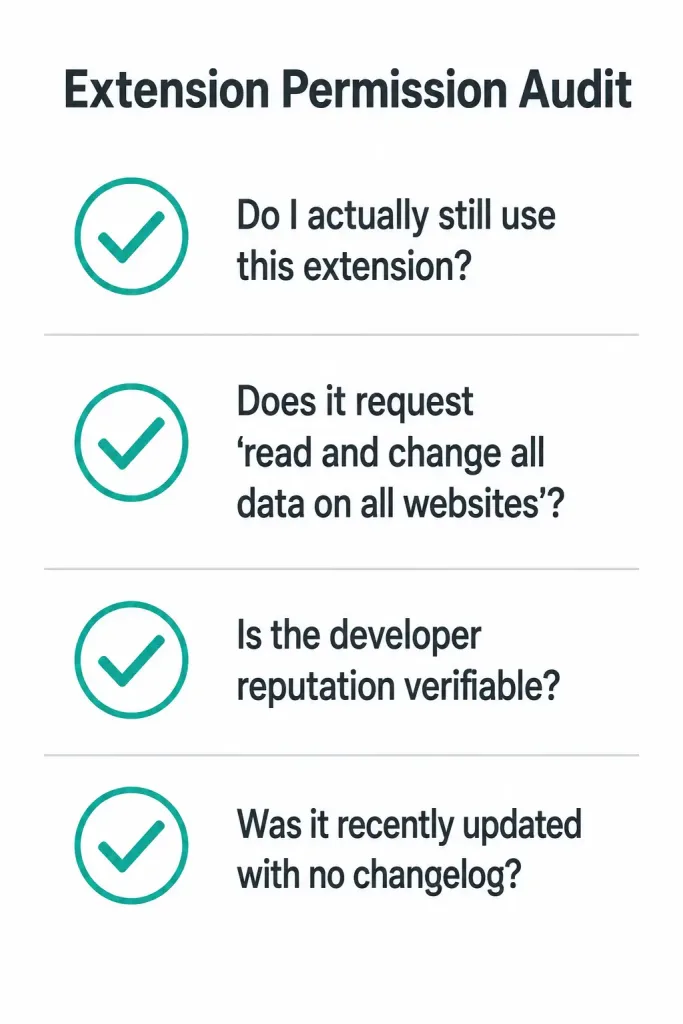
Before installing any extension, review what permissions it actually requests — an extension asking for access to “read and change all your data on all websites” needs a genuinely good reason for that scope, given what it makes possible if the extension (or its developer account) is later compromised.
Review installed extensions directly:
- Chrome: navigate to
chrome://extensions - Firefox: navigate to
about:addons - Edge: navigate to
edge://extensions
Disable or remove anything you don’t actively recognize or use — an unused extension still represents ongoing attack surface even if it’s never actively malicious itself, since it’s still a piece of code capable of receiving a malicious update.
Sandboxing and Isolation
Running a browser inside a virtual machine (via tools like VirtualBox) isolates browsing activity from your primary operating system, which is a genuinely strong containment strategy for higher-risk browsing scenarios — though it’s more overhead than most everyday browsing warrants. Browser-native sandboxing, already built into modern Chrome, Firefox, and Edge, provides a lighter-weight version of the same principle for routine use, isolating each tab’s process from the others and from the underlying system.
Verifying Site Legitimacy
Check for a valid HTTPS certificate before entering any sensitive information, and be specifically skeptical of unusually high search rankings for topics that seem too perfectly matched to exactly what you searched — a hallmark of SEO poisoning is content that reads as engineered for the search algorithm rather than written for an actual reader.
Email and Attachment Hygiene
Browser and email threats frequently overlap — a malicious extension or hijacker installation often starts with a phishing email or a compromised download link. Never assume an attachment is safe simply because it appears to come from a known sender, since sender spoofing is common and low-effort for attackers. Scan attachments with antivirus software before opening them, and keep browsers and extensions updated — most modern browsers handle this automatically, but it’s worth confirming auto-update is actually enabled rather than assuming it.
Browser Security at the Organizational Level
Individual vigilance matters, but organizations managing many browsers across many employees need policy-level controls that don’t depend on every user remembering to check permissions manually.
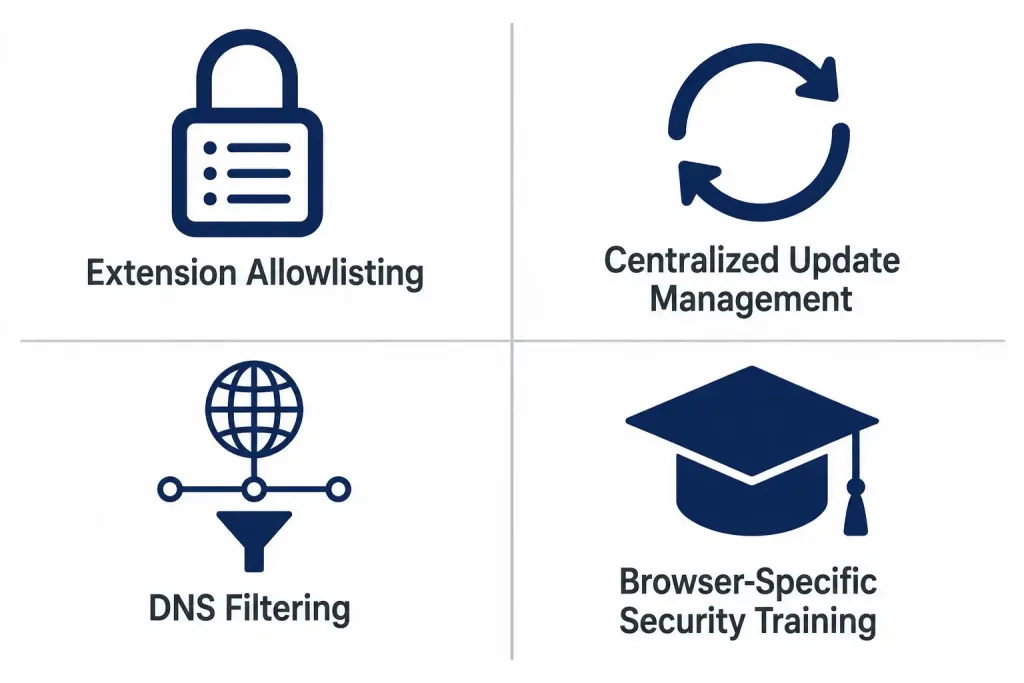
Extension allowlisting: rather than letting employees install any extension freely, enterprise browser management (available in Chrome Enterprise, Firefox Enterprise, and similar) can restrict installation to a pre-approved list, eliminating the supply-chain risk of an employee installing something malicious or later-compromised entirely on their own judgment.
Centralized update management: ensuring browsers and extensions actually receive security updates promptly across an entire organization, rather than relying on individual auto-update settings that might be disabled or delayed on some machines, closes a gap that’s easy to overlook until it’s exploited.
DNS filtering at the network level: blocking known-malicious domains before a browser ever loads them adds a layer of protection that doesn’t depend on the browser’s own defenses working correctly, which matters specifically for threats like SEO poisoning that are designed to look legitimate right up until the moment a page actually loads.
Security awareness training specific to browser threats: general phishing training doesn’t automatically cover extension permission review or recognizing a hijacked homepage — these are distinct enough skills that they benefit from being called out specifically in security training programs, rather than assumed to be covered by general email-phishing awareness alone.
Threat and Mitigation Reference
| Threat | Detection Approach | Primary Mitigation |
|---|---|---|
| Malicious/Compromised Extension | Review permissions; check developer reputation and update history | Disable unused extensions; audit permissions regularly |
| SEO Poisoning | Scrutinize unusually specific or too-perfect search results | Verify site certificates; navigate directly to known-trustworthy sources |
| Browser Hijacker | Watch for unexpected homepage/search engine changes | Read installer prompts carefully; use reputable ad blockers |
| Flash/Legacy Plugin Exposure | Check for any remaining legacy plugin dependencies | Ensure Flash and similar plugins are fully removed, not just disabled |
Troubleshooting a Suspected Compromise
Browser homepage or search engine changed unexpectedly: check installed extensions first via your browser’s extension management page, since this is the most common hijacker vector. Remove anything unfamiliar, then manually reset the homepage and default search engine settings.
Excessive pop-ups appearing even on normally clean sites: this often indicates a compromised extension injecting content rather than anything wrong with the sites themselves. Disable extensions one at a time to isolate which one is responsible, rather than assuming a full system reinstall is necessary.
Search results seem unusually specific or suspicious for a trending topic: this is a strong SEO poisoning signal. Navigate directly to known-trustworthy sources (official news outlets, official election result pages) rather than trusting a search result that seems to have appeared suspiciously fast for a rapidly-developing story.
FAQs
What are browser plugins, and are they still relevant today?
Browser plugins were software add-ons like Flash Player that added multimedia capabilities beyond a browser’s default functionality, but legacy plugins are now largely obsolete, replaced by the modern extension model. Extensions remain relevant and useful, but they carry a genuinely similar risk profile — elevated permissions that can be exploited if the extension or its developer is compromised.
How does SEO poisoning actually affect internet users?
SEO poisoning manipulates search rankings to push malicious sites toward the top of relevant search results, exploiting the trust users place in high-ranking results as an implicit quality signal. Attackers particularly target high-volume, time-sensitive searches — breaking news, election results — since users are more likely to click quickly on urgent, current topics without first verifying the source.
What is a browser hijacker, and how can I tell if I have one?
A browser hijacker changes settings like your homepage or default search engine without consent, typically to redirect traffic for ad revenue or data collection. Watch for unexplained homepage changes, a surge in pop-up ads, or search results that redirect somewhere unexpected — all strong signals worth investigating through your extension list first.
How can users defend against browser security threats effectively?
Regularly audit installed extensions and their permissions, keep browsers and extensions updated (confirming auto-update is actually enabled), verify HTTPS certificates before entering sensitive information, and treat unexpectedly perfect search results for trending topics with real skepticism. Combining these habits with genuine caution around email attachments and unfamiliar download sources closes most of the common infection paths.
Is Flash still a security risk if I haven’t used it in years?
Only if remnants remain installed — Adobe officially ended all Flash Player support at the end of 2020, and modern browsers have removed built-in Flash support entirely. If you have an old, unused Flash installer or standalone player still present on a system, removing it entirely (rather than just disabling it) closes off that historical attack surface for good.
What’s the single most useful habit for auditing browser extensions?
Periodically reviewing your installed extensions list and asking, for each one, whether you actually still use it and whether its requested permissions genuinely match what it needs to do its job. An extension you installed once and forgot about is pure attack surface with no offsetting benefit — removing anything you don’t actively recognize is a low-effort, high-value habit worth doing on a regular schedule.