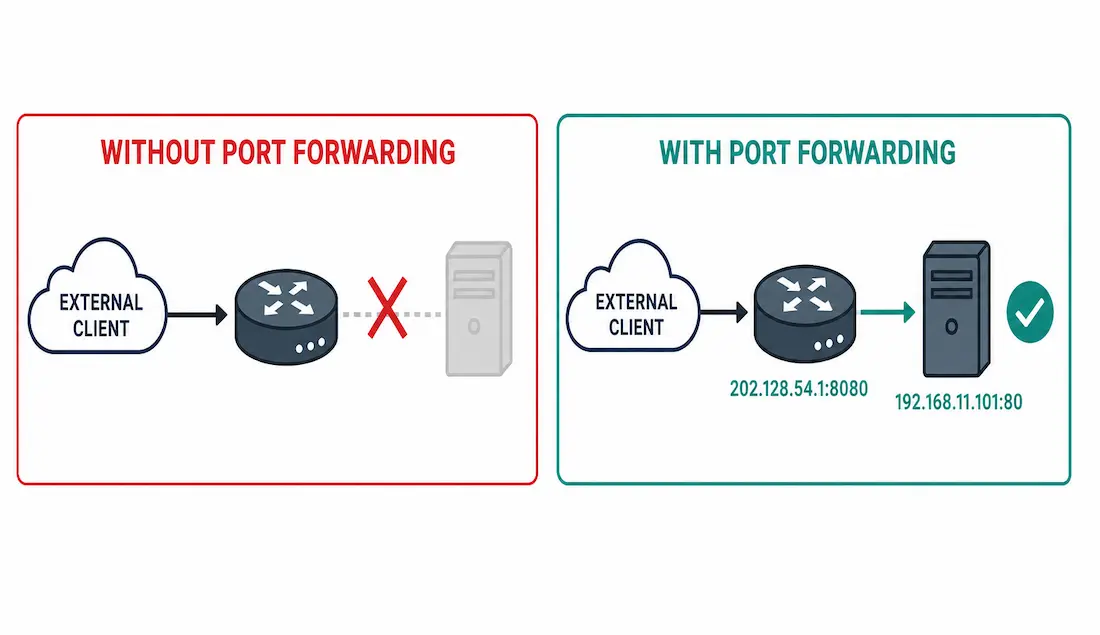
Port forwarding maps a specific external port to a specific internal IP address and port, letting external devices reach a service on a private network despite NAT normally blocking any unsolicited inbound connections from ever reaching that internal host. It’s how a home server, a game console, or a remote-access tool becomes reachable from outside a NAT-protected network in the first place.
This guide covers why port forwarding exists, how it relates to the NAT types covered elsewhere in this series, GUI and CLI configuration, and the security practices worth following before exposing anything to the internet.
Why Port Forwarding Exists
NAT hides internal private addresses by translating them to a public address at the router — a real benefit, but it comes with a side effect: external devices can no longer initiate connections to internal hosts on their own, since nothing on the outside actually knows which internal address a given inbound packet should be delivered to. Port forwarding resolves this narrowly, for one specific service at a time, without opening the entire network up to unrestricted inbound access.
Common use cases:
- Web servers — forwarding HTTP (port 80) or HTTPS (port 443) traffic to an internally hosted site
- Remote access — RDP (port 3389) or SSH (port 22) reaching a specific internal machine
- Online gaming — consoles and multiplayer titles often need specific ports forwarded for full connectivity
- IoT devices — remote monitoring apps for security cameras and similar devices
- File sharing — FTP (port 21) or peer-to-peer applications needing inbound reachability
How This Relates to NAT
Port forwarding on a Cisco router is functionally a variant of static NAT — specifically, static NAT with a port number included, rather than translating the entire address. If you’ve worked through the Static NAT guide in this series, the command syntax will already look familiar.
| NAT Type | How It Relates to Port Forwarding |
|---|---|
| Static NAT | The direct foundation — port forwarding is static NAT scoped to one port instead of the whole address |
| Dynamic NAT | Not typically used for port forwarding — a changing address makes external access unreliable |
| PAT | Commonly what home routers actually run underneath their “port forwarding” GUI setting — one public address, specific ports directed to specific internal devices |
Port Forwarding in IPv6 Environments
IPv6 devices generally have their own globally unique addresses, removing NAT’s role in normal cases — but the concept behind port forwarding still applies, just implemented differently. Rather than a NAT mapping, IPv6 typically uses firewall/ACL rules to control which external traffic can reach which internal service:
ipv6 access-list ALLOW_HTTP
 permit tcp any host 2001:db8::100 eq 80
interface GigabitEthernet0/1
 ipv6 traffic-filter ALLOW_HTTP in
This achieves the same practical outcome — external clients can reach one specific service on one specific internal address — without any address translation involved at all in the process, since the internal address itself is already globally routable and doesn’t need hiding behind a shared public address.
Configuring Port Forwarding via a Router’s GUI (TP-Link Example)
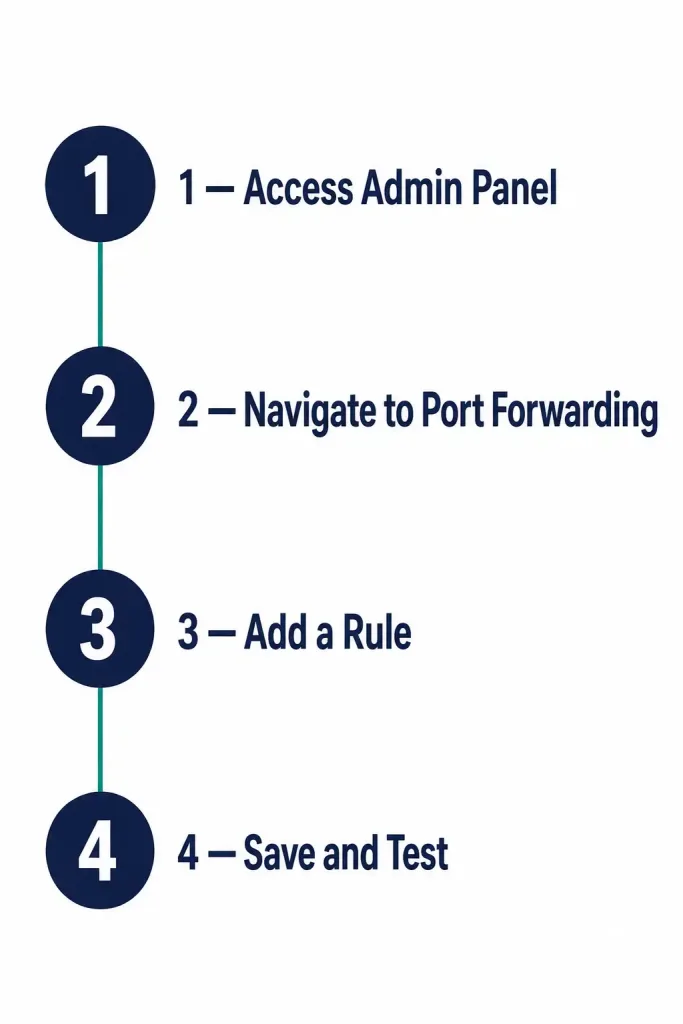
Most home and small-office routers configure port forwarding through a web-based admin panel rather than a CLI. The steps are broadly the same across brands, with different menu names:
- Access the admin panel — log in via a browser (commonly
http://192.168.0.1orhttp://192.168.1.1). - Navigate to port forwarding — usually under “Forwarding” → “Virtual Servers,” though menu naming varies by brand.
- Add a rule, specifying:
- Service Port: the external port (e.g., 80, or a custom port like 8080)
- Internal IP: the server’s private address
- Internal Port: usually matching the service port
- Protocol: TCP, UDP, or both
- Status: Enabled
- Save and test — access the router’s public IP at the configured port from an external network to confirm it works.
Menu names by brand, since this trips people up in practice more than the actual configuration steps themselves ever do:
| Brand | Where to Look |
|---|---|
| Netgear | “Port Forwarding/Port Triggering” under Advanced |
| ASUS | “Virtual Server/Port Forwarding” under WAN |
| Cisco/Linksys | “Single Port Forwarding” or “Port Range Forwarding” under Applications & Gaming |
| D-Link | “Port Forwarding” under Advanced |
Using a non-standard port: if the default port is blocked, already in use, or you simply want to reduce automated scanning traffic, forward a different external port to the internal service’s actual port instead — e.g., external 8080 → internal 80. External users then need to include the port explicitly in the URL (http://<public-ip>:8080), since browsers otherwise assume port 80 by default.
Configuring Port Forwarding on a Cisco Router (CLI)
This example forwards HTTP traffic to Server1 — the same server already established in this series’ Static NAT guide, at 192.168.11.101 on R2’s G0/0 — but this time exposing it on a custom external port (8080) rather than the full static one-to-one address mapping already covered there in that earlier article.
Topology: R2’s G0/0 (192.168.11.1) is the LAN interface; Serial0/0/0.100 (202.128.54.1) is the WAN interface, matching the rest of this NAT series.
R2> enable
R2# configure terminal
R2(config)# ip nat inside source static tcp 192.168.11.101 80 202.128.54.1 8080
R2(config)# interface GigabitEthernet0/0
R2(config-if)# ip nat inside
R2(config-if)# exit
R2(config)# interface Serial0/0/0.100
R2(config-subif)# ip nat outside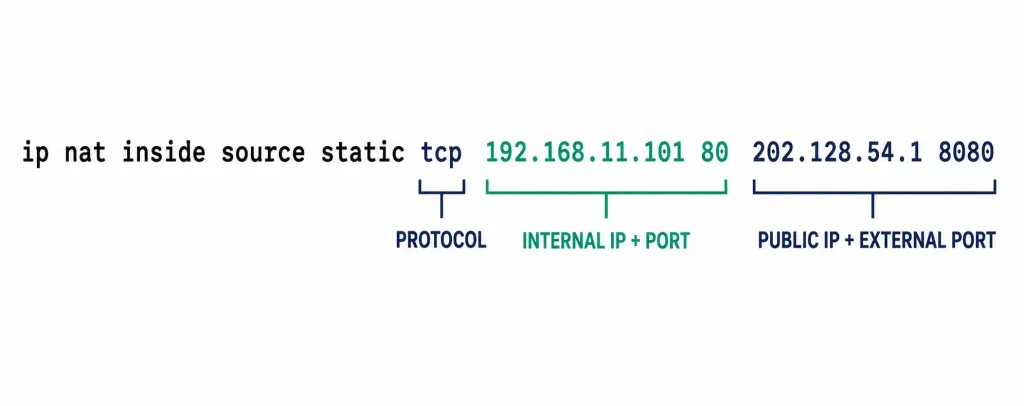
Reading the command: tcp specifies the protocol; 192.168.11.101 80 is the internal server’s address and port; 202.128.54.1 8080 is the public address and the specific external-facing port clients will actually connect through. Note this reuses R2’s own outside interface address, the same address PAT uses elsewhere in this series for its own translations — port forwarding and PAT commonly coexist happily on the same single public IP, since forwarding one specific port doesn’t conflict at all with PAT independently handling everything else.
For UDP-based services (DNS, for example), swap the protocol keyword:
R2(config)# ip nat inside source static udp 192.168.11.101 53 202.128.54.1 53A note on the extendable keyword: some references mention extendable alongside static NAT port-forwarding commands. It’s an optional keyword — not something applied automatically by default — relevant specifically in scenarios involving multiple outside networks where the same local address/port combination might genuinely need different translations depending on which outside network is actually involved. For a typical single-WAN setup like the one used throughout this guide, it isn’t needed at all.
Practical Lab: Testing Port Forwarding in Packet Tracer
A hands-on lab makes the abstraction concrete. Using the same addressing as the CLI example above:
- Build the topology: a router (R2), a switch, Server1 at 192.168.11.101/24 connected via the switch to G0/0, and an external client PC connected to R2’s WAN side.
- Configure interfaces: G0/0 at 192.168.11.1/24 (LAN), Serial0/0/0.100 at 202.128.54.1/24 (WAN).
- Enable HTTP on Server1 in Packet Tracer’s server configuration tab.
- Apply the port forwarding configuration from the CLI section above.
- From the external client, open the browser and enter
http://202.128.54.1:8080.
Expected result: Server1’s web page loads, confirming the external port (8080) correctly forwards to the internal service (192.168.11.101:80).
If it doesn’t work, work through the troubleshooting table above in order — checking show ip nat translations first catches the vast majority of configuration mistakes before you need to move on to ACLs or interface designations. This lab is also a genuinely good place to deliberately break the configuration once it’s already working — remove ip nat outside from the WAN interface and observe exactly how the failure looks, then restore it — since seeing a specific failure mode once makes it far easier to recognize that same symptom quickly in a real troubleshooting scenario later on.
Verifying the Configuration
R2# show ip nat translations
Pro  Inside global       Inside local         Outside local     Outside global
tcp  202.128.54.1:8080   192.168.11.101:80    ---               ---
This confirms the mapping exists as a static entry — present in the table at all times regardless of active sessions, exactly like the other static NAT entries covered elsewhere in this series.
Security Considerations
Port forwarding exposes an internal service directly to the internet, which is inherently more risk than keeping that same service entirely private and unreachable from outside. Standard practices worth following before exposing anything at all:
- Restrict source IPs where possible, using an ACL:
R2(config)# access-list 100 permit tcp any host 202.128.54.1 eq 8080
R2(config)# interface Serial0/0/0.100
R2(config-subif)# ip access-group 100 in- Use non-standard ports for anything commonly scanned by automated tools — SSH on 2222 instead of 22, for instance, cuts down on that automated attack noise considerably, though it’s worth remembering this isn’t a real security boundary on its own.
- Enable logging on the forwarding rule or ACL to catch suspicious activity.
- Remove forwarding rules for services no longer actually in use — an old, forgotten rule sitting around unnoticed is exactly the kind of thing that quietly turns into a real security incident much later.
- Consider a DMZ for anything genuinely public-facing, isolating it from the rest of the internal network rather than exposing a device that also has access to internal resources.
Troubleshooting Port Forwarding
| Symptom | Check | Likely Cause |
|---|---|---|
| Rule configured but nothing works | show ip nat translations | Confirm the entry actually exists and the ports match what’s expected |
| Works internally, fails externally | Test from an actual external network | NAT loopback/hairpinning issues are common when testing from inside the same LAN |
| Connection refused | show access-lists | An ACL may be blocking the forwarded port |
| Interfaces look right but still fails | show running-config | Confirm ip nat inside and ip nat outside are on the correct interfaces, not swapped |
| Service unreachable even with a correct rule | Check the server itself | Confirm the service is actually running and listening on the expected internal port |
FAQs
What is port forwarding in networking?
Port forwarding maps a public IP and specific external port to a private internal IP and port, allowing external traffic to reach one specific internal service despite NAT normally blocking unsolicited inbound connections.
How do you configure port forwarding on a Cisco router?
Use ip nat inside source static tcp <internal-ip> <internal-port> <public-ip> <external-port>, then mark the LAN interface with ip nat inside and the WAN interface with ip nat outside. Verify with show ip nat translations.
What are the security risks of port forwarding?
It exposes an internal service directly to internet-based threats. Mitigate with source-IP restrictions via ACLs, non-standard ports for commonly-scanned services, logging, and isolating genuinely public-facing services in a DMZ.
What’s the difference between port forwarding and port triggering?
Port forwarding creates a static, always-open mapping for inbound traffic. Port triggering opens a port dynamically in response to specific outbound traffic and closes it again after inactivity — generally the better fit for temporary access patterns like some multiplayer games.
How does port forwarding work in IPv6 environments?
Since IPv6 devices typically have their own globally unique address, there’s no NAT mapping involved — the equivalent function is achieved through firewall/ACL rules controlling which external traffic can reach which internal service and port directly.
Is port forwarding the same thing as static NAT?
Functionally very close — port forwarding on a Cisco router is static NAT scoped to a specific port rather than the entire address, using the same ip nat inside source static command family with port numbers added.
Can port forwarding and PAT run on the same router at the same time?
Yes, and it’s a common real setup — PAT handles general outbound internet access for every internal device sharing the router’s single public address, while one or more port forwarding rules separately direct specific inbound ports to specific internal servers. Neither configuration interferes with the other, since they’re handling traffic in different directions and for different purposes.