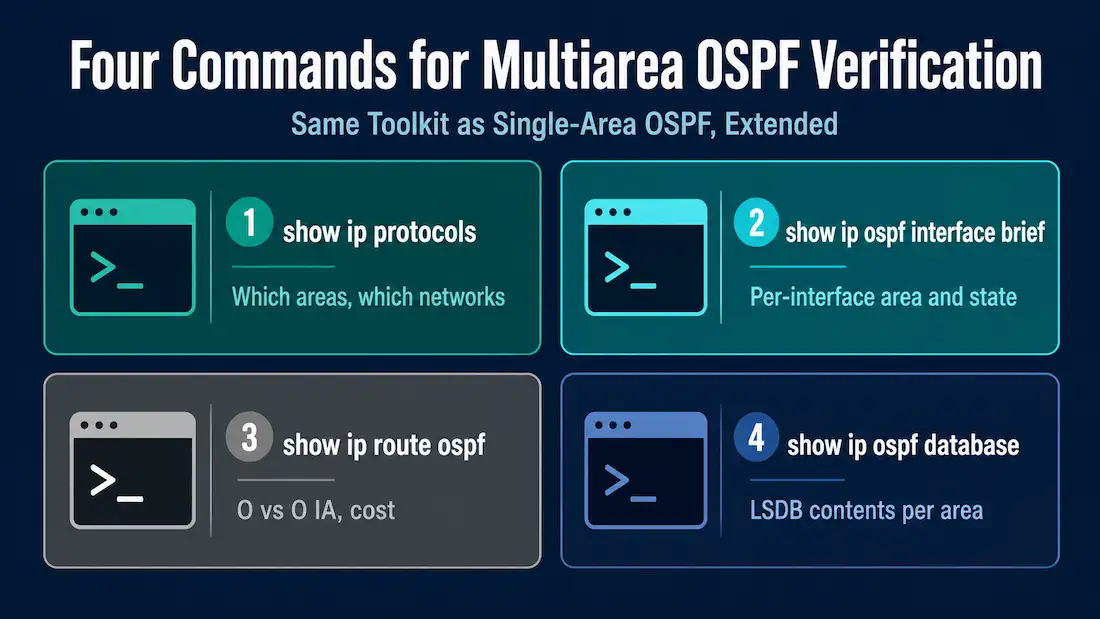
Most multiarea OSPF verification uses the exact same commands already familiar from single-area OSPF — show ip ospf neighbor, show ip ospf, and show ip ospf interface all work identically regardless of how many areas are involved. A handful of additional commands specifically surface multiarea information: which areas a router participates in, how routes crossed between areas, and what the Link-State Database actually contains per area. This guide covers all four, using real example output rather than describing them in the abstract, and walks through several concrete troubleshooting scenarios where combining them actually solves a problem.
This continues the walkthrough from How to Configure Multiarea OSPF, using the same four-router, three-area topology (R1 and R4 as internal routers, R2 and R3 as ABRs).
Verify General Multiarea OSPF Settings
show ip protocols
This command confirms which routing protocols are active on a router and, for OSPF specifically, which areas it participates in and which networks belong to each:
R2# show ip protocols
Routing Protocol is "ospf 10"
  Router ID 2.1.1.1
  Number of areas in this router is 2. 2 normal 0 stub 0 nssa
  Maximum path: 4
  Routing for Networks:
    10.10.10.0 0.0.0.3 area 0
    10.10.10.8 0.0.0.3 area 10
  Routing Information Sources:
    Gateway         Distance      Last Update
    3.1.1.1              110      00:12:47
    1.1.1.1              110      00:14:03
  Distance: (default is 110)
On R2, this confirms two areas are configured (matching R2’s role as an ABR between Area 0 and Area 10), and the “Routing for Networks” section shows exactly which network belongs to which area — a quick way to catch a network statement that landed in the wrong area without digging through the full running configuration.
show ip ospf interface brief
This gives a condensed, per-interface view of OSPF state, useful for scanning a router’s entire OSPF footprint at a glance:
R2# show ip ospf interface brief
Interface    PID   Area            IP Address/Mask    Cost  State Nbrs F/C
Gi0/0        10    0               10.10.10.1/30       1    P2P   1/1
Gi0/2        10    10              10.10.10.9/30       1    P2P   1/1
The Area column is the fastest way to confirm an interface landed in the intended area, and Nbrs F/C shows the count of full versus total neighbors on that interface — a quick health check without needing the full show ip ospf neighbor output.
Verify the OSPF Routes
show ip route ospf
Adding the ospf keyword filters the routing table to only OSPF-learned routes, which is the most commonly used command for day-to-day multiarea verification:
R1# show ip route ospf
O IA  10.10.10.0/30 [110/2] via 10.10.10.9, 00:15:22, GigabitEthernet0/0
O IA  172.16.0.0/30 [110/3] via 10.10.10.9, 00:15:22, GigabitEthernet0/0
O IA  192.168.20.0/24 [110/4] via 10.10.10.9, 00:15:22, GigabitEthernet0/0
O IA  192.168.21.0/24 [110/4] via 10.10.10.9, 00:15:22, GigabitEthernet0/0
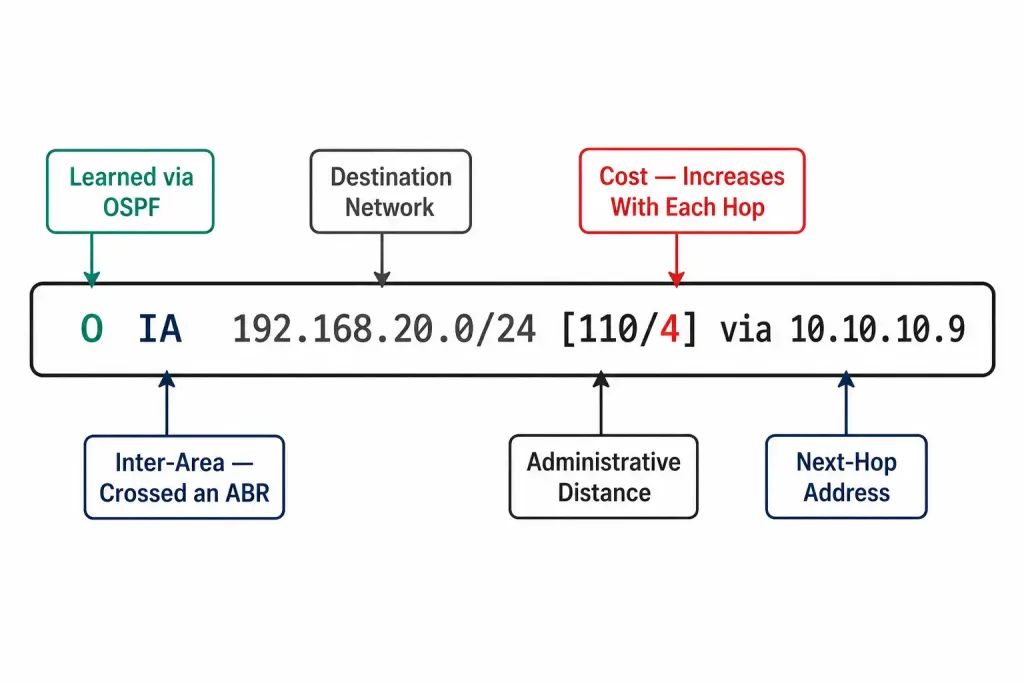
O identifies the route as OSPF-learned; IA specifically marks it as inter-area — meaning it originated in a different area and reached this router as a Type 3 Summary LSA via an ABR, rather than being learned directly from within R1’s own Area 10.
The bracketed numbers — [110/2], [110/3], [110/4] — show the administrative distance (110, OSPF’s default) followed by the cost of the route. Cost increases the farther a route has to travel: R1’s own Area 10 link to R2 costs 2, but R4’s LAN subnets, reached by crossing through both R2 and R3, cost 4. If a router shows every OSPF route as O instead of O IA, that’s worth double-checking against the topology — it either means the network genuinely is single-area, or that summarization or an area assignment isn’t behaving as expected.
Verify the Multiarea OSPF LSDB
show ip ospf database
This command reveals the actual contents of a router’s Link-State Database, broken out by LSA type and by area:
R2# show ip ospf database

            OSPF Router with ID (2.1.1.1) (Process ID 10)

                Router Link States (Area 0)
Link ID         ADV Router      Age         Seq#       Checksum Link count
2.1.1.1         2.1.1.1         245         0x80000003 0x00a1b2 1
3.1.1.1         3.1.1.1         198         0x80000004 0x00c3d4 1

                Summary Net Link States (Area 0)
Link ID         ADV Router      Age         Seq#       Checksum
192.168.10.0    2.1.1.1         245         0x80000002 0x00e5f6
192.168.11.0    2.1.1.1         245         0x80000002 0x00a7b8
192.168.20.0    3.1.1.1         198         0x80000002 0x00c9d0
192.168.21.0    3.1.1.1         198         0x80000002 0x00e1f2

                Router Link States (Area 10)
Link ID         ADV Router      Age         Seq#       Checksum Link count
1.1.1.1         1.1.1.1         301         0x80000005 0x00b3c4 3
2.1.1.1         2.1.1.1         245         0x80000003 0x00d5e6 1
Notice that R2’s database contains entries for both Area 0 and Area 10 — direct confirmation that ABRs maintain a separate LSDB for each area they’re connected to, exactly as described in Types of Routers in OSPF.
Each labeled section corresponds to a specific LSA type, covered in full in OSPF LSA Types:
- Router Link States — Type 1 LSAs, one per router in that area, listing the router’s own links.
- Net Link States — Type 2 LSAs, generated by the DR on multiaccess segments (not present in this example, since the topology uses point-to-point links throughout).
- Summary Net Link States — Type 3 LSAs, generated by ABRs, describing networks summarized in from other areas.
- Summary ASB Link States — Type 4 LSAs, present only if an ASBR exists somewhere in the domain.
- AS External Link States — Type 5 LSAs, present only if routes have been redistributed into OSPF.
A router with only Type 1 and Type 2 entries in its database, and no Type 3 section at all, is either a single-area deployment or an internal router that hasn’t yet received any inter-area summaries — worth checking against the intended design.
For a narrower view, show ip ospf database accepts specific type keywords to filter down to just one LSA type, for example:
R2# show ip ospf database summaryThis shows only the Type 3 Summary LSAs, useful when troubleshooting a specific inter-area route without scrolling past every Type 1 LSA in the output first.
Verify Multiarea OSPFv3
Every command covered above has a direct OSPFv3 equivalent, generally by substituting ip with ipv6:
R1# show ipv6 protocols
R1# show ipv6 ospf interface brief
R1# show ipv6 route ospf
R1# show ipv6 ospf database
The output format and interpretation carry over closely — OE2 and OIA notation appears in show ipv6 route ospf the same way O E2 and O IA appear in the IPv4 equivalent, and show ipv6 ospf database breaks down by the same LSA categories, adjusted for OSPFv3’s LSA numbering differences covered in OSPF LSA Types (OSPFv3 adds Link-LSAs and Intra-Area-Prefix-LSAs that don’t have a direct OSPFv2 equivalent).
Troubleshooting Scenarios Using These Commands
A few specific situations where combining these four commands solves a real problem quickly:
A neighbor is adjacent, but expected inter-area routes never show up. Start with show ip protocols on the suspected ABR to confirm it actually has network statements (or interfaces, for OSPFv3) in both areas — an ABR that only appears to have interfaces in one area, despite being intended as a border router, explains missing inter-area routes immediately. If both areas are confirmed present, move to show ip ospf database on that same router and check whether the expected Type 1 LSAs from the other area actually made it into its per-area database.
A route shows up with an unexpectedly high cost. Cross-reference show ip route ospf‘s cost value against show ip ospf interface brief for each hop along the path. A single interface with an unusually high configured cost, or a network type mismatch causing a suboptimal path calculation, often explains a cost that’s higher than the topology would otherwise suggest.
A summarized route isn’t appearing where expected. Check show ip ospf database summary on the ABR that should be generating the summary. If the summary Type 3 LSA isn’t present at all, revisit the area range configuration — a common cause is that none of the area’s actual subnets fall within the specified summary range, which (as covered in OSPF Route Summarization) means no summary route generates at all.
Verifying OSPFv3 alongside an existing OSPFv2 deployment. Since the two run as fully independent processes, it’s worth explicitly running both the ip and ipv6 versions of each command side by side rather than assuming a healthy OSPFv2 deployment guarantees OSPFv3 is equally healthy — a router can have a fully converged OSPFv2 topology while its OSPFv3 process has a completely separate, unrelated problem.
Common Verification Mistakes
Only checking show ip ospf neighbor and assuming everything else is fine. A full neighbor adjacency doesn’t guarantee routes or areas are configured as intended — always follow up with show ip route ospf and show ip protocols to confirm the actual routing outcome matches the design.
Misreading O vs. O IA as an error. Seeing O IA entries on an internal router is completely normal and expected — it simply means the router learned that particular route from outside its own area, exactly as multiarea OSPF is designed to work.
Forgetting that an ABR’s database output covers multiple areas at once. When reading show ip ospf database on an ABR, pay close attention to which Area (…) header each section falls under — misreading a Type 1 entry from Area 10 as belonging to Area 0 (or vice versa) is an easy mistake when scanning a long output quickly.
Frequently Asked Questions
What’s the fastest single command to confirm multiarea OSPF is working correctly?
show ip route ospf is usually the quickest check, since it directly shows the practical outcome — routes learned, their O/O IA classification, and their cost — without needing to separately interpret interface state or LSDB contents.
Why does show ip ospf database show the same router appearing under two different areas?
Because that router is an ABR. An ABR generates a separate Type 1 Router LSA for each area it has an interface in, and each one only appears in that area’s section of the database — this is exactly the “separate LSDB per area” behavior expected of an ABR.
Do I need different verification commands for OSPFv3?
No, just the ipv6 substitution for ip in the same commands — show ipv6 protocols, show ipv6 ospf interface brief, show ipv6 route ospf, and show ipv6 ospf database all mirror their OSPFv2 counterparts closely.
If a router shows only O routes and no O IA routes, does that mean something is wrong?
Not necessarily — it could simply mean the router is entirely within a single area and no inter-area routes exist to be learned. It only signals a potential problem if the topology and design specifically call for that router to be receiving routes from other areas.
Can I filter show ip ospf database down to a single area instead of scrolling through all of them?
The base command shows every area the router participates in, but combining it with a specific LSA type keyword (like summary or router) narrows the output considerably even without an area filter, since it removes every unrelated LSA type from the listing. For a genuinely large multiarea deployment, redirecting the output through a filtering tool and searching for the specific Area (...) header of interest is usually faster than scrolling through the full unfiltered output by hand.
Conclusion
Verifying multiarea OSPF doesn’t require an entirely new set of commands — it’s largely the same toolkit used for single-area OSPF, with show ip protocols, show ip ospf interface brief, show ip route ospf, and show ip ospf database filling in the multiarea-specific details: which areas a router touches, how routes crossed between them, and what each area’s Link-State Database actually contains. Reading O versus O IA correctly, and knowing that an ABR’s database output legitimately spans more than one area, covers the majority of what comes up in day-to-day multiarea troubleshooting.