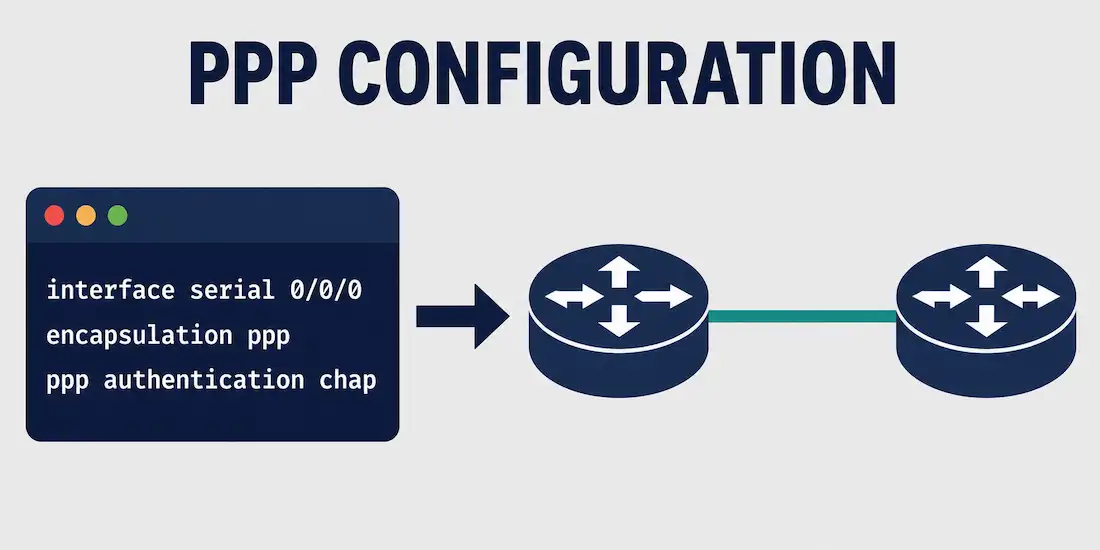
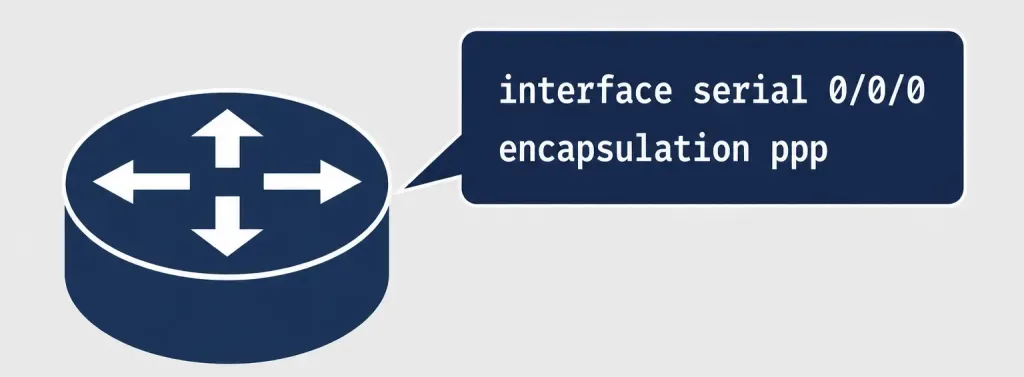
Remember that HDLC is the default encapsulation protocol on Cisco router serial interfaces. If PPP configuration isn’t explicitly applied, the default HDLC encapsulation remains in use. To set PPP as the encapsulation method on a serial interface, PPP must be configured directly on that interface.
Consider a simple topology: two routers, Router1 and Router2, connected back-to-back over a serial link, each configured with both an IPv4 and an IPv6 address on their respective serial interfaces. PPP is a Layer 2 encapsulation protocol, so it operates independently of whichever Layer 3 protocols — IPv4, IPv6, or both simultaneously — happen to be running on top of it.
Basic PPP Encapsulation
Enabling PPP itself requires just two commands on each router’s serial interface:
Router1
Router1#configure terminal
Router1(config)# interface serial 0/0/0
Router1(config-if)# encapsulation ppp
Router2
Router2#configure terminal
Router2(config)# interface serial 0/0/0
Router2(config-if)# encapsulation ppp
The encapsulation ppp interface command takes no arguments — it’s a straightforward switch from the default HDLC encapsulation to PPP. Both ends of the link must be configured this way, since a mismatch (PPP on one end, HDLC on the other) will prevent the link from establishing at Layer 2, regardless of how correctly everything else is configured.
Authentication Configuration (CHAP)
Although often the first thing configured in real deployments, authentication is genuinely optional at the protocol level — PPP works without it. Still, most production links enable CHAP, the stronger of PPP’s two authentication options, since it never sends the actual password across the wire.
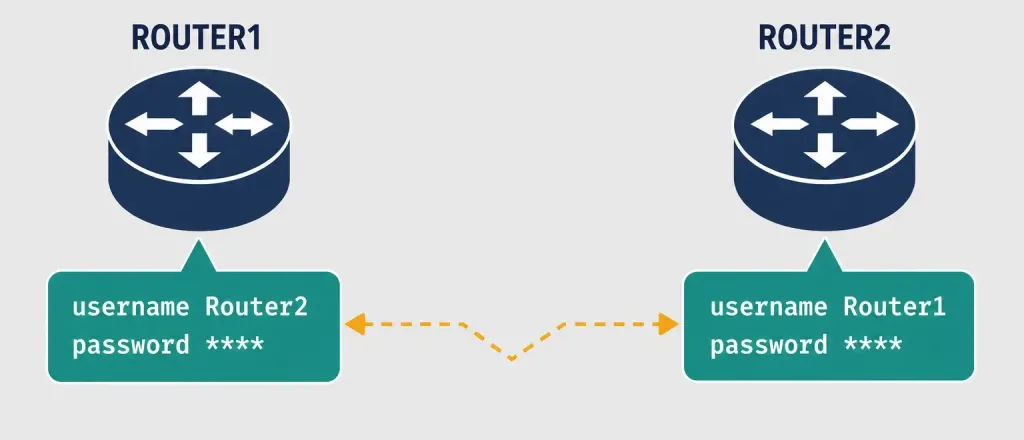
Configuring CHAP requires two pieces on each router: a locally defined username/password pair matching the peer’s hostname, and the authentication method enabled on the interface itself.
Router1
Router1(config)# username Router2 password Cisco123
Router1(config)# interface serial 0/0/0
Router1(config-if)# encapsulation ppp
Router1(config-if)# ppp authentication chap
Router2
Router2(config)# username Router1 password Cisco123
Router2(config)# interface serial 0/0/0
Router2(config-if)# encapsulation ppp
Router2(config-if)# ppp authentication chap
Two details matter enormously here and are common sources of configuration errors: the username command on each router must reference the other router’s hostname (not its own), and the password must match exactly, character for character, on both ends — CHAP authentication is case-sensitive.
Compression Configuration
Compression can be configured once PPP encapsulation is already enabled on a serial interface, using the compress command. This option invokes a software compression process, so it does consume additional CPU cycles and can measurably affect system performance on a busy router. If the traffic crossing the link already consists of pre-compressed files — .zip, .tar, and similar formats — this option should never be enabled, since attempting to compress already-compressed data wastes processing time for essentially no benefit, and can occasionally increase overall size slightly.
Router1
Router1(config)# interface serial 0/0/0
Router1(config-if)# encapsulation ppp
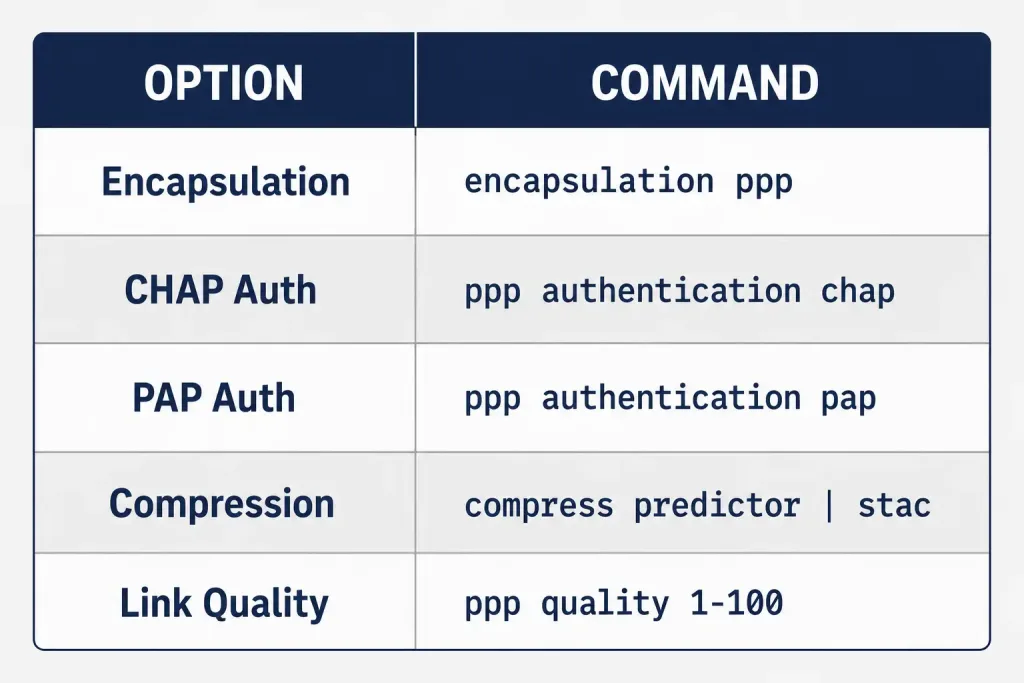
Router1(config-if)# compress [ predictor | stac ]
Router2
Router2(config)# interface serial 0/0/0
Router2(config-if)# encapsulation ppp
Router2(config-if)# compress [ predictor | stac ]
Two keywords are available with the compress command. The predictor keyword uses the Predictor compression algorithm, while stac uses the LZS (Lempel-Ziv-Stac) compression algorithm. Both keywords correspond directly to the Stacker and Predictor options negotiated at the LCP level.
Link Quality Monitoring (LQM) Configuration
Quality is also an option negotiated during the LCP phase. LCP‘s link quality testing verifies whether a link’s error rate is low enough to reliably use Layer 3 protocols on top of it. Once this option is configured, percentages are calculated for both the incoming and outgoing directions of the link. If the measured link quality percentage falls below the configured threshold, the link is considered poor quality and is automatically taken down rather than continuing to pass increasingly unreliable traffic.
The ppp quality <percentage> command enforces this quality requirement; if the link fails to meet it, the connection closes. The valid percentage range runs from 1 to 100.
Router1
Router1(config)# interface serial 0/0/0
Router1(config-if)# encapsulation ppp
Router1(config-if)# ppp quality 70
Router2
Router2(config)# interface serial 0/0/0
Router2(config-if)# encapsulation ppp
Router2(config-if)# ppp quality 70
LQM can be canceled at any time using the no ppp quality command.
PAP as a Fallback Authentication Method
While CHAP is the generally preferred authentication method, some scenarios still call for PAP — most commonly when connecting to older or non-Cisco equipment that doesn’t support CHAP. Configuring PAP follows a similar pattern to CHAP but with a different interface command and a locally sent credential rather than a peer-hostname lookup:
Router1
Router1(config)# interface serial 0/0/0
Router1(config-if)# encapsulation ppp
Router1(config-if)# ppp authentication pap
Router1(config-if)# ppp pap sent-username Router1 password Cisco123
Router2
Router2(config)# username Router1 password Cisco123
Router2(config)# interface serial 0/0/0
Router2(config-if)# encapsulation ppp
Router2(config-if)# ppp authentication pap
Notice the asymmetry: Router1 (the side sending credentials) uses ppp pap sent-username to specify what it will send, while Router2 (the side verifying credentials) uses a username command to check what it receives against. This is fundamentally different from CHAP’s more symmetric configuration, and mixing up which side needs which command is a common source of PAP configuration errors. Given PAP’s weaker security — the password crosses the link in clear text rather than being hashed — it should only be used when CHAP genuinely isn’t an option available on both ends.
Verifying and Troubleshooting a PPP Configuration
Configuring PPP is only half the job — confirming it’s actually working correctly matters just as much, and a mismatched or incomplete configuration often produces symptoms that look confusing until you know exactly what to check. A few commands cover most verification and troubleshooting needs:
show interfaces serial 0/0/0: Displays the interface’s line protocol status, encapsulation type, and basic statistics. If the line protocol shows “down” while the interface itself is “up,” that’s a classic sign of an encapsulation mismatch or a failed LCP negotiation.show ppp all(or platform-specific equivalents): Summarizes PPP session details, including negotiated options.debug ppp negotiation: Shows the live LCP and NCP negotiation process as it happens, extremely useful for diagnosing exactly where a PPP link is failing to establish — whether at LCP, authentication, or NCP.debug ppp authentication: Narrows the debug output specifically to the authentication exchange, useful when LCP establishes successfully but the link still doesn’t come up.
Worked Example: Diagnosing a Failed PPP Link
Suppose Router1 and Router2 are configured exactly as shown above for CHAP authentication, but the link never comes up. Running debug ppp negotiation on Router1 shows LCP successfully reaching the Open state, but then a CHAP authentication failure message appears shortly afterward. The most likely causes, in order of likelihood: a password mismatch between the two routers (remember, this is case-sensitive), a username command referencing the wrong hostname (a common mistake is accidentally using the router’s own hostname instead of the peer’s), or one router still using PAP while the other expects CHAP. Systematically checking each of these — starting with the exact password string on both ends — resolves the overwhelming majority of real-world PPP authentication failures.
Real-World Deployment Context
Consider a company standardizing PPP configuration across a fleet of dozens of branch-office routers connecting to headquarters over serial WAN links. Rather than configuring each router individually and hoping for consistency, network teams typically build a standard configuration template covering encapsulation, authentication, and any needed compression or quality settings, then apply that same template — adjusted only for site-specific hostnames and passwords — across every branch router. This consistency matters enormously for troubleshooting: when every router in the fleet follows the identical configuration pattern, a technician diagnosing a problem at any single site can immediately rule out configuration drift as a cause, since the baseline is known and identical everywhere else.
This same standardization logic explains why the username/hostname-matching requirement for CHAP trips up so many engineers during initial rollout: if the naming convention for router hostnames isn’t consistent across the fleet, or if a router gets renamed without updating the corresponding username entries on its peers, authentication will fail in a way that looks like a much more mysterious problem than it actually is. Building hostname and credential management into the standard deployment process — rather than treating it as an afterthought — prevents this entire category of troubleshooting headache before it starts.
Troubleshooting and Exam Tips
- Remember that
encapsulation ppptakes no arguments — it’s a clean switch away from the default HDLC encapsulation. - For CHAP, the
usernamecommand must reference the peer’s hostname, not the local router’s own hostname — this is one of the most common configuration mistakes. - CHAP passwords are case-sensitive and must match exactly on both ends of the link.
- Remember the two compression keywords:
predictorfor the Predictor algorithm,stacfor LZS (Lempel-Ziv-Stac). ppp quality <percentage>accepts values from 1 to 100, andno ppp qualitydisables link quality monitoring entirely.debug ppp negotiationis the single most useful command for diagnosing exactly where a PPP link is failing — LCP, authentication, or NCP.- Remember PAP’s asymmetric configuration: the sending side uses
ppp pap sent-username, while the verifying side uses a standardusernamecommand — mixing these up is a common source of PAP misconfiguration.
Conclusion
Configuring PPP on a Cisco router starts with the simple, argument-free encapsulation ppp command, but real deployments typically layer on additional options: CHAP authentication (using matching username/password pairs referencing the peer’s hostname), compression (predictor or stac), and link quality monitoring (ppp quality). Verifying a PPP configuration is just as important as applying it, and commands like show interfaces and debug ppp negotiation make the difference between guessing at a failed link and systematically diagnosing exactly where the negotiation broke down, whether the fleet involves two routers or two hundred.
Frequently Asked Questions
What is the command to enable PPP encapsulation on a Cisco router?
encapsulation ppp, entered in interface configuration mode. The command takes no arguments and switches the interface away from the default HDLC encapsulation.
How do I configure CHAP authentication for PPP?
On each router, configure a username command referencing the peer’s hostname with a matching password, then enable ppp authentication chap on the interface. Passwords must match exactly, character for character, on both ends.
What is the difference between the predictor and stac compression keywords?
predictor uses the Predictor compression algorithm, while stac uses LZS (Lempel-Ziv-Stac) compression. Both correspond to the Stacker/Predictor options negotiated at the LCP level.
What does the ppp quality command do?
It enforces a minimum link quality percentage (1–100) for a PPP link, calculated in both directions. If the link’s measured quality falls below the configured threshold, PPP takes the link down rather than continuing to pass unreliable traffic. Use no ppp quality to disable this.
What command is most useful for troubleshooting a PPP link that won’t come up?
debug ppp negotiation shows the live LCP and NCP negotiation process, making it possible to see exactly which phase — link establishment, authentication, or network-layer configuration — is failing.
Why would I use PAP instead of CHAP?
Mainly when connecting to older or non-Cisco equipment that doesn’t support CHAP. PAP is otherwise the weaker choice, since it sends credentials across the link in clear text rather than using CHAP’s challenge-response hash exchange.