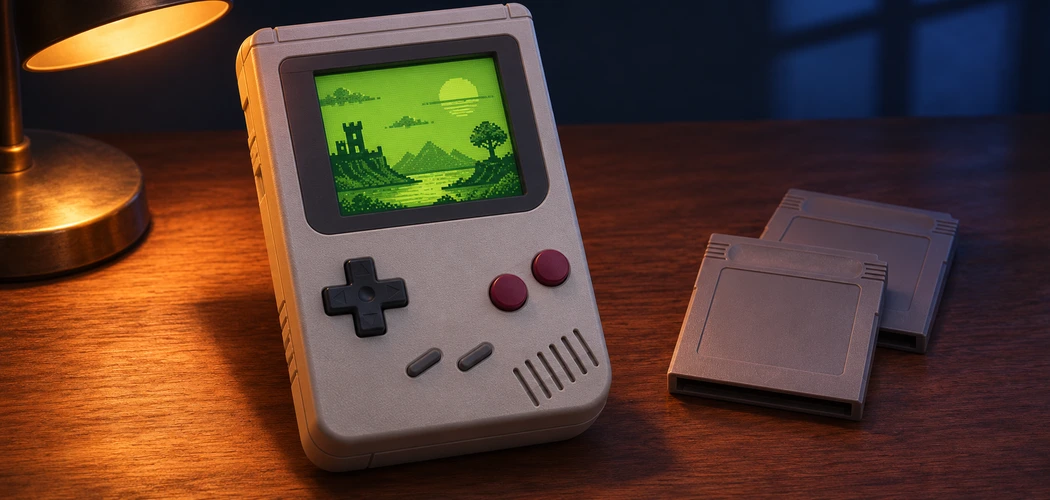
A Game Boy emulator recreates enough of a handheld console’s behavior to run compatible software on another device. It can be useful for playing authorized homebrew games, developing new projects, and exploring how older hardware works. Choosing an emulator is only the first step. You also need compatible software, sensible controls, and a reliable way to protect your saves.
The Game Boy family includes several different systems. An application described as a “Game Boy emulator” may support the original handheld and Game Boy Color without supporting Game Boy Advance games. Platform support, firmware options, and multiplayer features also vary.
This guide explains those distinctions and offers a practical setup process. It is based on project documentation, rather than hands-on performance testing or a ranking of every available emulator.
Game Boy emulators: identify the system first
Start with the system your software was created for. Original Game Boy software commonly uses the .gb extension. Game Boy Color software commonly uses .gbc. Game Boy Advance software commonly uses .gba and belongs to a later hardware platform.
A filename is a useful clue, but changing an extension does not convert a game into another format. The emulator must support the underlying system and any special hardware behavior the program needs.
Also distinguish running Game Boy software in a model that reproduces Game Boy Advance compatibility behavior from running native Game Boy Advance games. Similar wording in a feature list can describe very different capabilities.
Before downloading anything, write down the target system, your operating system, and the features you need. For many users, a short list is enough: compatible controls, dependable saving, suitable screen scaling, and clear documentation.
SameBoy and mGBA serve different needs
SameBoy’s official website describes an open-source emulator for Game Boy, Game Boy Color, and Super Game Boy. It lists desktop platforms and Apple mobile platforms, including iOS. Its feature documentation includes battery saves, save states, customizable controls, and open-source boot ROMs.
mGBA began as a Game Boy Advance emulator and also supports Game Boy and Game Boy Color software. Its official FAQ distinguishes standalone releases from its libretro core, which can run through RetroArch. Those versions should not be assumed to have identical release schedules or behavior.
These are useful starting points, not interchangeable recommendations. If your main interest is original Game Boy software, check the project’s support for that hardware. If you need Game Boy Advance, confirm native GBA support explicitly.
Read the download page for your device. A desktop installer, a portable archive, a mobile app, and an emulator core are different packages. An unofficial mobile app using a familiar project name should not be treated as an official release without confirmation from the project.
Understand standalone applications and emulator cores
A standalone emulator normally provides its own interface for opening software, mapping controls, and changing settings. This can make the initial setup easier to follow because the program and its documentation describe one application.
A frontend such as RetroArch loads an emulator core. The frontend supplies parts of the interface and configuration, while the core performs the emulation. Some settings belong to the frontend, some to the core, and others to a particular game or controller.
When following instructions, match the instructions to the version you are actually using. A menu path from a standalone application may not exist in a frontend. Likewise, a feature available through one frontend does not establish that every application using the same core exposes it.
Keep a note of the application name, core name if applicable, and version. These details become important when troubleshooting or asking for help.
Use software you are authorized to obtain
An emulator application and a game ROM are separate works. Permission to download an emulator does not grant permission to download commercial games or proprietary firmware.
Owning an original cartridge is not blanket authorization to obtain a copy from an unrelated website. The U.S. Copyright Office’s digital-files guidance explains that computer-program backup provisions have conditions and do not authorize separate public distribution of backup copies. Rules also differ between jurisdictions, and technical-protection issues can raise additional questions.
A straightforward starting point is homebrew software distributed with clear permission from its creator. Look for an explicit downloadable build and the accompanying license or terms. A free listing, an old release date, or the word “abandonware” is not itself a copyright license.
If you create your own game, keep its source project and export files organized. If you use someone else’s homebrew release, retain its readme and license with the downloaded package. This preserves useful information about both operation and permitted use.
Download the correct build from an official source
Navigate to the project’s own website or repository and follow its download instructions. Check the supported operating system and processor architecture before selecting a package.
Avoid assuming that a prominent search advertisement or a large download button belongs to the project. Confirm the domain and the release name. If the project provides checksums or signatures, follow its instructions for verification.
Read the installation notes. A portable archive may need to be extracted before use, while an installer may create application shortcuts and directories. On mobile devices, verify the publisher through the project’s official app-store link.
Keep the original release notes or a record of the version installed. They can help explain a later change in behavior. Do not disable device security features merely because an unrelated download site tells you to do so.
Start with a simple configuration
Open an authorized game or test program using the application’s documented loading method. Leave advanced options at their defaults for the first run.
Map the directional pad, A, B, Start, and Select to comfortable keys or controller buttons. Check that every input works before spending time on visual effects. Watch for duplicate bindings that cause one button to trigger several actions.
Keep fast-forward, rewind, and save-state shortcuts away from frequently used controls. Accidentally loading an old state can be more disruptive than a minor display problem.
For controllers, check both the operating system and emulator input settings. If a direction appears stuck, disconnect extra devices and review analog-stick or directional-pad bindings. Change one setting at a time so you can identify what affected the result.
Separate normal saves from save states
A normal in-game save records progress through the game’s own saving system. Emulators commonly represent cartridge-backed save data as a file on the host device.
A save state captures the emulator’s running condition at a particular moment. It may include information beyond what the game normally saves. This makes it convenient, but compatibility can depend on the emulator, version, and state format.
Use normal in-game saving when the software supports it, and treat states as an additional convenience. Do not rely on one repeatedly overwritten state as your only record of progress.
Find the actual save directories in the settings. Libretro’s documentation distinguishes save files from states and notes that directory defaults can vary. Back up the relevant files before updating software or moving between applications.
When transferring progress, work on copies. Confirm the destination emulator’s supported format and naming requirements. Matching filenames alone does not guarantee compatibility.
Check boot ROM requirements before searching for firmware
A boot ROM is startup software associated with the emulated hardware. Documentation may also refer to firmware or BIOS files, although terminology varies between systems and projects.
Do not assume every Game Boy emulator needs a downloaded Nintendo boot ROM. SameBoy documents included open-source boot ROMs. The libretro documentation for its SameBoy core likewise describes proprietary boot ROM files as optional overrides.
Follow the instructions for your exact application and target system. If an external file is genuinely required, obtain it only through a lawful method and confirm the expected file details in the documentation.
A random firmware bundle can introduce both licensing and security problems. A black screen should first lead to a check of compatibility, file integrity, and documented settings, rather than an immediate search for more downloads.
Adjust display and audio after the basics work
Preserve the intended aspect ratio unless you deliberately prefer a stretched image. Integer scaling can make pixel boundaries look consistent when the display size allows it. Other filters may soften or reinterpret the original appearance.
Visual preference and emulation accuracy are different questions. A sharper filter does not make game logic more accurate, and a simulated screen effect does not necessarily improve readability.
If audio crackles or playback appears too fast, return to default synchronization settings and confirm that fast-forward is disabled. mGBA’s FAQ specifically discusses fast-forward and audio/video synchronization when games run too quickly.
Test changes in a short session. Confirm that controls, audio, and saving still behave as expected before adding more effects. Keeping a known working configuration makes later troubleshooting easier.
Treat link features as project-specific
Local link-cable emulation and internet multiplayer are different features. A project may support one without offering the other in the interface you use.
SameBoy documents local link capabilities, while its libretro core has its own link settings and loading procedure. Check the instructions for the frontend, core, and game involved rather than assuming every “multiplayer” label means the same thing.
Compatibility may depend on the software’s own link behavior and the emulator’s implementation. Start with backed-up saves and avoid promising another player that a feature will work before checking the documentation.
If your purpose is simply playing a single-player homebrew game, leave link options disabled initially. A simpler setup reduces the number of variables when something goes wrong.
Troubleshoot with a short checklist
When software will not start, first confirm the target system and supported file format. Test with a known authorized program, check whether the archive must be extracted, and return unusual settings to defaults.
If progress will not save, inspect the configured location and its write permissions. mGBA warns Windows users about placing game files in protected locations such as Program Files. Choose an ordinary user-writable location as documented by the application.
For a bug report, record the emulator version, operating system, relevant settings, and a concise description of the problem. Explain what you expected and what happened instead. Include logs when the project asks for them, but do not upload copyrighted game files or private information.
NetworkUstad’s technology coverage provides broader background on devices, applications, and computing. Emulator-specific fixes should be checked against the project’s current documentation.
Build a setup you can maintain
A dependable emulation setup is easy to identify, back up, and reproduce. Keep authorized software separate from save backups, retain the application version information, and document any non-default settings that matter.
Choose the tool around the system you need to emulate. Start with official downloads, confirm permissions for game and firmware files, and verify saving early. Then adjust controls and presentation to suit your device.
Those habits make retro gaming more enjoyable without relying on vague download advice or promises that every emulator behaves the same way.