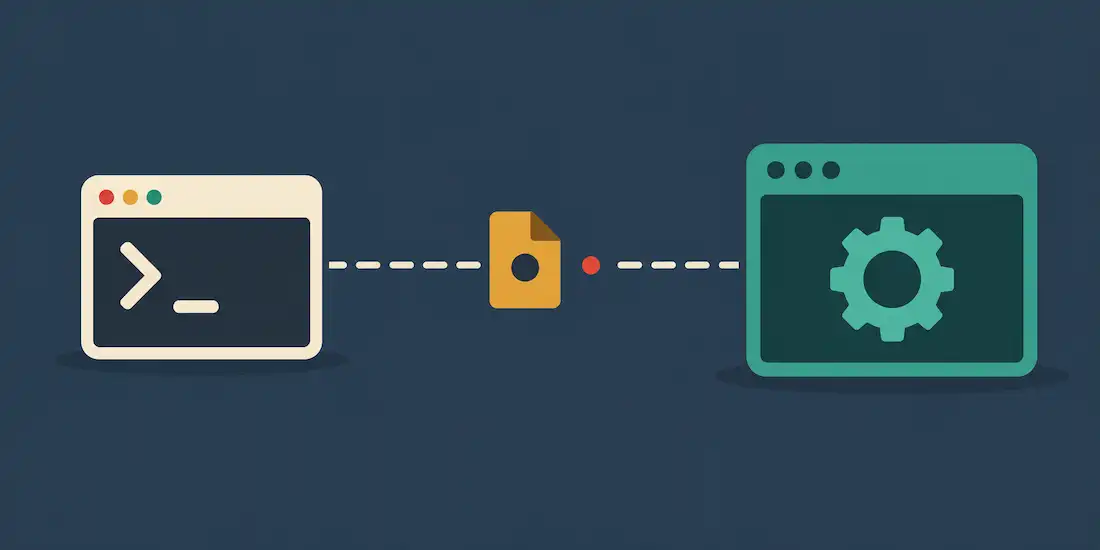
Anyone who’s spent real time with containerization has run into this exact message: “Cannot connect to the Docker daemon at unix:///var/run/docker.sock. Is the Docker daemon running?” It shows up right when you least expect it, usually in the middle of something else, and it rarely explains itself clearly. This guide breaks down what’s actually happening behind that error and walks through the fixes in the order most likely to solve it quickly.
What the Docker Daemon and docker.sock Actually Do
Before troubleshooting anything, it helps to know what’s supposed to be talking to what.
The Docker daemon (the background process dockerd) is what actually does the work — building images, running containers, and managing the resources Docker needs from your operating system. It runs continuously in the background, listening for instructions.
docker.sock, located at /var/run/docker.sock, is the communication channel between the Docker client (the docker command you type) and that daemon. It’s a Unix socket — a file-based communication method similar in concept to a network socket, but living directly in the filesystem rather than over a network connection. This is what makes local Docker commands fast: client and daemon are talking through a file, not over TCP.
What the Error Actually Means
Translated into plain language, the error is the Docker client telling you: “I tried to reach the daemon through the usual socket file, and nothing answered. Either the daemon isn’t running, or I can’t access the socket for some other reason.”
That second possibility — “some other reason” — is where most of the real troubleshooting time goes, since the daemon being simply stopped is the easy case.
The Most Common Causes, and How to Fix Each One
1. The Docker daemon isn’t running
This is the simplest explanation, and worth ruling out first.
Check its status with:
systemctl status docker(On older systems without systemd, use service docker status instead.)
If it’s not running, start it:
systemctl start dockerAnd to avoid hitting this same issue after every reboot, enable it to start automatically:
systemctl enable docker2. Permission issues with the socket
Even when the daemon is running fine, your user account might lack permission to access the socket file.
The standard fix is adding your user to the docker group:
sudo usermod -aG docker $USERYou’ll need to log out and back in (or start a new shell session) for the group change to actually take effect — this step gets missed often enough that it’s worth stating explicitly.
3. The socket file itself is missing or has the wrong permissions
Confirm the file actually exists at /var/run/docker.sock. If it’s there, check its permissions — it should typically show as srw-rw----, owned by root:docker. If it’s missing or the permissions look wrong, restarting the Docker daemon will often regenerate it correctly.
4. A firewall is blocking access
Less common, but worth checking if the above steps don’t resolve things: an overly strict firewall configuration can interfere with Docker’s internal communication. The exact fix depends on which firewall tool you’re running — ufw and firewalld each have their own syntax for allowing the necessary traffic, so check your specific tool’s documentation for the right rule.
5. A corrupted or incomplete Docker installation
If none of the above resolves it, the installation itself might be the problem. At this point, reinstalling Docker following the official instructions for your specific operating system is a reasonable next step — it’s a bigger hammer, but it reliably clears out whatever subtle corruption might be causing the issue.
When the Basic Fixes Don’t Work
If you’ve worked through all five causes above and you’re still stuck, a few deeper checks can help narrow things down:
Check the Docker daemon logs, typically found at /var/log/docker.log or a similar location depending on your distribution — these often contain the specific error that the generic “cannot connect” message doesn’t show you.
Verify your system has enough resources. Docker needs adequate free memory and disk space to function, and resource exhaustion can produce connection errors that look unrelated to the actual cause.
Check for a recent system or Docker update. Sometimes an OS update changes socket permissions or systemd configuration in ways that break Docker’s expected setup — worth checking your update history if the error appeared suddenly without you changing anything Docker-related yourself.
Search Docker’s own community forums if you’re still stuck. This is a common enough error that it’s been discussed extensively, and someone may have already documented the exact variant you’re hitting.
Frequently Asked Questions
What does “cannot connect to the docker daemon” actually mean?
It means the Docker client couldn’t reach the Docker daemon through the expected Unix socket — either because the daemon isn’t running, or because something is blocking access to the socket file itself.
How do I check if the Docker daemon is running?
Run systemctl status docker (or service docker status on older systems without systemd).
Why does adding my user to the docker group fix this error?
The socket file is typically owned by root:docker, meaning only root or members of the docker group can access it directly. Adding your user to that group grants the necessary permission — but you need to start a new session for the change to apply.
Is this error dangerous or does it indicate a security problem?
No — this error indicates a connectivity or permissions issue, not a security compromise. That said, membership in the docker group does grant significant system privileges, since Docker containers can access the host in ways that matter for security, so only add trusted users to that group.
What if reinstalling Docker doesn’t fix it either?
At that point, checking the daemon logs directly (/var/log/docker.log or your distribution’s equivalent) and searching Docker’s official community forums for your exact error variant is the most reliable next step.
The Bottom Line
This error almost always comes down to one of five things: the daemon isn’t running, your user lacks socket permissions, the socket file itself is missing or misconfigured, a firewall is interfering, or the installation is corrupted. Working through these in order — starting with the simplest check — resolves the overwhelming majority of cases without needing to dig into logs or forums at all.