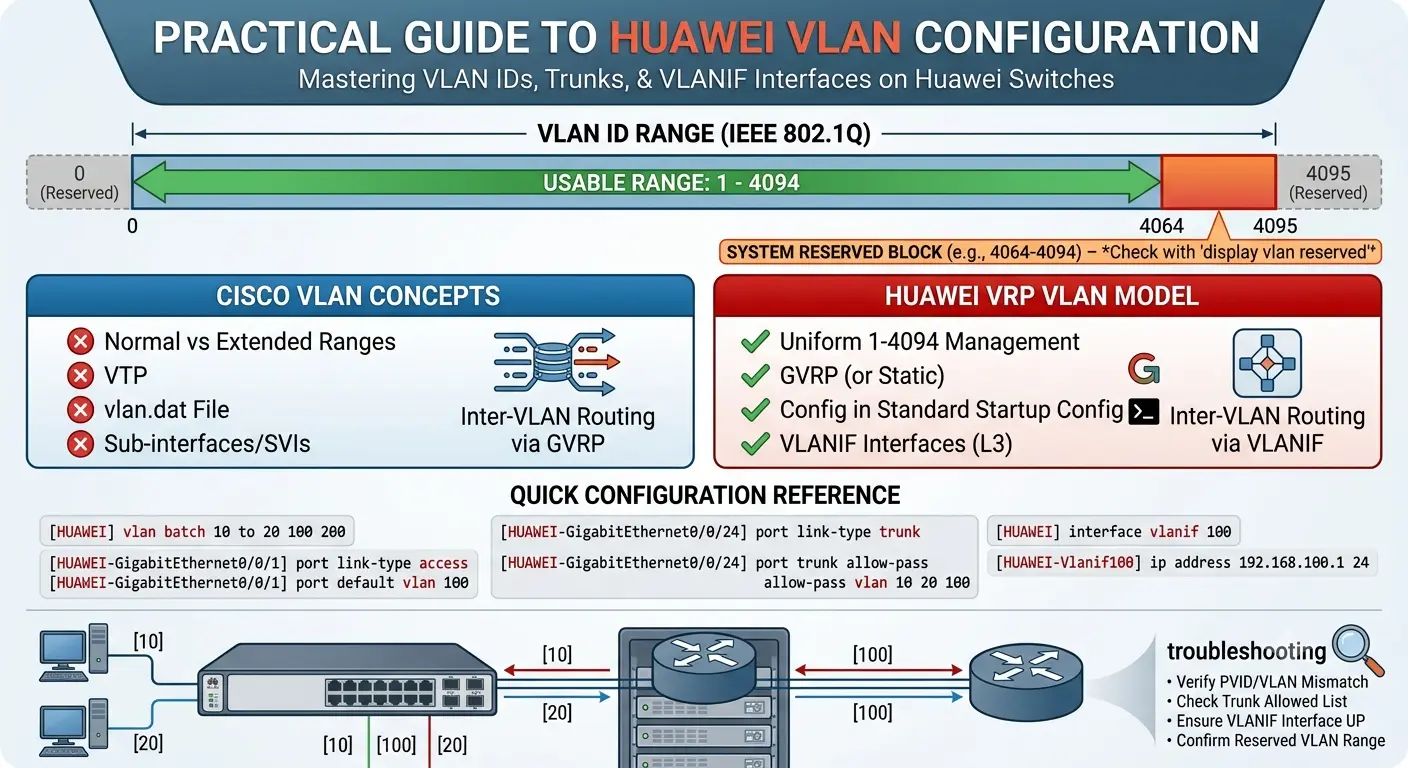
An accurate, practical guide to VLAN IDs and VLAN configuration on Huawei switches, for anyone studying HCIA/HCIP or managing a Huawei network. Technical details here follow the IEEE 802.1Q standard and Huawei’s official product documentation.
Huawei switches support a VLAN ID range of 1 to 4094, following the IEEE 802.1Q standard. Unlike Cisco, Huawei does not divide this into “normal” and “extended” ranges — the entire 1–4094 space is managed the same way, though a small block at the top is reserved for internal system use. This guide explains the Huawei VLAN model, how it differs from Cisco’s, how to configure VLANs and inter-VLAN routing with VLANIF interfaces, and how to troubleshoot the most common issues. If you’ve come from a Cisco background, the differences matter, so this article calls them out directly.
The VLAN ID range on Huawei switches
The VLAN tag defined by IEEE 802.1Q contains a 12-bit VLAN ID (VID) field, which allows values from 0 to 4095. As Huawei’s documentation states, the values 0 and 4095 are reserved, so the usable VLAN ID range is 1 to 4094. Every 802.1Q-tagged frame carries a VLAN ID in this range identifying the VLAN it belongs to.
VLAN 1 is the default VLAN. By default, all ports on a Huawei switch belong to VLAN 1, and it exists automatically. As with any vendor, using VLAN 1 for user data or management is discouraged as a security best practice — it’s better to move traffic onto purpose-built VLANs and leave the default VLAN unused.
The Huawei reserved-VLAN block
One Huawei-specific detail worth knowing: Huawei switches reserve a block of VLAN IDs at the top of the range for internal functions. On many platforms this reserved range is 4064–4094, which you can confirm on a given device with:
<HUAWEI> display vlan reservedThis displays the current reserved VLAN range (commonly 4064 – 4094). VLANs in that reserved block are used internally by the system and generally shouldn’t be assigned to user services. The exact reserved range can vary by switch model and software version, so checking with display vlan reserved on your specific device is the reliable approach rather than assuming a fixed block.
How Huawei’s VLAN model differs from Cisco’s
This is the section most useful to anyone switching vendors, because several concepts simply don’t carry over. If you learned VLANs on Cisco, keep these differences in mind:
No “normal” vs “extended” range split. Cisco divides VLANs into a normal range (1–1005) and an extended range (1006–4094), with different storage and feature rules for each. Huawei has no such division — the full 1–4094 range is created and managed uniformly. So the Cisco idea that “VLANs above 1005 behave differently” does not apply on Huawei.
No VTP; Huawei uses GVRP. Cisco’s VLAN Trunking Protocol (VTP) doesn’t exist on Huawei. For dynamic VLAN registration and propagation across switches, Huawei uses GVRP (GARP VLAN Registration Protocol). In many real deployments, VLANs are simply configured statically on each switch instead.
No vlan.dat file. On Cisco, normal-range VLANs are stored in a separate vlan.dat file in flash, separate from the running configuration. Huawei has no equivalent — VLAN configuration lives in the device’s configuration file along with everything else, and is saved with the standard save command.
Inter-VLAN routing uses VLANIF interfaces. Where Cisco uses SVIs or router-on-a-stick sub-interfaces, Huawei’s Layer 3 switching uses VLANIF interfaces — a logical Layer 3 interface tied to a VLAN, to which you assign an IP address that acts as the gateway for that VLAN. This is the standard Huawei approach to routing between VLANs and is covered below.
Different command syntax. Huawei uses system-view (not configure terminal), vlan batch for bulk creation, port link-type and port default vlan for access ports, and port trunk allow-pass vlan for trunks. The commands below are all Huawei syntax.
Configuring VLANs on a Huawei switch
The following commands follow Huawei’s official documentation. They assume a Huawei switch running VRP (the Versatile Routing Platform OS).
1. Creating a single VLAN
<HUAWEI> system-view
[HUAWEI] vlan 100
[HUAWEI-vlan100] description SALES
[HUAWEI-vlan100] quit
2. Creating multiple VLANs in a batch
Rather than creating VLANs one at a time, Huawei provides the vlan batch command:
[HUAWEI] vlan batch 10 20 100 200You can also create a contiguous span using the to keyword:
[HUAWEI] vlan batch 100 to 1103. Assigning an access port to a VLAN
An access port carries a single VLAN and sends untagged frames to the end device:
[HUAWEI] interface gigabitethernet 0/0/1
[HUAWEI-GigabitEthernet0/0/1] port link-type access
[HUAWEI-GigabitEthernet0/0/1] port default vlan 100
[HUAWEI-GigabitEthernet0/0/1] quit
4. Configuring a trunk port
A trunk port carries multiple VLANs between switches, tagging frames with 802.1Q:
[HUAWEI] interface gigabitethernet 0/0/24
[HUAWEI-GigabitEthernet0/0/24] port link-type trunk
[HUAWEI-GigabitEthernet0/0/24] port trunk allow-pass vlan 10 20 100
[HUAWEI-GigabitEthernet0/0/24] quit
5. Inter-VLAN routing with a VLANIF interface
To route between VLANs on a Layer 3 Huawei switch, create a VLANIF interface for the VLAN and give it an IP address, which becomes the default gateway for hosts in that VLAN:
[HUAWEI] interface vlanif 100
[HUAWEI-Vlanif100] ip address 192.168.100.1 24
[HUAWEI-Vlanif100] quit
6. Saving and verifying the configuration
[HUAWEI] display vlan
[HUAWEI] display port vlan
[HUAWEI] quit
<HUAWEI> save
Note: On Huawei, the save command writes the running configuration (including all VLAN settings) to the configuration file so it persists after a reboot. There is no separate VLAN database to save.
Troubleshooting VLAN issues on Huawei switches
Below are common VLAN problems on Huawei switches, their symptoms, and how to resolve them.
1. A VLAN doesn’t appear or a port isn’t in the right VLAN
Symptoms: A VLAN you created isn’t listed, or a host isn’t reaching its VLAN.
What to check: Confirm the VLAN exists and see which ports belong to it:
<HUAWEI> display vlan
<HUAWEI> display port vlan
Verify the access port’s link type is access and its port default vlan is the intended VLAN. A port left at its default settings will still sit in VLAN 1, which is a frequent cause of “the VLAN exists but the device can’t connect.”
2. VLAN traffic isn’t passing between switches
Symptoms: Devices in the same VLAN on different switches can’t communicate.
What to check: On the link between switches, confirm the port is a trunk and that the VLAN is actually permitted on it:
<HUAWEI> display port vlanThe most common cause is that the VLAN wasn’t added to the trunk’s allowed list — verify port trunk allow-pass vlan includes the VLAN on both switches. Also confirm the trunk’s PVID/native-VLAN settings match on both ends.
3. Devices in different VLANs can’t communicate
Symptoms: Hosts in VLAN A can’t reach hosts in VLAN B, even though both VLANs work internally.
Why it happens: VLANs are separate broadcast domains by design; they require Layer 3 routing to talk to each other.
Solution: On a Layer 3 switch, ensure a VLANIF interface exists for each VLAN with a correct IP address, and that each host uses that VLANIF IP as its gateway:
<HUAWEI> display ip interface briefConfirm the relevant VLANIF interfaces are Up and have the expected IP addresses.
4. Cannot create a VLAN in a certain range
Symptoms: A VLAN ID near the top of the range won’t configure.
Why it happens: Huawei reserves a high block (often 4064–4094) for internal use.
Solution: Check the reserved range and choose a VLAN ID outside it:
<HUAWEI> display vlan reservedConclusion
VLAN IDs on Huawei switches run from 1 to 4094 under the IEEE 802.1Q standard, with 0 and 4095 reserved and a high block (commonly 4064–4094) set aside for internal use. The most important thing to remember — especially coming from a Cisco background — is that Huawei manages the whole range uniformly: there’s no normal/extended split, no VTP (Huawei uses GVRP), and no vlan.dat file, and inter-VLAN routing is done with VLANIF interfaces rather than Cisco-style sub-interfaces or SVIs. Get comfortable with vlan batch, port link-type, port trunk allow-pass vlan, and interface vlanif, save your configuration with save, and keep VLAN 1 out of production use, and you’ll have a clean, well-segmented Huawei network. For a broader foundation, these skills sit alongside core networking fundamentals that apply across every vendor.
Technical details in this guide follow the IEEE 802.1Q standard and Huawei VRP switch behaviour as documented by Huawei. Exact commands, reserved ranges, and supported features can vary by switch series (for example S-series campus switches vs. CloudEngine data-center switches) and software version — always consult your specific device’s documentation for exact syntax.