
Many businesses use a Windows dedicated server to run heavy web apps. They also use them for databases and remote workspaces. These servers are effective. They also work perfectly with enterprise software and network automation strategies.
But hardware has a limit. Performance drops when your traffic spikes. It also drops if too many people log in at the same time.
Let’s look at the most common problems that happen under heavy loads. Understanding these issues helps you fix them quickly. That way, your server stays online.
1. Maxed-Out Processors (CPU Bottlenecks)
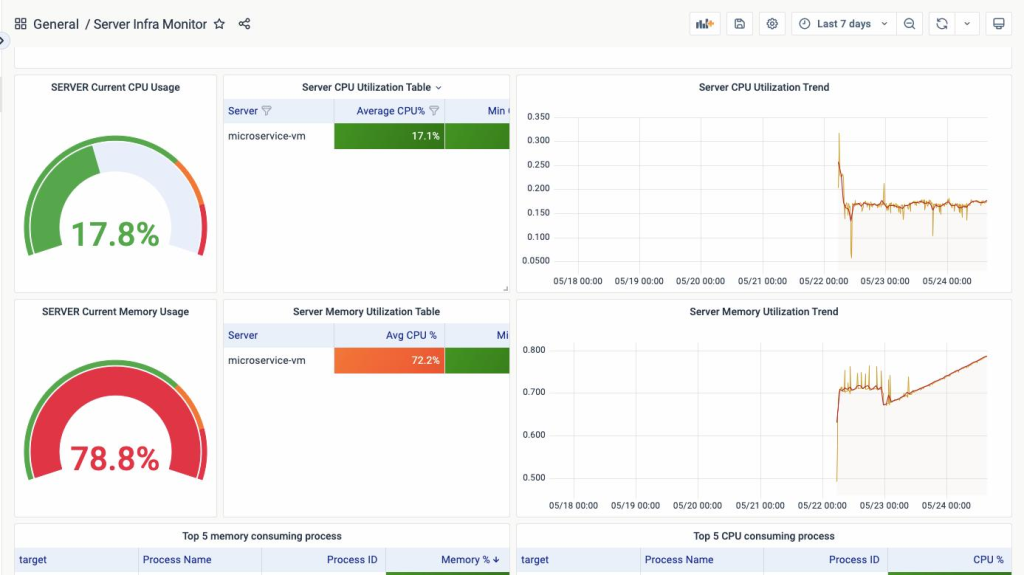
The Central Processing Unit (CPU) is the brain of your server. The CPU is the first part to struggle when workloads spike.
What Happens:
Hundreds of tasks compete for the processor’s attention in a busy environment. The CPU spends too much time switching between tasks. It spends less time actually processing them. This creates a long backup queue.
High CPU usage causes massive lag. This is especially true if you try to log in to fix a crashing server. Administrators often use a separate environment to avoid getting locked out. They buy windows RDP to secure a clear path. This gives you a dedicated route into the server. You can then troubleshoot even when the main applications overload the CPU.
2. RAM Exhaustion and Disk Thrashing
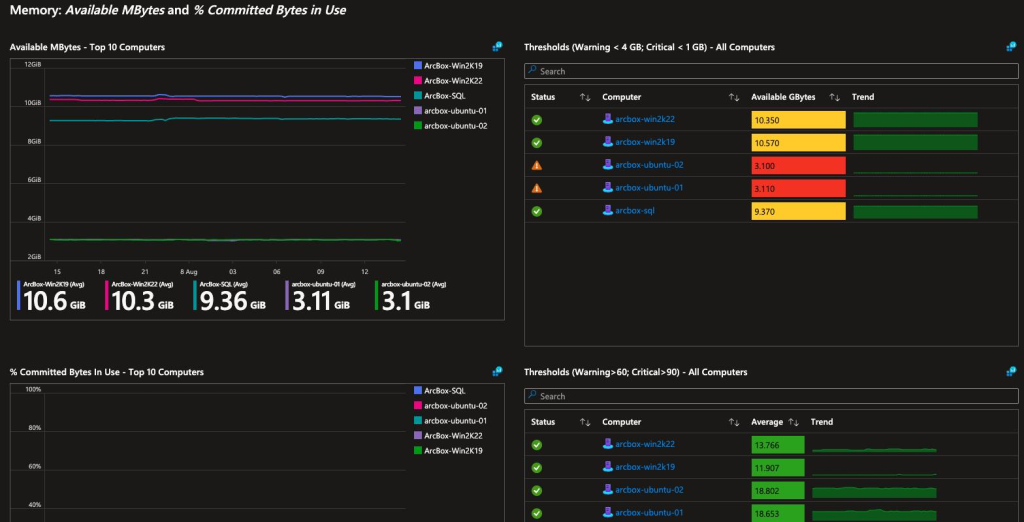
Memory leaks can quickly eat up all your physical RAM. Poorly written database queries do the same thing. Windows handles memory shortages differently than other operating systems.
What Happens:
Windows starts using your storage drive as temporary memory when physical RAM hits 100%. This process relies on a file called pagefile.sys.
Hard drives are much slower than physical RAM chips. This is true even if your server uses fast, modern NVMe SSDs. The server gets stuck swapping data back and forth constantly. It moves data between the RAM and the hard drive. This issue is called “disk thrashing.” It makes your entire system grind to a halt.
3. Storage Bottlenecks (High Disk Queues)

A Windows dedicated server reads and writes data constantly. This is common when running a busy e-commerce site or a central file-sharing system.
What Happens:
Every hard drive has a strict limit on its operations per second. Requests can come in faster than the drive can read or write them. When this happens, Windows places those requests in a “Disk Queue.”
Applications freeze when this queue gets too long. Your web server might drop incoming connections. Your databases will also throw timeout errors.
4. Network Overload and Port Shortages
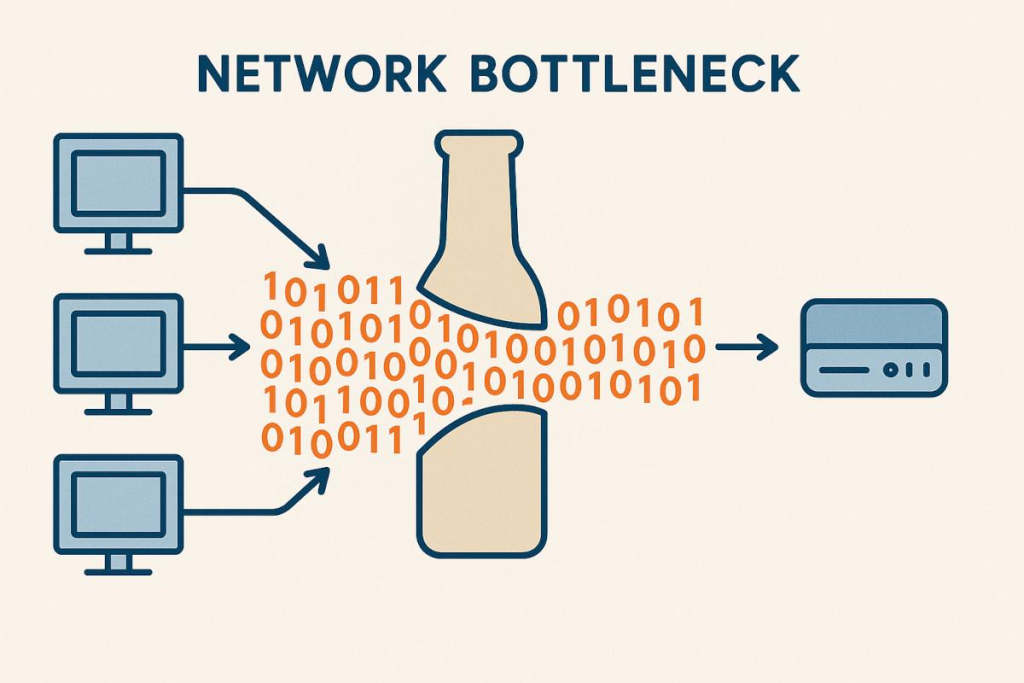
Heavy loads do more than hurt your hardware. They also overwhelm your network connection.
What Happens:
Bandwidth Saturation: Huge file transfers can fill your network card’s capacity. This causes dropped data packets. It also causes slow response times.
Port Exhaustion: Every network connection needs a temporary port to talk through. Thousands of old connections get stuck in a waiting state (TIME_WAIT) under heavy loads. This leaves no open ports for new users. As a result, your apps and APIs will fail.
5. RDP Session Lag and Drops
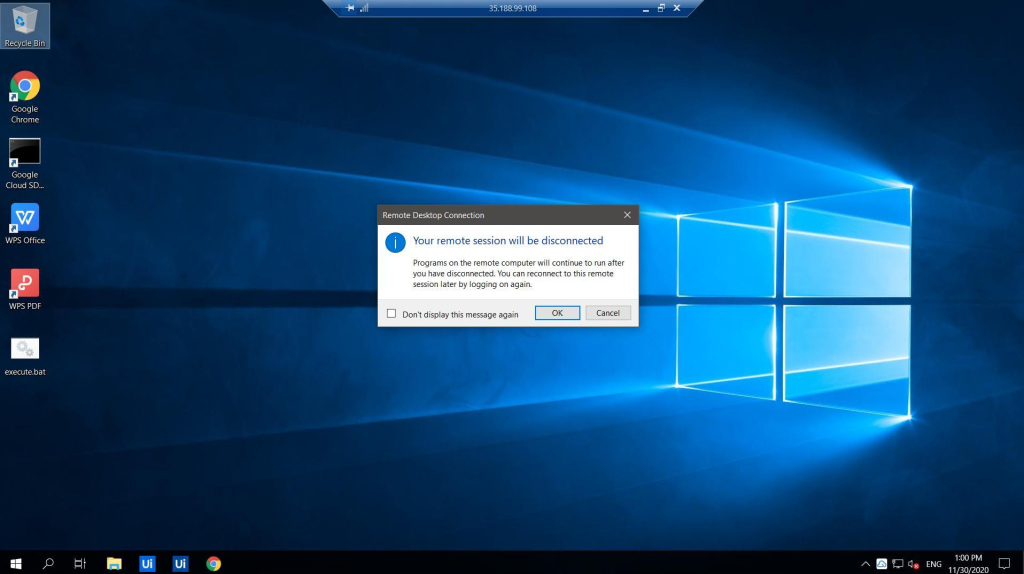
High server usage ruins the daily experience for remote teams. Remote Desktop Protocol (RDP) needs steady server power. This power keeps the desktop screen streaming smoothly.
What Happens:
Windows prioritizes background data over your visual desktop stream when a server is overloaded. This priority shift causes typing delays. It also causes screen freezing and sudden disconnections.
Optimizing your remote settings keeps your team working smoothly. You can maintain steady access by focusing on remote efficiency. See how Windows RDP work efficiency acts as a buffer against heavy background loads.
How to Protect Your Server Under Heavy Load
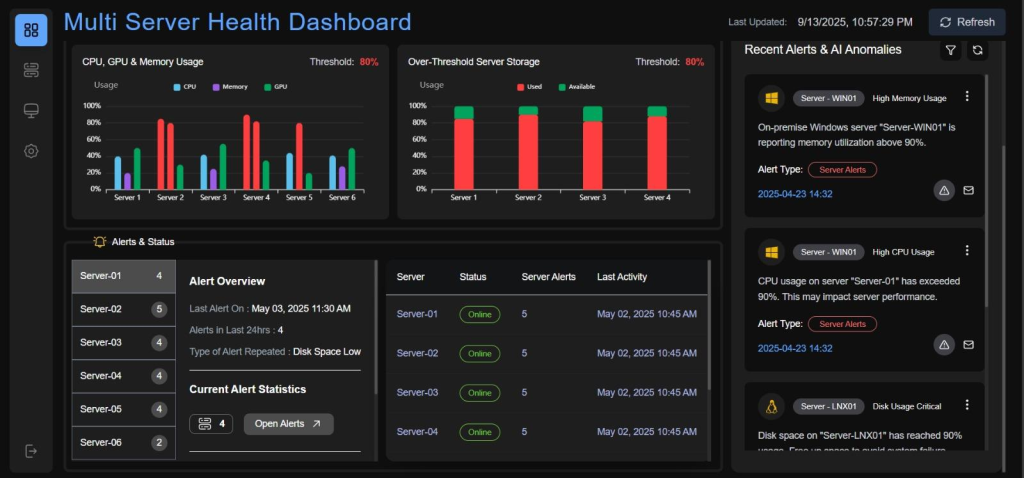
You can stop your server from crashing. Track a few key metrics and make simple changes.
| Component | What to Monitor | How to Fix It |
|---|---|---|
| CPU | % Processor Time | Limit resource usage per user. Upgrade your CPU cores. |
| Memory | Available MBytes | Put a strict memory limit on your database software. |
| Storage | Current Disk Queue Length | Use enterprise NVMe SSDs. Put heavy databases on a separate drive. |
| Network | Output Queue Length | Turn on Receive Side Scaling (RSS) in your network settings. |
Uptime Institute’s 2025 research found that nearly 40% of organizations suffered a major outage caused by human error in the past three years and 85% of those incidents traced back to staff failing to follow established procedures. The monitoring and alerting steps below exist precisely to remove that human-error risk from the equation: once thresholds and procedures are automated and documented, your team is reacting to data instead of guessing under pressure.
3 Quick Steps to Take Today:
Set Up Alerts: Use the built-in Windows Performance Monitor. Set it to send an email alert if CPU usage stays above 85% for more than a few minutes.
Move Your Pagefile: Windows puts its virtual memory on the C: drive by default. Move this pagefile to a secondary, high-speed drive. This keeps your main OS fast.
Use a Load Balancer: Your traffic might be too high for one machine. Use a load balancer to split the work across multiple servers.
Smart Steps You Can Take Right Now
Heavy workloads can quickly announce performance bottlenecks on a Windows dedicated server, from resource exhaustion and network congestion to application slowdowns and system instability. While these challenges are common, proactive monitoring, optimization, and proper resource management can help prevent them from affecting performance and uptime.
For businesses handling demanding applications and growing workloads, a reliable server environment is essential. DashRDP provides high-performance Windows dedicated server solutions designed to deliver the stability, scalability, and reliability needed to support long-term growth.