Cisco IOS devices use hierarchical command modes to control access and prevent accidental misconfigurations. Whether you’re managing a router, switch, or preparing for the CCNA exam, understanding these modes is fundamental:
- User EXEC Mode: Basic monitoring commands.
- Privileged EXEC Mode: Advanced diagnostics and access to configuration.
- Global Configuration Mode: Device-wide settings, and the gateway to specific configuration submodes.
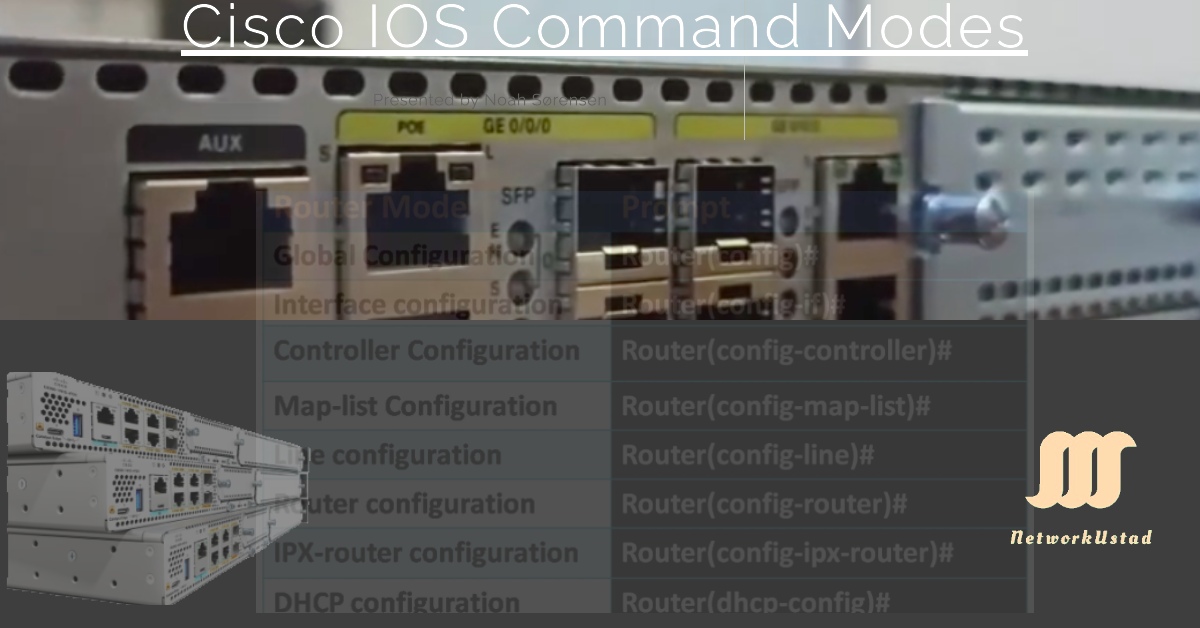
Global configuration mode contains a number of sub-configuration modes (also called specific or extended configuration modes). The table below lists common configuration modes and their prompts.
| Mode | Prompt |
|---|---|
| Global Configuration | Router(config)# |
| Interface Configuration | Router(config-if)# |
| Line Configuration | Router(config-line)# |
| Router Configuration | Router(config-router)# |
| Controller Configuration | Router(config-controller)# |
| DHCP Configuration | Router(dhcp-config)# |
Navigating these modes fluently is one of the most heavily exercised skills in CCNA labs — almost every configuration task begins by moving into the right mode — so it’s worth getting comfortable with the transitions below.
User EXEC Mode
User EXEC Mode (or “user mode”) is the first mode you land in when you access a Cisco device. It’s a view-only mode: you can run basic monitoring commands, but you can’t change the configuration or reload the device.
Prompt: Router> Access Level: Limited (view-only).
Key Commands & Examples
ping 192.168.1.1→ Tests connectivity.show version→ Displays basic system information.enable→ Switches to Privileged EXEC mode.show running-config→ Fails here — this command requires Privileged EXEC mode.
The device’s default hostname is Router for routers and Switch for switches. You can change it later from global configuration mode with the hostname command.
Whether user EXEC prompts you for a password depends on how the device’s access lines (console, auxiliary, and VTY) are configured. By default, a device fresh out of the box does not require a password on the console to reach user EXEC — line passwords, local user accounts, or AAA must be configured to protect access. In a typical lab, these lines are often left unprotected, so you reach Router> immediately.
CCNA Tip: User EXEC is the default mode after login. Use disable to return here from Privileged EXEC mode.
Privileged EXEC Mode: Admin Access
Privileged EXEC mode, also known as “enable mode,” gives you full access to view the device’s configuration and status, run diagnostics, and enter configuration mode. You reach it by running the enable command from user EXEC mode. If an enable password or enable secret is configured, you’ll be prompted for it; in many lab environments it’s left unset.
Prompt: Router# Access Level: Full (read access to everything, plus the gateway to configuration).
How to Enter
Router> enable
Password: ********
Router#
Common Commands
show running-config→ Views the current (active) configuration.show startup-config→ Views the saved configuration.reload→ Reboots the device.copy running-config startup-config→ Saves the running configuration.configure terminal→ Enters Global Configuration mode.
Note that show commands and the changes you make in EXEC mode (like clear counters) don’t persist across a reboot on their own — configuration has to be explicitly saved (see below).
Troubleshooting Example — running a configuration command in the wrong mode:
Router# interface GigabitEthernet0/0
           ^
% Invalid input detected at '^' marker.Solution: Interface configuration commands require Global Configuration mode. Enter it first with configure terminal, then interface GigabitEthernet0/0.
Global Configuration Mode: Making Changes
Global configuration mode is where you change the device’s active (running) configuration — either applying device-wide settings directly, or stepping into a more specific submode such as interface or routing-protocol configuration. You enter it with the configure terminal command from Privileged EXEC mode.
Prompt: Router(config)# Access Level: Configuration access.
By default, the running configuration is not stored across reboots. To make your changes persist, save the running configuration to the startup configuration from Privileged EXEC mode:
Router# copy running-config startup-configReturning to Privileged EXEC Mode
There are three ways to get back to Privileged EXEC mode from global or any specific configuration mode:
end— jumps straight back to Privileged EXEC mode from any configuration mode. This is the cleanest way out.Ctrl + Z— does the same thing asend, from any configuration mode.exit— moves you up one level. From global configuration mode, that returns you to Privileged EXEC mode; from a submode like interface configuration,exitreturns you to global configuration mode rather than all the way out.
Step-by-Step: Entering a Submode
Router# configure terminal
Router(config)# interface GigabitEthernet0/0
Router(config-if)# ip address 10.1.1.1 255.255.255.0
Router(config-if)# no shutdown
Router(config-if)# end
Router#
Key Submodes
- Interface Configuration —
Router(config-if)#— assign IP addresses, enable interfaces, set VLAN membership. - Line Configuration —
Router(config-line)#— configure the console and VTY lines for SSH/Telnet access and passwords. - Router Configuration —
Router(config-router)#— configure routing protocols such as OSPF, EIGRP, and BGP.
Subconfiguration Modes at a Glance
| Submode | Prompt | Typical Use |
|---|---|---|
| Interface | Router(config-if)# | IP addresses, enabling ports, VLANs |
| Line | Router(config-line)# | Console/VTY access, passwords, SSH |
| Router | Router(config-router)# | OSPF, EIGRP, BGP configuration |
A useful shortcut: the do command lets you run a Privileged EXEC command (like a show command) without leaving configuration mode. For example, Router(config)# do show ip interface brief works from inside any config mode.
IOS XE vs. Traditional IOS
Many current platforms (such as the Catalyst 9000 series) run IOS XE, which keeps the familiar IOS CLI and command modes but adds programmability features on top, including:
- Guest Shell — an on-box Linux container for running Python scripts.
- NETCONF/RESTCONF APIs — programmatic configuration using structured data (XML or JSON) modeled in YANG, letting you configure devices via API calls instead of the CLI.
RESTCONF is enabled with a single global configuration command — it does not drop you into a dedicated submode. After enabling it, the prompt returns to global configuration mode:
Router# configure terminal
Router(config)# restconf
Router(config)#
(You typically also enable the underlying HTTPS service with ip http secure-server for RESTCONF to be reachable.) The key point for mode navigation is that restconf behaves like any other global-config setting — you enable it and stay in Router(config)#.
Troubleshooting Common Errors
Error 1: % Invalid input detected
Cause: You entered a command in the wrong mode (or mistyped it). Example and fix — show running-config doesn’t run in user EXEC mode:
Router> show running-config
           ^
% Invalid input detected at '^' marker.
Router> enable
Router# show running-config
The ^ marker points to where the parser stopped understanding the command — a useful hint for spotting exactly what’s wrong.
Error 2: % Ambiguous command
Cause: You abbreviated a command so far that it matches more than one option. Fix — type enough of the command to make it unique:
Router# co
% Ambiguous command: "co"
Router# configure terminal(co matches both configure and copy; conf t is unambiguous and works fine.)
Setup Mode
When a Cisco device powers on, it runs a POST (power-on self-test) to check its hardware, then looks for a saved startup configuration. If it finds one, it loads it. If no startup configuration exists, the device offers Setup mode — an interactive, question-and-answer dialog that walks you through building a basic initial configuration. Based on your answers, IOS assembles a starting configuration for you. You can decline setup mode and configure the device manually instead.
ROMMON Mode
ROMMON (ROM Monitor) mode is a low-level diagnostic and recovery environment — roughly analogous to safe mode in Windows. A device enters ROMMON automatically if it can’t find a valid IOS image to load into RAM during boot. You can also enter it deliberately, most commonly to perform password recovery.
To enter ROMMON manually, send a break sequence (typically Ctrl + Break, or your terminal emulator’s “send break” function) within roughly the first 60 seconds of the boot process, before IOS finishes loading. The exact break key can vary by terminal program.
Prompt: rommon 1 >
Conclusion
Cisco IOS command modes are the foundation of working on the CLI: user EXEC for looking around, privileged EXEC for full visibility and control, and global configuration mode (with its submodes) for making changes. Get comfortable moving between them — enable, configure terminal, end, exit, and disable — and remember to save your work with copy running-config startup-config. Practice the CLI examples above, and you’ll navigate any configuration task, in the lab or on the exam, without hesitation.
FAQs
What is the difference between User EXEC and Privileged EXEC mode?
User EXEC (Router>) is view-only — basic monitoring commands like ping and show version. Privileged EXEC (Router#), reached with enable, gives full read access, diagnostics, and the gateway to configuration mode via configure terminal.
How do I enter Interface Configuration mode?
From global configuration mode, use interface followed by the type and number — for example, interface GigabitEthernet0/0. Your prompt changes to Router(config-if)#.
Why can’t I run show running-config in User EXEC mode?
It requires Privileged EXEC mode. Run enable first to switch from Router> to Router#, then run the command.
What does the do command do?
It runs a Privileged EXEC command without leaving configuration mode. For example, do show ip interface brief lets you check interface status while you’re still in Router(config)#.
How do I save configuration changes?
Run copy running-config startup-config from Privileged EXEC mode. The running configuration is active immediately but isn’t retained across a reboot until it’s saved to the startup configuration.
What’s the difference between end, exit, and Ctrl+Z?
end and Ctrl+Z both jump straight back to Privileged EXEC mode from any configuration submode. exit moves you up just one level — from a submode back to global config, or from global config back to Privileged EXEC.