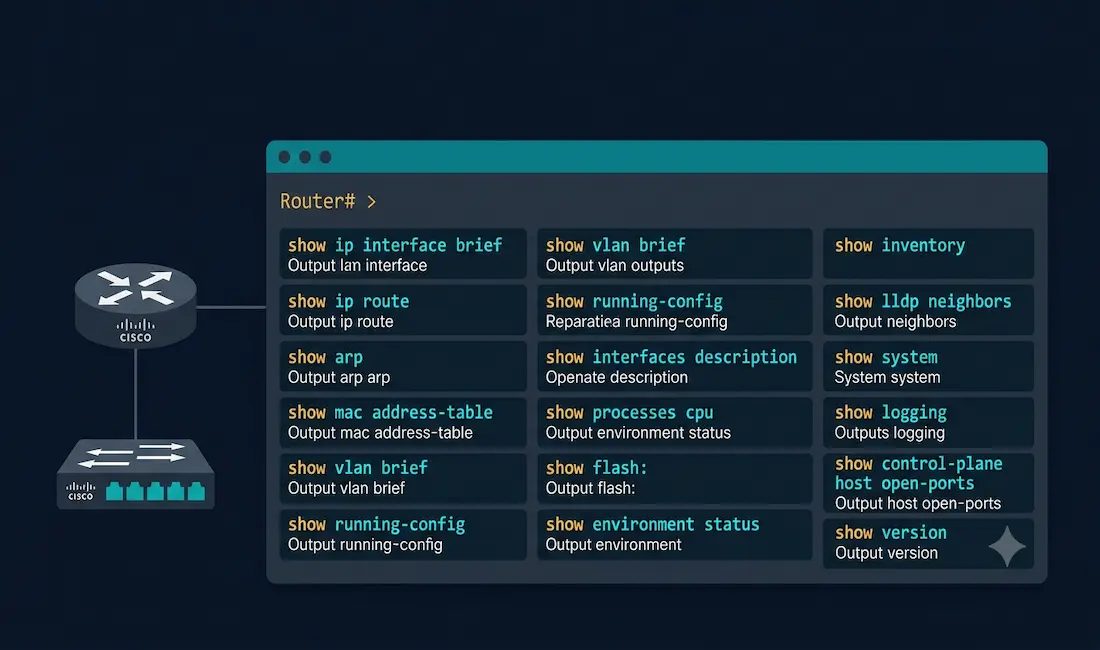
The show commands display important information about a device’s configuration and operation in Cisco IOS Command Line Interface (CLI) mode. Network administrators use show commands to check device status, interfaces, processes, and configuration files to confirm operational status, verify configurations, and diagnose problems — all without disrupting live traffic.
The network administrator can also view the router’s process and function and verify it using show commands. Show commands are read-only and can be run from privileged EXEC mode (command in privileged EXEC mode) without any risk of modifying the device configuration. This guide covers the most important Cisco IOS show commands for routers and switches, with example outputs, abbreviations, and troubleshooting applications.
show version
Summary: Displays hardware and software details of the Cisco device, including IOS version, uptime, memory, interfaces, and the configuration register value.
Abbreviation: sh ver
Usage: Provides inventory details about the router or switch — which IOS version is running, how long the device has been up, how much memory is installed, and what hardware revision it is. Essential first step when troubleshooting an unknown device.
Example Output (Router):
Router# show version
Cisco IOS Software, C2900 Software (C2900-UNIVERSALK9-M), Version 15.7(3)M9, RELEASE SOFTWARE (fc1)
Technical Support: http://www.cisco.com/techsupport
Copyright (c) 1986-2023 by Cisco Systems, Inc.

ROM: System Bootstrap, Version 15.0(1r)M16
Router uptime is 2 weeks, 3 days, 5 hours, 12 minutes
System image file is "flash:c2900-universalk9-mz.SPA.157-3.M9.bin"

Cisco CISCO2901/K9 (revision 1.0) with 512MB/64MB bytes of memory.
Processor board ID FTX152400GH
2 Gigabit Ethernet interfaces
DRAM configuration is 64 bits wide with parity disabled.
255K bytes of non-volatile configuration memory.
250880K bytes of ATA System CompactFlash 0 (Read/Write)

Configuration register is 0x2102
Troubleshooting Tip: Check the IOS version to ensure compatibility with required features (e.g., a feature requiring IOS 15.x may not function on 12.x). Check the configuration register value — 0x2102 is the normal boot setting; other values may indicate boot issues.
show running-config
We can use this command to display the configuration information running on the terminal. The running configuration is the currently active configuration held in RAM.
Summary: Displays the active configuration running on the device.
Abbreviation: sh ru
Usage: Useful for verifying current settings, auditing configuration, or creating a backup. The running configuration includes all active settings — interfaces, routing protocols, ACLs, and more — even if they have not been saved to NVRAM.
Example Output:
Router# show running-config
Building configuration...

Current configuration : 842 bytes
!
version 15.7
hostname Router1
!
interface GigabitEthernet0/0
 ip address 192.168.1.1 255.255.255.0
 duplex auto
 speed auto
 no shutdown
!
interface GigabitEthernet0/1
 ip address 10.0.0.1 255.255.255.0
 no shutdown
!
router ospf 1
 network 192.168.1.0 0.0.0.255 area 0
 network 10.0.0.0 0.0.0.255 area 0
!
end
Troubleshooting Tip: Compare show running-config with show startup-config to identify unsaved changes. If they differ, any changes made since the last write memory will be lost on reload.
show startup-config
Summary: Displays the saved configuration stored in NVRAM, which loads on boot.
Abbreviation: sh start
Usage: Use alongside show running-config to verify that configuration changes have been saved. If a device reboots unexpectedly, the startup-config is what it will load.
Troubleshooting Tip: If a recently made change disappears after a reload, the change was made to the running-config but never saved with write memory or copy running-config startup-config.
show arp
This command displays the router’s ARP table. The ARP table contains the resolved IPv4 address to MAC address mappings. If a host can’t ping, ensure you’re getting an ARP entry for the host you want to ping using the show arp command. The abbreviated command is sh ar.
Example Output:
Router# show arp
Protocol  Address          Age (min)  Hardware Addr   Type   Interface
Internet  192.168.1.1             -   0019.e7a2.5b3c  ARPA   GigabitEthernet0/0
Internet  192.168.1.10           12   000c.293a.1b2c  ARPA   GigabitEthernet0/0
Internet  192.168.1.20            5   0050.56c0.0001  ARPA   GigabitEthernet0/0
What to look for: The - in the Age column indicates the router’s own interface entry. Entries with age values are dynamically learned. If a host’s IP address is missing from the ARP table, the router cannot forward frames to that host — check physical connectivity and whether the host has an IP address on the correct subnet.
show interfaces
The show interface command displays all types of interfaces with configuration and statistics. Its output provides a lot of information about interface state, error counters, traffic statistics, duplex and speed. The abbreviation of this command is sh int.
Example Output:
Router# show interfaces GigabitEthernet0/0
GigabitEthernet0/0 is up, line protocol is up
  Hardware is CN Gigabit Ethernet, address is 0019.e7a2.5b3c (bia 0019.e7a2.5b3c)
  Internet address is 192.168.1.1/24
  MTU 1500 bytes, BW 1000000 Kbit/sec, DLY 10 usec,
     reliability 255/255, txload 1/255, rxload 1/255
  Encapsulation ARPA, loopback not set
  Duplex: Full-duplex, Speed: 1000Mb/s
  5 minute input rate 1000 bits/sec, 2 packets/sec
  5 minute output rate 2000 bits/sec, 3 packets/sec
     100 packets input, 12345 bytes, 0 no buffer
     0 input errors, 0 CRC, 0 frame, 0 overrun, 0 ignored
     50 packets output, 6789 bytes, 0 underruns
     0 output errors, 0 collisions, 0 late collision
Key fields to interpret:
- First line:
up, line protocol is up= healthy.down, down= physical issue.up, down= Layer 1 connected but Layer 2 problem (e.g., missingno shutdownor encapsulation mismatch). - Input errors / CRC — non-zero values indicate physical-layer problems (cabling, duplex mismatch, bad NIC).
- Late collisions — nearly always indicate a duplex mismatch.
- BW — configured bandwidth used in metric calculations for OSPF and EIGRP.
show protocols
This command displays the status of the configured Layer 3 protocols on all Cisco router interfaces. This command can be abbreviated as sh prot.
Example Output:
Router# show protocols
Global values:
  Internet Protocol routing is enabled
GigabitEthernet0/0 is up, line protocol is up
  Internet address is 192.168.1.1/24
GigabitEthernet0/1 is up, line protocol is up
  Internet address is 10.0.0.1/24
Serial0/0/0 is administratively down, line protocol is down
Usage: A quick way to see which interfaces have IP addresses assigned and whether their Layer 3 protocol is up. Faster than show ip interface brief when you need to see IP addresses alongside protocol status.
show ip protocols
Summary: Displays the routing protocols currently running on the device, including protocol type, networks being advertised, administrative distance, and timers.
Abbreviation: sh ip prot
Example Output:
Router# show ip protocols
*** IP Routing is NSF aware ***

Routing Protocol is "ospf 1"
  Outgoing update filter list for all interfaces is not set
  Incoming update filter list for all interfaces is not set
  Router ID 192.168.1.1
  Number of areas in this router is 1. 1 normal 0 stub 0 nssa
  Maximum path: 4
  Routing for Networks:
    192.168.1.0 0.0.0.255 area 0
    10.0.0.0 0.0.0.255 area 0
Troubleshooting Tip: If you expect OSPF or RIP routes but show ip route shows no dynamic routes, check show ip protocols first. It reveals whether the routing routing protocol is running and which networks it is advertising. A common issue is a network statement that does not match the interface subnet — visible here immediately.
show ip route
The show ip route command is used to show the router’s routing table. The routing table lists all networks the router can reach, their metrics, and the next hop or exit interface for each. This command can be abbreviated sh ip ro. The command also accepts parameters — sh ip ro ospf shows only OSPF routes, sh ip ro rip shows only RIP routes, sh ip ro static shows only static routes.
Route code legend shown at the top of output:
Router# show ip route
Codes: L - local, C - connected, S - static, R - RIP, M - mobile, B - BGP
       D - EIGRP, EX - EIGRP external, O - OSPF, IA - OSPF inter area
       N1 - OSPF NSSA external type 1, N2 - OSPF NSSA external type 2
       i - IS-IS, su - IS-IS summary, L1 - IS-IS level-1, L2 - IS-IS level-2

Gateway of last resort is 10.0.0.254 to network 0.0.0.0

S*    0.0.0.0/0 [1/0] via 10.0.0.254
C     10.0.0.0/24 is directly connected, GigabitEthernet0/1
L     10.0.0.1/32 is directly connected, GigabitEthernet0/1
O     172.16.0.0/24 [110/2] via 10.0.0.2, 00:12:34, GigabitEthernet0/1
C     192.168.1.0/24 is directly connected, GigabitEthernet0/0
L     192.168.1.1/32 is directly connected, GigabitEthernet0/0
Reading the output: C = directly connected, L = local (the interface address itself), S = static, O = OSPF. The [110/2] is [administrative distance / metric]. via 10.0.0.2 is the next-hop IP. Missing routes indicate a configuration problem — missing network statement, wrong AD, or routing protocol not running.
show ip interface brief
The show ip interface brief command is one of the most frequently used commands on Cisco devices. This command provides an abbreviated output compared to show ip interface. It outlines the key information for all network interfaces on a router or switch, including IP address, status, and protocol.
Example Output:
Router# show ip interface brief
Interface              IP-Address      OK? Method Status                Protocol
GigabitEthernet0/0    192.168.1.1     YES manual up                    up
GigabitEthernet0/1    10.0.0.1        YES manual up                    up
GigabitEthernet0/2    unassigned      YES unset  administratively down  down
Serial0/0/0           unassigned      YES unset  down                  down
Reading the Status and Protocol columns:
| Status | Protocol | Meaning |
|---|---|---|
| up | up | Interface is fully operational |
| up | down | Layer 1 OK, Layer 2 problem (no keepalive, encapsulation mismatch) |
| administratively down | down | shutdown command was applied |
| down | down | Physical connectivity problem — no cable, bad cable, or remote end is down |
show cdp neighbors
We can use this command to display information about currently connected Cisco devices. Cisco Discovery Protocol (CDP) is a proprietary protocol that only detects Cisco products. To show detailed information about neighboring devices discovered using CDP, use the show cdp neighbors command in privileged EXEC mode. The command can also be abbreviated sh cd ne.
For detailed output including IP addresses and IOS versions, use show cdp neighbors detail.
Example Output:
Router# show cdp neighbors
Capability Codes: R - Router, T - Trans Bridge, B - Source Route Bridge
                  S - Switch, H - Host, I - IGMP, r - Repeater

Device ID        Local Intrfce     Holdtme    Capability  Platform  Port ID
Switch1          Gig 0/0           172          S I       WS-C2960  Fas 0/1
Router2          Gig 0/1           158          R         CISCO2901  Gig 0/0
Note: CDP is Cisco-proprietary and only discovers Cisco devices. For multi-vendor environments, use LLDP (show lldp neighbors), which is an open IEEE 802.1AB standard that works with non-Cisco devices.
show vlan
Summary: Lists all VLANs configured on the switch, including VLAN ID, names, status, and associated ports.
Abbreviation: sh vlan
Usage: Useful for verifying VLAN configurations and troubleshooting VLAN-related connectivity issues.
Example Output:
Switch# show vlan

VLAN Name                             Status    Ports
---- -------------------------------- --------- --------------------------
1    default                          active    Gi0/1, Gi0/2
10   SALES                            active    Gi0/3, Gi0/5
20   ENGINEERING                      active    Gi0/4, Gi0/6
1002 fddi-default                     act/unsup
1003 token-ring-default               act/unsup
1004 fddinet-default                  act/unsup
1005 trnet-default                    act/unsup
Troubleshooting Tip: If a device is not communicating, check that its switch port is assigned to the correct VLAN. Ports not listed under any user VLAN are in VLAN 1 (default). Trunk ports do not appear in the show vlan output.
show spanning-tree
Summary: Displays Spanning Tree Protocol (STP) details, including root bridge, bridge ID, port roles, and port states.
Abbreviation: sh span
Usage: Critical for troubleshooting Layer 2 loops or verifying STP convergence. Run show spanning-tree vlan [id] to limit output to a specific VLAN.
Example Output:
Switch# show spanning-tree vlan 10
VLAN0010
  Spanning tree enabled protocol ieee
  Root ID    Priority    24586
             Address     0001.C7B2.3A4B
             This bridge is the root
             Hello Time   2 sec  Max Age 20 sec  Forward Delay 15 sec

  Bridge ID  Priority    24586  (priority 24576 sys-id-ext 10)
             Address     0001.C7B2.3A4B
             Hello Time   2 sec  Max Age 20 sec  Forward Delay 15 sec

Interface   Role  Sts  Cost      Prio.Nbr  Type
----------- ----  ---  --------- --------  -------
Gi0/1       Desg  FWD  4         128.1     P2p
Gi0/2       Desg  FWD  4         128.2     P2p
Gi0/3       Desg  BLK  4         128.3     P2p
Port roles and states: Desg = Designated (forwarding), Root = Root port (forwarding), Altn = Alternate (blocking). Ports in BLK (blocking) state are preventing loops. Ports stuck in LIS (listening) or LRN (learning) for an extended time may indicate an STP convergence issue.
show mac address-table
Summary: Shows the MAC address table (also called the CAM table), mapping MAC addresses to switch ports and VLANs.
Abbreviation: sh mac add
Usage: Helps identify where specific devices are connected and troubleshoot Layer 2 connectivity issues.
Example Output:
Switch# show mac address-table
          Mac Address Table
-------------------------------------------

Vlan    Mac Address       Type        Ports
----    -----------       --------    -----
   1    0019.e7a2.5b3c    DYNAMIC     Gi0/1
  10    000c.293a.1b2c    DYNAMIC     Gi0/3
  20    0050.56c0.0001    DYNAMIC     Gi0/4
  20    0050.56c0.0002    STATIC      Gi0/5
Troubleshooting Tip: If a device’s MAC address is missing from the table, the switch has not received any frames from that device — check physical connectivity, NIC, and whether the correct VLAN is assigned to the port. A STATIC entry indicates a manually configured or sticky MAC address (port security).
show ip ospf neighbor
Summary: Displays OSPF neighbor relationships, including neighbor router ID, priority, state, dead time, and interface.
Abbreviation: sh ip ospf nei
Usage: Essential for verifying OSPF adjacency formation. This is a key CCNA and CCNP troubleshooting command whenever OSPF routes are missing from the routing table.
Example Output:
Router# show ip ospf neighbor

Neighbor ID     Pri   State           Dead Time   Address         Interface
192.168.2.1       1   FULL/DR         00:00:38    10.0.0.2        GigabitEthernet0/1
192.168.3.1       0   FULL/ -         00:00:34    10.0.1.2        Serial0/0/0
Reading neighbor states:
FULL/DR— neighbor is the Designated Router on a multi-access segment; adjacency is fully established.FULL/-— fully established adjacency on a point-to-point link (no DR/BDR election).2WAY— hello packets exchanged but no full adjacency (normal for non-DR/BDR routers on broadcast segments).EXSTARTorEXCHANGE— adjacency forming; if stuck here, check MTU mismatch.INIT— only one-way hello received; check for ACL blocking OSPF multicast.
Troubleshooting with Show Commands
Show commands are the primary diagnostic tool for network troubleshooting. Below are the three most common troubleshooting scenarios and how to resolve them using show commands.
Scenario 1: Interface Down
Symptoms: Devices cannot communicate, ping to a directly connected host fails.
Diagnostic commands:
show ip interface brief
show interfaces GigabitEthernet0/0
What to look for in show ip interface brief:
Interface              IP-Address      OK? Method Status                Protocol
GigabitEthernet0/0    192.168.1.1     YES manual down                  down
down / down indicates a physical problem — no cable, wrong cable, or the remote port is down. administratively down / down means shutdown was applied — run no shutdown in interface configuration mode to bring it up.
Solution: If administratively down, enter the interface and apply no shutdown. If down/down, check cable, SFP, and the connected device’s port status.
Scenario 2: Routing Issues
Symptoms: Traffic is not reaching the destination network; ping across subnets fails.
Diagnostic commands:
show ip route
show ip protocols
What to look for in show ip route:
Gateway of last resort is not set

C     192.168.1.0/24 is directly connected, GigabitEthernet0/0
If the expected route (e.g., a remote network reachable via OSPF) is missing, the routing protocol is not advertising or learning that network. Switch to show ip protocols to verify the routing protocol is running and the correct networks are in the configuration.
Solution: If no gateway of last resort is set and traffic needs to exit the network, add a default route or verify the routing protocol is redistributing a default route. If a specific OSPF route is missing, check show ip ospf neighbor to confirm adjacency is FULL.
Scenario 3: VLAN Misconfiguration
Symptoms: Devices in the same VLAN cannot communicate even though they appear physically connected to the same switch.
Diagnostic commands:
show vlan
show mac address-table
show interfaces GigabitEthernet0/3 switchport
What to look for in show vlan:
If a port appears under the wrong VLAN ID (e.g., in VLAN 1 when it should be in VLAN 10), the device cannot communicate with others in VLAN 10.
Solution: Reassign the port to the correct VLAN:
Switch(config)# interface GigabitEthernet0/3
Switch(config-if)# switchport mode access
Switch(config-if)# switchport access vlan 10
Show Commands Quick Reference
| Command | Abbreviation | What It Shows |
|---|---|---|
show version | sh ver | IOS version, uptime, hardware, config register |
show running-config | sh ru | Active configuration in RAM |
show startup-config | sh start | Saved configuration in NVRAM |
show arp | sh ar | IPv4-to-MAC address mappings |
show interfaces | sh int | Interface stats, errors, duplex, speed |
show protocols | sh prot | Layer 3 protocol status per interface |
show ip protocols | sh ip prot | Routing protocol status and networks |
show ip route | sh ip ro | Routing table with codes and metrics |
show ip interface brief | sh ip int br | All interfaces, IP, and up/down status |
show cdp neighbors | sh cd ne | CDP-discovered neighboring Cisco devices |
show lldp neighbors | sh lldp ne | LLDP-discovered neighboring devices (all vendors) |
show vlan | sh vlan | VLAN IDs, names, status, and assigned ports |
show spanning-tree | sh span | STP root bridge, port roles, and port states |
show mac address-table | sh mac add | MAC-to-port-to-VLAN mappings |
show ip ospf neighbor | sh ip ospf nei | OSPF neighbor IDs, states, and interfaces |
CCNA Exam Pointers
- Show commands run from privileged EXEC mode (
Router#) — no need to enter global config show running-config= RAM (active, possibly unsaved);show startup-config= NVRAM (saved, loads at boot)show ip interface brief— fastest way to check all interface statuses;administratively downmeansshutdownwas appliedshow ip route— route codes:Cconnected,Llocal,Sstatic,OOSPF,RRIP,DEIGRPshow ip ospf neighbor— FULL state = healthy adjacency; anything less requires investigationshow cdp neighbors— Cisco-only discovery;show lldp neighbors= multi-vendor (IEEE 802.1AB)show mac address-table— switch CAM table; key for understanding how switches forward framesshow spanning-tree— look for root bridge, port roles (Desg/Root/Altn), and port states (FWD/BLK)show interfaces— late collisions = duplex mismatch; CRC errors = physical layer problem
Self-Assessment – Cisco IOS Show Commands
Frequently Asked Questions
What are Cisco IOS show commands?
Cisco IOS show commands display real-time information about a device’s configuration, operational status, and performance — including interface states, routing tables, protocol adjacencies, VLAN assignments, and error counters. They are read-only commands that run from privileged EXEC mode without modifying the device configuration, making them safe to use on live production equipment at any time. They are the primary tool for verifying configurations after changes and diagnosing network problems.
Why are show commands critical for CCNA and CCNP students?
Show commands are the bridge between theory and practice. A student can understand how OSPF works conceptually, but verifying an OSPF adjacency requires reading show ip ospf neighbor output and interpreting the neighbor state. Nearly every CCNA and CCNP practical lab begins with show commands to verify the initial state and ends with them to confirm the solution is working. The ability to read show command output quickly and accurately is directly tested in the CCNA exam through scenario-based questions.
How do I troubleshoot a device that cannot ping another host?
Work through the layers systematically. First use show ip interface brief to confirm the source interface is up/up and has the correct IP address. Then use show arp to confirm the router has an ARP entry for the destination (or next hop). Then use show ip route to confirm a route exists to the destination. If the route exists but pings still fail, use show interfaces to check for input/output errors that could indicate a physical or duplex problem.
What is the difference between show running-config and show startup-config?
show running-config displays the active configuration currently held in RAM — this is what the device is running right now. show startup-config displays the saved configuration in NVRAM — this is what the device will load the next time it boots. If you make a configuration change and do not run write memory or copy running-config startup-config, the running-config and startup-config will differ. Any unsaved changes will be lost if the device reloads or loses power.
How can I verify OSPF neighbor relationships?
Use show ip ospf neighbor to check the neighbor table. The key column is State — FULL indicates a fully established adjacency and means the routers have exchanged their complete link-state databases. Common problem states include INIT (one-way hello only — check ACLs or mismatched hello timers), EXSTART/EXCHANGE (stuck during database exchange — usually an MTU mismatch), and 2WAY (normal for non-DR routers on multi-access segments, but investigate if you expected FULL).
Can show cdp neighbors detect non-Cisco devices?
No, Cisco Discovery Protocol (CDP) is proprietary and only detects Cisco devices. For environments with non-Cisco equipment (HP/Aruba, Juniper, Arista, Huawei), use LLDP — Link Layer Discovery Protocol — which is the IEEE 802.1AB open standard equivalent. The command is show lldp neighbors and show lldp neighbors detail. LLDP must be enabled globally and per interface before it will discover neighbors.
How do I check for interface errors?
Use show interfaces [interface-id] and examine the error counter lines. Key counters: input errors (parent counter for all input problems), CRC (failed frame check sequence — physical layer issue), late collision (duplex mismatch signature on switched links), runts (frames under 64 bytes, often from collisions), giants (frames over MTU, often from VLAN tagging issues or misconfigured MTU). Zero or near-zero values on all these counters indicate a healthy interface under normal traffic.
How do I verify VLAN configurations?
Use show vlan to list all VLANs, their status, and which ports are assigned to each. Note that trunk ports do not appear under any VLAN in this output — use show interfaces trunk to verify trunk port VLAN membership. For a specific access port, use show interfaces [interface-id] switchport which shows both the administrative and operational VLAN assignment, along with whether the port is in access or trunk mode.