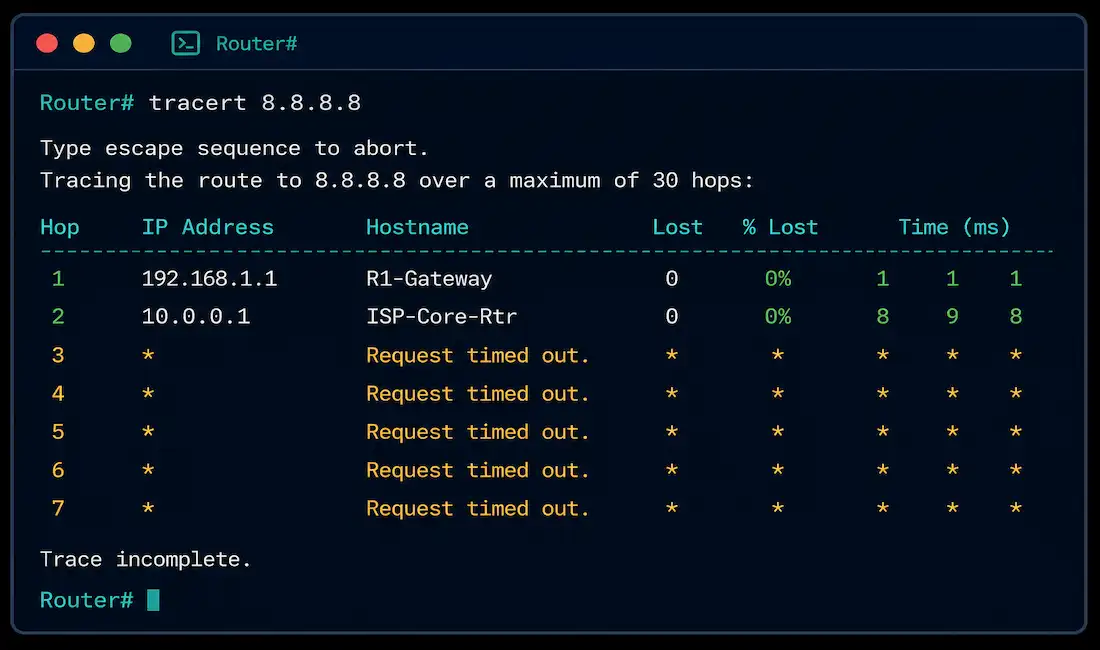
When a connection fails somewhere between your device and its destination, ping tells you that something’s wrong, but not where. Traceroute — called tracert on Windows — fills that gap by mapping every router hop along the path, showing exactly how far a packet gets before something stops responding.
This guide covers how traceroute actually works under the hood, a real worked example from a lab topology, the command switches worth knowing, and how to interpret timeouts when they show up.
Understanding ICMP and TTL in Traceroute
What Is ICMP?
The Internet Control Message Protocol (ICMP) is a network-layer protocol used for error reporting and diagnostics. Traceroute relies on it directly: Windows’ tracert sends ICMP Echo Request (type 8) packets, and intermediate routers respond with ICMP Time Exceeded (type 11) messages, while the final destination responds with an Echo Reply (type 0).
How TTL Makes Traceroute Work
The Time-to-Live (TTL) field in an IP packet header exists to prevent packets from looping forever. Every router that forwards a packet decrements its TTL by at least 1. When TTL reaches 0, the router discards the packet and sends back an ICMP Time Exceeded message to the original sender, rather than forwarding it further.
Traceroute exploits this deliberately. It sends a packet with TTL=1 first, which the very first router along the path discards and reports back on — revealing that router’s address. It then sends a packet with TTL=2, which gets one hop further before timing out, and so on, incrementing the TTL with each round until either the destination responds or the maximum hop count (30 by default) is reached.
Each hop is typically probed three times rather than once — which is why traceroute output shows three timing columns per hop. This isn’t redundant: a single probe’s response time can be skewed by a momentary delay, while three samples give a more reliable sense of that hop’s typical latency, and also make an occasional dropped probe easier to distinguish from a hop that’s genuinely not responding at all.
Windows:
tracert networkustad.comCisco router:
traceroute networkustad.com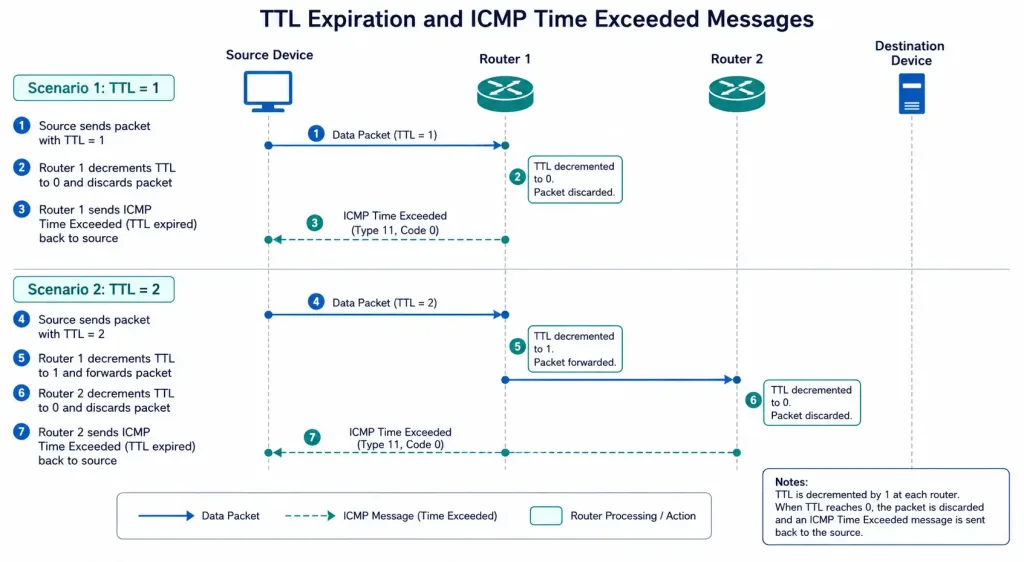
A Real Worked Example
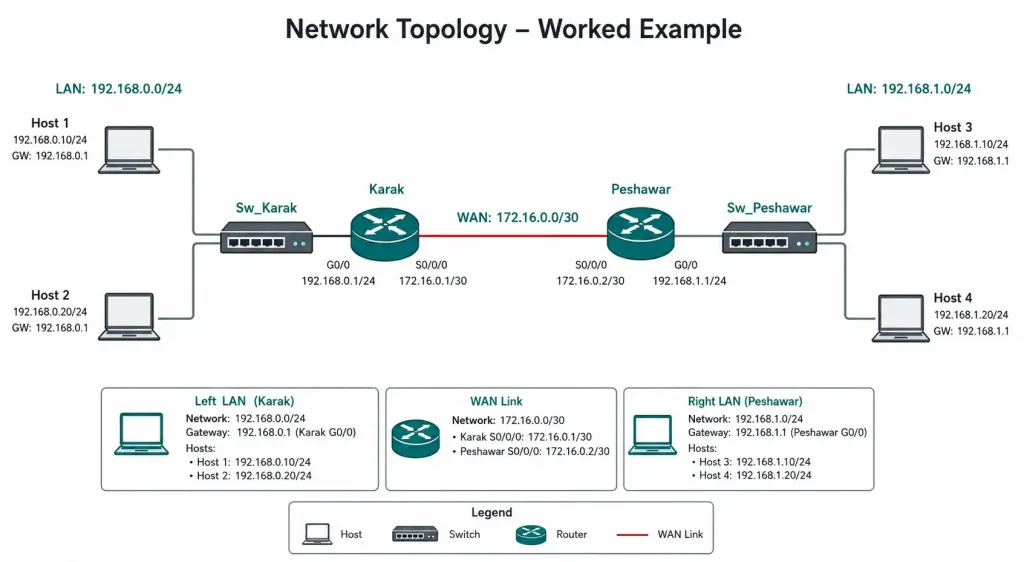
The topology below is a small lab network: two switches (Sw_Karak and Sw_Peshawar), two routers (Karak and Peshawar) connected over a point-to-point WAN link, and four hosts.
- Host 4 (192.168.1.3), connected to Sw_Peshawar, is running the trace.
- Router Peshawar (192.168.1.1 on its LAN side) is Host 4’s default gateway.
- The WAN link between the routers is 172.16.0.0/30, with Peshawar at 172.16.0.2 and Karak at 172.16.0.1.
- Router Karak (192.168.0.1 on its LAN side) connects to Sw_Karak.
- Host 1 (192.168.0.2), the trace’s destination, is connected to Sw_Karak.
Running tracert 192.168.0.2 from Host 4 produces:
Tracing route to 192.168.0.2 over a maximum of 30 hops:

  1     1 ms     0 ms     0 ms  192.168.1.1
  2     0 ms     0 ms     1 ms  172.16.0.1
  3     *        *        *     Request timed out.
  4     *        *        *     Request timed out.
  5     *        *        *     Request timed out.
  ...
 18     *        *        *     Request timed out.
Interpreting This Output
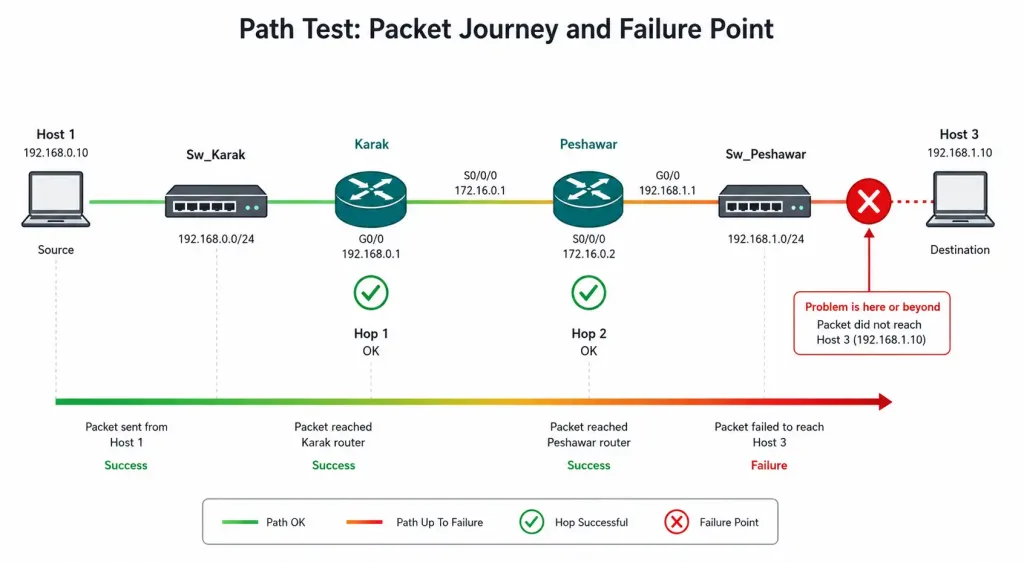
Hop 1 (192.168.1.1): this is Router Peshawar, Host 4’s default gateway, responding in 0-1 ms. Fast, healthy response — the local LAN segment is working correctly.
Hop 2 (172.16.0.1): this is Router Karak’s WAN-facing interface, also responding quickly. The packet successfully crossed the point-to-point link between the two routers and reached Karak.
Hop 3 onward (continuous timeouts): the trace never reaches Host 1 at all, timing out from hop 3 through the maximum hop count. Since the packet clearly made it as far as Router Karak, the problem lies somewhere beyond it — most likely one of a few things:
- Router Karak isn’t correctly routing traffic out toward Sw_Karak’s subnet (192.168.0.0/24), possibly due to a missing or incorrect route.
- An ACL on Router Karak is blocking ICMP traffic destined for that subnet.
- Host 1 itself isn’t responding to ICMP, whether due to a local firewall or the host being offline.
This is exactly the kind of result that makes traceroute more useful than a plain ping failure: knowing the trace succeeds through Router Karak and fails immediately after narrows the problem down to a specific segment of the path, rather than leaving “somewhere between Host 4 and Host 1” as the only available diagnosis.
Tracert Command Switches
Both Windows’ tracert and Cisco’s traceroute support switches that adjust behavior for different troubleshooting situations:
| Switch | Function | Example |
|---|---|---|
-d | Skips DNS resolution, speeding up the trace | tracert -d 8.8.8.8 |
-h maximum_hops | Sets the maximum hop count (default 30) | tracert -h 10 google.com |
-j host-list | Specifies a loose source route (IPv4 only) | tracert -j 10.0.0.1 8.8.8.8 |
-w timeout | Sets the per-reply timeout in milliseconds | tracert -w 1000 networkustad.com |
-4 | Forces IPv4 | tracert -4 google.com |
-6 | Forces IPv6 | tracert -6 google.com |
-d is worth using by default in most troubleshooting situations — DNS resolution adds noticeable delay to every hop, and reverse-DNS entries are often missing or misleading on internal network equipment anyway.
Traceroute with IPv6
IPv6 traceroute works on the same TTL-exhaustion principle, but uses ICMPv6 message types instead: Echo Request is type 128 (rather than IPv4’s type 8), and Time Exceeded is type 3 (rather than IPv4’s type 11).
Windows:
tracert -6 2001:4860:4860::8888Cisco router:
traceroute ipv6 2001:4860:4860::8888Troubleshooting with Traceroute
Timeouts starting at hop 1: this usually points to a local problem — a misconfigured default gateway, a disconnected cable, or a local firewall blocking outbound ICMP before the packet even leaves your own segment.
Timeouts starting partway through the path (as in the worked example above): the trace tells you exactly how far the packet got. The problem lies at or just beyond the last hop that responded — check that router’s routing table, ACLs, and the next segment’s connectivity specifically, rather than troubleshooting the entire path from scratch.
Timeouts at every hop, including ones you know are reachable: this often means a firewall somewhere along the path is blocking ICMP specifically, while the underlying connectivity is actually fine. Try a UDP-based traceroute on Linux instead, which uses different traffic that may not be blocked the same way:
traceroute -U destinationHigh but non-timeout latency at a specific hop: a single slow hop, with everything after it also slow, often indicates congestion or a suboptimal route at that point rather than an outright failure. Compare traceroute results over time, or use pathping on Windows for combined ping-and-trace statistics that show packet loss percentages per hop. A hop that’s slow but every hop after it returns to normal latency is usually just that one router deprioritizing its own ICMP response generation, which is a cosmetic quirk rather than an actual performance problem affecting real traffic.
What Traceroute Doesn’t Tell You
Traceroute is a diagnostic tool, not a complete picture of network health, and it’s worth being clear about its limits so you don’t over-read the results.
The path shown is only the outbound path. Traceroute maps how packets travel from your device to the destination. The return path — how the destination’s replies find their way back to you — can be completely different, especially on networks with asymmetric routing. A trace that looks clean doesn’t guarantee the return path is equally healthy.
A timeout doesn’t always mean a failure. Many routers, by policy or configuration, deprioritize or simply don’t respond to the ICMP or UDP probes traceroute relies on, even while forwarding regular traffic completely normally. This is why a single timed-out hop sandwiched between two successful hops usually isn’t cause for concern — the router in the middle is just choosing not to reply to the probe itself.
Traceroute reflects one moment in time. Routes can change, and congestion is often transient. If you’re investigating an intermittent problem, a single traceroute captures only what was happening at the exact moment you ran it — running it multiple times, or using a continuously-updating tool like mtr, gives a much more reliable picture.
It shows the network path, not application-layer problems. A completely clean traceroute all the way to the destination confirms network-layer connectivity, but it says nothing about whether the application running on that destination is actually working correctly. A web server that’s up but returning errors will still show a perfect traceroute right up to its address.
Traceroute vs. Ping vs. Pathping vs. mtr
| Tool | Shows the Full Path | Shows Loss Statistics | Continuous/Live | Platform |
|---|---|---|---|---|
| ping | No — single destination only | Basic (sent/received count) | With -t (Windows) or by default (Linux) | All |
| traceroute / tracert | Yes | No (single pass) | No | All |
| pathping | Yes | Yes, per hop | No (runs a set duration) | Windows |
| mtr | Yes | Yes, per hop | Yes | Linux/macOS |
For a quick “is it up” check, ping is enough. For “where exactly does it break,” traceroute is the right first step — which is exactly what the worked example in this guide demonstrates. For a deeper investigation into where packet loss specifically occurs along a path, pathping or mtr build on the same TTL-based technique but add statistical sampling across multiple rounds, which single-pass traceroute doesn’t provide.
FAQs
What is the difference between tracert and traceroute?
tracert is the Windows command, while traceroute is used on Cisco routers, Linux, and macOS — both trace the same kind of path using the TTL-exhaustion technique, just with different syntax and default behavior. One practical difference: Windows’ tracert uses ICMP by default, while Linux’s traceroute uses UDP by default, which is why the two commands can sometimes produce different results for the exact same path if a firewall along the way treats ICMP and UDP differently.
Why do I see asterisks (*) in traceroute output?
An asterisk means that specific probe didn’t get a response within the timeout window — the hop timed out. This can mean a firewall is blocking ICMP or UDP traffic, a router is configured not to respond to traceroute probes at all (which is common and not necessarily a problem), or there’s an actual connectivity failure at or beyond that point in the path.
Can traceroute work with IPv6?
Yes — the mechanism is identical, just using ICMPv6 message types instead of ICMPv4 ones. Use tracert -6 on Windows or traceroute ipv6 on a Cisco router, specifying an IPv6 destination address.
How does traceroute help in real troubleshooting, not just exams?
Traceroute narrows down where a connectivity problem actually lives, which is often the difference between a two-minute fix and an hour of guessing. As the worked example in this guide shows, a trace that succeeds through one router and fails immediately after tells you precisely which segment of the network to investigate first.
What tools are similar to traceroute?
ping tests basic reachability to a single destination without mapping the path, while pathping on Windows combines ping and traceroute to show packet loss statistics at each hop over multiple rounds. On Linux, mtr provides a continuously updating, live view that’s often more useful than a single static traceroute when diagnosing an intermittent problem.
Why did my traceroute stop at a router that I know isn’t the actual problem?
Some routers are configured to not respond to traceroute probes at all, even though they’re forwarding traffic normally — this shows up as a timeout at that specific hop, with hops beyond it sometimes still responding successfully. A single timed-out hop surrounded by successful hops on either side is usually this kind of configuration choice, not an actual break in connectivity, and is different from timeouts that continue for every subsequent hop.