Undocumented networks work fine right up until something breaks, and then every minute spent reverse-engineering what should already be written down is a minute of downtime that didn’t need to happen. Network documentation is the difference between a five-minute fix and an hour of guessing, and it’s a skill that matters just as much in real deployments as it does on CCNA and CCNP exams.
This guide covers the core components of network documentation — policy, topology diagrams, server and Active Directory records, backup procedures — along with two things often left out of documentation guides entirely: keeping documentation itself secure, and managing it with version control.
Creating a Network Documentation Policy
A documentation policy defines the standards and procedures for documenting a network consistently, so documentation quality doesn’t depend entirely on which engineer happened to write it. It answers four questions:
- Scope: which components — routers, switches, servers, firewalls — must be documented.
- Format: standardized templates (Visio diagrams, spreadsheets, or a dedicated tool) so documentation looks consistent across the organization.
- Access control: who can view or edit documentation, since it often contains sensitive configuration details.
- Update schedule: a defined review interval, commonly quarterly, so documentation doesn’t quietly drift out of sync with reality.
Example policy statements:
- Documentation is stored in a secure, centralized repository (SharePoint, NetBox, or a version-controlled Git repository).
- All routers and switches have topology diagrams showing IP addresses and VLAN assignments.
- Server logs include software versions and a record of recent changes.
Building a Topology Diagram
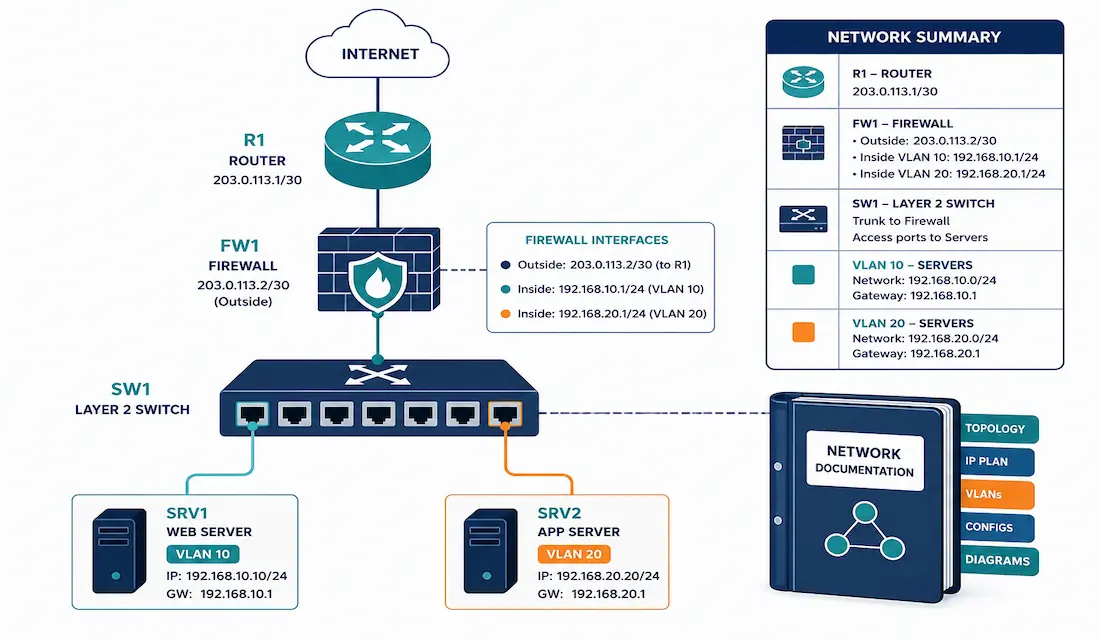
A topology diagram is a visual representation of the network’s physical and logical structure — routers, switches, firewalls, servers, their connections, and Layer 3 addressing. It’s the single document most likely to get pulled up first during an incident, which is exactly why it needs to be both accurate and current.
Creating one, step by step:
- Identify components: list every device and its role.
- Map physical connections: how devices are actually cabled together — Ethernet, fiber, and so on.
- Include logical details: IP addresses, VLANs, and routing protocols in use.
- Use proper tools: Cisco Packet Tracer, Visio, Lucidchart, or NetBox for professional, maintainable diagrams rather than an ad hoc sketch.
For a small network, a single diagram covering the router, switches, firewall, and servers is usually sufficient. Larger networks need a high-level block diagram of the whole environment, plus detailed diagrams for individual segments — a DMZ, a specific floor’s LAN, a data center rack.
A Consistent Example Table
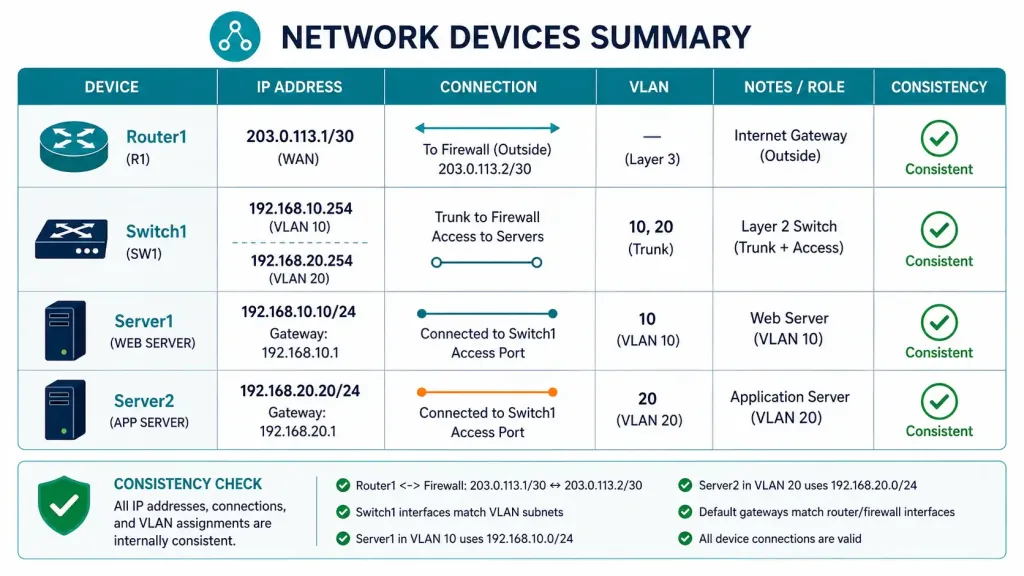
| Device | Type | IP Address | Connected To | VLAN/Subnet |
|---|---|---|---|---|
| Router1 | Router | 192.168.1.1 | Switch1 (Gig0/1) | VLAN 1 (management) |
| Switch1 | Switch | 192.168.1.2 | Router1 (Gig0/1), Server1 (Fa0/1) | VLAN 1 (management) |
| Server1 | Server | 192.168.1.10 | Switch1 (Fa0/1) | VLAN 10 (192.168.1.0/24) |
| Server2 | Server | 192.168.20.10 | Switch1 (Fa0/2) | VLAN 20 (192.168.20.0/24) |
Every device’s VLAN column now matches its actual subnet, and each physical connection is described identically from both ends — Switch1’s row and Server1’s row both reference the same Fa0/1 port for the same physical link, rather than contradicting each other. This is exactly the kind of consistency worth double-checking in your own documentation, since a table that contradicts itself is often worse than no table at all — it actively misleads whoever trusts it during an incident.
Documenting Servers: Names, Roles, and IP Addresses
A topology diagram alone isn’t enough detail for day-to-day administration. For each server, document its role, IP address, and name — and if a server has multiple NICs or multiple IP addresses, document all of them individually, since a topology diagram alone often can’t show this level of detail clearly.
Server Log Files
A log file tracks recent changes to a server or network device — patch installations, application updates, modified security settings. When something fails, this is often the first place to look, since a recent, undocumented change is one of the most common root causes of an unexpected failure. Beyond troubleshooting, a well-maintained log also supports rebuilding a server from scratch if it’s ever genuinely lost.
Software Versions, Licenses, and Hardware Records
Document the applications and versions running on each server, along with proof of license — this matters directly if a software audit ever occurs, since being unable to produce license documentation on request can carry real financial and legal consequences. Hardware documentation should cover each connected device’s configuration, backup status, firmware revision, and where relevant, its password record (stored securely, not in plaintext alongside general documentation).
Documenting Microsoft Active Directory
Full AD documentation for every possible detail isn’t practical, but a few elements are worth prioritizing:
- Domain names: every domain in the AD forest.
- AD structure: organizational units, groups, and their hierarchy.
- Group Policies: the location, settings, and purpose of each GPO.
- Domain controllers: IP addresses, names, and roles.
Example:
| Domain | OU Structure | GPO Name | Settings |
|---|---|---|---|
| example.com | Users/Computers | Security_GPO | Password Policy, Firewall |
| sub.example.com | Servers/DCs | Backup_GPO | Backup Schedule, Log Settings |
Backup Procedures
Backup documentation is your best defense against a failure turning into a permanent loss. Document the backup software and version in use, the backup type (full, incremental, differential), and a plain description of what’s actually being backed up and how often — a backup that exists but isn’t documented is nearly as risky as no backup at all, since nobody can confirm it’s actually working correctly without testing it, and testing requires knowing what it’s supposed to contain in the first place.
Using Documentation for Troubleshooting
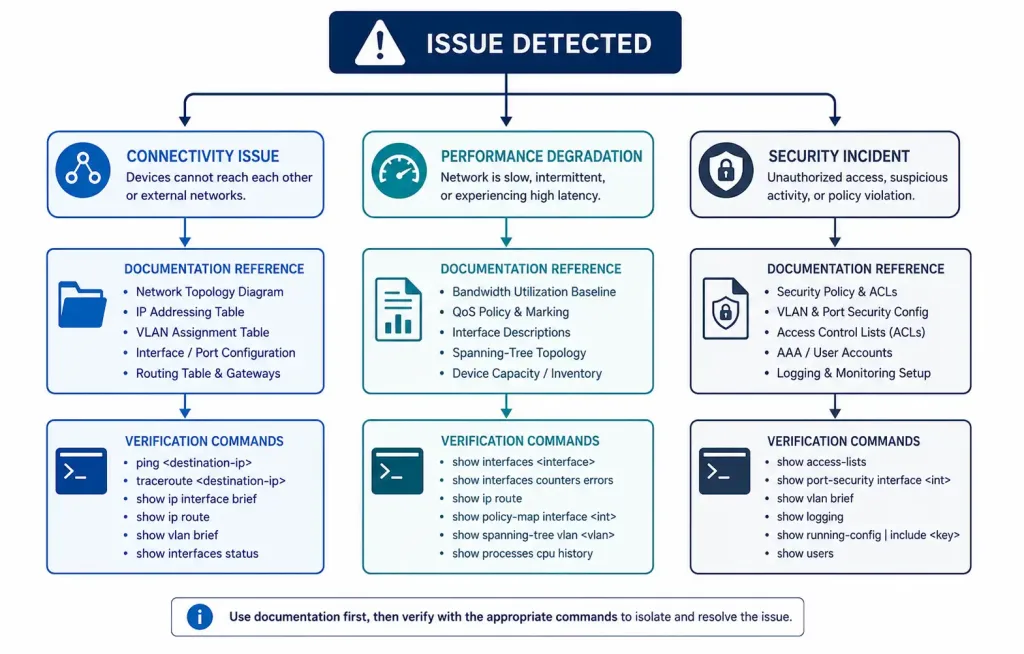
Good documentation turns troubleshooting from investigation into verification — checking what should be true against what actually is, rather than starting from nothing.
Connectivity issue: a server is unreachable. Check the topology diagram for its IP address and connections, then verify the switch port configuration against the documented VLAN assignment.
show ip interface brief
show running-config
Performance degradation: review server logs for recent changes — a software update or configuration change is a common culprit — and cross-reference hardware documentation for known firmware issues on that specific model.
Security incident: use Active Directory documentation to review group policies and access controls, confirming what access should exist versus what’s actually configured.
show logThese three commands — show ip interface brief, show running-config, and show log — cover the majority of first-pass troubleshooting checks, and having documentation to compare their output against is what turns “something looks off” into “this specific setting doesn’t match what it should be.”
Labeling Physical Infrastructure
Label every server, device, and cable. This sounds basic, but it’s frequently the single detail that turns a quick fix into a lengthy one — tracing an unlabeled cable through a dense patch panel during an outage costs real time that clear labeling would have eliminated entirely. Labels should align directly with what’s documented on paper, so physical hardware and written documentation always tell the same story.
Keeping Documentation Itself Secure
It’s worth stating plainly: network documentation is a security-sensitive asset in its own right. A document listing IP schemes, device passwords, firewall rules, and AD structure is exactly what an attacker would want if they gained access to it — arguably more valuable than compromising a single device, since it maps out the whole environment at once.
- Never store plaintext passwords alongside general documentation. Use a dedicated password manager or vault with its own access controls, referenced from documentation rather than embedded in it.
- Apply the same access control principles to documentation as to the network itself. Not every team member needs edit access to every document, and read access to sensitive sections (like full IP schemes or firewall rulesets) should be limited to those who genuinely need it.
- Audit who has access periodically, the same way you’d audit network access — documentation permissions tend to accumulate over time as team membership changes, unless someone actively reviews them.
Version Control for Documentation
Treating documentation like code — with version history — is increasingly standard practice, and for good reason: it answers “what changed and when” the same way show archive config differences does for a device configuration.
Tools like Git (for text-based documentation) or the built-in version history in NetBox and similar platforms let you:
- See exactly what changed between two versions of a diagram or record.
- Roll back an erroneous edit without losing the rest of the document’s history.
- Attribute changes to a specific person and date, which matters during an audit or when trying to understand why a particular setting is documented the way it is.
A documentation repository with no version history is vulnerable to exactly the kind of silent drift and unexplained changes that good documentation is supposed to prevent in the first place.
Documentation Tools Compared
| Tool | Best For | Version Control |
|---|---|---|
| Visio / Lucidchart | Polished topology diagrams | Limited, platform-dependent |
| Excel / Spreadsheets | Device inventories, IP address tables | Manual, error-prone |
| NetBox | Combined IPAM and documentation, API-accessible | Built-in change history |
| Git-based (Markdown, YAML) | Text-based documentation, infrastructure-as-code environments | Full, native version control |
There’s no single correct choice — a small network’s documentation needs are well served by a well-organized spreadsheet and a Visio diagram, while a larger, faster-changing environment benefits significantly from a tool like NetBox or a Git-based approach that tracks change history natively.
FAQs
Why is network documentation important for CCNA/CCNP students?
Documentation ensures efficient troubleshooting, smoother upgrades, and compliance with industry standards, and understanding it prepares students for both real-world scenarios and exam questions about network operations. Mastering documentation practices early is genuinely useful career preparation, not just an exam requirement.
What should be included in a network topology diagram?
A topology diagram should show physical connections, logical addressing (IP addresses and VLANs), and major devices like routers, switches, and servers — with every entry internally consistent, since a diagram or table that contradicts itself is worse than having no documentation at all. Tools like Visio, Packet Tracer, or NetBox help produce diagrams that are both clear and easy to keep updated.
How does a log file help in network troubleshooting?
A log file tracks recent changes — software updates, configuration tweaks, security setting modifications — which is often exactly where the root cause of an unexpected failure turns out to be. Network administrators rely on logs specifically because a recent, undocumented change is one of the most common causes of a sudden problem.
What tools can I use for network documentation?
Cisco Packet Tracer, Microsoft Visio, Lucidchart, and NetBox are all strong options depending on network size and complexity, with NetBox and Git-based approaches offering built-in version history that simpler tools generally lack. Choosing a tool that scales with your network’s actual complexity matters more than picking whichever tool is most popular.
Why is labeling important in network documentation?
Labeling servers, devices, and cables makes physical identification fast during maintenance or troubleshooting, and keeps physical hardware aligned with what’s written in documentation. In a dense environment like a server rack or patch panel, the time saved by clear labeling during an active incident is significant and easy to underestimate until you’re the one tracing an unlabeled cable under pressure.
Is network documentation itself a security risk?
Yes — documentation listing IP schemes, passwords, and firewall rules is a high-value target if it leaks, potentially more valuable to an attacker than compromising any single device, since it maps the entire environment at once. Applying the same access control and audit practices to documentation that you’d apply to the network itself is essential, not optional.
Should network documentation use version control?
Increasingly, yes — version control (whether through Git, NetBox’s built-in history, or another change-tracking system) answers “what changed and when,” which is invaluable during both troubleshooting and audits. Documentation with no version history is vulnerable to the same kind of silent, unexplained drift that good documentation practices are meant to prevent in the first place.