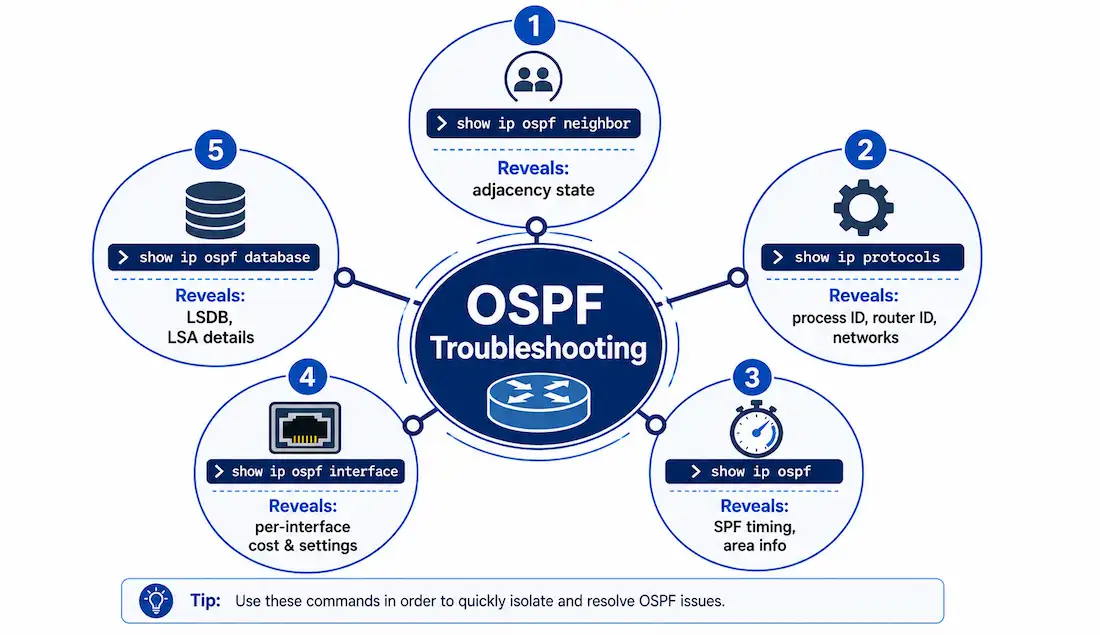
OSPF (Open Shortest Path First) is a cornerstone of enterprise routing, widely tested in CCNA and CCNP exams. Its complexity stems from link-state operations, making OSPF troubleshooting and verification crucial for network stability and certification success. This guide explores real-world scenarios, like multi-area OSPF in large networks, to equip students with practical skills. Regular verification isn’t optional overhead — it’s what turns a working lab topology into a network you can trust in production.
This guide assumes familiarity with the fundamentals covered elsewhere in this series: Hello packet structure and adjacency states, single-area OSPFv2 configuration, passive interfaces, and OSPF cost calculation. This piece ties those concepts together into the verification workflow you’ll actually use once OSPF is running.
Verify OSPF Neighbors
show ip ospf neighbor is the first command to reach for when checking OSPF health. If a router is not showing a state of FULL where you expect an adjacency, the routers have not completed neighbor formation — and everything downstream of that, including LSA flooding and SPF calculation, depends on adjacencies actually reaching FULL.
Router1# show ip ospf neighbor

Neighbor ID     Pri   State           Dead Time   Address         Interface
10.1.1.2        1     FULL/DR         00:00:35    10.1.1.2        GigabitEthernet0/0
10.1.1.3        1     2WAY/DROTHER    00:00:38    10.1.1.3        GigabitEthernet0/0
Causes of routers not establishing adjacency include incomplete LSDBs, which can lead to inaccurate SPF trees and routing tables if the route to the destination doesn’t exist or isn’t the most optimal path. For the full state-by-state breakdown of how an adjacency progresses from Down to Full, see the adjacency states section of the Hello packets guide.
Parameters of show ip ospf neighbor
- Neighbor ID. The unique Router ID of the neighboring router.
- Pri. The OSPF priority of the interface, used in DR and BDR elections.
- State. The OSPF adjacency state of the relationship. A FULL state means the router and its neighbor have identical LSDBs. On multi-access networks like Ethernet, non-DR/BDR neighbors show 2WAY/DROTHER — meaning the relationship has intentionally stopped at 2-Way rather than progressing to Full, since a DROTHER doesn’t need a full adjacency with another DROTHER. A neighbor that is the DR or BDR always reaches FULL, never 2WAY — seeing “2WAY” paired with “DR” in output would itself be a red flag, not normal behavior.
- Dead Time. The remaining time to receive an OSPF Hello packet before declaring the neighbor down, reset by every incoming Hello.
- Address. The IP address of the neighbor router’s interface on the shared link.
- Interface. The router interface on which adjacency is formed with the neighbor.
Troubleshooting Checklist
If adjacency fails to form on any router, check the following, roughly in order of how often each one is actually the cause:
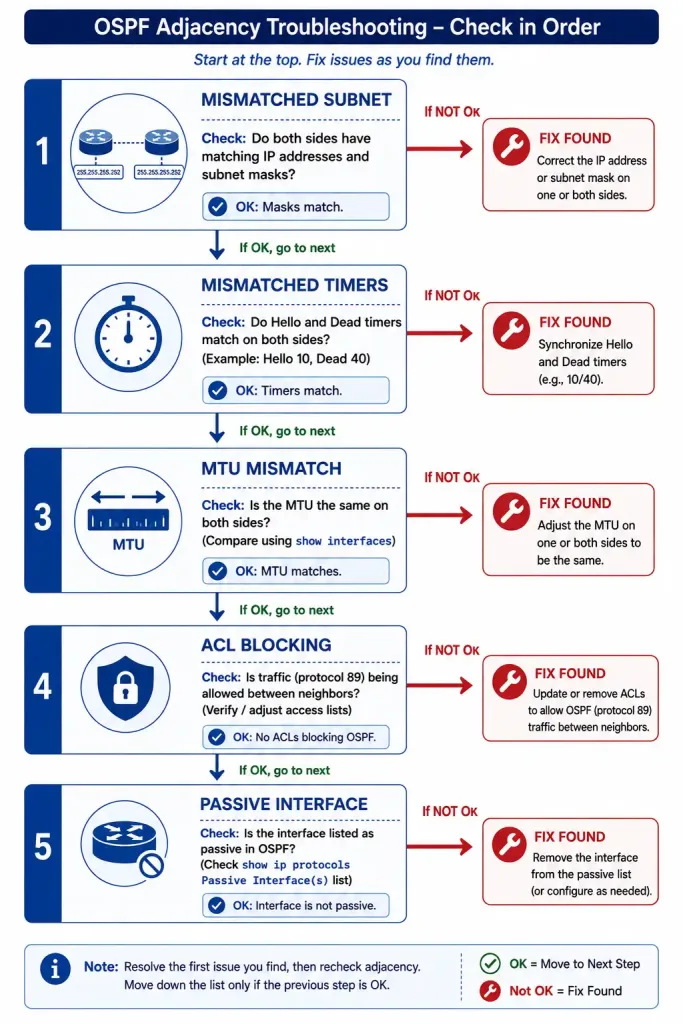
| Issue | Cause | Solution |
|---|---|---|
| Mismatched subnet | Different masks on either side of the link | Align subnet configurations |
| Mismatched timers | Hello/Dead timer mismatch | Sync timers (e.g., 10/40) |
| MTU mismatch | Different MTU settings | Match MTU with show interfaces |
| ACL blocking | Access list filtering OSPF multicast | Verify and adjust ACLs |
| Passive interface | Interface set as passive | Remove passive-interface if an adjacency is genuinely needed there |
Use show running-config or debug ip ospf packet to diagnose further when the checklist above doesn’t turn up the cause. You can also verify Router2, Router3, and Router4 the same way with show ip ospf neighbor on each, comparing their views of the topology against each other — a mismatch in what two routers report about the same link is often the fastest way to isolate which side is misconfigured.
Verify OSPF Protocol Settings
show ip protocols confirms the OSPF process ID, router ID, advertised networks, neighbors receiving updates, and the default administrative distance in a single output.
Router1# show ip protocols

Routing Protocol is "ospf 1"
  Router ID 10.10.10.1
  Number of areas in this router is 1. 1 normal 0 stub 0 nssa
  Routing for Networks:
    10.1.1.0 0.0.0.3 area 0
    192.168.10.0 0.0.0.255 area 0
  Routing Information Sources:
    Gateway         Distance      Last Update
    10.1.1.2        110           00:12:04
  Distance: (default is 110)
This is usually the fastest way to catch a network statement that’s silently excluding an interface it should have covered — the wildcard mask is the most common culprit when an expected subnet doesn’t appear under “Routing for Networks.”
Verify OSPF Process Information
show ip ospf displays OSPF process ID and router ID information, area details, and the last time the SPF algorithm ran — useful for tracking convergence issues, since a stale “last SPF run” timestamp on a router that should have just recalculated is a sign something’s wrong upstream.
Router1# show ip ospf

Routing Process "ospf 1" with ID 10.10.10.1
 Supports only single TOS(TOS0) routes
 It is an area border router
 SPF schedule delay 5000 msecs, Hold time between two SPFs 10000 msecs
 Number of external LSA 0. Checksum Sum 0x000000
 Number of areas in this router is 1. 1 normal 0 stub 0 nssa
    Area BACKBONE(0)
        Number of interfaces in this area is 2
        SPF algorithm last executed 00:04:12.312 ago
Verify OSPF Interface Settings
show ip ospf interface displays a detailed list for every OSPF-enabled interface, useful for checking whether network statements are correctly composed and whether an interface’s OSPF cost matches what you expect. For a summary across every interface at once, use show ip ospf interface brief instead.
Specify an interface name for targeted output:
Router1# show ip ospf interface GigabitEthernet0/0Filter for a specific state to check adjacency status at a glance across many interfaces:
Router1# show ip ospf interface brief | include FULLVerify OSPF Database
show ip ospf database displays information on the number of routers in the network or internetwork, plus the ID of each advertising router.
Router1# show ip ospf database

            OSPF Router with ID (10.10.10.1) (Process ID 1)

                Router Link States (Area 0)

Link ID         ADV Router      Age         Seq#       Checksum Link count
10.10.10.1      10.10.10.1      512         0x80000003 0x00A1B2 2
10.10.20.1      10.10.20.1      498         0x80000002 0x00C3D4 2
The ADV Router column is the advertising router, and the checksum and link count values vary depending on the routing device and its current LSDB content.
LSA Types Explanation
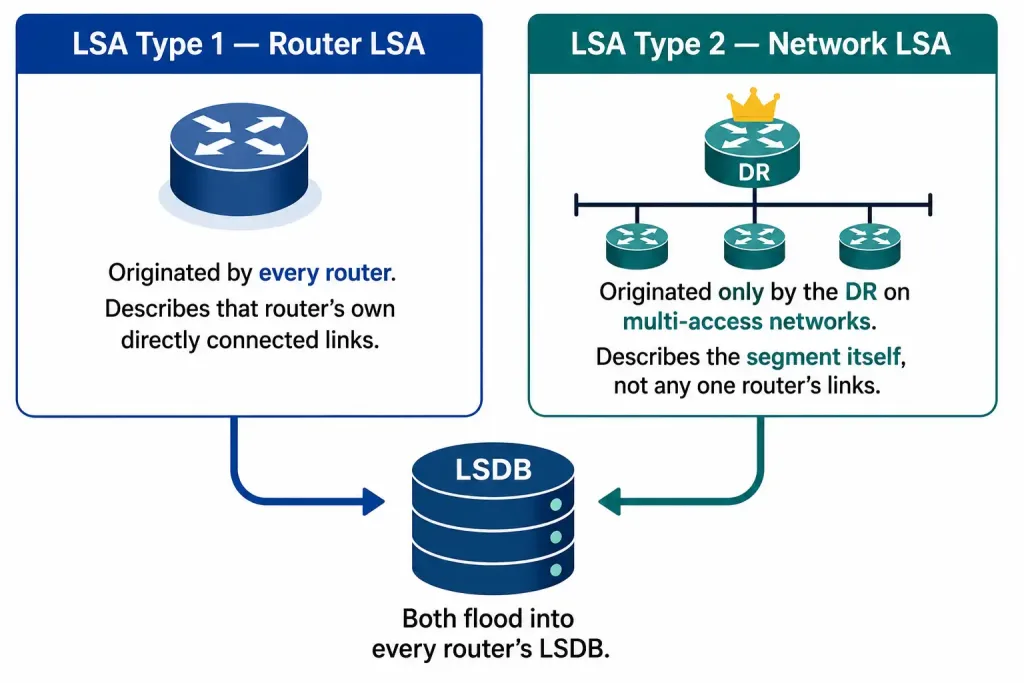
- LSA Type 1 (Router LSA). Describes the router and its own directly connected links.
- LSA Type 2 (Network LSA). Generated by the DR for multi-access networks, describing the segment itself rather than any single router’s links.
Use show ip ospf database to spot issues like duplicate Router IDs or missing LSAs — a router missing from the expected LSA set almost always means its adjacencies haven’t actually reached Full, even if a quick glance at show ip ospf neighbor on one router looked fine.
OSPF in Multi-Area Networks
Multi-area OSPF optimizes large networks by dividing them into areas, reducing the size of the LSDB each router has to maintain and calculate SPF against. Key concepts for troubleshooting a multi-area design:
- Area types. Stub and Totally Stubby areas reduce LSA flooding into areas that don’t need full external or inter-area route detail.
- ABRs. Area Border Routers connect multiple areas and summarize LSAs between them.
- Troubleshoot with
show ip ospf border-routersto verify ABR paths and confirm a router actually knows how to reach the ABRs it depends on for inter-area routes. - Example configuration:
area 1 stubon an ABR limits the LSA types flooded into area 1, cutting down on unnecessary routing overhead for routers in that area.
This is essential for CCNP students managing scalable networks, since a misconfigured stub area is a common cause of routers missing external routes they should have, without any adjacency actually being down.
OSPF Security and Optimization
A few practices worth applying once basic OSPF is verified and working:
- Authentication. Configure MD5 with
ip ospf authentication message-digestand a key, so only trusted routers can form adjacencies. Pairing this with the passive-interface practice of muting host-facing interfaces gives layered protection — authentication on the links that run OSPF, and no OSPF at all on the ones that don’t need it. - Route summarization. Reduce routing table size with
area rangeon ABRs, which is especially valuable in larger multi-area designs. - Monitoring. Use
show ip ospf statisticsto track SPF calculation frequency — a router recalculating far more often than expected usually points at instability somewhere in the area, not a problem with the monitoring router itself.
Debugging OSPF
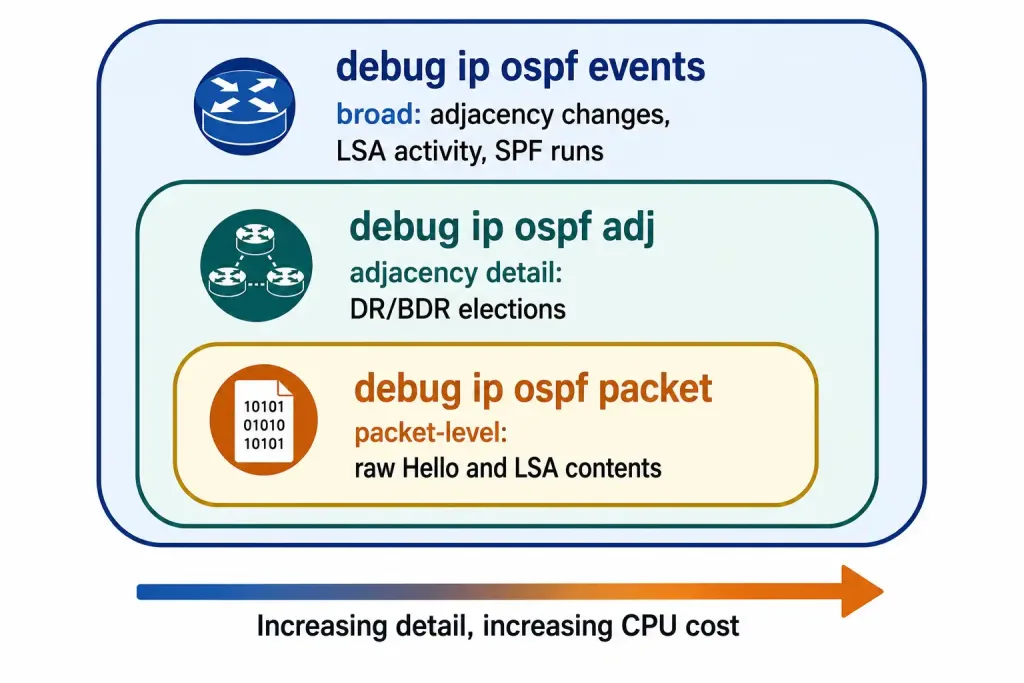
Debug commands are essential for deep troubleshooting, but use them cautiously in production due to their CPU impact — a busy router running verbose OSPF debug output can itself become the bottleneck.
debug ip ospf eventsshows OSPF event-level activity broadly, not just Hello packets — this includes adjacency state changes, LSA origination and flooding, and SPF calculation runs, making it the best general-purpose starting point.debug ip ospf adjshows adjacency formation in detail, including DR and BDR elections on broadcast and non-broadcast multi-access networks.debug ip ospf packetanalyzes packet-level issues, useful when you need to see the actual Hello or LSA contents rather than just a summary event.
Disable all debugging with undebug all as soon as you have what you need — leaving verbose debug running is a common and entirely avoidable cause of resource strain on a production router.
Illustrative Scenario: A Passive Interface Masquerading as a Timer Problem
Here’s a common scenario, meant to show the troubleshooting logic in action rather than describe a specific real event.
A network engineer notices Router3 never shows Router4 in show ip ospf neighbor output, despite both interfaces being up and on the same subnet. Assuming a Hello timer mismatch, they spend time comparing show ip ospf interface output on both sides — and find the timers match exactly.
Working back through the troubleshooting checklist in order eventually reaches the passive-interface row. Checking show ip protocols on Router4 shows the relevant interface listed under “Passive Interface(s)” — someone had applied passive-interface default for security hardening and forgotten to exempt the link to Router3. Since a passive interface never sends Hellos, no adjacency could ever form, regardless of how closely the timers matched.
Removing the passive setting with no passive-interface on that one interface resolves it immediately. The lesson generalizes: a missing neighbor with no other obvious symptom is worth checking against the passive-interface list before assuming a timer or MTU problem, since passive interfaces produce exactly this kind of “the neighbor just never shows up at all” signature.
Conclusion and Best Practices
Regular verification with the commands above — show ip ospf neighbor, show ip protocols, show ip ospf, show ip ospf interface, and show ip ospf database — is what keeps OSPF stability visible rather than assumed. Enable logging with logging buffered to retain a history of adjacency changes and other events you can review after the fact, rather than relying only on live debug output.
Best practices worth keeping as habits rather than one-time checks: consistent timer settings across every router in a segment, periodic show ip ospf checks to catch unexpected SPF recalculation frequency, and treating the troubleshooting checklist as an ordered list rather than jumping straight to debug commands — the majority of adjacency failures trace back to a subnet, timer, MTU, ACL, or passive-interface mismatch, in roughly that order of likelihood.
FAQs
What is the purpose of the show ip ospf neighbor command?
show ip ospf neighbor verifies OSPF adjacency status, displaying each neighbor’s Router ID, election priority, current state, and remaining Dead Time before that neighbor would be declared down. A FULL state confirms the two routers have identical LSDBs, which is the prerequisite for accurate routing table entries. It’s typically the first command to run when OSPF routing behaves unexpectedly, since nearly every downstream OSPF problem traces back to an adjacency that never reached Full.
How can I troubleshoot OSPF adjacency failures?
Work through mismatched subnets, mismatched Hello/Dead timers, MTU mismatches, ACLs blocking OSPF multicast, and passive interfaces, roughly in that order of how often each one turns out to be the actual cause. show ip ospf neighbor shows you where the adjacency currently stands, while debug ip ospf packet shows the actual Hello and LSA exchange when the checklist alone doesn’t pinpoint the issue. Comparing show ip ospf interface output on both sides of the link side by side is usually faster than debugging blind.
What does the show ip ospf database command reveal?
It displays the Link-State Database, showing the number of routers known to the area, each advertising router’s ID, and per-LSA details like age, sequence number, and checksum. Use it to spot issues like duplicate Router IDs or LSAs that are missing entirely, which is essential for diagnosing problems that look like a routing table issue but are actually an incomplete LSDB. A router missing from the expected LSA set is a strong signal that its adjacencies haven’t actually reached Full, even if a neighbor check on one router alone looked fine.
How can I secure and optimize OSPF?
Configure MD5 authentication with ip ospf authentication message-digest so only trusted routers can form adjacencies, and pair it with passive interfaces on any link that doesn’t need OSPF running at all. Summarize routes with area range on ABRs to keep routing tables smaller in multi-area designs, and monitor SPF calculation frequency with show ip ospf statistics to catch instability before it becomes a visible outage. Together, these three practices — authentication, summarization, and monitoring — cover the security and performance side of OSPF once basic connectivity and adjacencies are already confirmed working.
What’s the difference between debug ip ospf events and debug ip ospf packet?
debug ip ospf events gives broad, human-readable output covering adjacency state changes, LSA activity, and SPF runs — a good general-purpose starting point when you know something is wrong but don’t yet know what. debug ip ospf packet goes a level deeper, showing the actual contents of OSPF packets as they’re sent and received, which is what you need when the event-level view isn’t specific enough to isolate the problem. Both carry real CPU cost on a busy router, so disable them with undebug all as soon as you’ve captured what you need.