A wireless home router is the device that connects every gadget in your house to the internet. It sits between your internet service provider’s modem and your phones, laptops, smart TVs, and IoT devices, translating one internet connection into a shared network everyone can use. Choosing the right router matters more than most people realize — it affects everything from streaming quality to how secure your home network is against outside attackers.
This guide explains what a home router actually does, how it works, what has changed with modern Wi-Fi standards, and what to look for when choosing one in 2026.
What a wireless home router actually does
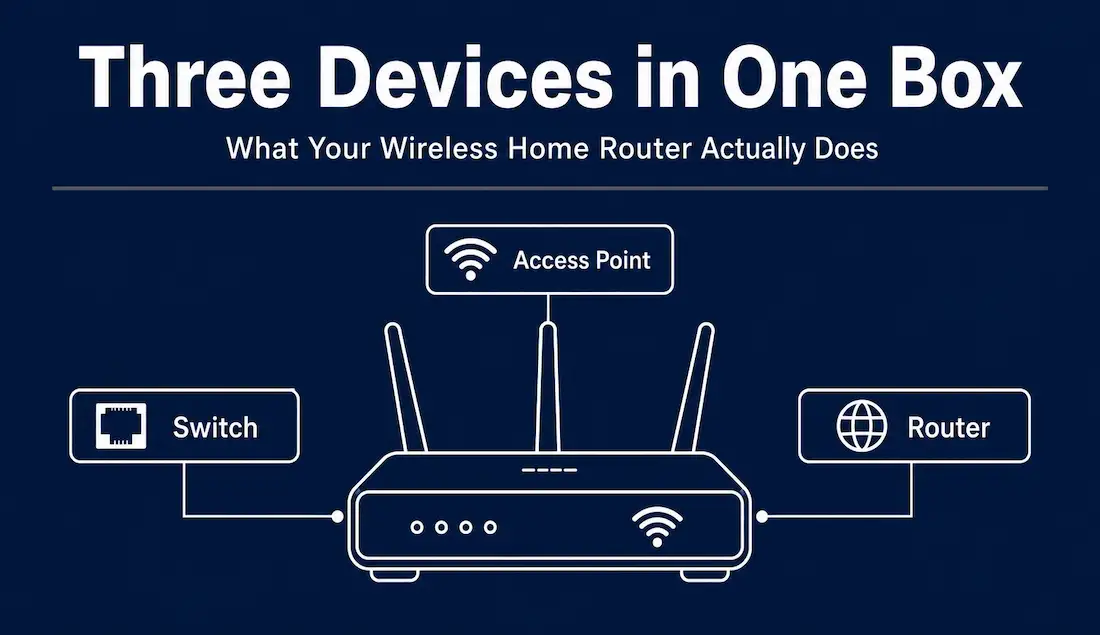
Most people call it “the router,” but a wireless home router is really three devices combined into one box:
Access point — it broadcasts a Wi-Fi signal that phones, laptops, and other wireless devices connect to. Modern home routers support Wi-Fi 5 (802.11ac), Wi-Fi 6 (802.11ax), or Wi-Fi 6E and Wi-Fi 7 on higher-end models, each offering better speed and efficiency than the last.
Switch — most home routers include four wired Ethernet ports running at speeds up to 1 Gbps (and increasingly 2.5 Gbps or higher on newer models), letting you plug in devices that need a stable, cabled connection, like a desktop PC, a smart TV, or a game console.
Router — this is the function that gives the device its name. It directs traffic between your home network and the wider internet, using Network Address Translation (NAT) so every device in your house can share a single public IP address from your ISP.
A wireless router connects to your ISP’s modem — sometimes as a separate device, sometimes combined into a single modem-router “gateway” — and broadcasts internet access to your home over radio frequency signals. Devices find the router by its SSID (Service Set Identifier), the network name you see when you scan for Wi-Fi, and authenticate using a password to join it.
How devices connect: SSID, DHCP, and NAT
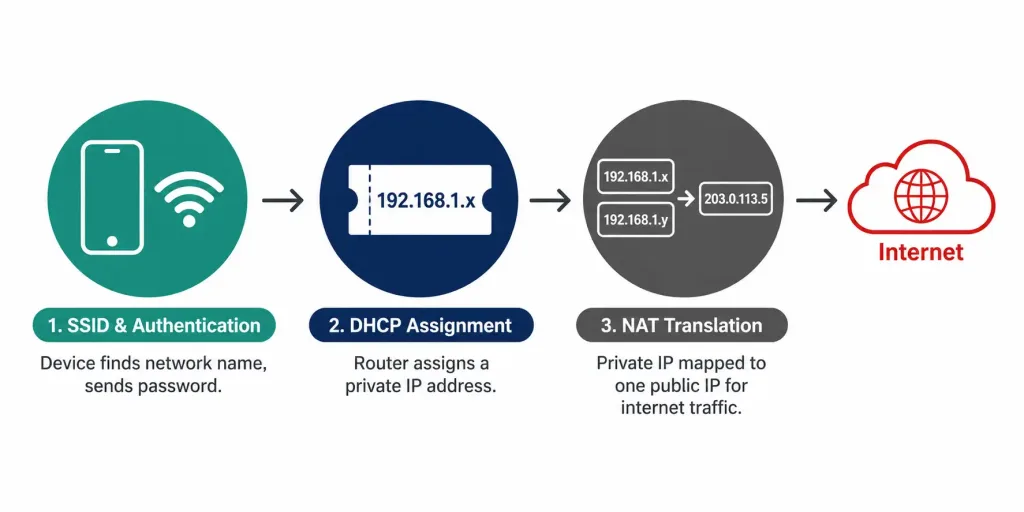
When a device wants to join your Wi-Fi network, three things happen behind the scenes.
SSID broadcast and authentication — the router broadcasts its SSID so nearby devices can find it. The device sends the Wi-Fi password, and if it matches, the router allows the connection.
DHCP assignment — once connected, the router’s built-in DHCP server assigns the device a private IP address (typically in a range like 192.168.1.x), so it can be identified on the local network.
NAT translation — when that device sends traffic to the internet, the router translates its private IP address to the router’s single public IP address, and keeps track of which responses belong to which device. This is what allows dozens of devices in a household to share one internet connection from the ISP.
Router vs. modem vs. gateway
These three terms get mixed up often, so it’s worth being precise.
A modem is the device that connects to your ISP’s physical line — cable, fiber, or DSL — and converts that signal into data your home network can use. A router takes that data connection and shares it across your home network, wired and wireless. A gateway is a single device that combines both functions into one box, which is what most ISPs provide by default when you sign up for service.
Using your ISP-provided gateway is the simplest option, but many households get better performance and more control by using their ISP’s device purely as a modem (often by requesting “bridge mode”) and connecting their own separate router behind it.
Choosing a router: what actually matters
Wi-Fi coverage
Signal strength depends heavily on your home’s size, layout, and building materials. Concrete, brick, and metal studs all weaken a Wi-Fi signal far more than drywall. For a single-floor apartment or small home, one well-placed router near the center of the living space is usually enough. For larger homes, multiple floors, or homes with thick walls, a mesh Wi-Fi system — using two or more coordinated nodes placed throughout the house — typically provides more consistent coverage than pushing a single router harder.
Mesh systems share one SSID across all nodes and hand devices off between them automatically as you move through the house, avoiding the dead zones and weak “extender” signals that older range-extender setups were known for. Where possible, connecting mesh nodes to each other with Ethernet cable (called wired backhaul) delivers noticeably better performance than relying on the nodes to communicate wirelessly.
Wi-Fi performance
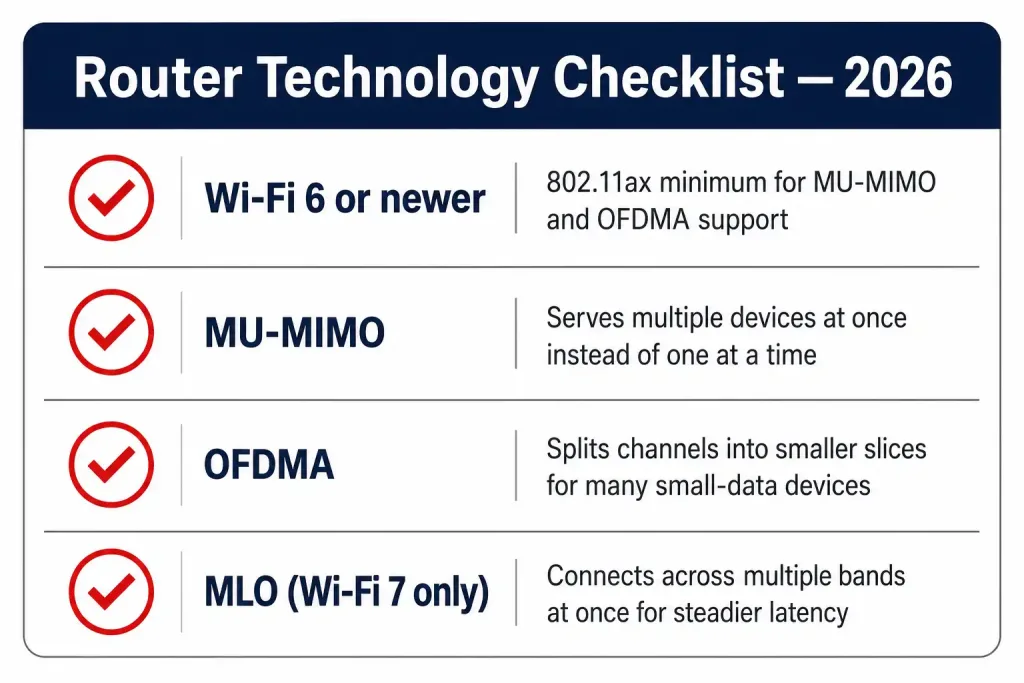
Router technology moves quickly, so it’s worth choosing a router with a currently supported Wi-Fi generation and firmware that still receives updates. Wi-Fi 6 (802.11ax) and newer routers support two technologies that matter for busy households:
MU-MIMO (Multi-User, Multiple Input, Multiple Output) lets the router communicate with several devices at the same time instead of serving them one after another, which matters once a household has a dozen or more connected devices.
OFDMA (Orthogonal Frequency-Division Multiple Access), introduced with Wi-Fi 6, divides each Wi-Fi channel into smaller slices so the router can serve multiple devices within a single transmission — particularly useful for smart home devices that send small amounts of data frequently.
Higher-end routers now support Wi-Fi 7, which adds Multi-Link Operation (MLO) — letting a supporting device stay connected across more than one frequency band at once for lower, steadier latency. As with any Wi-Fi 7 feature, MLO only activates when the connected client device also supports it.
Wi-Fi security
Wi-Fi security protects your home network from outside access. An unsecured or weakly secured router can let attackers see your traffic, access connected devices, or use your network as a launch point for further attacks. When choosing a router, look for:
- WPA3 support — the current wireless security standard, offering stronger encryption and better protection against password-guessing attacks than the older WPA2.
- Automatic firmware updates — many routers now update their firmware automatically, closing security vulnerabilities without requiring manual action.
- A guest network option — lets visitors and smart home devices use a separate network segment, keeping them isolated from your primary devices and files.
- Built-in network-level protection — many modern routers include basic threat detection or filtering to catch malicious traffic at the point it enters your home network, before it reaches individual devices.
Other features worth checking
Most modern routers also offer USB ports for sharing a printer or external drive across the network, IPv6 support, Quality of Service (QoS) settings to prioritize traffic like video calls or gaming over background downloads, and a companion mobile app for setup and monitoring instead of a browser-only admin page.
Router placement: why location matters as much as hardware
Even the best router underperforms if it’s placed badly. A router tucked inside a closet, behind a TV, or in a basement corner loses much of its effective range before the signal even reaches the rest of the house. A few placement principles apply regardless of which router or mesh system you choose:
- Central and elevated — place the router as close to the center of the home as possible, and off the floor, since Wi-Fi signals spread outward and downward from the antenna.
- Away from thick obstructions — brick, concrete, metal ductwork, and large mirrors all degrade signal strength significantly more than drywall or wood.
- Away from interference sources — microwave ovens, cordless phones, and baby monitors can share the 2.4 GHz band with Wi-Fi and cause noticeable slowdowns when active nearby.
- Antenna orientation — on routers with external antennas, positioning them vertically generally provides better horizontal coverage across a single floor, though this varies by router design.
For a mesh system, the same principles apply to each node: place satellite nodes roughly halfway between the primary router and the area with weak coverage, not at the extreme edge of the previous node’s range, or throughput will drop sharply at each hop.
Parental controls and access management
Most modern routers include some form of parental control or device management, letting you pause internet access for specific devices, filter content categories, or set time limits for when certain devices can connect. These controls are usually managed through the router’s companion app rather than its web interface, and they apply at the network level — meaning they work regardless of what device a household member is using, unlike controls built into an individual phone or streaming service.
For households with connected smart home devices — cameras, doorbells, thermostats, and similar IoT hardware — many routers also let you group these devices onto a separate network segment automatically. This limits the damage a compromised IoT device could do to the rest of the home network, since IoT devices are frequently targeted due to weaker built-in security compared to phones and laptops.
Port forwarding and remote access
By default, a router’s NAT function blocks unsolicited incoming connections from the internet, which is a core part of what keeps a home network secure. Some applications — self-hosted game servers, security camera systems, or certain remote-access tools — need a specific port opened so outside traffic can reach a particular device on the network. This is called port forwarding, and it should be used sparingly and only for the specific ports a service actually requires, since each open port is a potential entry point for an attacker if the underlying device or service has a vulnerability.
Many routers now offer a VPN server feature built directly into the device, which provides a safer alternative for remote access: instead of opening ports to individual services, you connect back into your home network through an encrypted VPN tunnel and then reach whatever device you need from inside, as if you were on the home network directly.
When to replace a router
A router that still “works” isn’t necessarily still doing its job well. A few signs it’s time for a replacement:
- The manufacturer has stopped releasing firmware and security updates for the model.
- It doesn’t support WPA3, leaving the network on the older and weaker WPA2 standard.
- It struggles to keep more than a handful of devices connected reliably, which is increasingly common as households add more smart home devices each year.
- It’s several Wi-Fi generations behind — a router still running Wi-Fi 4 (802.11n) or early Wi-Fi 5 (802.11ac) hardware will bottleneck newer client devices capable of much higher speeds.
Most routers have a practical service life of four to six years before the combination of aging hardware, discontinued updates, and outdated Wi-Fi standards makes replacement worthwhile.
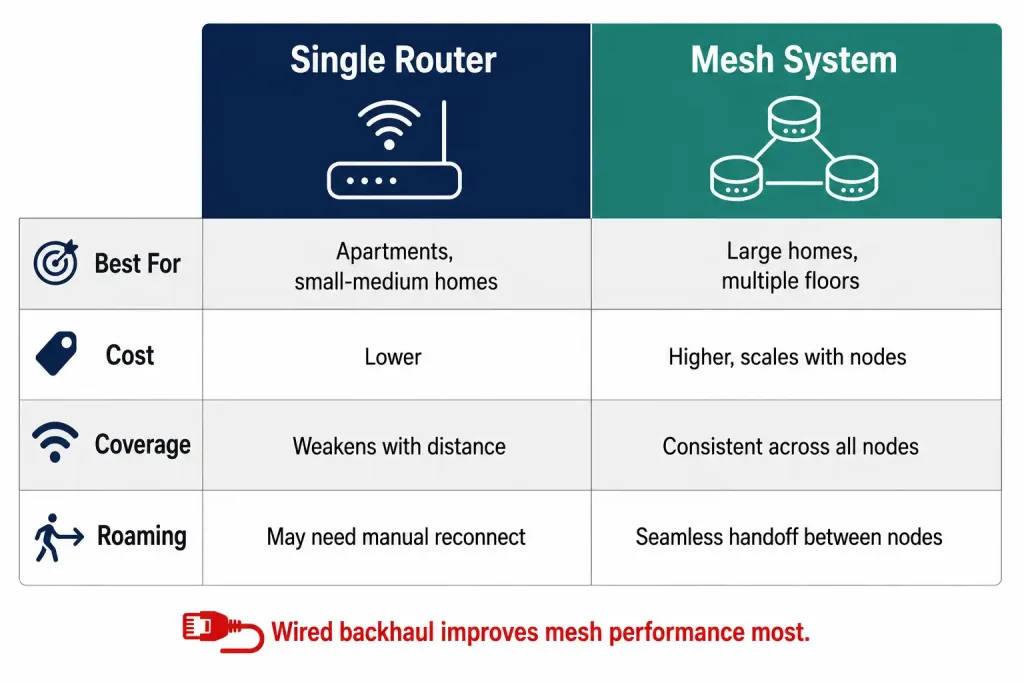
Comparison Table: Single Router vs. Mesh System
| Aspect | Single Router | Mesh System |
|---|---|---|
| Best for | Apartments, small-to-medium homes | Large homes, multiple floors, thick walls |
| Setup complexity | Simple, one device | Slightly more involved, multiple nodes |
| Cost | Lower | Higher, scales with number of nodes |
| Coverage consistency | Weakens with distance from router | Consistent across all nodes |
| Roaming between rooms | May require manual reconnection | Seamless handoff between nodes |
| Backhaul | Not applicable | Best performance with wired (Ethernet) backhaul |
Frequently Asked Questions
Do I need both a modem and a router? Only if your ISP doesn’t provide a combined gateway, or if you choose to use your own separate router for better performance and features. Many ISPs now offer an all-in-one gateway that handles both roles.
Is a mesh system always better than a single router? No. For a small apartment or single-floor home, a good single router is often simpler and cheaper while performing just as well. Mesh systems earn their cost in larger or multi-floor homes with real dead zones.
What Wi-Fi standard should I look for in a new router in 2026? Wi-Fi 6 is a solid, affordable baseline for most households. Wi-Fi 6E or Wi-Fi 7 are worth the extra cost if you have many devices, need the cleaner 6 GHz band, or already own client devices that support those standards.
Should I use the router my ISP gave me? It works, but ISP-provided routers are often basic and slower to receive feature updates than a router you buy yourself. Many people keep the ISP device in bridge/modem mode and add their own router or mesh system behind it.
How do I know if my home network is secure? Check that your router uses WPA3 (or WPA2 at minimum), that its firmware is up to date, that the default admin password has been changed, and that a separate guest network is enabled for visitors and smart home devices.
Conclusion
A wireless home router combines an access point, a switch, and a router into a single device that connects your entire home to the internet. Coverage, performance, and security are the three things worth evaluating before buying one — and for larger or more complex homes, a mesh system built around current Wi-Fi standards will usually outperform pushing a single router to cover more ground than it was designed for.