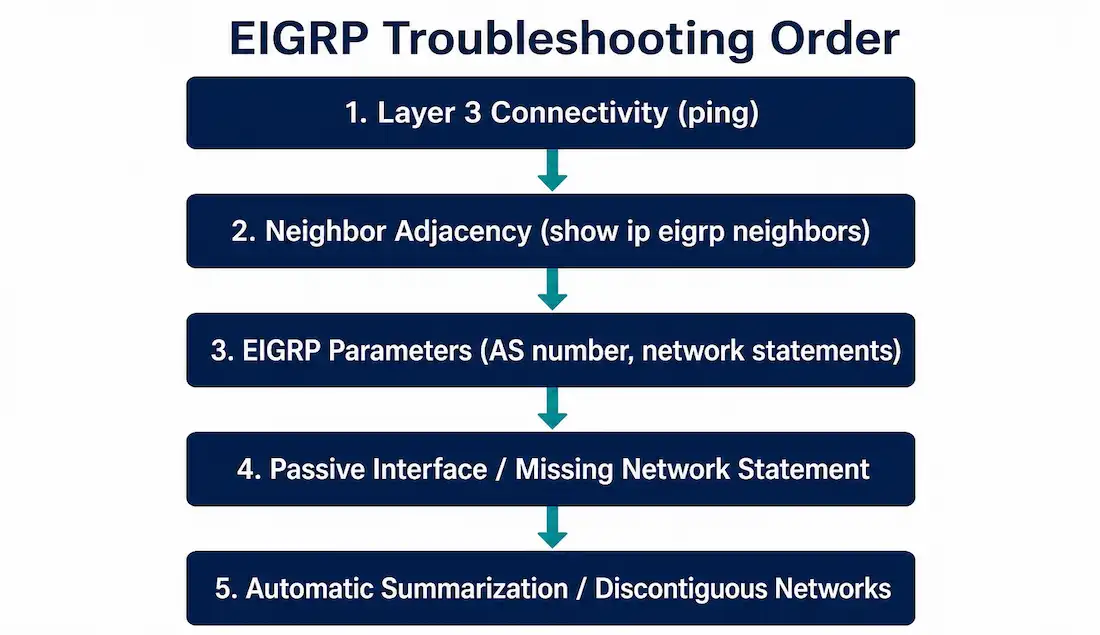
EIGRP troubleshooting comes down to a small, repeatable set of commands, applied in a logical order — from basic connectivity, through parameter matching, to specific configuration issues like passive interfaces and automatic summarization. Knowing this order well enough to work through it without hesitation is what separates methodical troubleshooting from guessing.
This guide walks through that order step by step, with real command output at each stage, and closes with the classic discontiguous-network summarization problem worked correctly.
The Troubleshooting Order
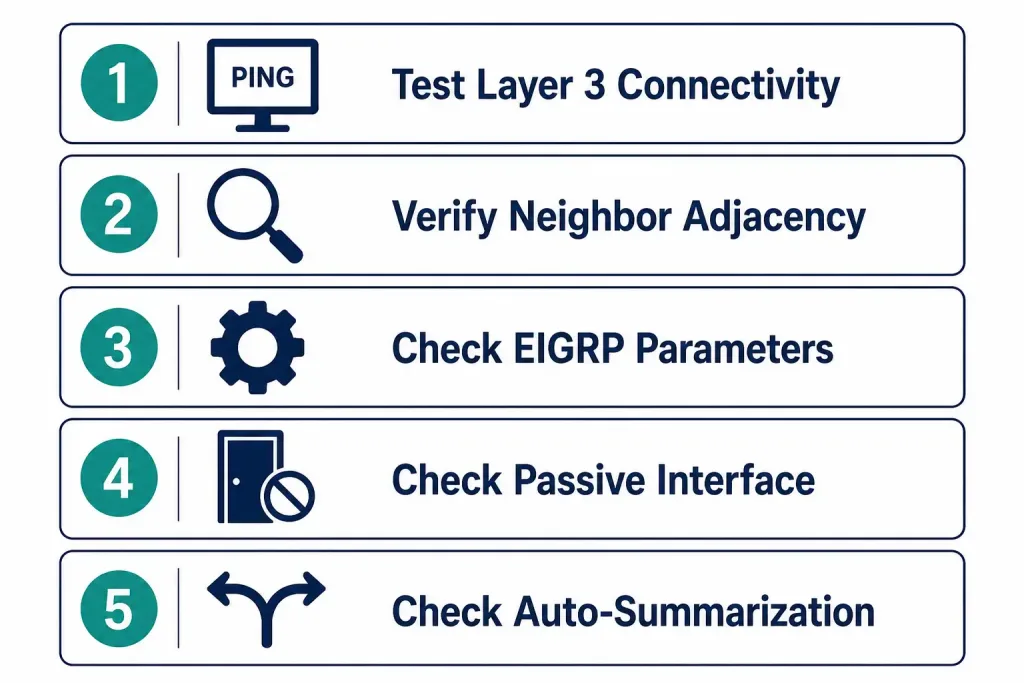
When EIGRP connectivity fails, work through these checks in sequence:
- Test basic Layer 3 connectivity with
ping. - Verify neighbor adjacencies with
show ip eigrp neighborsif the ping fails. - Check EIGRP parameters (AS number, network statements) if neighbors have formed but routes are missing.
- Check for passive interfaces or missing network statements if specific routes aren’t being learned.
- Check for automatic summarization issues if routes appear but traffic takes an inconsistent or unexpected path.
The same commands work for EIGRP for IPv6, substituting ipv6 for ip throughout — show ipv6 eigrp neighbors instead of show ip eigrp neighbors, and so on.
Step 1: Layer 3 Connectivity
Without Layer 3 connectivity, neighbor adjacencies can’t form at all, so this is always the right place to start.
R1# show ip interface briefInterface IP-Address OK? Method Status Protocol
GigabitEthernet0/0 192.168.0.1 YES manual up up
GigabitEthernet0/1 192.168.1.1 YES manual up upBoth Status and Protocol need to show “up” — anything else points to a physical or Layer 2 problem before EIGRP even becomes relevant.
Test actual reachability directly:
R1# ping 192.168.0.2A failed ping here means checking physical cabling first, then confirming both interfaces are actually configured on the same subnet — a surprisingly common root cause that looks like a routing problem but is really just a basic addressing mismatch worth ruling out before assuming EIGRP itself is at fault.
For IPv6:
R1# show ipv6 interface briefStep 2: Neighbor Adjacency
If Layer 3 connectivity is confirmed but no adjacency has formed:
R1# show ip eigrp neighborsIf the expected neighbor doesn’t appear, work through the standard list of causes:
- The interface between the devices is down.
- Mismatched autonomous system numbers.
- The interface isn’t enabled for the EIGRP process at all.
- The interface is configured as passive.
- Misconfigured EIGRP authentication.
- Mismatched K-values.
Step 3: EIGRP Parameters
Every router in the same EIGRP domain must use the identical autonomous system number, configured with:
Router(config)# router eigrp <as-number>The valid range is 1 to 65535. A mismatched AS number between two routers prevents them from becoming EIGRP neighbors at all — this isn’t a partial failure, it’s a complete one, and it’s worth checking early precisely because it produces no partial adjacency or degraded state to hint at the cause.
Verify the AS number is consistent across routers:
R1# show ip protocolsRouting Protocol is "eigrp 100"
...
Automatic network summarization is not in effect
Maximum path: 4
Routing for Networks:
192.168.0.0/24
192.168.1.0/24R1# show running-config | section router eigrpFor EIGRP for IPv6:
Router(config)# ipv6 router eigrp <as-number>
R1# show ipv6 protocols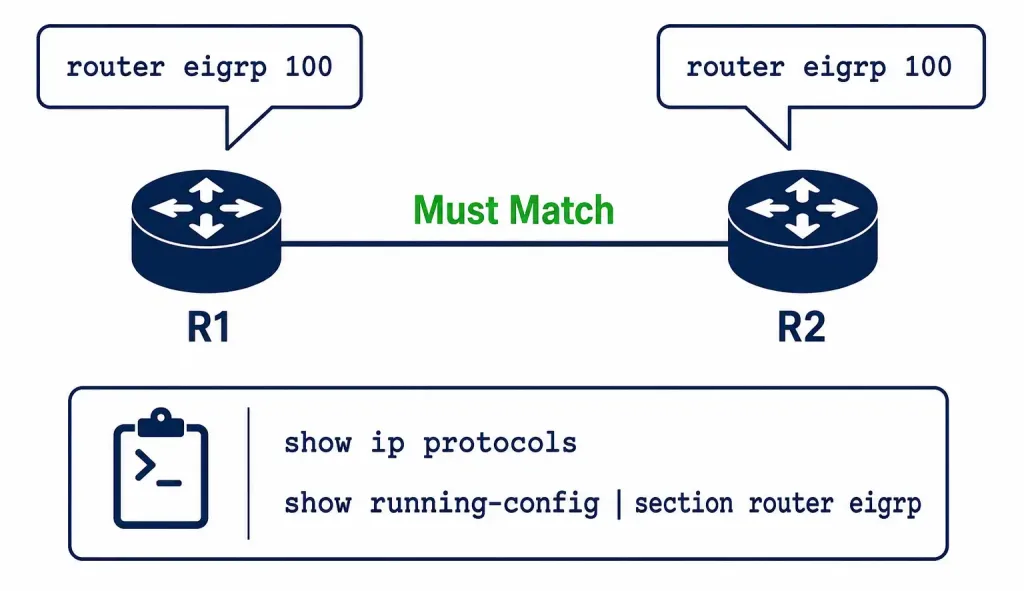
Step 4: EIGRP Interfaces
An interface only participates in EIGRP if it’s covered by a network command, matched either by a classful network address or a specific subnet with a wildcard mask .
R1# show ip eigrp interfacesEIGRP-IPv4 Interfaces for AS(100)
Interface Peers Xmit Queue Mean SRTT Pacing Time Multicast Flow
Gi0/0 1 0/0 12 0/10 0
Gi0/1 1 0/0 15 0/10 0If an interface you expect to see participating in EIGRP is missing from this output, the interface isn’t covered by a network statement — check the running configuration directly:
R1# show running-config | section router eigrpFor EIGRP for IPv6:
R1# show ipv6 protocols
R1# show ipv6 eigrp interfaces
Step 5: Passive Interface
The passive-interface command suppresses both outgoing and incoming EIGRP updates on a given interface, which prevents that interface from forming any neighbor adjacency at all — a deliberate security or design choice, but one that’s easy to forget you configured.
R1# show ip protocolsRouting Protocol is "eigrp 100"
...
Passive Interface(s):
GigabitEthernet0/0A passive interface with no neighbors on that segment is often intentional — commonly used to advertise a local LAN subnet into EIGRP without risking an adjacency forming with an unintended device on that segment. But if a genuine neighbor was expected there and isn’t forming, this is exactly the setting to check first.
Configure or remove a passive interface:
Router(config-router)# passive-interface <type> <number>
Router(config-router)# no passive-interface <type> <number>
For EIGRP for IPv6:
R1# show ipv6 protocols
Router(config-rtr)# passive-interface <type> <number>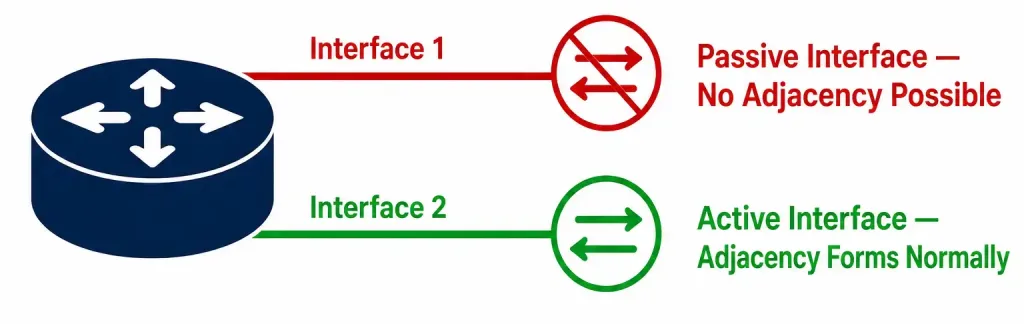
Step 6: Missing Network Statement
A route that should be learned but isn’t often traces back to a network never being advertised in the first place — a straightforward but common oversight.
R1# show ip protocolsCheck the “Routing for Networks” section specifically — if the expected network isn’t listed there, confirm the network command was actually entered:
R1# show running-config | section router eigrpFor EIGRP for IPv6:
R1# show ipv6 protocols
R1# show ipv6 route
Step 7: Automatic Summarization and Discontiguous Networks
This is one of the more subtle EIGRP problems, since routes appear to exist but traffic behaves inconsistently rather than failing outright.
EIGRP for IPv4 automatically summarizes routes at classful network boundaries by default. This becomes a genuine problem specifically on discontiguous networks — where subnets of the same classful network are separated by a different major network in between.
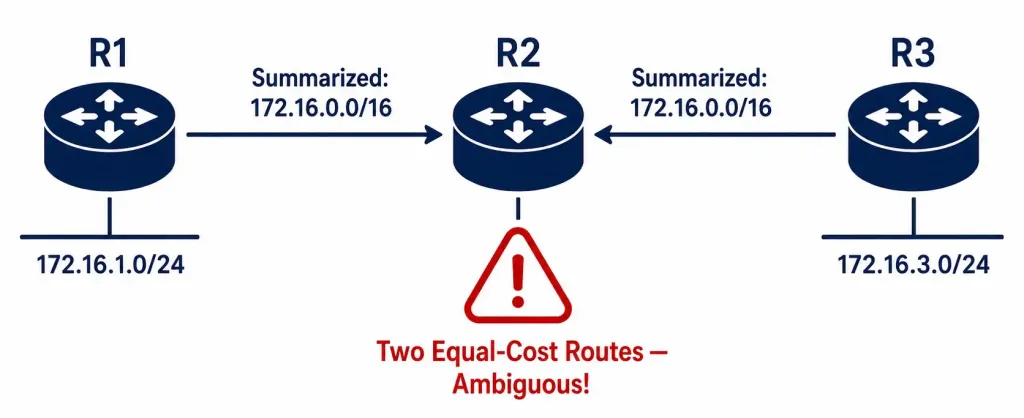
A correctly worked example: suppose R1 advertises 172.16.1.0/24 and R3 advertises 172.16.3.0/24 — both genuinely part of the same classful network, 172.16.0.0/16. With auto-summary enabled, both R1 and R3 summarize their respective subnets up to 172.16.0.0/16 before sending updates to R2, which sits between them. This is a genuinely important detail to get right when working through this example yourself: both subnets need to actually belong to the same classful network for the ambiguity to occur at all — if R3’s subnet instead belonged to a different classful network entirely, auto-summary would produce two clearly distinct summary routes with no overlap, and none of the problems described below would actually happen.
R2 ends up with two equal-cost routes to the identical summarized destination, 172.16.0.0/16 — one via R1, one via R3 — with no way to distinguish that traffic for R1’s specific subnet needs to go through R1, and R3’s through R3. Depending on EIGRP’s path selection, this can silently misroute or black-hole traffic to whichever specific subnet didn’t win, without any obvious error message explaining why.
Verify whether auto-summary is active:
R2# show ip protocolsAutomatic network summarization is in effectDisable it:
Router(config-router)# no auto-summaryOnce disabled, R2 learns the specific /24 routes individually rather than an ambiguous combined summary, resolving the inconsistent routing entirely. This fix is worth remembering as the standard, near-automatic response whenever discontiguous networks and inconsistent routing show up together — disabling auto-summary is almost always the correct first move before investigating anything more exotic.
IPv6 doesn’t have this problem at all, since there’s no classful addressing concept in IPv6 — EIGRP for IPv6 never performs automatic summarization. Any summarization on an IPv6 EIGRP network has to be done manually, giving you full, deliberate control over exactly which prefixes get combined and at exactly which boundary.
Debug Commands for Deeper Investigation
The show commands above resolve the large majority of EIGRP issues, but a small set of debug commands are worth knowing for cases that resist the standard troubleshooting order.
R1# debug eigrp packetsThis shows every EIGRP packet type (hello, update, query, reply, ack) as it’s sent and received in real time — genuinely useful for confirming whether hello packets are actually being exchanged with a neighbor that isn’t forming an adjacency, but generates continuous output on a busy router and should be disabled promptly once you’ve gathered what you need.
R1# debug eigrp neighborsMore targeted than the full packet debug, showing specifically the events around neighbor formation and teardown — useful when you suspect an adjacency is flapping rather than simply failing to form in the first place.
Always disable debugging when finished:
R1# undebug allLeaving a debug command running indefinitely on a production router can noticeably impact performance, particularly debug eigrp packets on a router with many active neighbors — treat these as targeted, temporary diagnostic tools rather than something to leave enabled by default.
Quick Reference: Symptom to Command
| Symptom | Check This Command | Common Cause |
|---|---|---|
| Ping fails entirely | show ip interface brief | Interface down, cabling, subnet mismatch |
| No neighbor forms | show ip eigrp neighbors | AS mismatch, passive interface, authentication |
| Neighbor forms, routes missing | show ip eigrp interfaces | Interface not covered by network statement |
| Specific route missing | show ip protocols (Routing for Networks) | Missing network statement |
| Routes present, traffic path wrong | show ip protocols (auto-summary status) | Discontiguous network summarization |
FAQs
What is the correct order for troubleshooting EIGRP?
Start with basic Layer 3 connectivity using ping and show ip interface brief, then check neighbor adjacencies with show ip eigrp neighbors if connectivity fails, then move on to EIGRP-specific parameters like AS number and network statements if neighbors have formed but routes are missing. Working through this order systematically, rather than jumping straight to advanced commands, catches the majority of issues quickly.
Why won’t two routers form an EIGRP neighbor adjacency?
Common causes include a down interface, mismatched autonomous system numbers, an interface not enabled for the EIGRP process, a passive interface, misconfigured authentication, or mismatched K-values. show ip eigrp neighbors combined with show ip protocols and show running-config on both routers usually narrows this down quickly.
What does a passive interface do in EIGRP, and how do I check for one?
A passive interface suppresses both incoming and outgoing EIGRP updates, preventing any neighbor adjacency from forming on that specific interface — often intentional, to advertise a LAN subnet without risking an unwanted adjacency. show ip protocols lists any configured passive interfaces explicitly under its own section.
How does automatic summarization cause problems on discontiguous networks?
When subnets of the same classful network are separated by a different network in between, auto-summary causes multiple routers to advertise the same summarized classful route, leaving a downstream router unable to distinguish which specific subnet is actually reachable through which router. Disabling auto-summary with no auto-summary resolves this by restoring visibility into the individual, more specific routes.
Does EIGRP for IPv6 have the same discontiguous network problem?
No — IPv6 has no classful addressing concept at all, so EIGRP for IPv6 never performs automatic summarization in the first place. Any summarization on an IPv6 EIGRP network has to be configured manually, which avoids the discontiguous-network ambiguity entirely by design.
What’s the fastest way to check if a specific network is actually being advertised by EIGRP?
Run show ip protocols and check the “Routing for Networks” section — if the network you expect isn’t listed there, it was never covered by a network statement in the first place. Cross-checking with show running-config | section router eigrp confirms the exact command as configured, which is useful for spotting a typo in the network address or wildcard mask.