Weak Wi-Fi in the room farthest from your router is one of the most common, most fixable problems for anyone gaming, streaming, or attending online classes at home. A Wi-Fi extender solves this by repeating your existing router’s signal into a dead zone, and D-Link’s extender lineup is one of the more affordable, widely available options for doing this. This guide covers real setup steps, what to expect, and — importantly — a scam pattern worth knowing about before you search for help online.
A Safety Note Before You Start
If you search for D-Link extender setup help online, you may encounter unofficial websites using names like “dlinkap.local” or similar variations as their domain name, sometimes with their own “support” contact listed. These are not D-Link’s real website.
D-Link’s genuine local setup address, dlinkap.local, is a special kind of address (technically an mDNS hostname) that only works from a device connected directly to your extender’s own Wi-Fi network — it isn’t a real website reachable from the open internet, and there’s no legitimate reason for a public .net or .com site to exist under a similar name with its own separate support contact.
This is a known pattern in tech-support scams: registering a domain that sounds like a manufacturer’s local setup address to capture people searching for help. For real support, use D-Link’s actual official site at dlink.com/support — nowhere else.
What a Wi-Fi Extender Actually Does
An extender connects to your existing router’s Wi-Fi signal and rebroadcasts it, extending coverage into rooms or areas where the original signal is weak. It’s a genuinely different device from a mesh Wi-Fi system: a traditional extender typically creates a second, separate network name your devices need to manually switch to as you move through the house, while a mesh system (like the setup covered in our eero guide) manages multiple units as a single seamless network. For a single dead zone in an otherwise well-covered home, a simple extender is usually the cheaper, sufficient fix; for whole-home coverage gaps, a mesh system is generally the better long-term investment.
For gaming specifically, the fix an extender provides matters less for raw speed and more for connection stability. A router’s signal degrading over distance doesn’t just slow things down — it introduces latency spikes and packet loss, which show up in competitive online games as lag, rubber-banding, or dropped connections at exactly the worst moments. An extender placed correctly between your router and your gaming setup can eliminate that instability even if your overall internet plan speed doesn’t change.
Setting Up Your D-Link Extender
D-Link offers two setup methods; which one is easier depends on whether your router supports WPS (Wi-Fi Protected Setup).
Method One: WPS Setup (Fastest, If Your Router Supports It)
- Plug your D-Link extender into an outlet near your router — not its final destination — and wait for the status LED to start blinking amber, which can take up to about three minutes.
- Press the WPS button on your router and hold it for about three seconds. Look for your router’s WPS light to start blinking, confirming it’s ready to pair.
- Wait for the extender’s status LED to turn solid green, confirming a successful connection to your router.
- If the WPS light never changes to solid green after a couple of attempts, some routers have WPS disabled by default for security reasons, or the feature may be hidden in newer router interfaces — if this happens, use Method Two instead.
- Once connected, unplug the extender and move it to its intended location — ideally partway between your router and the area with weak signal, close enough to still receive a strong signal from the router itself.
- By default, a WPS-configured extender’s network name typically appends “-EXT” to your existing router’s network name, and uses the same Wi-Fi password as your main router — connect your gaming device to this new network from that room.
Method Two: App or Browser-Based Setup
- Download the official D-Link Wi-Fi app from the Apple App Store or Google Play (search “D-Link Wi-Fi” directly, or scan the QR code included on your extender’s Quick Install Card).
- Turn off cellular data on your phone temporarily, so it doesn’t interfere with connecting to the extender’s setup network.
- Connect your phone to the extender’s default Wi-Fi network (its SSID is usually printed on a label on the device itself, something like “Dlink-68BE”).
- Open the app and follow the on-screen setup — you’ll select your existing router’s network to extend, enter its Wi-Fi password, and set a name and password for the extended network.
- Alternatively, without the app: open a browser while still connected to the extender’s setup network, and go to http://dlinkap.local — if that doesn’t load, use the fallback IP address http://192.168.0.50 instead (exact default IP can vary slightly by model). You’ll only be able to reach this address while connected directly to the extender’s own network; you won’t have general internet access during setup.
- Follow the Setup Wizard, selecting your router’s network, entering its password, and configuring your extended network’s name and password before clicking Finish.
- Reboot the extender once setup completes.
Placement Matters More Than People Expect
Where you put the extender has a bigger effect on performance than most other setup decisions. It needs to sit close enough to the router to receive a strong signal itself — an extender rebroadcasting an already-weak signal doesn’t help much — while still being close enough to the dead zone to make a real difference. Most extenders include a signal strength indicator (often a few LED lights) specifically to help find this middle-ground spot; walk the extender through a few candidate locations during setup and check the indicator before committing to a final spot.
Troubleshooting Common Issues
Extender won’t connect via WPS. Try holding the router’s WPS button slightly longer, and confirm WPS is actually enabled in your router’s settings — some routers ship with it off by default, or the option is buried in an advanced settings menu.
Can’t reach dlinkap.local. Double-check you’re connected to the extender’s own setup network, not your home Wi-Fi or cellular data — this address only resolves from a device directly connected to the extender. If it still doesn’t load, use the fallback IP address instead.
Extender gets warm even when idle. This is normal for most networking equipment, including extenders, routers, and modems — they run continuously and generate some heat as a result. Ensure it has reasonable ventilation (not enclosed in a cabinet) and this isn’t typically a cause for concern on its own.
Extended network is unstable or drops frequently. This often points to placement rather than a defective unit — try relocating the extender closer to the router, checking the signal strength indicator at each candidate spot before finalizing placement.
Need to reset the extender. The reset button is typically on the back panel. Press and hold it until the status LED changes, indicating the reset has taken effect — the extender will restart automatically and revert to factory settings, requiring you to redo the full setup process afterward. Only do this as a genuine last resort, since it clears all your existing configuration.
Getting Genuine Support
If you run into a problem this guide doesn’t cover, D-Link’s actual support resources are at dlink.com/support, where you can find manuals specific to your exact model number (printed on the device itself) and submit a support request directly. Avoid any third-party site claiming to be D-Link’s setup or support portal under a similar-sounding domain name — legitimate manufacturer support doesn’t operate through lookalike domains, and if a search result looks like it’s mimicking D-Link’s real address rather than being hosted directly on dlink.com, treat it as untrustworthy regardless of how official it looks.
Choosing the Right D-Link Extender for Gaming
Not all extenders are equal for gaming specifically. A few things worth checking before buying:
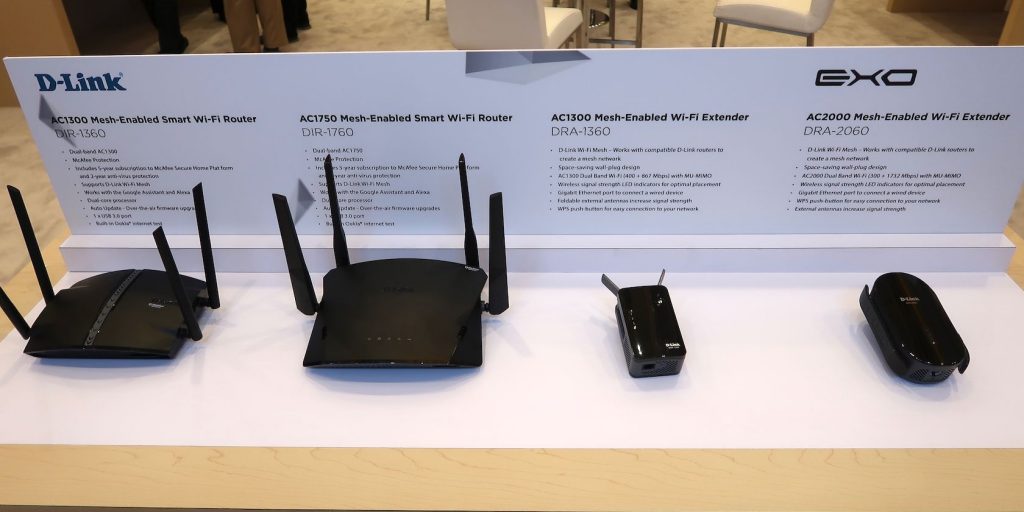
Dual-band support. Extenders that support both 2.4GHz and 5GHz bands let you connect your gaming device to the less congested 5GHz band, which typically offers lower latency and higher throughput than 2.4GHz, provided you’re within reasonable range. Entry-level single-band extenders limit you to 2.4GHz only, which is more prone to interference from other household devices (microwaves, Bluetooth devices, neighboring Wi-Fi networks).
Ethernet port availability. Some D-Link extender models include a wired Ethernet port, which lets you connect a gaming console or PC directly to the extender via cable rather than relying on the extended Wi-Fi signal. A wired connection through the extender is generally more stable and lower-latency than Wi-Fi even through a well-placed extender, and is worth prioritizing if your gaming setup can accommodate a cable run.
Mesh compatibility. Some newer D-Link extenders are designed to work as part of a broader mesh system rather than as a standalone repeater, which matters if you’re likely to expand your home network setup later rather than needing just a single fix.
Frequently Asked Questions
Will a Wi-Fi extender fix high ping in online games? It can help significantly if your original problem is signal degradation causing packet loss or connection instability at distance from your router. It won’t fix latency caused by your internet plan itself or by server distance to your game’s hosting region — those are separate issues an extender can’t address.
Does the extender need to match my router’s brand? No. Wi-Fi extenders work with any router regardless of brand, since they connect using standard Wi-Fi protocols rather than anything proprietary to a specific manufacturer.
Is a wired Ethernet connection through the extender better than Wi-Fi for gaming? Generally yes, where available. A cable connection from your gaming device to an extender’s Ethernet port (on models that include one) typically offers more consistent latency than even a well-placed Wi-Fi connection, since it avoids wireless interference entirely for that last stretch of the connection.
How is a mesh Wi-Fi system different from an extender for gaming? A mesh system manages multiple access points as one unified network with a single name, and devices switch between nodes automatically as you move. A standalone extender typically creates a second, separate network name you have to manually connect to. For a single problem room, an extender is usually simpler and cheaper; for whole-home coverage, mesh is generally the better investment.
Keeping It Running Well Over Time
Once set up, a D-Link extender needs relatively little ongoing attention, but a couple of habits keep it performing well. Check for firmware updates periodically through the D-Link Wi-Fi app or the extender’s admin page — firmware updates can improve compatibility with newer routers, fix stability bugs, and patch security vulnerabilities, the last of which matters more than it might seem, since an outdated networking device is a genuine, if often overlooked, security exposure on a home network.
If you ever replace your main router, the extender will typically need to be reconfigured to connect to the new network — it won’t automatically follow a router upgrade — so budget a few minutes for that after any router replacement rather than being surprised when the extended network stops working.
Conclusion
A D-Link extender is a genuinely effective, affordable fix for a single Wi-Fi dead zone, and the setup process — whether through WPS, the official app, or the browser-based wizard — is straightforward once you know the real steps and the actual default addresses involved. The one thing worth real caution about is where you go for help: stick to D-Link’s actual support site, and be skeptical of any lookalike domain claiming to be an official setup or support portal, since that’s a known pattern for tech-support scams targeting exactly this kind of search.