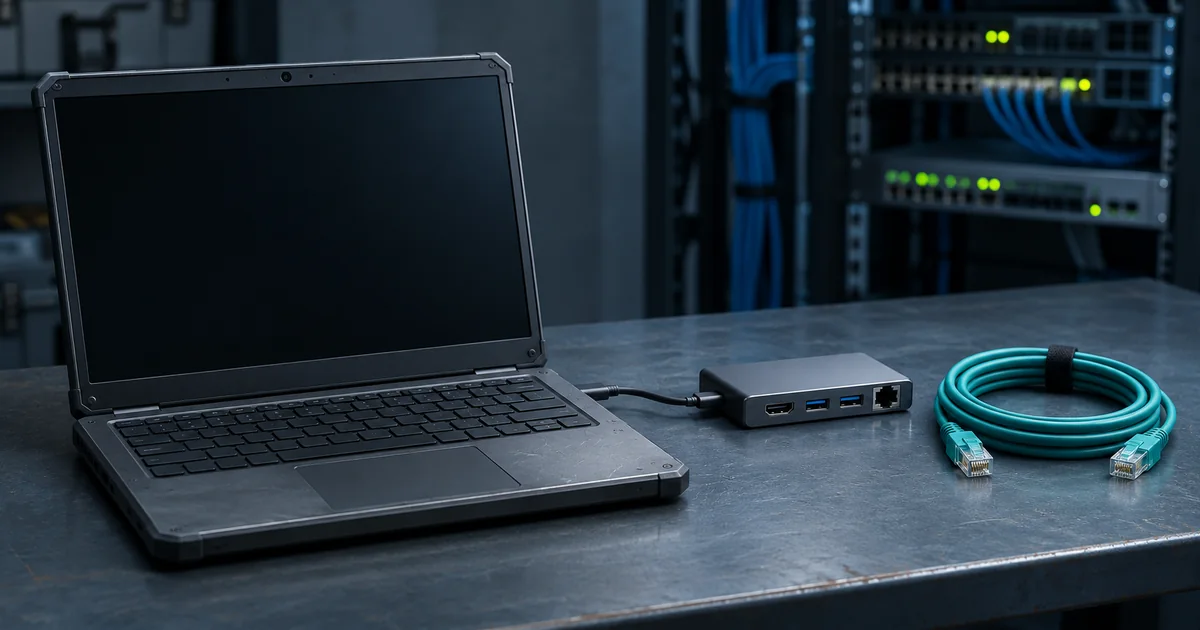
Network engineers, system administrators, and IT support staff rarely work from a single desk. One day means a server room, the next a client’s office, and the day after a late-night maintenance window from home. In each place, the same expectation applies: your tools must work, and they must work right away.
A dependable mobile workstation starts with a small kit you’ve tested with your laptop and the equipment you manage. This guide walks through the essentials for building a setup that travels well and performs under pressure.
Define What Your Work Actually Requires
Before choosing gear, review the tasks you perform most often. Configuring switches over a console cable calls for different tools than running remote sessions or monitoring dashboards across several screens.
List the connections you use on a typical job. You might need wired Ethernet for access to an approved management network, a console cable and adapter for direct access to switches and routers, or an external display for monitoring dashboards. If you work on Cisco equipment, review how to connect to a Cisco router and test your console cable and terminal settings before heading on-site.
Document this list and keep it somewhere accessible. It becomes a checklist for packing and a guide for future upgrades, and it helps new team members understand exactly what a field kit should contain.
Simplify Connectivity With a USB-C Dock
A compatible docking station can connect your laptop to wired Ethernet, external displays, and USB accessories through one cable. Before buying, check what your laptop’s USB-C port supports and which features the dock can provide with your laptop and operating system.
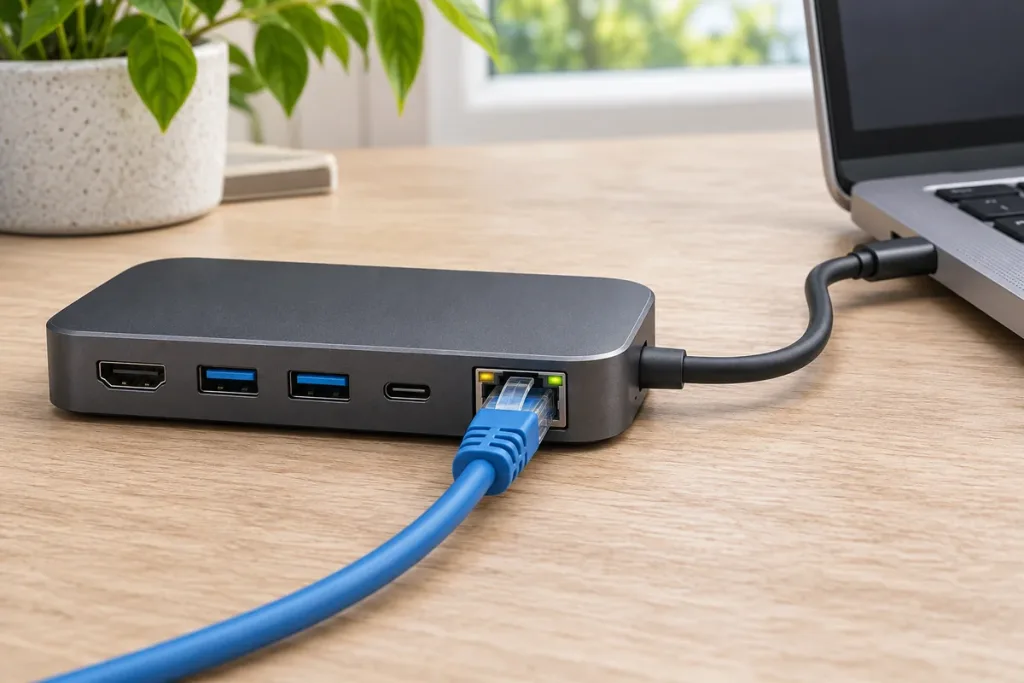
- Ethernet: Choose a dock that supports the link speed your work requires. Test it on an approved network before taking it on-site.
- Displays: Check how many external monitors your laptop and dock support together, including the resolution and refresh rate you need.
- USB ports: Make sure the dock has enough ports for your console adapter, storage drive, and other peripherals. Check the USB speed if you frequently transfer large firmware images or backups.
- Charging: If the dock supports charging, check how much power it can deliver to the laptop with your intended charger and cable.
- Drivers and firmware: Install any required drivers and test the complete setup before a maintenance window. Keep a known-good Ethernet adapter and console cable in your kit if you depend on them for device access.
Keep a note of the model and firmware version, because updates can occasionally change behavior with certain devices.
Plan for Backup Power in the Field
Check which outlets are available at the site and bring your laptop’s usual charger. If your laptop supports USB-C Power Delivery, a compatible laptop power bank can extend your working time when an outlet is unavailable.
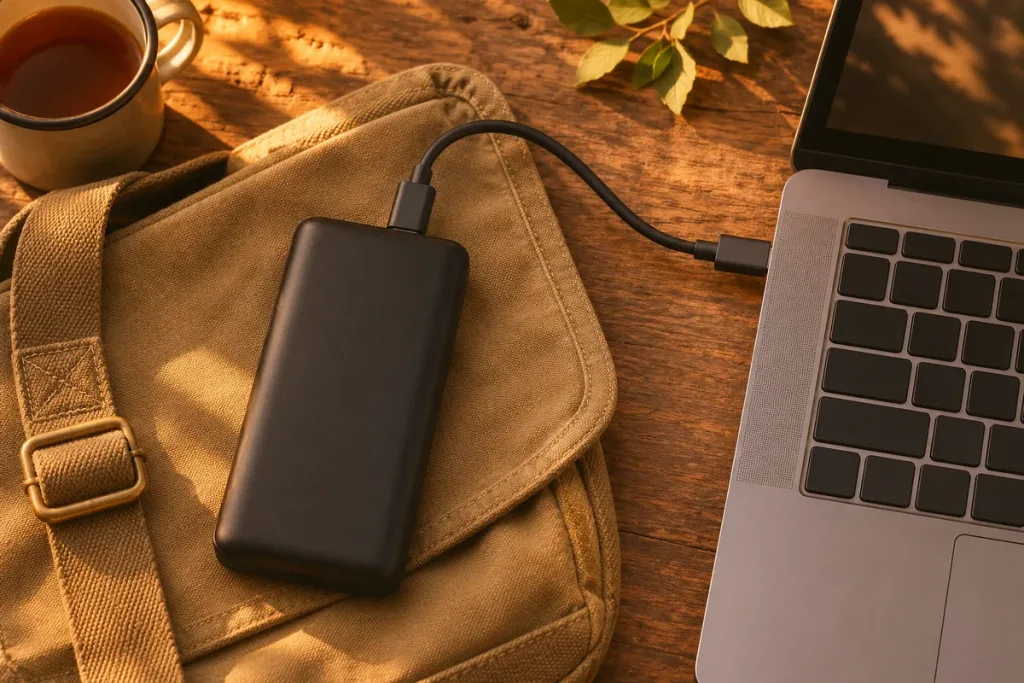
Check the power bank’s output in watts on the specific USB-C port you’ll use. If you plan to charge multiple devices at once, check how the bank divides power between its ports. Use a cable rated for the required power. Compare capacity in watt-hours to estimate runtime, then test the bank with your laptop under a typical workload.
For critical tasks, keep your battery topped up and avoid starting a risky change on a low charge. A backup power source is a small investment compared with the cost of an interrupted upgrade or lost session.
Protect Your Data and Your Access
A field laptop may contain device configurations, support logs, and access tools. Enable full-disk encryption, keep your operating system and tools updated, and use your organization’s approved password manager and multifactor authentication for administrative access.
Before leaving for the site, confirm that you can sign in through your organization’s approved remote access method. Test any required VPN, jump host, or MFA prompt while you still have time to resolve access problems.
Store device configuration backups in an approved, access-controlled location. If your organization permits offline copies, use encrypted removable storage. Before changing a device, confirm that you can retrieve the backup you would need for rollback.
Organize the Physical Kit
A tidy kit saves time and prevents mistakes. Use a small bag or case with separate compartments, and give each item a fixed place.
Label cables and adapters so you can identify them quickly, especially console cables that look similar. Keep spare cables, a small tool kit, and a few common adapters together. A short checklist inside the bag helps you confirm everything is present before leaving a site, which prevents the frustration of forgetting something important.
Mobile Workstation Checklist Before Every Job
- Charge and test your equipment. Charge the laptop and power bank, then pack the usual charger and the cable you tested with the bank.
- Check your field kit. Pack the dock, a known-good Ethernet cable, the correct console cable or adapter, and any approved recovery media.
- Prepare software in advance. Install and test approved tools before the maintenance window. Download the required drivers, firmware, and device documentation while you have a reliable connection.
- Confirm device access and backup. Test your planned management connection and verify that you can retrieve the current configuration backup.
- Review the change and rollback plan. Follow your team’s change and configuration management process. Decide what you’ll check after the change and what would trigger a rollback.
Final Thoughts
A reliable mobile workstation is built from careful choices rather than expensive equipment. When connectivity, power, security, and organization all work together, you spend your time solving problems instead of fighting your tools.
Review your current kit this week and note what slows you down. One small improvement can make every future job smoother.