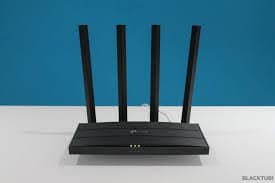
A TP-Link range extender is one of the simplest, cheapest ways to fix a dead zone in a home or small office — no new router, no rewiring, just a device that picks up your existing Wi-Fi signal and rebroadcasts it further. Setup is quick, but a few details make the difference between a repeater that genuinely extends your network and one that just adds a weak, frustrating second network on top of it.
Understanding What “Dual-Band” and the Speed Rating Actually Mean
TP-Link markets many of its extenders with a combined speed rating — for example, “AC1200” — and it’s worth understanding what that number actually represents before you expect to see it in practice.
An AC1200 dual-band repeater typically supports up to 300 Mbps on the 2.4 GHz band and up to 867 Mbps on the 5 GHz band, and the “1200” figure is simply those two numbers added together. You never actually get 1200 Mbps on a single connection — a given device connects to one band at a time, so the real ceiling for any one device is whichever band it’s using, not the combined figure. On top of that, these are rated maximums under ideal lab conditions. Real-world speeds depend heavily on distance from the router, interference from walls and other devices, and how many devices are sharing the connection at once — expect noticeably less than the rated number in normal household use.
The extender is also typically compatible with 802.11 b/g/n devices on the 2.4 GHz band and 802.11ac devices on the 5 GHz band, which covers the vast majority of phones, laptops, and smart-home devices made in the last several years.
Setting Up the Repeater: What Actually Matters
Positioning matters more than almost anything else. A repeater needs to sit somewhere it can receive a strong signal from your main router and still reach the dead zone you’re trying to cover — placing it too close to the router wastes its range, and placing it too far means it has nothing strong to repeat in the first place. The common rule of thumb is to position it roughly halfway between the router and the area with weak coverage, then adjust based on how the connection actually performs.
WPS pairing is the fastest setup method, if both your router and the repeater support it. Press the WPS button on your router, then the WPS button on the repeater within about two minutes, and the devices should pair automatically without needing to enter a password manually. If WPS isn’t available or doesn’t work reliably, the TP-Link Tether app or the extender’s web-based setup page both walk through manual configuration.
Choosing which band to extend matters for performance. The 5 GHz band is faster but has shorter range and penetrates walls less effectively; the 2.4 GHz band is slower but covers more distance and handles obstacles better. For a straightforward range problem — a far corner of the house, a detached garage — extending the 2.4 GHz band often works better in practice, even though 5 GHz looks faster on paper.
Reading the LED Signal Indicator Correctly
Most TP-Link extenders use a solid-colored Signal LED to show connection status, but the exact meaning of each color and the number of lit segments varies by model — there isn’t one universal red/green rule across TP-Link’s whole extender lineup. What’s consistent across models is this: a solid signal light, regardless of its specific color, generally means the extender is connected to your main router, while the color and number of lit segments indicate signal strength, helping you judge whether the current placement is actually good enough. If the light is off, blinking in an error pattern, or showing the weakest indicator on your specific model, that’s your cue to move the repeater closer to the router. Check your model’s manual in TP-Link’s Download Center for the exact color-to-strength mapping, since it does genuinely differ between models like the RE200, RE210, and TL-WA850RE.
Keeping Firmware Updated
Firmware updates matter for more than new features — they often include fixes for connection stability issues and, periodically, security patches for vulnerabilities discovered after the device shipped. An extender running outdated firmware isn’t necessarily going to perform dramatically worse day-to-day, but it is accumulating the same kind of unpatched exposure that affects any networked device over time. Checking for updates through the Tether app or the extender’s web interface every few months is a quick habit that costs nothing and occasionally prevents a real problem.
What to Expect, Realistically
A repeater genuinely solves the specific problem it’s designed for — filling in a dead zone within range of your existing router — but it isn’t a substitute for a mesh system if you’re covering a large multi-floor home with several weak spots. Repeaters also typically create a rebroadcast signal that’s somewhat weaker than the original, and depending on configuration, some devices may show the extended network as a separate SSID rather than seamlessly handing off from the main router’s network. If seamless whole-home roaming matters more than solving one specific dead zone cheaply, it’s worth comparing a repeater against a mesh Wi-Fi system before buying.
The Bottom Line
A TP-Link range extender is a genuinely effective, low-cost fix for a localized Wi-Fi dead zone, provided you set realistic expectations about the speed rating, position it correctly between the router and the weak-coverage area, and keep its firmware current. The marketed combined speed number looks impressive, but the number that actually matters is whichever single band your device connects to — and even that comes with real-world caveats once walls, distance, and interference enter the picture.