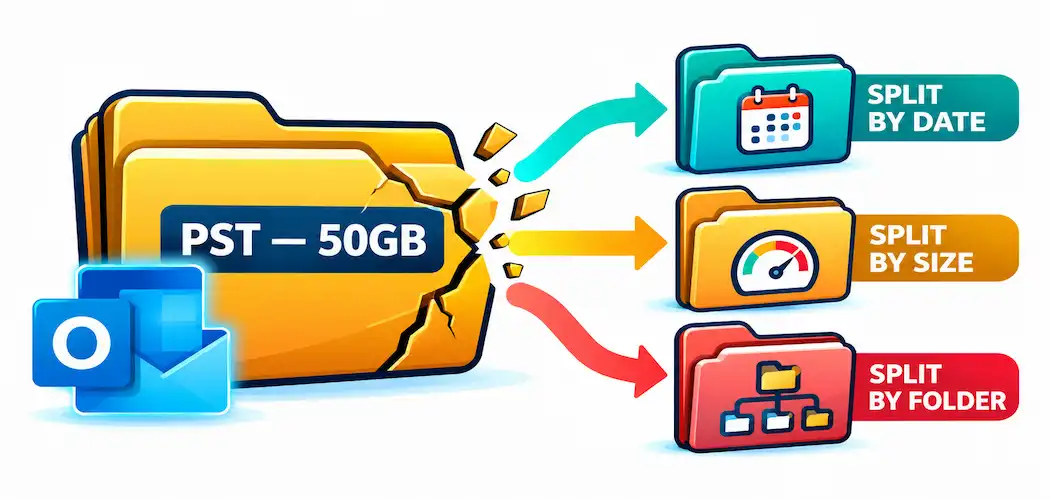
Outlook has a habit of running fine for years and then, seemingly overnight, starting to lag, hang on search, or throw errors when sending mail. Nine times out of ten, the culprit is a PST file that’s grown too large for its own good. The fix isn’t necessarily deleting years of email history — it’s splitting that one oversized file into several smaller, more manageable ones.
Here’s what actually causes the problem, and the real options for solving it — both paid tools and free manual methods — compared honestly rather than steered toward one winner.
Why PST Files Hit a Size Wall
Outlook’s data files come in two formats, and which one you’re dealing with depends on your Outlook version. Outlook 97 through 2000 used the older ANSI PST format. Outlook 2003 through 2019 (and current Microsoft 365 builds) use the UNICODE PST format, which supports much larger files but still isn’t limitless.
For Outlook 2013, 2016, and 2019, the default maximum PST size is 50 GB — this is Microsoft’s own documented default for the MaxLargeFileSize registry setting, not a rough estimate. Outlook also has a related warning threshold (around 47.5 GB by default) that triggers automatic compaction and starts blocking certain actions — sending, copying, or moving items — as the file approaches its ceiling. In practice, performance problems (slow search, sluggish folder loading, occasional freezes) tend to show up well before the file hits the hard limit, simply because Outlook has to work harder to index and manage a file that large.
The Real Reasons to Split a PST
- Performance. A smaller PST file is faster for Outlook to search, index, and load — the difference becomes noticeable even at a fraction of the maximum size.
- Avoiding the hard limit. Once a PST approaches its ceiling, Outlook starts blocking actions outright, which is a far worse problem to discover mid-task than to prevent ahead of time.
- Reducing data-loss risk. A single enormous PST file is a single point of failure — if it becomes corrupted, everything in it is at risk at once. Splitting spreads that risk across multiple smaller files, so a problem with one doesn’t threaten the entire archive.
Free Manual Methods
Before paying for a dedicated tool, it’s worth knowing that Outlook has built-in ways to split a file’s contents, even though none of them are labeled “split PST.”
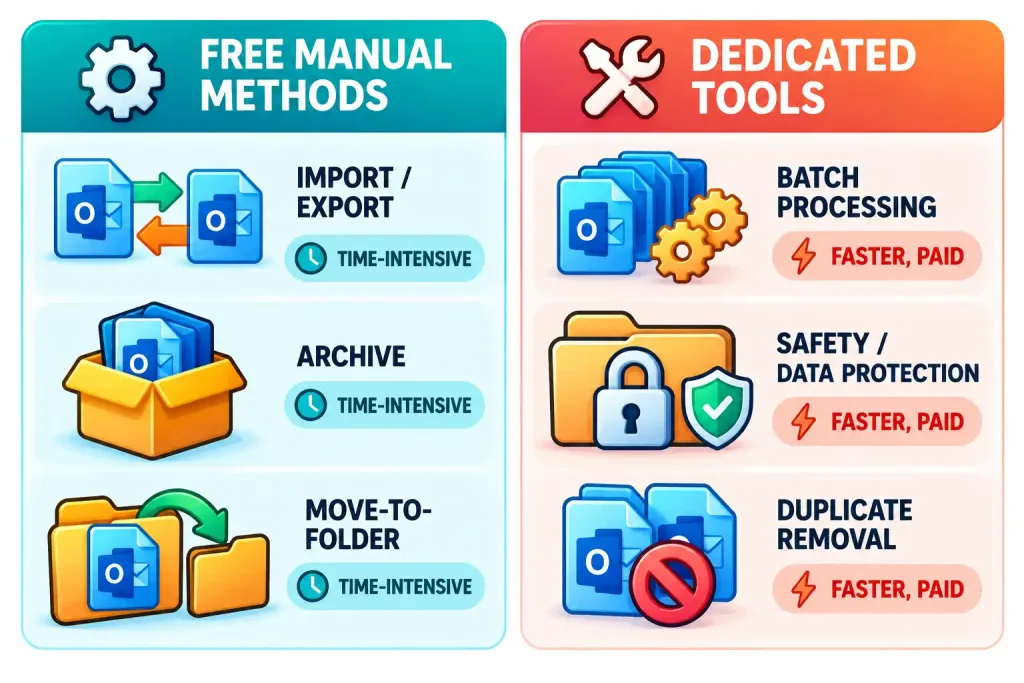
Import/Export. Outlook’s Import and Export wizard can export a folder’s contents to a new PST file, effectively letting you move chunks of data (by folder, or manually selected date ranges) into separate files. It’s slower for large archives and requires some manual folder-by-folder work, but it costs nothing and uses only what’s already built into Outlook.
Archive. Outlook’s AutoArchive and manual Archive features move older items into a separate archive PST based on age, which is a reasonable way to offload years of old mail into its own file without touching recent messages.
Move to Folder. Manually creating new PST files and dragging email folders or date ranges into them works, but it’s the most labor-intensive option and prone to human error on a large mailbox — it’s realistically only practical for smaller splits.
The common thread with all three manual methods: they work, they’re free, but they take real time and attention, especially on a mailbox that’s grown large and disorganized over years.
Dedicated Splitting Tools
For anyone who’d rather not spend an afternoon manually exporting folders, there are purpose-built tools designed specifically for this task. Two established options worth comparing:
Stellar Splitter for Outlook — part of Stellar’s broader Stellar Toolkit for Outlook (which also includes PST repair, compaction, merging, password recovery, and duplicate-removal tools). It splits PST files by date range, file size, folder structure, or email ID, supports batch-splitting multiple files at once, and is built to leave the original PST untouched during the process — useful as a safety net if something goes wrong mid-split.
DRS PST Splitter (Data Recovery Solutions) — a comparable tool that additionally advertises duplicate-message removal during the split process and support for encrypted PST files, which can matter for mailboxes with password-protected archives.
Neither product is being recommended here through an affiliate or sponsored relationship — they’re named because they’re the two most established, independently reviewable options in this category, and worth evaluating directly through their own trial versions rather than taking any single review’s word for which is “best” for a specific mailbox’s needs.
Choosing Between Manual and Paid
The right choice really depends on scale and urgency. For a one-time split of a mailbox that’s only moderately oversized, the free manual methods are perfectly workable if you have the time. For a large, actively-growing mailbox, recurring splitting needs, or a business IT setting managing multiple users’ PST files, a dedicated tool’s batch processing and built-in safety features (like leaving the original file untouched) tend to pay for themselves in saved time and reduced risk of a manual mistake.
The same manual-versus-dedicated-tool tradeoff shows up with other everyday file-management tasks too — splitting one file type isn’t so different from combining another. If you regularly deal with the opposite problem, merging multiple files into one, our guide to combining PDFs walks through the same kind of free-method-versus-paid-tool comparison for that task.
Whichever route you take, backing up the original PST file before starting — however you split it — is worth doing every time. A split that goes wrong on an un-backed-up file turns a performance problem into a data-loss problem.
Frequently Asked Questions
What’s the actual maximum size for a PST file in Outlook 2013, 2016, and 2019?
50 GB by default, per Microsoft’s documented MaxLargeFileSize setting for UNICODE-format PST files. A related warning threshold around 47.5 GB triggers automatic compaction and starts restricting actions as the file approaches that ceiling.
Can I split a PST file for free without any extra software?
Yes. Outlook’s built-in Import/Export wizard, the Archive feature, and manually moving folders into new PST files are all free, built-in ways to split a file’s contents — they just take more manual effort than a dedicated tool.
Does splitting a PST file risk losing data?
Any file operation carries some risk, which is why backing up the original PST before splitting — regardless of method — is worth doing every time. Tools that explicitly leave the original file untouched during the split add an extra layer of safety.
Is a dedicated PST splitting tool worth paying for over the free manual methods?
It depends on scale. For a one-time, moderate split, the free methods are fine. For large mailboxes, recurring needs, or managing multiple users in a business setting, a dedicated tool’s batch processing and safety features often save enough time and reduce enough risk to justify the cost.