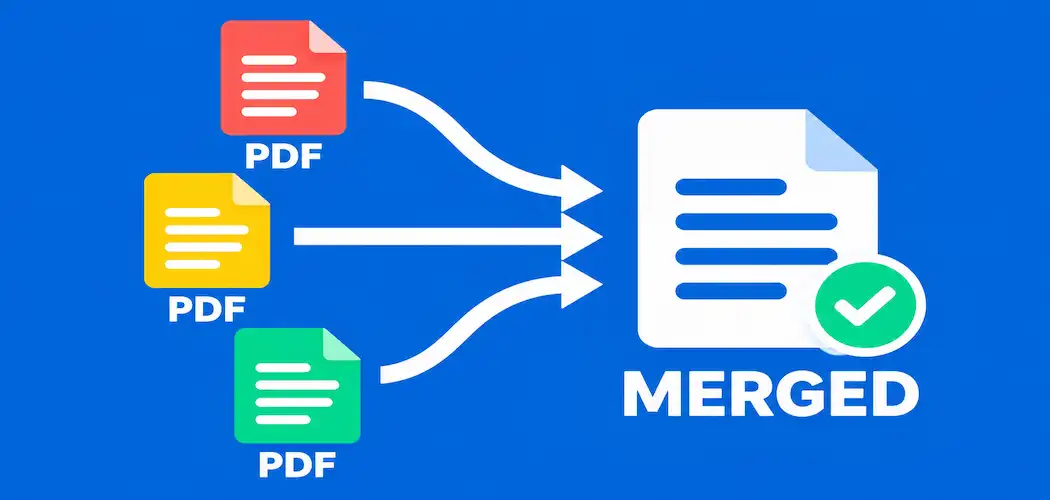
Nearly everyone who works with documents eventually hits the same small, recurring annoyance: three or four separate PDFs that really should be one file. Invoices that need consolidating, a report built from several source documents, scanned pages that need assembling into a single packet — merging PDFs is one of those tasks that’s genuinely simple once you know the right tool, and mildly infuriating if you don’t.
This guide walks through exactly how to merge PDFs using three real, commonly available methods: a free online tool, Adobe Acrobat, and a free offline option that doesn’t require any account or upload at all.
Method 1: Free Online Tools (No Software Required)
This is the fastest option for a one-off merge, and it works from any device with a browser. Using a tool like Smallpdf or iLovePDF as an example, the process looks like this:
- Go to the tool’s merge page (smallpdf.com/merge-pdf or ilovepdf.com/merge_pdf are both widely used, free options).
- Upload your files — drag and drop them, or click to browse and select the PDFs you want to combine.
- Arrange the order. Most tools show thumbnails you can drag into the sequence you want the final document to follow.
- Click merge. Processing usually takes just a few seconds for typical document sizes.
- Download the combined file. It arrives as a single PDF, ready to save or share.
The trade-off to know about: your files are uploaded to a third-party server to process the merge. For most everyday documents this is a non-issue, but for anything genuinely sensitive — legal documents, financial records, anything with personal data you’d rather not upload anywhere — an offline method (covered below) avoids this entirely.
Method 2: Adobe Acrobat (Paid, Full-Featured)
If you already have Acrobat, or need more control than a basic merge tool offers, this is the more robust option:
- Open Acrobat and select File > Create > Combine Files into a Single PDF.
- Add your files using the “Add Files” button, then select everything you want to include.
- Reorder as needed by dragging thumbnails directly in the interface.
- Click Combine. Acrobat processes everything locally and produces the merged file.
- Save the result wherever you need it.
Acrobat’s advantage over free online tools is control: you can merge specific page ranges rather than whole documents, add bookmarks for navigation in a long combined file, and handle much larger batches reliably. The trade-off is cost — Acrobat requires a paid subscription, which isn’t worth it if merging PDFs is an occasional task rather than a regular one.
Method 3: Free Offline Tools (No Upload, No Cost)
For anyone who wants to avoid both the cost of Acrobat and the upload step of an online tool, free offline software covers the gap:
PDFsam Basic (pdfsam.org) is a genuinely free, open-source desktop tool built specifically for merging and splitting PDFs, available for Windows, Mac, and Linux.
- Download and install PDFsam Basic from the official site.
- Select the “Merge” module from the main interface.
- Add your PDF files and arrange them in the order you want.
- Set your output destination and click Run.
This method keeps everything entirely on your own device — nothing uploaded anywhere — which makes it the right choice for sensitive documents when you don’t have access to paid software.
Choosing the Right Method for Your Situation
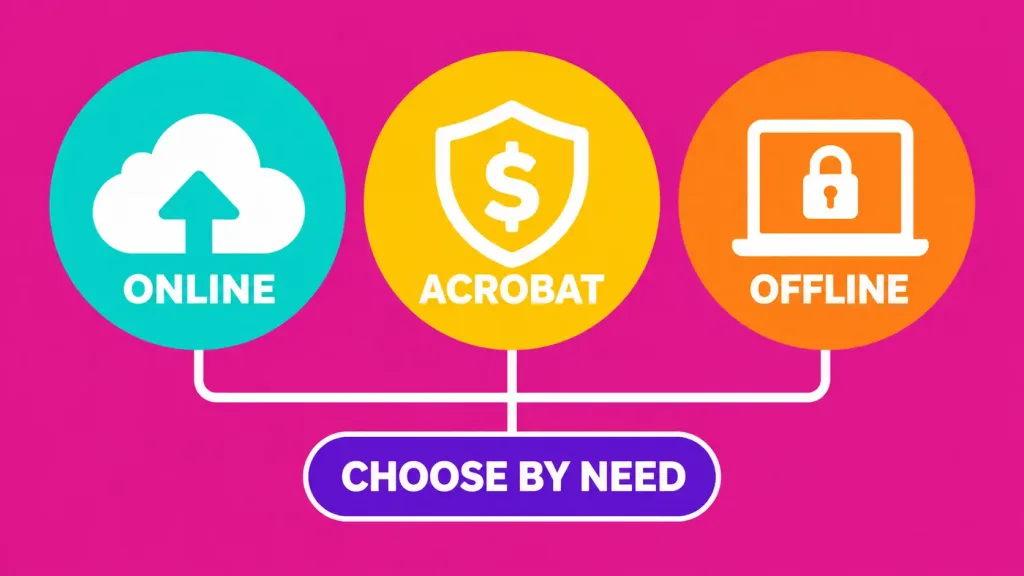
A quick way to decide:
- One-off merge of non-sensitive documents, need it fast → a free online tool.
- Regular merging, need advanced control (page ranges, bookmarks, large batches) → Adobe Acrobat, if the subscription cost is justified by how often you use it.
- Sensitive documents, or you’d rather not pay for software you’ll use occasionally → PDFsam Basic or a comparable free offline tool.
Keeping Merged Documents Organized
Merging the files is only half the job — keeping the result findable later matters just as much:
Use a consistent file naming convention so merged documents are identifiable at a glance months later, rather than a string of generic “Document1_final_v2” filenames.
Build a simple folder structure organized by project, client, or date, rather than letting merged files pile up in a single downloads folder.
Consider a document management tool like Google Drive or Microsoft SharePoint if you’re merging and organizing documents regularly as part of a team workflow — centralized storage and version history solve problems a local folder structure eventually runs into.
If you’re the kind of person who keeps a small toolkit of free and paid utilities on hand for exactly these situations, our MiniTool Partition Wizard review covers another genuinely useful piece of software worth knowing about, even though it solves a different problem (disk management rather than documents).
Frequently Asked Questions
Is it safe to use free online PDF merging tools? For most everyday, non-sensitive documents, yes — reputable tools like Smallpdf and iLovePDF process files securely and typically delete them from their servers after a short period. For genuinely sensitive documents, an offline tool avoids the upload step entirely.
Do I need Adobe Acrobat to merge PDFs? No. Free online tools and free offline software like PDFsam Basic both handle merging perfectly well for most needs. Acrobat earns its cost mainly through advanced features — page-range selection, bookmarking, large-batch handling — useful if you merge documents regularly.
Can I merge PDFs without an internet connection? Yes, using offline desktop software like PDFsam Basic (free) or Adobe Acrobat (paid) — neither requires an internet connection to perform the merge itself.
What’s the best free tool for merging PDFs? For occasional, non-sensitive documents, Smallpdf or iLovePDF are reliable, widely used browser-based options. For sensitive documents or offline use, PDFsam Basic is a genuinely free, open-source alternative.
Can I change the order of pages after merging? Yes, in Acrobat and most dedicated PDF tools — you can reorder, delete, or insert pages after the initial merge, not just during it.
The Bottom Line
Merging PDFs doesn’t require expensive software or technical expertise — a free online tool handles most everyday needs in under a minute, Adobe Acrobat is worth the subscription if you need advanced control and merge documents regularly, and free offline tools like PDFsam Basic cover sensitive documents without costing anything. Match the method to what you’re actually merging, and the whole process takes less time than finding the files in the first place.