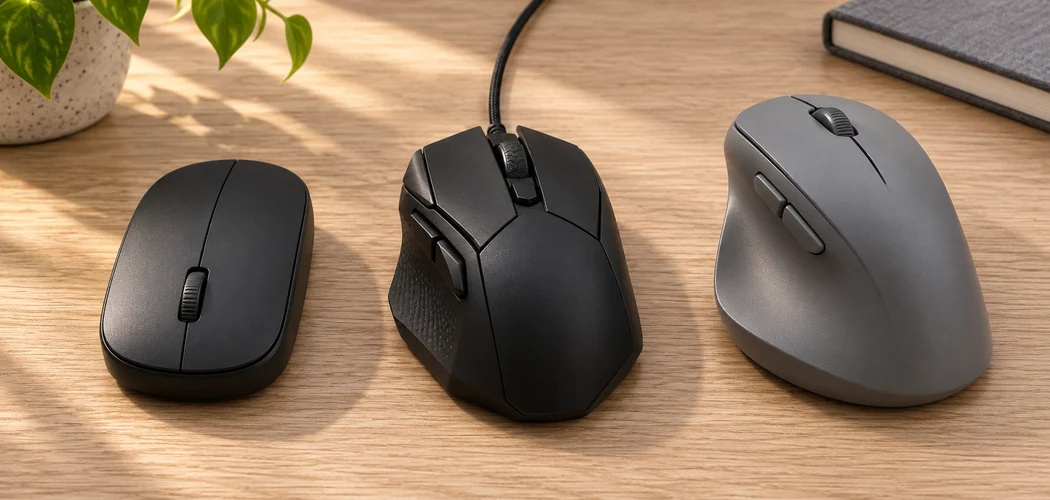
When buying a mouse, start with the work you do most often and the computer you’ll connect it to. A compact Bluetooth mouse might be convenient on the move. At a desk, a larger shape, a quieter click, or a wheel that handles long documents may matter more. These ten checks help you compare those trade-offs before you spend money.
1. Decide What You Need Before Buying a Mouse
Think about an ordinary day. If you mostly browse and write, prioritize comfortable clicks and scrolling. If you edit photos, compare how easily you can make small pointer movements. For games, check whether you have enough room to move the mouse at the sensitivity you prefer. If you take it to work, make sure it fits in your bag alongside any receiver or charging cable.
2. Set a Budget Around the Features You’ll Use
List the features you use every week and the ones you could skip. If you regularly switch between a desktop and a laptop, a device-switch button may be worth paying for. If you only use one computer, you may get more value from a shape that fits your hand. Include the cost of a USB adapter, spare batteries, or a mouse pad if your setup needs one.
3. Choose Wired, Bluetooth, or a USB Receiver
| Connection | When it fits | What to check |
|---|---|---|
| Wired USB | A fixed desk where the cable can move freely | USB-A or USB-C plug, cable length, and routing |
| Bluetooth | A laptop where keeping USB ports free matters | Bluetooth support, pairing steps, and device switching |
| Wireless USB receiver | A computer with a spare compatible port | Whether the receiver is included and how to replace it |
Some wireless models support both Bluetooth and a USB receiver. Check the exact model and bundle. If you use a USB-C laptop with an older USB-A receiver, decide whether you want to carry an adapter or leave the receiver plugged into a dock.
4. Compare Shape, Hand Size, and Grip
Try the mouse with your hand relaxed. Check whether your fingers reach the main buttons and wheel without stretching. Move the pointer across the screen and see whether you need to squeeze the sides to lift or reposition the mouse. If you use your left hand, check the shape and the position of any thumb buttons.
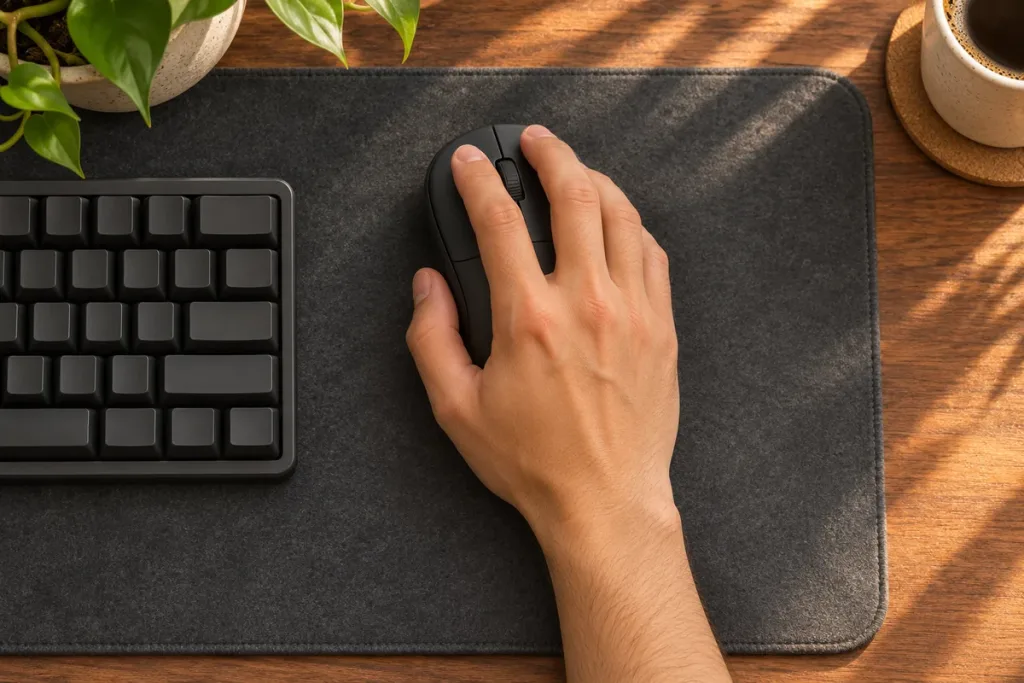
Think about where your hand usually rests. A palm grip puts more of the hand on the shell. A claw grip arches the fingers, while a fingertip grip relies mainly on the fingertips. Those descriptions can help narrow down the shapes to try. Fit still depends on your hand and the size of the mouse. Logitech’s mouse fit guide shows how size and shell shape can affect grip.
5. Understand DPI and Pointer Sensitivity
Mouse makers commonly use DPI to describe how much movement the sensor reports as the mouse travels across a surface. Raising the setting generally makes the pointer travel farther for the same hand movement when other settings stay the same. The operating system and individual games can also apply their own sensitivity settings.
Start by choosing a setting that lets you cross the screen comfortably and still select small targets. If you move between precise editing and a large display, adjustable sensitivity can help. Check whether you can change it on the mouse itself or need the manufacturer’s software.
6. Check Button Placement and Click Feel
Press the main buttons and see whether the force and sound suit your workspace. If you often go back and forward in a browser, thumb buttons can save you a trip to the toolbar. Try reaching them without shifting your grip. Check whether you press them by accident when you pick up the mouse.
7. Test the Scroll Wheel
A wheel with distinct steps can make it easier to move through a spreadsheet a few rows at a time. A wheel that spins freely can be convenient for long documents. If you open browser tabs with a middle-click, check that pressing the wheel feels comfortable and doesn’t scroll the page at the same time.
8. Check Build, Power, and Portability
For a wired mouse, look at where the cable enters the shell and whether it drags across your desk. For a wireless model, check whether it uses replaceable batteries or recharges by cable. If it recharges, verify whether you can keep using it while plugged in. If you travel with a receiver, look for a storage slot or choose a case that keeps it with the mouse.
9. Confirm Operating-System and Software Support
Basic pointing and clicking may work even if a manufacturer’s customization app doesn’t support your computer. If you need button remapping, profiles, or app-specific shortcuts, check the software requirements for your operating system. On a managed work computer, check whether you’re allowed to install it. If you use several computers, verify which settings the mouse can store and carry between them.
10. Read the Warranty and Return Terms
Check the warranty for the exact model and seller. Look up who handles a claim and whether you need proof of purchase. Read the return window separately, especially if you’re ordering a shape you’ve never tried. After it arrives, try a normal work session while you still have time to return it. Pay attention to where your fingers rest, how the wheel feels, and whether the connection works reliably at your desk.