If you have connected an Ethernet cable to your windows 11 PC or Laptop but have no internet access to your system, don’t worry today in this article I am going to explain how you can fix and solve this problem. You just have to follow the steps I am going to explain in the article.
First of all, right-click your start menu, and open settings as you can see in the image.
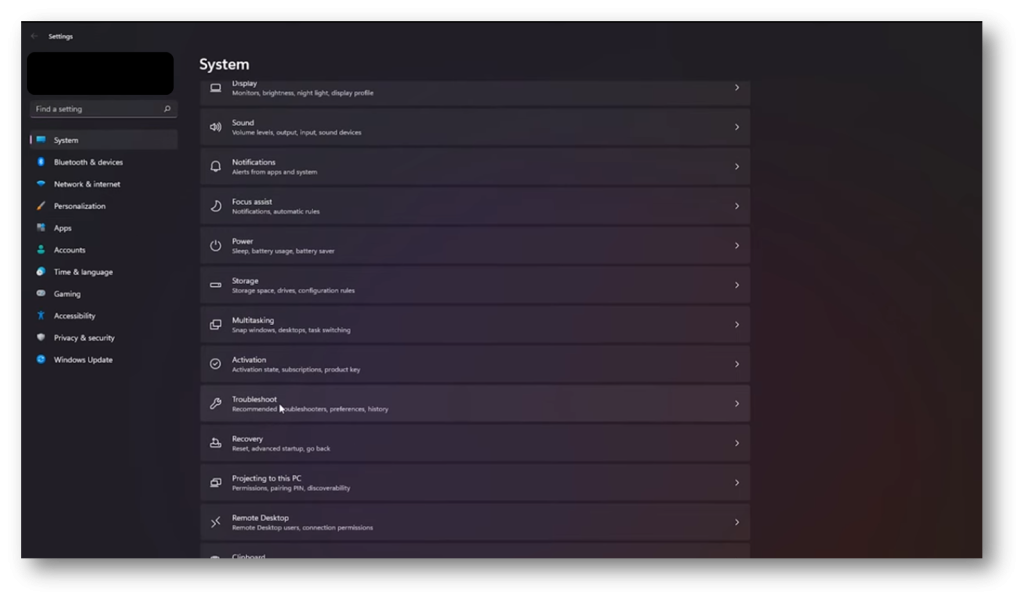
After opening the settings window you need to search for the troubleshooting option from the system menu. Click on troubleshoot options and then other troubleshooters as shown in the image below
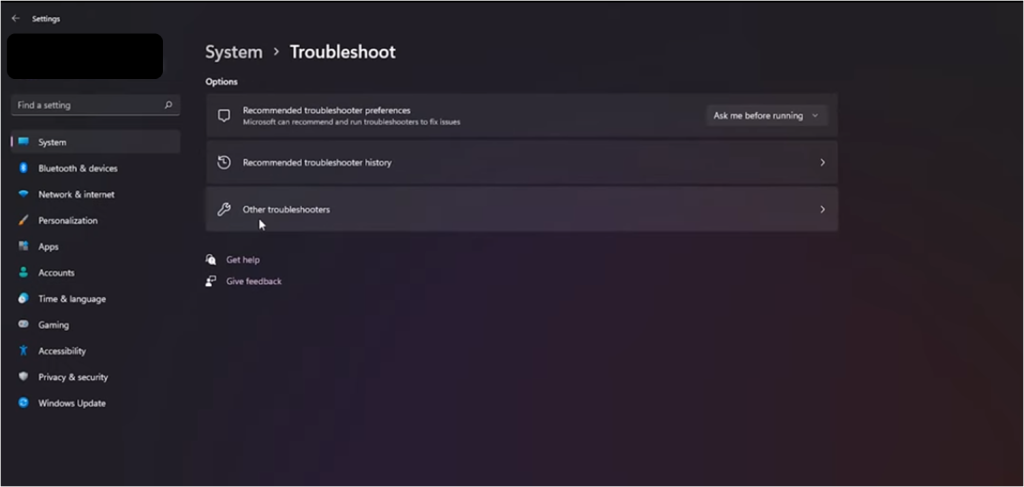
Here you will get a troubleshooting option for internet connection including other options for troubleshooting as you can see in the below image.
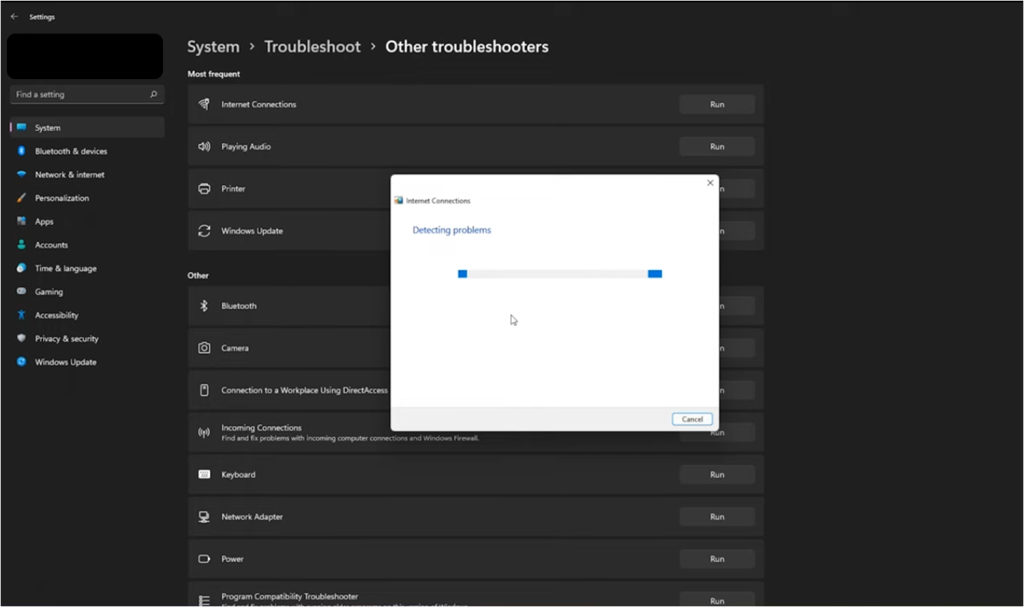
You can see the run button against each troubleshooting option. Click on the run button to the internet connection troubleshooting option. The troubleshooter option will automatically detect and fix your problem. When troubleshooting complete close this window and check whether your problem is solved or not.
If your problem is still there then just go to the start menu or search menu and type ncpa.cpl command and press enter.

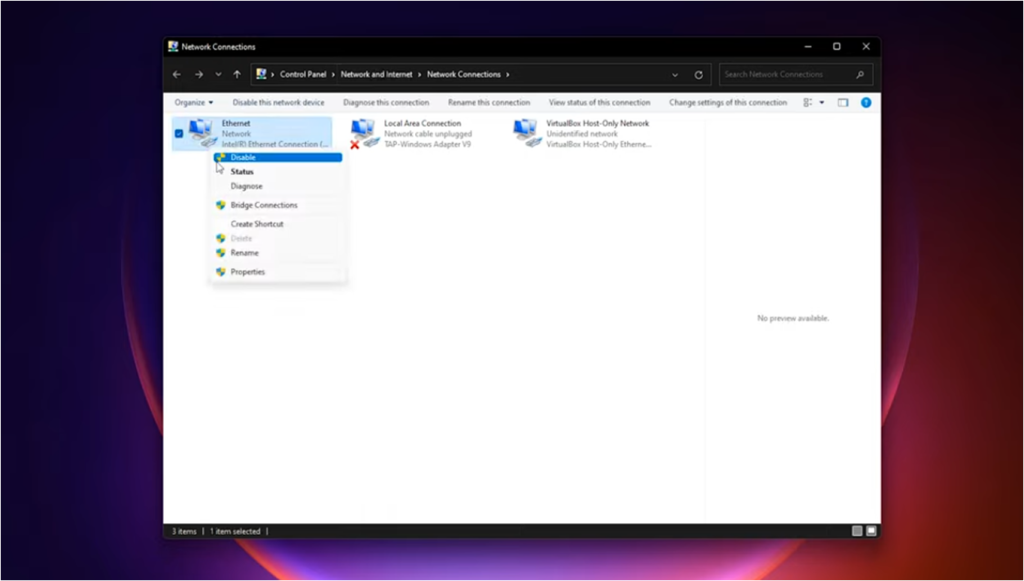
Here you will get network connection options as shown in the image below. Choose and right-click your desired Ethernet connection where you have physically connected the Ethernet cable. Go to properties, double click on ipv4 address if you are using an IPv4 address or IPv6 address according to your IP version using your internet service providers. Mostly they are using IPv4 addresses. Also, check if they are providing fixed IP addresses or automatic IP addresses.
If your internet service provider uses a fixed IP addressing scheme then it is important that you have all the information about your IP address like your IP address, subnet mask, your internet gateway, and your DNS information. So you can configure all settings for fixed IP addresses here by clicking on “use the following IP address“.
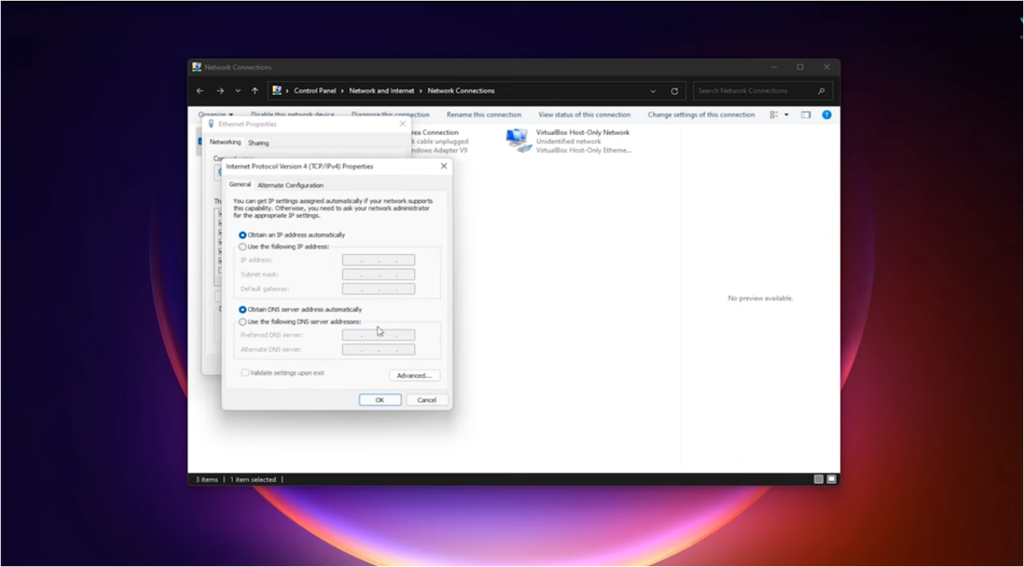
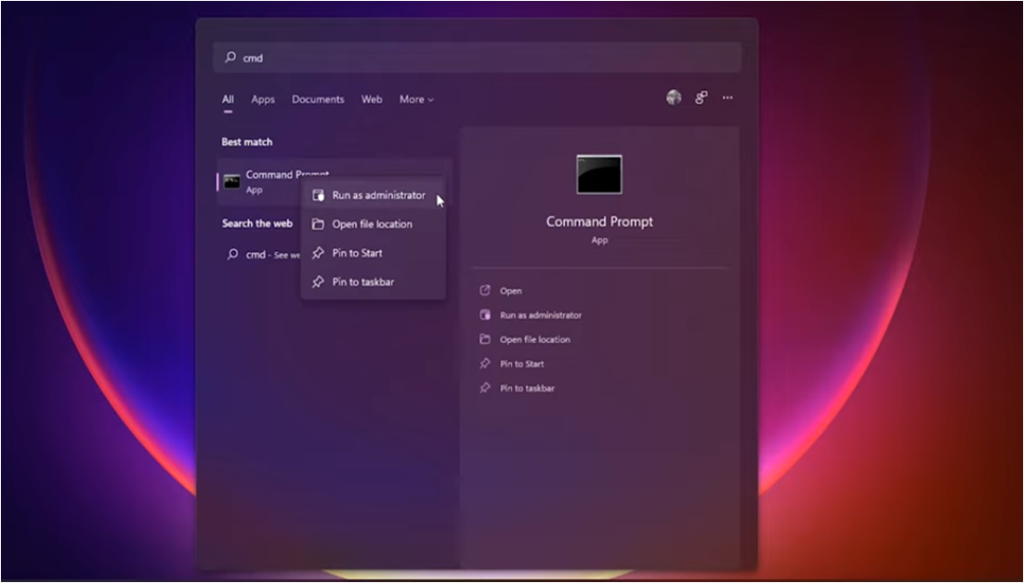
In my case, my internet service provider uses an automatic IP address so to troubleshoot an automatic IP address go to the start menu again and type the command cmd and then right click on the command prompt and click run as administrator, then click yes
Here you will see the command prompt of windows 11. In the command prompt, you just need to put the following command to reset different services setting.
netsh winsock reset
netsh int ip reset
ipconfig /release
ipconfig /renew
ipconfig /flushdns
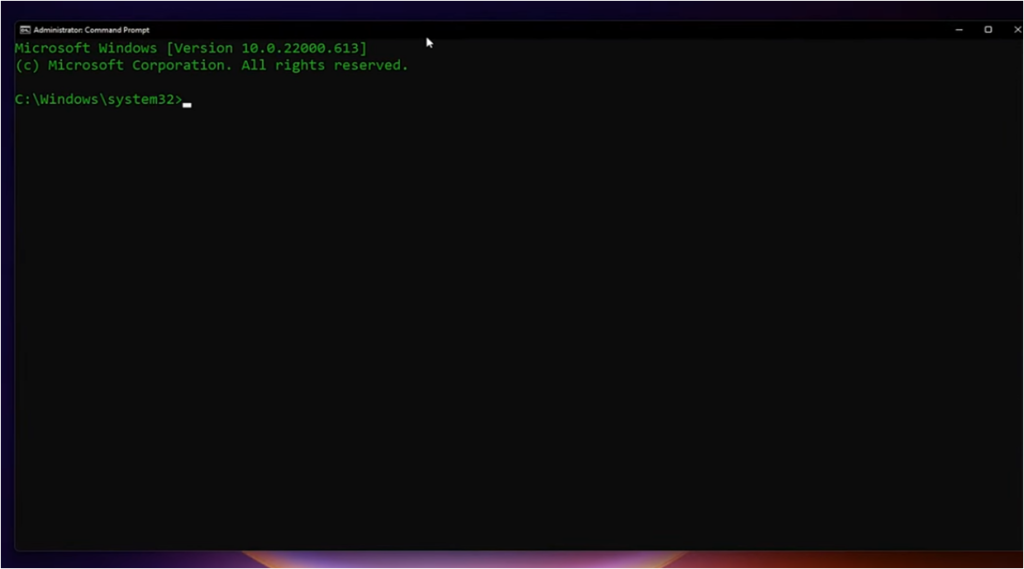
Run all the above command as the correct order just we have typed and restart your computer.
After restart check your internet if it is working then good otherwise to your start menu again and click on settings, select network and internet and then select Advance network settings as shown in the image

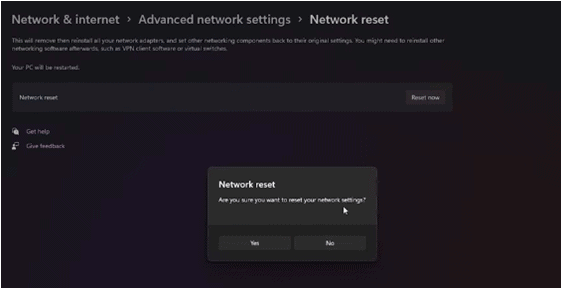
From Advance network settings clink on network reset under more settings option, then click on reset now
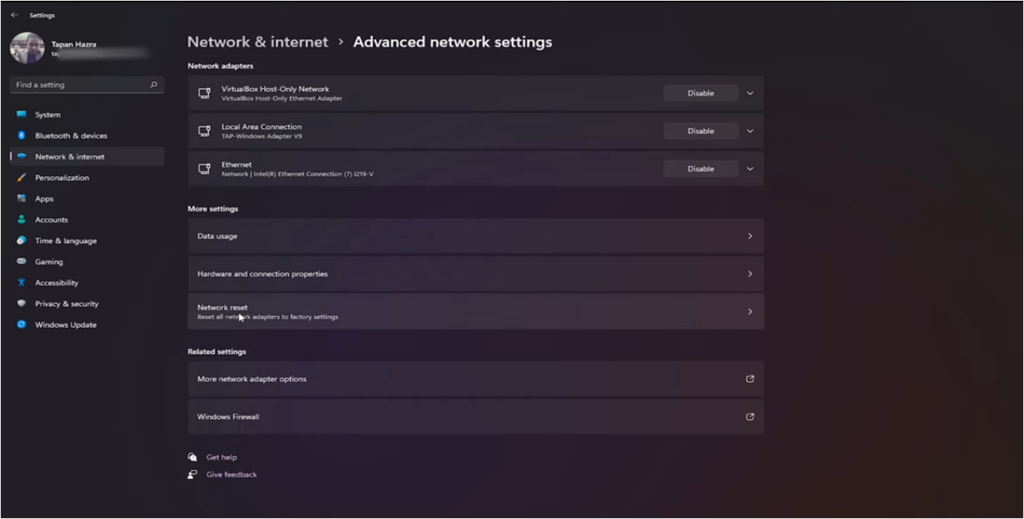

Select Yes when it prompt network reset and then close and restart your system.
FAQs
What is the prefix for the host address 2001?
The prefix for the host address starting with 2001 refers to the network portion of an IPv6 address.
IPv6 addresses are 128 bits long and written in hexadecimal. The address “2001” is the beginning of many global unicast addresses. In practice, when we see a host address like 2001:db8:xxxx:yyyy::zzzz (where 2001:db8::/32 is the famous documentation prefix), the prefix identifies the network.
Standard IPv6 Prefix Lengths
In modern IPv6 networking, the most common prefix length for a host (end device) is /64. This means:
The first 64 bits form the network prefix (including the global routing prefix and subnet ID).
The remaining 64 bits are used for the interface identifier (host portion).
For example:
If a host has the address 2001:db8:abcd:1234::1, its network prefix is usually 2001:db8:abcd:1234::/64.
The prefix tells routers how to forward packets and enables Stateless Address Autoconfiguration (SLAAC), which is the preferred method for IPv6 hosts to obtain their addresses.
Shorter prefixes like /32 or /48 are allocated to ISPs or large organizations for further subnetting, while /64 is the standard subnet size for LANs to support huge numbers of hosts (2^64) and features like SLAAC.
In short, for any host address beginning with 2001, the typical prefix associated with the host itself is /64, separating the network from the individual host portion cleanly.