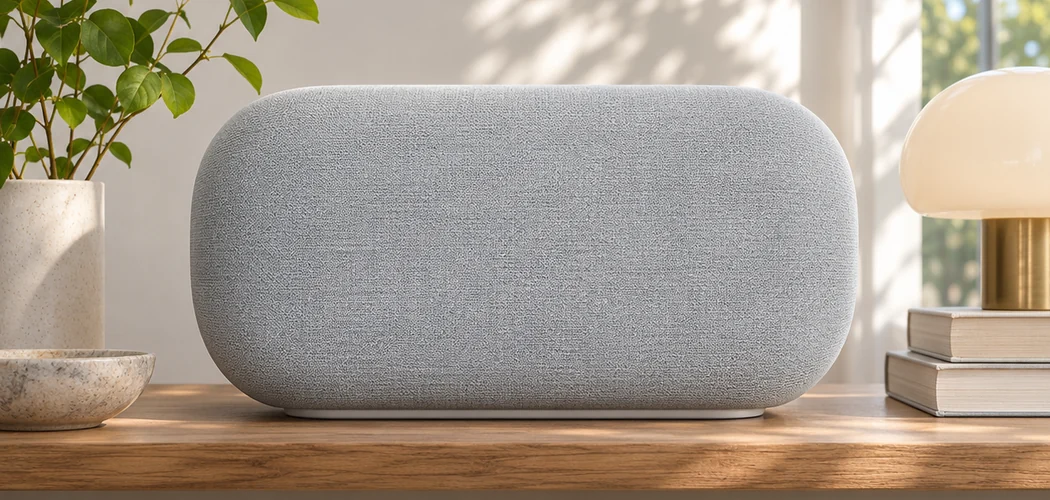
The Google Home Max in Chalk is the pale version of Google’s large, fabric-covered smart speaker. Used listings may call it white or light grey. Google calls the finish Chalk. The colour identifies the finish, while the condition of the speaker and the features that still work determine how useful it will be.
Start with how you plan to listen. If you want a speaker for a phone, test Bluetooth. If you want to play audio from a wired source, try the 3.5 mm input. If you want it to join an existing Google Home setup, verify that it can be added to the app and works with the speakers or services you already use.
Google also sold the Home Max in Charcoal. The setup, playback, and used-buying checks in this guide apply to both finishes.
Google Home Max in Chalk: Hardware and Connections
| Feature | What to expect |
|---|---|
| Speaker drivers | Two 4.5-inch woofers and two 0.7-inch tweeters |
| Wireless playback | Wi-Fi with Google Cast and Bluetooth 4.2 |
| Wired audio | 3.5 mm analog input for a compatible source |
| Power | AC power cord and a wall outlet |
| Placement | Horizontal or vertical positioning with a removable base |
| Multi-speaker playback | Speaker groups and same-model stereo pairing |
Google’s Home and Nest device specifications identify Chalk as a finish and list the audio input, wireless features, and drivers. The rear USB-C port and the 3.5 mm jack have different functions. For a wired audio source, use the analog input and verify that the source provides a compatible output.
Choose a stable surface with room for the cables behind the speaker. When moving it upright, move the removable base to the edge that will rest on the surface. Check that the speaker sits securely and has room around it. Leave enough slack in the cords that they do not pull at the ports.
Smart Sound was designed to adapt playback to the speaker’s surroundings. Placement still affects what you hear. If bass sounds heavy beside a wall, move the speaker forward and listen again from your usual seat. Use the same track and volume so the comparison reflects the change in placement.
Set Up a Used Google Home Max at Home
Start with the speaker on a stable surface near a wall outlet and within range of your Wi-Fi. Check the power cord before plugging it in. If the plug is damaged or the insulation is cracked, have the cord or unit checked before powering it on. Place the speaker where you can reach the rear connections and the microphone mute switch without pulling it forward by its cable.
If the previous owner has not reset it, use the physical reset button near the power connection. Google’s instructions for Home Max say to hold it for about 12 seconds and wait for the speaker to confirm the reset. Do this before creating rooms, groups, or preferences. If you buy locally, ask the seller to show the speaker working before they reset it for handover.
Open the Google Home app on a compatible phone or tablet and follow the prompts to add the device. On Android, Google’s setup instructions call for Bluetooth to be on and the phone to be connected to the Wi-Fi network you want the speaker to use. If you have several playback destinations, assign the speaker to a room and give it a name you can recognise from the Cast menu. A name such as “Living room Max” makes it easier to confirm where the audio will play.
Start with a single playback test before creating a group or setting up voice commands. Play a track from a Cast-compatible app, change the volume from your phone, and disconnect. Open the app again and repeat the test. That checks discovery, playback, and reconnection. If anything fails, write down which step failed. You will have a specific problem to troubleshoot.
Bluetooth, Google Cast, or the 3.5 mm Input?
Bluetooth is useful when you want to send audio from a phone or tablet. During a demo, pair your own device if the seller allows it, play a familiar track, and reconnect after disconnecting. That second connection helps you spot a pairing problem that a single successful playback might miss.
Google Cast uses your network and a compatible app. Add the speaker in Google Home, put your phone on the same network, then check that the speaker appears as a playback destination in the app you use. If a particular voice command or music service matters, test it with the account and region you intend to use.
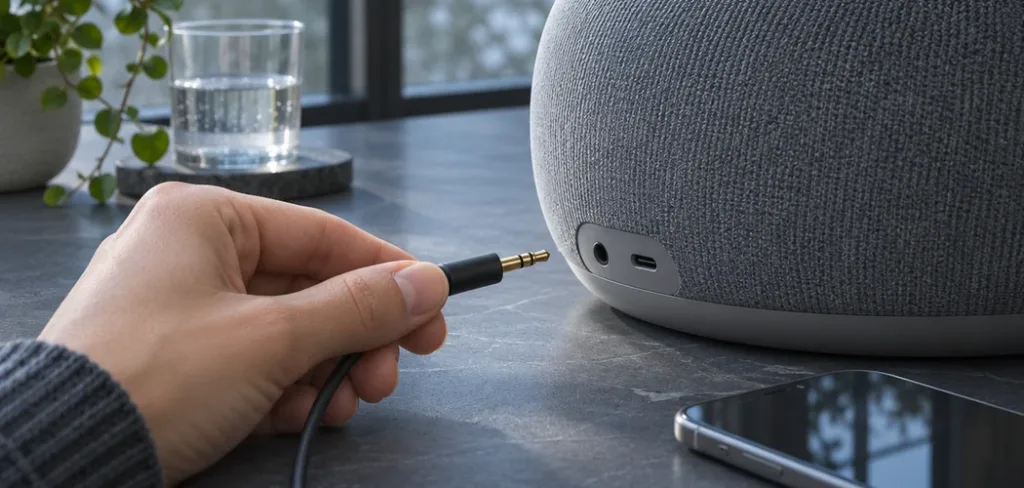
The 3.5 mm input is worth checking with a known-good cable and a source you can control, such as a laptop with a headphone jack. Begin at a low volume. Play a familiar track and listen for dropouts or crackling without forcing or bending the connector. If the seller can demonstrate Wi-Fi playback only, treat the condition of the analog input as unknown.
If the speaker is mainly for TV sound, check the TV’s outputs and whether dialogue stays in sync during playback. Our guide to checking TV soundbar compatibility explains which TV connections to look for before buying audio equipment.
Stereo Pairs and Speaker Groups
A stereo pair uses two speakers to play left and right channels in one room. Google’s stereo pairing instructions require two speakers of the same model in the same room. To create a Home Max stereo pair, use two Home Max units. A single Home Max and a different Google speaker do not form that pair.
A speaker group lets compatible speakers play the same stream in multiple locations. If that is the feature you need, check whether the Home Max can join the group you intend to use. Test playback in more than one room before deciding that the setup meets your needs.
Troubleshoot Setup and Playback One Step at a Time
Change one thing per test. If you restart the router, reset the speaker, and swap phones together, a successful setup tells you little about what fixed it. Start with the simplest check for the symptom you see.
| Symptom | First checks |
|---|---|
| The app cannot find the speaker | Let the speaker finish starting up. On Android, check that Bluetooth is on and the phone is connected to the intended Wi-Fi network. |
| The app finds it but setup stalls | Confirm the network password and retry with the phone close to the speaker. If the speaker came from another household, check that the factory reset completed. |
| Bluetooth works but the Cast destination is missing | Confirm that the speaker appears in Google Home and that the phone is on the same network. Try another Cast-compatible app. |
| The analog input crackles | Try another cable and source at low volume. Compare playback over Bluetooth to see whether the symptom is limited to the wired connection. |
| A group plays in only one room | Test each speaker separately, then check group membership and the output selected in the playback app. |
If discovery fails on a guest network, try the main household network if you have permission. Some networks limit communication between connected devices. You can also check whether another phone on the same network sees the speaker. The result helps distinguish a problem with one phone or app from a problem with the speaker’s setup.
Try a restart before factory resetting a speaker that you already set up successfully. A reset clears the configuration. Allow time to add the speaker again and rebuild any pair or group it belonged to. If only one app fails, test a second source before changing settings for the whole household.
How to Check a Used Google Home Max
- Confirm the model and accessories. Ask for photos of the rear label, ports, grille, power cord, and removable base. Look for damage to the plug or cabinet.
- Hear the speaker at two volume levels. Play a familiar track softly and then at a moderate level. Listen for rattles, distortion, or audio cutting out.
- Test the input you will use. Bring a cable for analog playback or ask for a demo of Bluetooth and Google Cast. Check the touch volume controls and microphone mute switch.
- Confirm it can be reset and added again. Ask the seller to remove the speaker from their setup and perform a factory reset before handover. Use the reset button near the power connection and wait for the speaker’s reset confirmation. A reset clears its settings.
- Verify your preferred service. After setup, play audio from your usual app. If you rely on a speaker group, voice commands, or a second Home Max, test that feature too.
When buying remotely, ask for a short video showing the exact unit powering on and playing audio. Ask how returns work if the speaker cannot be set up. A listing that says “tested” may mean only that the unit turns on.
Compare Sound and Condition Before You Pay
Use two familiar recordings during a demonstration. A track with a steady bass line can reveal a buzz around a particular note. A spoken recording helps you judge whether voices remain clear at your usual listening level. Ask to listen at the volume you would actually use. A brief demonstration with the volume turned up can hide how well the controls work for quieter listening.
If you hear a rattle, check the surface under the speaker and move nearby objects that might vibrate. Try the same passage again. Then compare the wired and wireless inputs at a similar volume. A clean Bluetooth test alongside a noisy analog test points you toward the cable, source, or input. A rattle that follows the same note across both sources deserves a closer look before purchase.
Inspect the fabric and base in daylight if possible. A marked grille is primarily a cosmetic concern. A cracked cabinet, damaged plug, or loose socket can affect whether you can use the speaker. With a remote sale, request close photos of the actual unit and make sure the seller’s demo shows the same speaker. If an input or accessory matters to you, ask about it before payment.
Decide Which Used Listing Fits Your Setup
Suppose one seller offers a lower price but only shows that the speaker turns on. Another includes the base and cord, demonstrates Cast and the analog input, and allows a return if setup fails. The lower-priced listing might suit you if you can test it in person. The second is easier to assess when you are buying remotely and need both inputs to work.
If you plan to buy two units, assess each separately before testing them together. Confirm that both can be added to the app, both play at a comparable level, and both include the accessories you need for placement. A stereo pair still depends on each speaker working reliably on its own. Ask what happens if one unit fails during the return period.
Think through one ordinary listening session before deciding. If you play music from a phone nearby, check how it reconnects when you return to the room. If the speaker will sit by a desktop computer, check that the cable reaches without placing tension on either jack. If you will use it from across the house, try playback from the rooms where you actually keep your phone. A successful bench test tells you that a connection works under those conditions. Your placement and source determine how well it fits your routine.
Give yourself a simple acceptance test for the first day. Add the speaker in Google Home if you plan to use network features. Play from your usual source and repeat after a disconnect. Test the controls and set the speaker in its intended position. If you bought it to work with a specific group or service, try that combination before the return period ends.
A used Google Home Max makes the most sense when it fits a specific listening setup you can verify. Check the connection first, then the sound and condition. If you need a feature the seller cannot demonstrate, factor that uncertainty into what you are willing to pay.