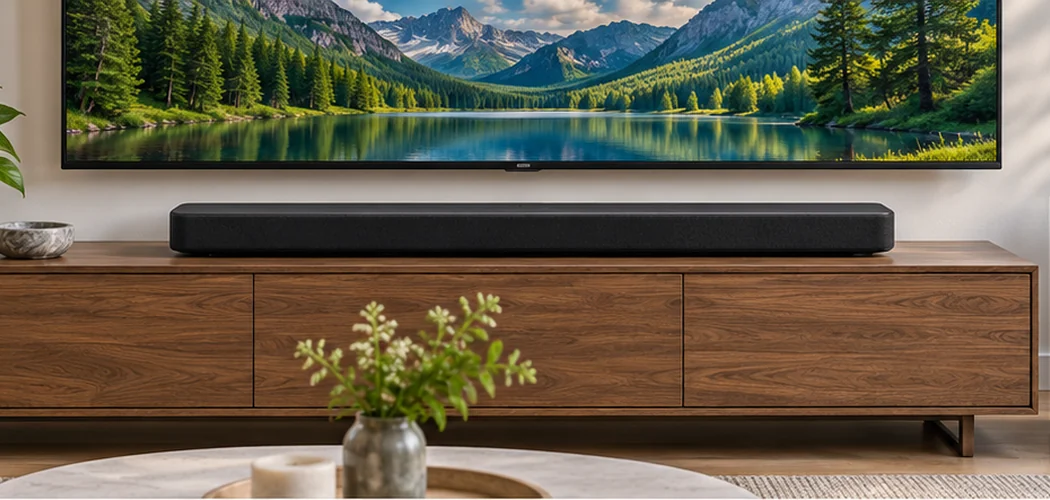
The LG S80QY Soundbar can play Dolby Atmos, but the soundbar alone cannot tell you whether your whole setup will deliver it. The app or player has to supply an Atmos track, and every device between the source and the soundbar has to pass a compatible audio signal. Hearing sound through the bar confirms the connection is doing something. Check the soundbar’s display to learn what format it actually received.
Start with one source and one known Atmos title. Get that combination working before adjusting sound modes or adding another device. This makes it easier to tell whether a problem follows the source, the TV, or the connection.
What the LG S80QY Soundbar Supports
LG identifies the S80QY as a 3.1.3-channel soundbar. The three numbers describe the main channels, subwoofer channel, and height channels. The package includes a wireless subwoofer, which needs its own power connection. The height effect depends partly on the room and seating position, so judge the setup from the seat you normally use.
Use the LG S80QY support page to check the model and find its manuals. If the label on your soundbar says GX, see our LG GX Soundbar Buying and Setup Guide. The GX has its own connections and specifications.
Connect the LG S80QY Soundbar to Your TV
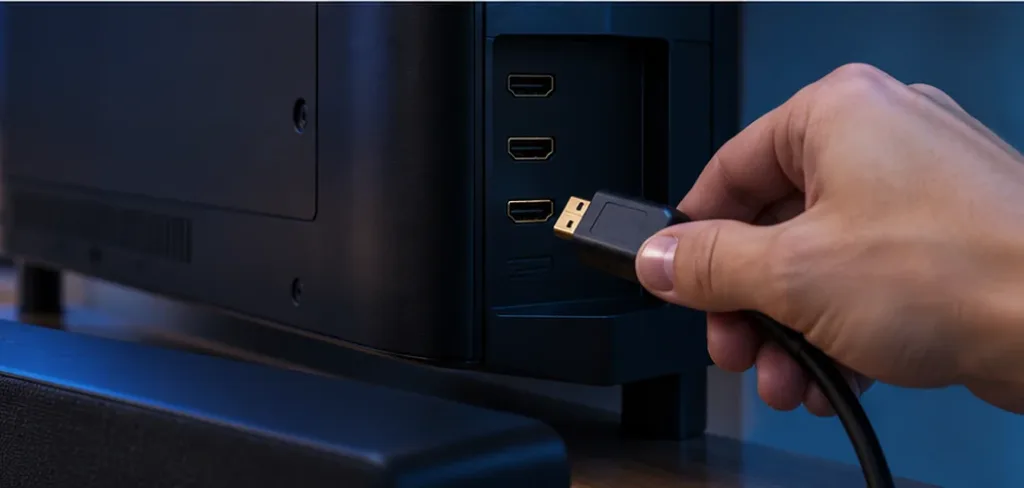
- Find the HDMI port on your TV marked ARC or eARC. Connect it to the S80QY’s HDMI TV (eARC/ARC) port. The separate HDMI IN port on the soundbar is for an external source.
- In the TV’s sound settings, select the HDMI audio output. If the TV has an eARC setting, check the TV manual and enable it when the setup supports it.
- On the soundbar, select OPT/HDMI ARC. The display should show ARC or E-ARC once the TV connection is working. This identifies the connection. Check the format separately during playback.
- Play a familiar clip to confirm basic sound. If nothing plays, recheck the port labels and TV output before troubleshooting Atmos.
Use a certified HDMI cable that meets the requirements of the connected equipment. If you replace it during troubleshooting, change only the cable and repeat the same test. That helps you tell whether the cable or another setting made the difference.
Choose an Audio Path for Each Source
| Source | Connection to try | What to verify |
|---|---|---|
| Streaming app built into the TV | TV ARC or eARC to the soundbar | Check that the TV app, subscription, title, and selected audio track support Atmos. |
| Streaming box or console connected to the TV | Device to TV, then TV ARC or eARC to the soundbar | Check the player’s output setting and whether the TV passes that audio format. |
| External player connected directly to the soundbar | Player to the soundbar’s HDMI IN, then soundbar to TV | Select HDMI on the soundbar. Confirm that the video features you need still work through that connection. |
| TV connected by optical cable | TV optical output to soundbar optical input | Use this route for compatible basic audio. For Atmos on this setup, use HDMI. |
Streaming services may carry Atmos with Dolby Digital Plus, which some ARC setups can pass. A source using Dolby TrueHD with Atmos has different requirements. If the TV cannot pass the source format, try connecting the player directly to the soundbar and test again. If your source is the TV’s built-in app, the TV remains part of the audio path.
Verify That Dolby Atmos Reaches the Soundbar
Play a title you know offers Atmos on the device and service you’re using. Check the selected language track. A title can offer Atmos in one language and another format in a different language. Start the actual episode or film. A menu, advert, or preview may use different audio.
Watch the S80QY’s status display when playback starts. Look for DOLBY ATMOS. If you only see ARC or E-ARC, check again as the programme begins. Those labels identify the TV connection. Changing the soundbar’s sound mode can change how audio is processed, so use the format shown by the bar to confirm the incoming signal.
Once you confirm Atmos from one source, write down the app or device, title, audio track, and TV output setting. Keep that combination as a reference. If a second device fails, play the reference title again before changing the working setup.
Troubleshoot Common LG S80QY Soundbar Problems
| Symptom | First check |
|---|---|
| The TV plays through its own speakers | Select HDMI audio output on the TV and check the ARC/eARC port at both ends. |
| The soundbar plays audio but never shows Atmos | Verify the actual audio track and source output. Check whether the TV can pass the format the source sends. |
| One app plays Atmos and another does not | Compare the title, plan, app support, and language track before changing the soundbar. |
| An external player works directly but fails through the TV | Check the TV’s supported passthrough formats and audio output settings. |
| Atmos appears but the height effect is subtle | Try a scene with clear overhead effects. Check whether the top of the bar is clear and listen from your normal seat. |
If you still cannot isolate the problem, note the TV model, source device, wiring, and the format shown on the soundbar. This gives support a concrete setup to troubleshoot. Test the format first, then adjust placement or sound settings to suit the room.