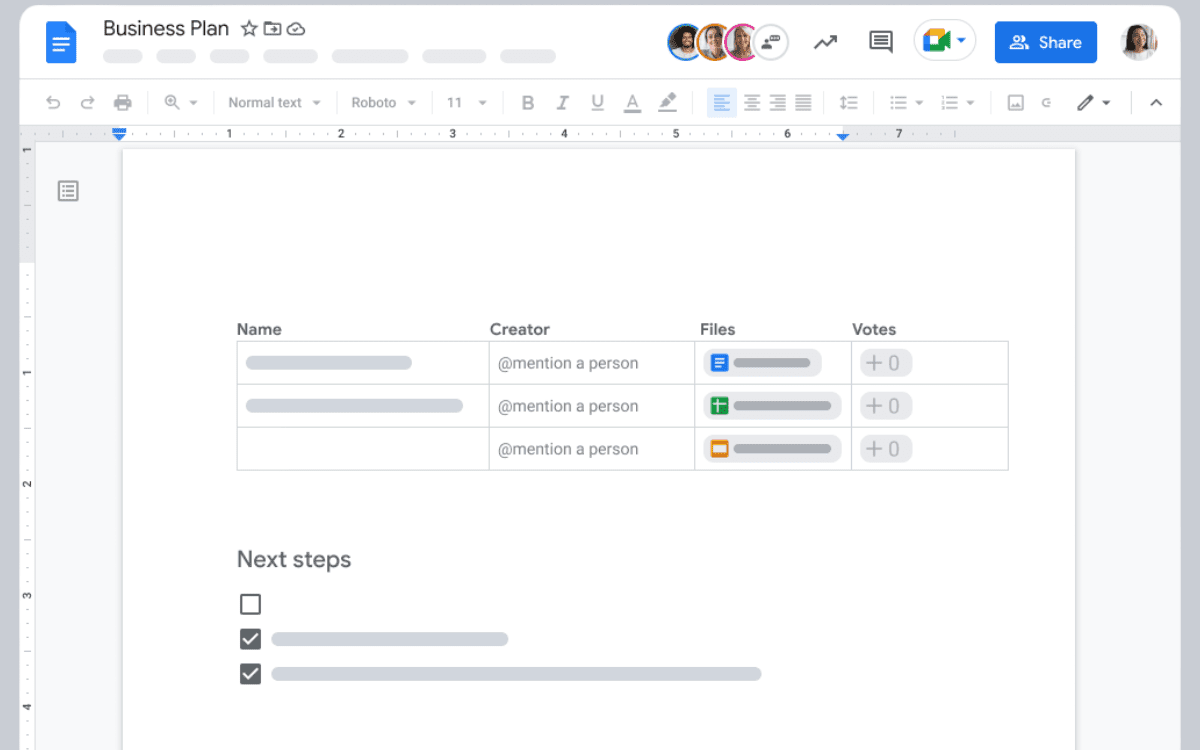
Google Docs is a powerful word-processing tool that offers a variety of features for creating and editing documents. However, as you work on a paper, you may need to remove a page. Deleting a blank page with unwanted content or a page you no longer need can help you keep your document clean and organized.
If you’re new to Google Docs, you may wonder how to delete a page in your document. Fortunately, the process is straightforward, and this step-by-step guide will walk you through the process, so you can quickly delete any unwanted pages from your document.
Accessing the Page, You Want to Delete
The first step in deleting a page from your Google Docs document is to access the page you want to delete. Here’s how to do it:
- Open your Google Docs document.
- Scroll down to the page you want to delete. If the page is at the end of the paper, you should scroll down to see it.
- To pick it, click anywhere on the page.
- Once you’ve accessed the page you want to delete, you can move on to the next step, selecting the content on the page.
Selecting the Content on the Page
After accessing the page you want to delete, the next step is to select the content on the page. Here’s how to do it:
- Click and drag your cursor over the content on the page you want to delete. This can include text, images, tables, or any other elements on the page.
- Continue selecting the content until everything you want to delete is highlighted.
- If the page you want to delete is blank, you don’t need to select any content. Once you’ve chosen the content on the page, you can move on to the next step: removing the content from the page.
Removing the Content from the Page of Google Docs
Once you’ve selected the content on the page you want to delete, the next step is to remove it from the page. Here’s how to do it:
- Press the Delete key on your keyboard. The chosen material will be deleted from the page as a result.
- If it is still content on the page you don’t want to keep, repeat step 1 until all unwanted content is removed.
- If the page you want to delete is blank, there is no content to remove. Once you’ve removed the content from the page, you can move on to the next step: deleting the page.
Deleting the Page
Now that you have removed the content from the page you want to delete, it’s time to delete the page itself. Here’s how to do it:
- Click anywhere on the page you want to delete to select it.
- Click on the “Edit” menu in the top left corner of the screen.
- From the drop-down menu, select “Delete page.”
- Alternatively, you can also use a keyboard shortcut to delete the page. Here’s how:
- Click anywhere on the page you want to delete to select it.
- Press the Backspace key on your keyboard while holding down the Fn key (on a Mac) or the Ctrl key (on a PC).
- Once you’ve deleted the page, you can move on to the final step, confirming the page’s deletion.
Confirming the Deletion of the Page
After deleting the page, it’s a good idea to confirm that you’ve deleted the correct page and don’t need any content. Here’s how to do it:
- Scroll through your document to ensure the page you want to delete is no longer there.
- Check that none of the content you removed from the page is missing from your document. If you accidentally deleted something you wanted to keep, you can use the “Undo” feature (Ctrl+Z on Windows or Cmd+Z on Mac) to return it.
- Save your changes by clicking on “File” and then “Save” or by pressing the “Ctrl+S” (Windows) or “Cmd+S” (Mac) keyboard shortcut.
- Once you’ve confirmed that the page has been deleted and that you don’t need any of the content on it, you’re done! You’ve successfully deleted a page from your Google Docs document.
Conclusion
Deleting a page in Google Docs is a simple process that can help you keep your documents organized and free from unwanted content. Following this step-by-step guide, you can quickly delete any page in your paper, whether a blank page, a page with unwanted content, or a page you no longer need. Always double-check that you’ve deleted the correct page and don’t need any of the content before saving your changes. With these tips, you can confidently manage and edit your documents in Google Docs.
Also check : https://networkustad.com/