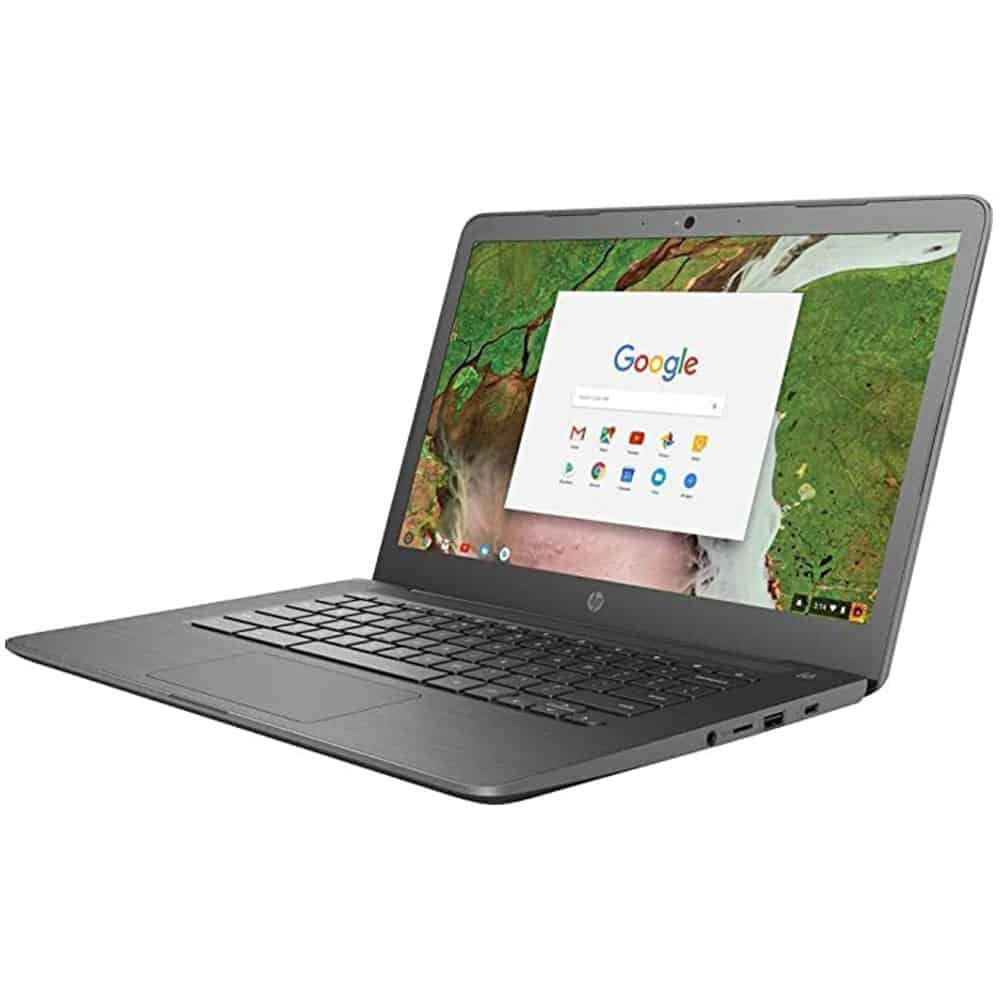
Chromebooks have gained popularity as lightweight and efficient devices for work and play. However, it is also important to ensure chromebook privacy just like any other device connected to the internet,.
One effective way to achieve this is by using a VPN (Virtual Private Network) on your Chromebook. In this blog post, we will guide you through the process of getting a VPN on your Chromebook, allowing you to browse the internet securely and anonymously.
In this article, we have explained the step by step process of installing a VPN on your Chromebook. With these steps you’ll be easily download a VPN and enhance your online protection.
Understanding the Benefits of a VPN
Before we dive into the installation process, let’s briefly explore the benefits of using a VPN on your Chromebook. By utilizing a VPN, you can:
Enhance Online Security:
When you use a VPN, it wraps your internet activity in a protective layer that keeps it hidden from prying eyes. So, your private information like passwords, financial details, and what you do online stays safe and secure.
Preserve Online Privacy:
When you use a VPN, it changes your online identity by hiding your real location and giving you a new one. In this way no one can breach or track or find out when you’re online. So, you can browse the internet with more privacy and stay anonymous.
Access Geo-Restricted Content:
Several streaming services, websites, and online platforms limit access to their content based on your location. With the help of the VPN you can bypass the Goe-blocking by choosing the desired country location and accessing the content you desire.
Secure Public Wi-Fi Connections:
Public Wi-Fi are not safe and know for vulnerabilities. A VPN safeguards your connection, preventing malicious actors from intercepting your data and protecting you from potential threats.
Downloading and Installing a VPN on Chromebook
Now, let’s talk about step-by-step process of downloading and installing a VPN on your Chromebook:
Step 1: Sign up for a VPN Service: Visit the website and sign up for an account.
Step 2: Open the online website and loggin to your account. Click on the desired app you want for example app or extension for chromebook. Once you decided, open the menu.
Step 3: Click on the download link and initiate the download.
Step 4: Install the VPN App or Extension. Follow the on-screen instructions to install the VPN app on your Chromebook.
Step 5: Launch the App or Extension
Step 6: Once the application launched, you’ll be prompted to sign in. Enter your username and password to proceed.
Step 7: Choose a Server Location and boom your VPN is activated on the chromebook
Step 8: Select a server based on your preferences, such as a server in a country where you want to access geo-restricted content.
Step 9: Click connect to establish a connection.
Step 10: After connecting to a server, your Chromebook is now protected by the VPN. You may see a notification or indicator confirming the VPN connection.
Note: To ensure that your VPN is functioning correctly, you can use online tools to check your IP address and verify that it matches the server location you selected.
Customizing VPN Settings and Tips for Usage
Once your VPN is installed and connected, you may want to explore additional settings and features that can enhance your VPN experience. Some VPN applications offer options like, split tunneling, automatic connection on startup, background heavy tasks, or specialized security features. Customize these settings according to your preferences and requirements.
Moreover, below are some tips to improve your VPN usage:
- Always update your VPN app or extension: Regularly check for updates to ensure you have the latest security patches and features.
- Disconnect from the VPN when not needed: While a VPN offers enhanced security, it may slow down your internet speed. Disconnect from the VPN when performing tasks that do not require extra security or when accessing local content.
- Choose appropriate server locations: When accessing geo-restricted content, choose a server location that is closest to the desired content to optimize your streaming or browsing experience
- Conclusion
By following this step-by-step guide, you can easily download and install a VPN on your Chromebook, empowering you to browse the internet securely and privately. In last,we want to add that always choose a reputable VPN provider as some companies keep your data and share with third party companies. Always install app or extension from the original website.
Whereas a VPN protects your online activities, helps you by pass geo-restrictions, and provide coenhanced privacy, and you can browse with confidence on your Chromebook. Take control of your online security today and experience the benefits of a VPN on your Chromebook.
- Related Articles:
CCNP Certification: The Key to Unlocking Expert-Level Networking Skills
How to Accelerate Your IT Career with Online CISSP Training
Cloud Techasia24.in Revolutionizing the Way Businesses Leverage Cloud Technology