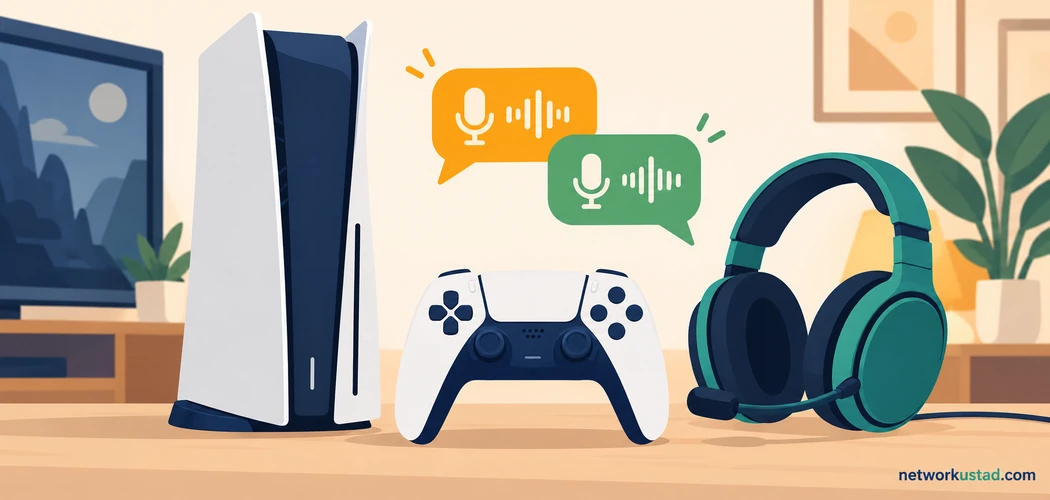
Discord on PS5 lets you talk with friends through the console’s supported voice-chat integration. Start by updating the console. Then link the correct accounts and choose a conversation. You do not need an unofficial installer to follow the documented setup.
The integration has limits. It should not be described as the complete desktop Discord experience. A guide that promises every chat feature can leave you looking for controls that are not part of the documented console workflow.
This article focuses on setup and practical diagnosis. It also explains account privacy and the differences between voice services. The aim is simple: help you join the intended conversation and identify the cause when something fails.
What Discord on PS5 actually provides
The console integration supports Discord voice conversations. PlayStation’s documentation covers server voice channels and direct chats. It also describes moving a conversation from Discord on another device to the console.
Treat that as a defined feature set. Do not assume desktop text channels, server administration and every overlay feature appear on the console. Use the relevant Discord client when you need its wider functions.
There is another important boundary. PlayStation party voice chat and Discord voice chat are different services. Sony states that you cannot use both at the same time. Its documentation also says Discord voice audio is excluded from PS5 captures and broadcasts.
These limits matter before a gaming session begins. Decide where the group will talk. If someone expects a recording, check the supported capture behaviour first. Discord on PS5 should not be sold as an automatic solution for every streaming or recording setup.
Prepare the accounts and console
Make sure you can access both accounts. Check the PlayStation account used on the console and the Discord account containing your friends or servers. Similar display names can make a wrong-account problem easy to miss.
Update your PS5 system software. Current official guidance makes that a requirement. Avoid following an old article that assumes the first version of the integration is still the only way to connect.
Next, decide which microphone and output device you intend to use. Have the headset ready if it is part of your setup. This makes the first voice test easier to interpret.
Do this before the group starts playing. Account recovery and device updates can take time. A few checks now can prevent a rushed attempt to fix several unrelated issues later.
Link Discord and PlayStation accounts
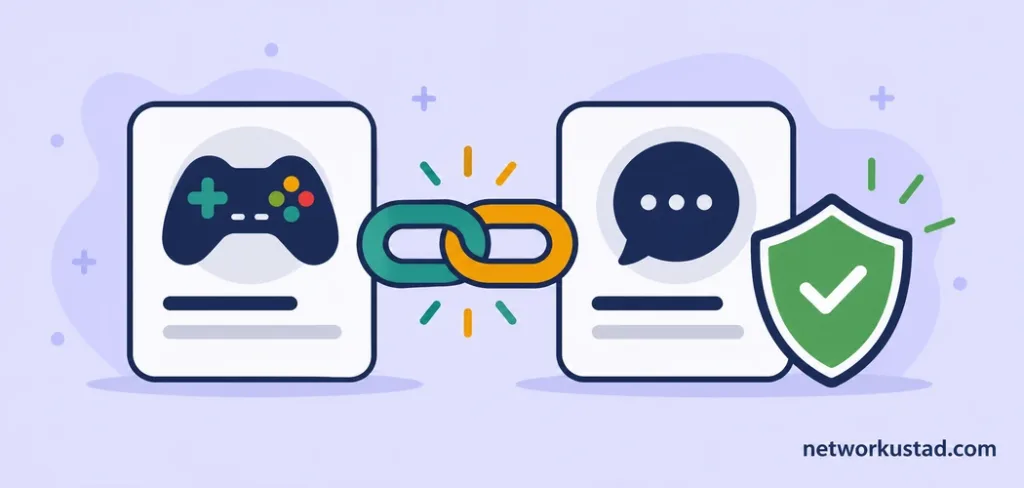
Open Discord on a supported phone or computer. Go to User Settings and find Connections. Choose PlayStation Network, then complete the official sign-in and authorisation process.
Confirm the PlayStation account shown during that process. It should match the account you use on the console. Once the connection is confirmed, return to Discord and review the linked account.
Discord’s PlayStation connection FAQ documents the process. It also explains the profile-display options. Showing your online ID and showing game activity are settings to review, rather than choices to ignore.
Never give a server member your password to complete linking. Use the official account flow. If a page looks unfamiliar, stop and open the service directly before entering credentials.
For Discord on PS5, account linking is the foundation. If the wrong identities are connected, adjusting the headset will not fix the underlying problem.
Join a server voice channel from the console
Use the console’s control centre to reach Game Base. Open the Discord tab. Choose your server, select the intended voice channel and join it.
For a direct conversation, open Direct Voice Chats from the same tab. Choose an available person or group. Start the chat, or join if it is already running.
The official PlayStation voice-chat guide gives the current console routes. It also covers joining through a Discord client and selecting the PS5 as the destination.
Pick one route for the first test. There is little value in switching between devices repeatedly while diagnosing a new setup. First establish that one supported route works. Then explore the alternatives if you need them.
Discord on PS5 is easier to troubleshoot when the expected conversation is clear. Agree on the server and channel name with your friends before joining.
Check the conversation before changing settings
A successful connection does not always mean you joined the right place. Look at the conversation and member names. Ask one friend to confirm where they are speaking.
Use a simple exchange. Say a short sentence and ask for a reply. This checks both directions without adding game noise or several people talking at once.
If one person is missing, compare the channel or group. Do not assume an empty conversation means the console’s audio system has failed. The accounts may be fine, but the group may have moved elsewhere.
For a first Discord on PS5 test, keep the conditions quiet. Launching a game, changing devices and adjusting several sliders together makes the result harder to understand.
Once the basic exchange works, add the game audio. You can then judge whether the balance suits you.
If your friends cannot hear you
Separate microphone problems from connection problems. Can you hear your friends? Do they see you in the intended conversation? Their answers help narrow the issue.
Check the microphone’s mute controls. A headset may have a physical switch as well as console settings. Look at both. It is easy to unmute one control while the other remains off.
On the console, check the selected input device. Sony’s audio guidance places microphone controls in the control centre under Mic. Use the microphone-level check and speak normally. Do not shout to compensate for a wrong input selection.
Change one setting at a time. Repeat the same short test sentence after each change. This is a diagnostic method, not a claim that one adjustment solves every microphone problem.
If the device still fails, check its connection and manufacturer guidance. Discord on PS5 cannot establish compatibility for an unsupported headset merely because it plugs into another device.
If you cannot hear the conversation
Start with the intended output. Is sound supposed to come from a headset, the television or another supported audio device? Confirm that choice before increasing volume.
The console’s Sound settings include output-device selection. Check the relevant volume controls too. A connected headset can change where audio is routed, so inspect the active setup rather than relying on yesterday’s settings.
Ask whether the problem affects everyone or one member. Those are different symptoms. If one person is quiet, first check their microphone and the relevant member-level volume control.
Avoid setting every slider to maximum. Begin at a comfortable level. Sudden audio can be unpleasant when the missing connection starts working again.
For Discord on PS5, output diagnosis should remain specific. “No sound” is a starting description. “Game audio works through the headset, but nobody in this chat is audible” is much more useful.
Balance speech with game audio
Once speech works, start the game you intend to play. Use a normal section rather than the loudest scene. Ask a friend to speak at their usual level.
Adjust the available chat-to-game audio balance gradually. The goal is understandable speech without losing necessary game cues. There is no single position that suits every headset, game or listener.
If the mix changes, check what changed first. A different game, output device or microphone can alter the experience. An old setting is a reference point, not a permanent optimum.
Keep the distinction between clarity and loudness. Turning everything up does not necessarily improve intelligibility. A quieter game mix may be more helpful than louder speech.
With Discord on PS5, test the mix during the activity you actually use. A quiet menu does not represent a busy multiplayer match.
If the console or conversation is unavailable
First identify what is missing. Is the Discord tab absent? Is the account connection missing? Can you see the service but not a particular channel? Each symptom points to a different check.
Confirm the console update and linked accounts. Then check whether the same Discord account can access the expected conversation on another supported device. This separates a broader account issue from a console-specific symptom.
If only one channel is unavailable, ask the server’s moderator about access. Do not try to bypass restrictions. You may need the appropriate invitation or permission for that conversation.
Keep error messages. Write down the exact text and the step that produced it. A specific report makes support more effective than saying the whole service is broken.
When diagnosing Discord on PS5, start with the smallest reproducible failure. Avoid disconnecting everything until you know which part is failing.
If the connection keeps dropping
Observe the pattern first. Does only the voice conversation stop, or does the game lose its connection too? Does another device on the same network show a problem at the same time?
These observations do not prove the cause. They do help define the next test. A wider network problem needs a different response from a single conversation ending.
Try a controlled session. Keep the same headset and account. Note when the problem occurs and what was running. If you change the network, record that as a separate test.
Do not promise yourself that a restart will fix every fault. It can be one troubleshooting step, but repeated restarts without observation may hide the pattern.
For recurring Discord on PS5 issues, collect the time, error message and affected services. Then consult official support with those details.
Review profile visibility after linking
Account linking can involve more than voice access. Discord documents options for displaying your PlayStation online ID and activity. Review those settings after the connection is complete.
Choose the visibility you actually want. A useful voice feature does not require you to ignore how your profile appears elsewhere. Check both the account connection and relevant privacy settings.
Use an official client for account-management tasks. Avoid following instructions from an unsolicited message that asks you to sign in through a strange page. A familiar avatar does not authenticate a login request.
If you share the console, confirm whose account is active before making changes. This prevents a simple setup task from altering another person’s linked profile.
Discord on PS5 should be configured around the intended user. Treat account identity and visibility as part of setup, rather than an afterthought.
Keep server administration separate
Running a server involves decisions about membership, permissions and moderation. Joining its voice channel from a console is a different task. A guide should not blur the two.
Use the appropriate Discord client when managing the community. Check current documentation for the feature you need. Do not infer a console administration menu from a desktop tutorial.
Agree on basic group expectations. Decide who can invite new members and who handles disruptive behaviour. A technical connection alone does not create a well-run conversation.
If a player has a problem, use the relevant reporting and moderation tools. Avoid publishing their private details as a workaround. Keep the response focused on the conduct and the service’s supported process.
This distinction keeps Discord on PS5 guidance practical. It explains joining a conversation without claiming the console replaces every tool needed to manage a server.
Set expectations for captures and broadcasts
Test your planned recording setup before an important session. Do not assume that hearing voices in your headset means the console will include them in a saved clip.
Sony’s stated capture limitation is important here. Plan around the documented behaviour. This article does not provide a workaround or certify an external recording setup.
Tell participants if you intend to record by another method. Consent and recording rules can depend on the situation and location. Resolve those questions before the session rather than after a clip is shared.
Also distinguish voice, game footage and screen sharing. They are separate features with separate supported workflows. A broad claim about “sharing your gaming experience” is not a useful specification.
For Discord on PS5, verify the exact output you need. A successful live conversation does not establish that every desired recording feature is available.
A short checklist for the next session
Keep a repeatable routine. Confirm the right console user and accounts. Check the intended conversation. Test speech in both directions before the game becomes busy.
If something fails, record the symptom before changing settings. Check input, mute status and output separately. Ask a friend for a clear observation rather than several people adjusting their systems at once.
After a successful fix, note what changed. That gives you a useful reference if the issue returns. Avoid presenting the result as proof that the same fix applies to every other setup.
This guide is based on documentation, not hands-on console testing. Menu labels and features can change. Use the linked official pages when your screen differs from the description.
The most useful Discord on PS5 habit is simple: verify one thing at a time. That keeps setup manageable and support requests clear.
Frequently asked questions
Do I install an unofficial Discord app on the console?
No unofficial installer is required for the documented integration. Use the supported account-linking and voice-chat routes. Avoid software that promises to unlock features without explaining its source.
Why can I hear friends but they cannot hear me?
Check the selected microphone and both hardware and software mute controls. Test the microphone level. Then repeat a short voice exchange before changing another setting.
Why does the chat work but not appear in my recording?
Hearing the conversation and capturing it are different functions. Sony states that Discord voice audio is excluded from PS5 captures and broadcasts.
Can a desktop tutorial describe every console feature?
No. Desktop text, overlay and administration instructions should not be treated as console instructions. Check documentation for the specific platform and task.
Should I relink the accounts immediately when something fails?
First confirm the identities, update status and exact symptom. Relinking may be relevant in some cases, but it should not replace basic diagnosis or an error report.
Was this guide tested on a physical PS5?
No. The instructions were checked against official documentation. The troubleshooting method is general guidance, and no particular headset or network result is guaranteed.