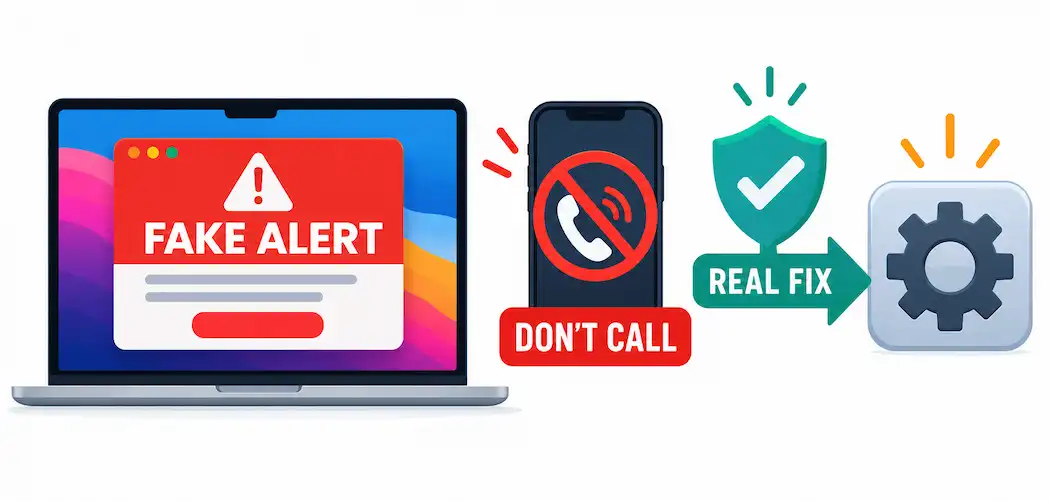
If a full-screen warning claiming your Mac is “infected” or “locked” just popped up, telling you to call a phone number immediately — the most important thing to know right now is that this did not come from Apple. It’s a browser-based scare tactic, and the single most damaging thing you can do is call that number or enter any information into that page. Here’s the safe, complete removal process, and why the urgency in that message is the scam itself.
First: Do Not Call, Don’t Enter Anything, Don’t Panic
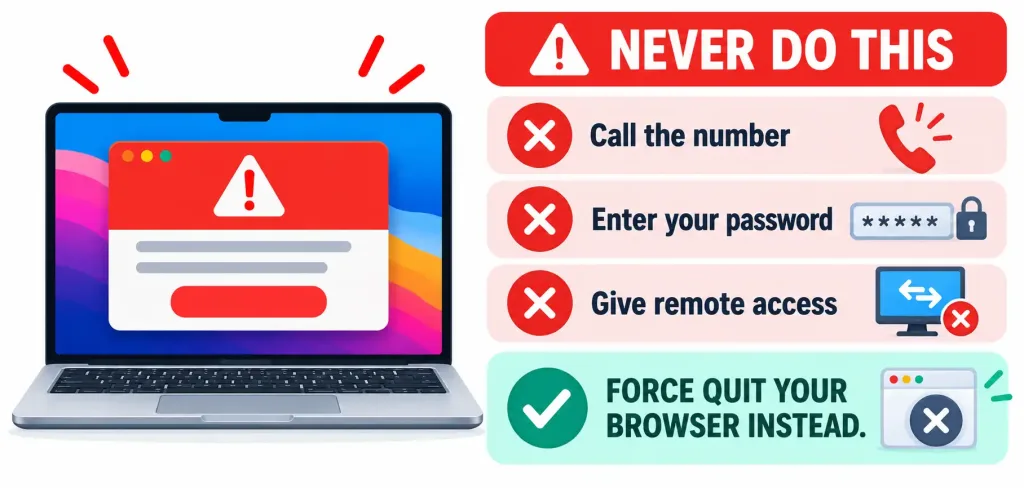
This is worth stating before any technical steps, because it’s the part that actually prevents harm: never call a phone number shown in one of these alerts, and never enter a password, payment information, or Apple ID credentials into the page itself. These scams work by creating panic and urgency specifically so you skip this step. If you already called a number and gave someone remote access to your computer, or entered any credentials, disconnect from the internet, run a full malware scan using the steps below, and change your passwords immediately afterward — starting with your Apple ID, your email, and any financial accounts, from a different, uncompromised device if possible.
If the “alert” is simply a browser popup or tab you can’t close normally, force-quit your browser (Option+Command+Esc, select the browser, click Force Quit) rather than engaging with the page at all. In many cases, that alone resolves the immediate problem, and the steps below are about removing whatever got installed that’s causing it to keep appearing.
Step 1: Check and Remove Suspicious Login Items
On current macOS (Ventura and later), go to System Settings > General > Login Items & Extensions. Review anything listed that you don’t recognize or didn’t intentionally install, and remove it. This is one of the most common places adware and scareware-generating software installs itself to relaunch automatically every time you restart your Mac.
Step 2: Check Activity Monitor for Suspicious Processes
Open Activity Monitor (via Spotlight search or Applications > Utilities) and look through running processes for anything unfamiliar, especially anything with a name that looks randomly generated or mimics a legitimate system process with a slight misspelling. If you find something suspicious, note its name, quit it, and proceed to remove the associated application in the next step — quitting a process alone doesn’t remove what launched it.
Step 3: Remove Unknown Applications
Go to your Applications folder and look for anything you don’t remember installing, particularly anything installed around the time these alerts started appearing. Drag suspicious applications to the Trash, then empty the Trash. If you’re unsure whether something is legitimate, search its exact name before removing it, since some genuinely necessary background utilities have unfamiliar-looking names.
Step 4: Check for Unauthorized Configuration Profiles
This is a step many basic removal guides skip, and it matters: go to System Settings > Privacy & Security > Profiles. If this section doesn’t appear at all, you have no installed profiles, which is the normal, expected state for most personal Macs. If you do see a profile you didn’t knowingly install, remove it — malicious configuration profiles are a real persistence mechanism scammers use to control browser settings and redirect behavior, and they won’t show up in your Applications folder or login items.
Step 5: Check LaunchAgents and LaunchDaemons
For a more thorough check, adware and scareware sometimes installs background helper files in ~/Library/LaunchAgents, /Library/LaunchAgents, and /Library/LaunchDaemons. In Finder, use Go > Go to Folder and enter each of these paths, looking for unfamiliar .plist files with recently modified dates matching when the problem started. If you’re not confident identifying what’s safe to remove here, this is a reasonable point to use a reputable, well-known Mac security tool (such as Malwarebytes for Mac, which has a free scanning option) rather than manually deleting system files you’re unsure about.
Step 6: Remove Suspicious Browser Extensions
In your browser’s settings, review installed extensions and remove anything you don’t recognize or didn’t intentionally install. This is relevant for Safari, Chrome, and Firefox alike, since browser extensions are a common vector for the kind of redirect behavior that triggers these fake alerts repeatedly.
Step 7: Reset Your Browser Settings
If the problem persists after removing suspicious extensions, reset your browser to its default settings (available in each browser’s settings menu). This clears custom configurations, including ones a malicious extension or profile may have set, such as a hijacked homepage or default search engine.
After Cleanup: What to Do Next
- Change your passwords if you entered any credentials into the fake alert, starting with your Apple ID and email.
- Enable two-factor authentication on your Apple ID if it isn’t already active — this limits the damage even if a password was exposed.
- Update macOS to the latest version available for your Mac, since Apple regularly patches the kinds of browser and system vulnerabilities these scams exploit.
- Report the scam to the FTC (reportfraud.ftc.gov) if you lost money or gave remote access to your computer, and consider a credit freeze if financial information was shared.
The Bottom Line
The “Apple Security Alert” scam relies entirely on panic — the pop-up’s urgency is the attack, not a genuine warning. The actual fix is calm and methodical: never call the number or enter credentials, then work through login items, running processes, installed apps, configuration profiles, launch agents, and browser extensions to find and remove whatever’s generating the alert. If at any point you’re not confident identifying what’s safe to remove, a reputable security tool or a visit to an Apple Store/authorized service provider is a reasonable next step — just not the phone number on the scam page itself.
Frequently Asked Questions
Is the Apple Security Alert pop-up real?
No. Apple does not generate full-screen warnings telling you to call a phone number. It’s a browser-based scam designed to create panic, typically triggered by adware, a malicious browser extension, or a compromised ad network — not an actual infection of the kind it claims.
I already called the number and let someone access my computer. What do I do?
Disconnect from the internet immediately, then work through the removal steps in this guide. Afterward, change your passwords (starting with Apple ID and email) from a different device if possible, enable two-factor authentication, and report the incident to the FTC at reportfraud.ftc.gov.
Where do these fake alerts actually come from if not Apple?
Usually a malicious or compromised ad, a browser extension, or software bundled with something else you installed that redirects your browser or generates deceptive popups. Removing the underlying app, extension, or configuration profile stops the alerts from recurring.
Do I need to buy a cleanup tool to fix this?
Not necessarily — the manual steps in this guide resolve most cases. If you’re not confident identifying suspicious files yourself, a well-known, reputable security tool with a free scanning option (such as Malwarebytes for Mac) is a reasonable supplement, but never use a tool recommended by the scam page itself.