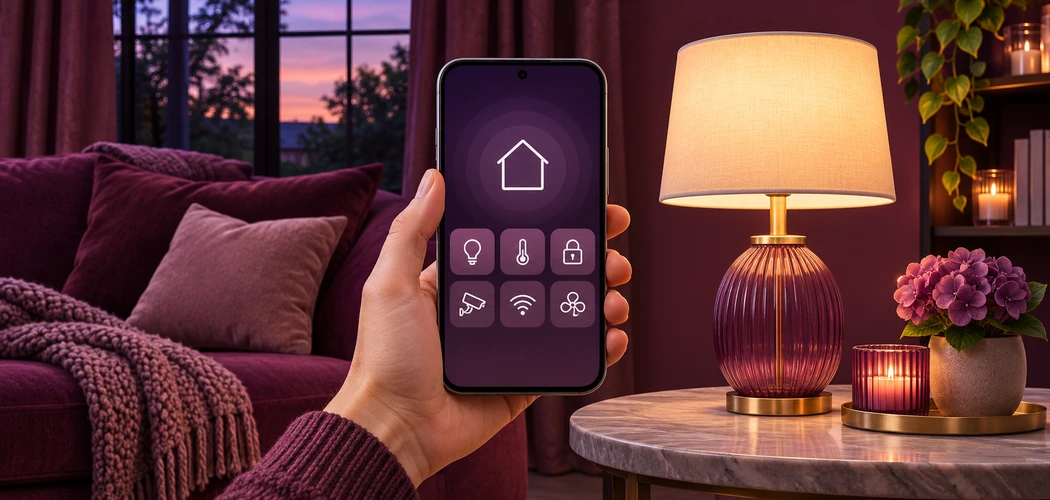
You can control IoT devices at home with a physical switch, an app, a smart-home hub, or a voice assistant. The important difference is where the command goes. A local command stays on your home network or goes directly between nearby devices. A cloud command goes through an internet service. Both can appear in the same app, so the interface alone won’t tell you what will work when the internet goes down.
Start with what you want to control and from where. A hallway lamp might need a button that anyone can use. A sensor might need to trigger the lamp automatically. Checking a device while away from home requires a supported remote-access method. Write down those jobs first, then pick the simplest controls that meet them.
How to Control IoT Devices at Home
| Control method | Good fit | What to check |
|---|---|---|
| Physical switch or button | Everyday use and shared spaces | Whether it operates the load directly or depends on a hub or network |
| App on your home network | Adjusting and checking devices from another room | Whether the app offers local control and which features still use the cloud |
| Hub or controller | Coordinating devices and running routines | Supported models and which automations the hub executes locally |
| Cloud-connected app | Checking or controlling devices while away | Account access, connectivity, and any plan requirements |
| Voice assistant | Convenient hands-free requests | Supported commands, account linking, and whether voice processing needs internet access |
Keep a manual option for tasks people perform every day. A guest should be able to turn on a hallway light without installing an app. If a circuit uses a smart bulb that needs continuous power to respond, check how its wall control works. A conventional switch that cuts power to the bulb also makes the bulb unreachable until electricity is restored.
Give devices names people can use without guessing. “Hallway ceiling light” is easier to find in a list than a model number. If several rooms have a lamp, include the room name. For a shared dashboard, distinguish individual devices from groups. That makes it easier to notice when a command affected the whole room rather than one fitting.
Know Which Parts Run Locally
A simple local arrangement might use a compatible button and hub to operate a lamp. The hub receives the button press, evaluates the rule, and sends the command. If every step is local, the automation can work while the internet is unavailable, as long as the equipment and home network it needs remain powered and functioning. If one step uses an internet service, that part can fail during the outage.
A cloud arrangement might use a vendor account to deliver a command from a phone to a device. This can be convenient when you’re away. It can also mean the same command stops working from across the room if the vendor service is unreachable. Turning a light on, adding it to an account, and reviewing its history are separate functions. A product can handle each one differently.
Check the whole routine before calling it local. For instance, a timer stored on a hub can turn on a lamp at a particular hour. A rule that asks an online weather service whether it is raining has an additional dependency. Voice commands, push notifications, account recovery, and software updates may each follow a separate path. List the functions that matter to you and test them individually.
Check Matter, Thread, and Hub Compatibility
The Connectivity Standards Alliance’s Matter FAQ explains that Matter can use Wi-Fi, Thread, or Ethernet to connect devices, with Bluetooth Low Energy commonly used during setup. Matter describes how compatible products communicate. It doesn’t tell you on its own which device types and features your chosen smart-home platform exposes.
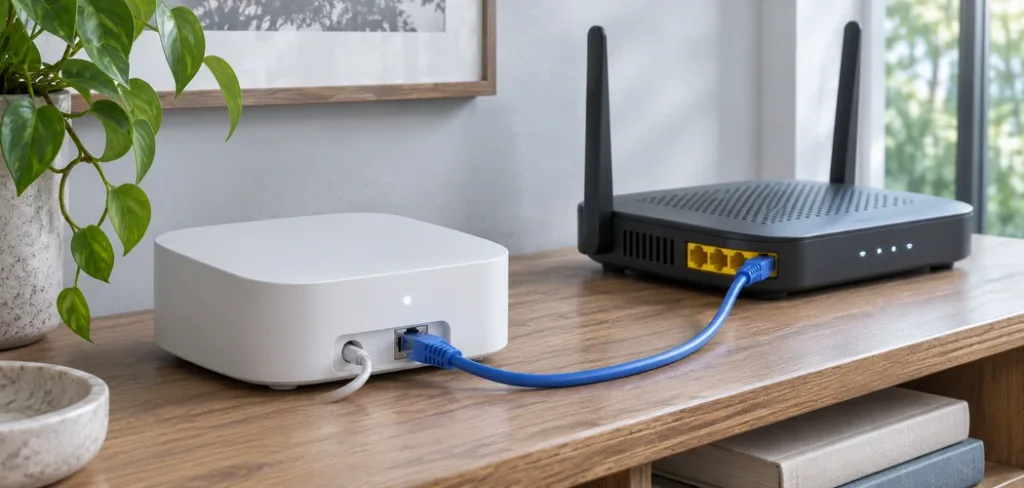
Before buying, check the exact model against your platform’s current compatibility information. Identify which network the device uses and which equipment the platform requires. A Matter-over-Thread device needs a compatible Thread border router to communicate with devices on the rest of your IP network. A Matter controller adds and manages Matter devices. One piece of hardware can fill both roles, so check what your existing equipment supports before adding another box.
Read the feature list for your platform as well as the device specification. A certified device might expose standard on and off controls in the platform you use, while advanced effects are available through the vendor’s app. If you use two ecosystems, verify the feature you care about in both. A working pairing is only the first step. The right comparison is whether each platform can perform the jobs you need it to do.
If you already have products that use another protocol, ask whether your platform supports them directly or through a compatible bridge. Check which functions the bridge exposes and which still need the original app. Keep the documentation and any private setup codes in a secure place so you can recover the setup after replacing a phone or controller.
Set Up a Simple Routine Before Adding More Devices
Start with a light or another device whose failure would be easy to manage. Confirm its physical control works. Add the device using the documented app or controller, then install available updates. Test the app while standing near the device and again from the room where you expect to use it. If it behaves differently, check power and wireless coverage before rebuilding the routine.
Build a single automation with a clear trigger and action. For instance, pressing a wireless button might turn on the living room lamp. Test the trigger several times and check what happens if someone uses the lamp’s manual control. Note which app owns the rule. If you create the same rule in two systems, it can be hard to tell which one changed the device when you troubleshoot it later.
Once the basic routine works, add a condition only if it solves a specific problem. A hallway light could turn on at a lower brightness at night. Check how the controller gets its time and what it does after a restart. Keep a short record of each routine’s trigger, action, and owner. If you move a device to a different room or give it away, those notes make it easier to find rules that still refer to it.
Test What Works When the Internet Goes Down
Pick a time when nobody needs the connection for work or an important service. Use a low-consequence device such as a lamp. If you share internet service or depend on connected alarms, medical equipment, or monitoring, leave that equipment connected and use a separate test setup instead.
- Record the starting behaviour. Try the physical control, the app on home Wi-Fi, and one simple routine. Make sure each works before changing anything.
- Pause internet access while keeping your home network on. Use the documented option for your router or disconnect its separate internet uplink if your setup allows it. Keep Wi-Fi and any hub powered.
- Keep the phone on home Wi-Fi. Briefly turn off mobile data for this test so the app can’t silently use a different internet connection.
- Repeat the same checks. Note what works, what fails, and whether the app shows a stale status. Test a locally scheduled action if one is important to you.
- Restore service and retest. Confirm the connection has returned and that the devices and routines recover as expected.
During a real outage, loss of power or a router failure can affect more functions than loss of internet alone. Keep a manual fallback where it matters. Also check whether any commands you issued during the outage are applied after service returns. That behaviour can vary and is worth knowing before relying on an automation you cannot see in person.
Manage Remote Access and Household Permissions
Use your platform’s documented remote-access setup when you need to operate a device away from home. NetworkUstad’s IoT remote-access guide covers the broader role of remote connectivity. For your own setup, decide which controls you actually need outside the home and review the permissions given to everyone who uses them.
The FTC’s connected-device guidance recommends keeping devices and apps updated, replacing default passwords, and disabling unused features. Give each person their own account or invitation when the platform supports it, and enable two-factor authentication where available. Remove access when a person no longer needs it, especially after moving house or transferring a device to a new owner.
Review your setup after any change in household membership. Check whether a guest has a temporary invitation and whether old phones can still access the platform. When replacing a hub, confirm that the accounts and rooms you expect are still present before removing the old hardware. If the platform provides a supported backup or migration feature, check what it includes. A saved list of device names and routines is useful even when a migration tool is available.
Make a short inventory with the device model, the app that manages it, and its current location. That record helps when you change routers, troubleshoot an automation, or remove an old device. A dependable setup is one everyone can use, with predictable behaviour at home, away, and during an outage.
Compatibility and offline behaviour depend on the model, platform, and firmware. Follow the manufacturer’s instructions and test on a nonessential device without interrupting safety-critical equipment. The images are illustrations.