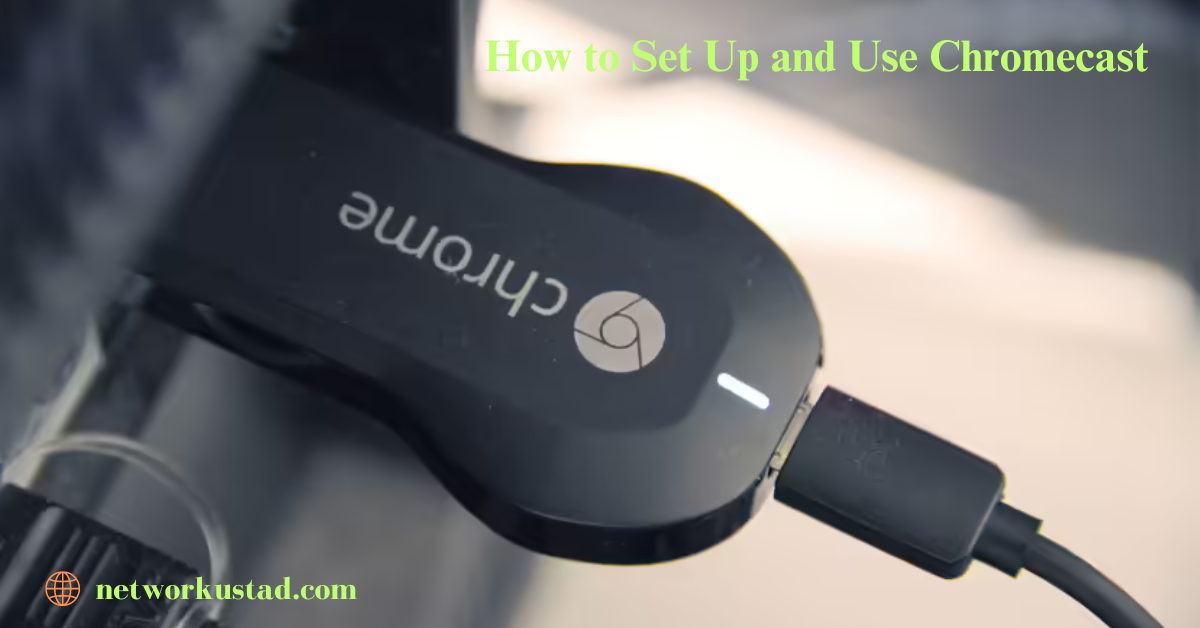
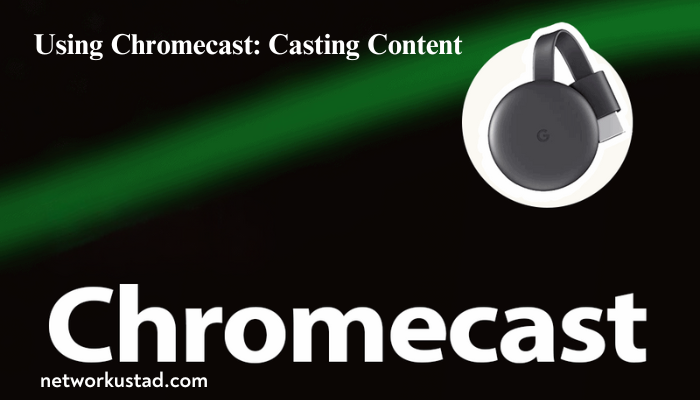
Chromecast is a small media player from Google that turns old TVs into smart TVs, streams content from compatible devices, and offers a better, immersive viewing experience. This guide will help you set up Chromecast, explore its features, provide troubleshooting tips, and offer insights for optimal usage.
What You’ll Need
- Chromecast device (including power adapter and cable).
- TV with an HDMI port
- Wi-Fi connection
- A smartphone, tablet, or computer with a compatible app.
Setting Up Your Chromecast
- Unpack and Connect: First, take the Chromecast out of its box. Connect the device to an available HDMI port on your television. Use the USB adapter to power the Chromecast. Plug it into a power outlet.
- Download the Google Home app. Install it on your phone.
- Set Up Device: Open the app, follow the instructions, and connect your Chromecast to your home’s Wi-Fi to use it wirelessly.
- Calibration (Optional): Some models need calibration. Follow on-screen prompts to optimize picture quality.
Using Chromecast: Casting Content
- Open a Compatible App: Launch a compatible app, like Netflix or YouTube.
- Look for the Cast icon. It’s a rectangular icon with a Wi-Fi symbol.
- Identify Your Chromecast: Select it from the list.
- Start Casting: Enjoy your content on the TV screen.
App Compatibility and Beyond
Most popular streaming apps work with Chromecast. So, check for updates and compatibility before you cast. Some apps may have specific rules or limits.
Users can use Chromecast for more than streaming.
- Gaming: Cast compatible games from your phone to your TV for a bigger screen.
- Video conferencing: Use compatible apps to join video calls on your TV.
- Photo Sharing: Use supported apps to show your photos on the big screen.
Screen Mirroring
Some Chromecast models support screen mirroring. To extend your device’s display to your TV, enable screen mirroring or casting. You can access this function within your device’s settings.
Troubleshooting Common Issues
- Connection Problems: Your Chromecast and device must be on the same Wi-Fi. Restart both devices. Then, check the router settings. If the issue persists, initiate a Chromecast reset. To do this, hold the device’s button for about 25 seconds. The LED light sequence will then indicate a reset.
- Casting Errors: Check app compatibility, close unused apps, and restart the Chromecast. If the issue persists, ensure your Chromecast and the app are up-to-date. They should have the latest software versions.
- Audio/Video Sync Issues: Adjust your TV or casting device’s audio settings to fix sync issues.
- If the issue persists, restart both devices. Then, recast the content.
Maximizing Your Chromecast Experience
- Chromecast Models: There are different Chromecast models, each with unique features. For instance, Chromecast and Google TV have remotes and apps, which makes them work better.
- Voice Control: You can use voice commands with Google TV on Chromecast. It works with Google Assistant.
- 4K and HDR: Chromecast Ultra supports 4K and HDR for better visuals.
- Device Compatibility: Your TV and mobile device must be able to run the Chromecast you choose. Check for an HDMI port and its supported resolutions.
- Security: Use strong Wi-Fi passwords. Keep software updated. Be wary of unknown connections.
- Optimize Wi-Fi: A strong signal is key for smooth casting. Consider using a Wi-Fi extender if necessary.
- Experiment with Apps: Find new apps for Chromecast. They will expand your entertainment options.
- Check for Chromecast firmware updates now and then. They improve performance and add features.
Additional Tips
By following these steps and tips, you can improve your Chromecast experience. You will enjoy a wide range of content on your TV.
FAQs:
Can I control Chromecast without a phone?
- Some Chromecast models come with a remote. Alternatively, users can employ voice commands or the Google Home app for hands-free control.
What is the difference between the two Chromecasts?
- The original Chromecast is a casting device that relies on a smartphone or tablet to control playback. The Chromecast with Google TV is a standalone streamer that has a remote and an OS for app access and content discovery.
Can I cast from my laptop to Chromecast?
- Yes, you can cast from a laptop using the Google Cast extension in the Chrome browser.
Conclusion:
Chromecast has revolutionized home entertainment by enabling users to stream a vast array of digital content directly from compatible devices to their television screens, providing an enhanced and immersive viewing experience. It also streams presentations. So, it is popular with households worldwide.