A connection that was plenty fast six months ago can start feeling sluggish without your internet plan actually changing — and more often than not, the real culprit isn’t your ISP, it’s what’s quietly consuming bandwidth in the background. Understanding where that usage actually goes, and which fixes genuinely move the needle, saves both frustration and, in metered-plan situations, real money.
What Bandwidth Actually Is (and Isn’t)
Bandwidth is the maximum amount of data your connection can transfer in a given period, typically measured in megabits per second (Mbps) or gigabits per second (Gbps). It’s easy to conflate with “speed,” but they’re related rather than identical: bandwidth is the capacity of the pipe, while your actual throughput at any moment depends on how many devices and applications are drawing from that capacity simultaneously. A 300 Mbps plan split across a 4K stream, three video calls, and a large cloud backup can feel far slower than the advertised number suggests, because all of that traffic is competing for the same pipe at once.
The Real Causes of High Bandwidth Usage
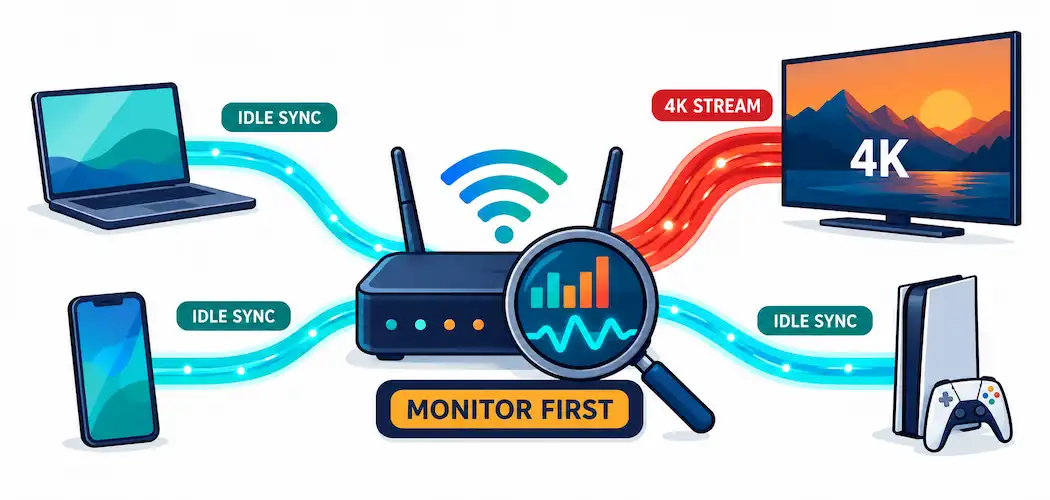
Too many connected devices. Every smart TV, phone, laptop, game console, and smart-home gadget on your network draws from the same shared bandwidth pool. A household with 15+ connected devices, even if most are idle, often has more background chatter (firmware checks, sync pings, notification polling) than people expect.
Background apps and cloud sync. Cloud backup services (Google Photos, OneDrive, iCloud, Dropbox), automatic OS and app updates, and game-client background downloads are frequent silent bandwidth consumers — many default to running continuously rather than on a schedule. Managing bandwidth gets genuinely harder as more of daily life moves online, with more devices and services competing for the same connection than a few years ago.
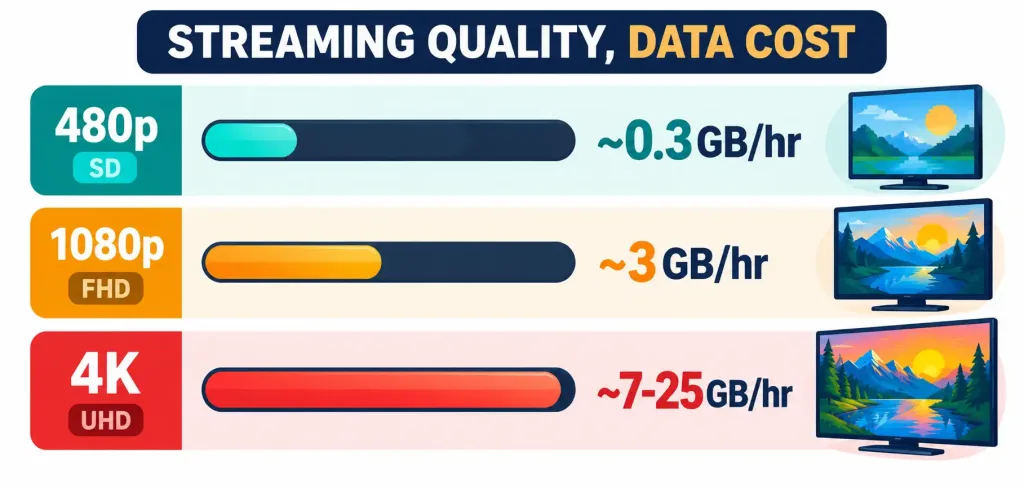
High-definition streaming. Video is the single biggest bandwidth consumer in most households. Streaming in 4K can use roughly 7–25 GB per hour depending on the service and compression, versus roughly 1–3 GB per hour at standard definition — a difference large enough that a single 4K movie can meaningfully eat into a capped plan.
Malware and unauthorized access. Malware that uses your connection for data exfiltration, click fraud, or participation in a botnet consumes bandwidth you never authorized, often without any obvious symptom beyond unexplained slowness. An unsecured Wi-Fi network inviting unauthorized freeloaders is a simpler, far more common version of the same underlying problem.
How to Actually Reduce Bandwidth Usage
1. Monitor your traffic before changing anything. You can’t fix what you haven’t measured. Tools worth knowing:
- GlassWire — a free network monitor with per-app usage breakdowns and alerts for unusual spikes.
- NetSpeedMonitor — a lightweight, real-time speed and usage display for Windows.
- Wireshark — a genuinely powerful packet-level traffic analyzer, more suited to technically inclined users diagnosing a specific problem than casual monitoring.
- Your router’s own admin panel — most consumer routers (and nearly all ISP-provided ones) include basic per-device usage stats under something like “Device List” or “Traffic Statistics,” often the fastest starting point since it requires no extra software.
2. Audit and limit connected devices. Check your router’s connected-device list for anything you don’t recognize or no longer use, and disconnect idle devices rather than leaving them perpetually connected.
3. Close or pause background applications. On Windows, Task Manager (Ctrl+Shift+Esc) shows real-time network usage per process under the Performance or Details tab. On Mac, Activity Monitor’s Network tab does the same. Identify anything unexpectedly active and close it, or adjust its settings to stop running at startup.
4. Schedule cloud sync and updates for off-peak hours. Most cloud backup tools and OS update settings let you restrict syncing to specific hours (overnight, for instance) rather than continuously — this doesn’t reduce total data used, but it prevents sync traffic from competing with active use.
5. Lower streaming quality when full resolution isn’t necessary. On YouTube, manually setting quality to 480p or 720p instead of 1080p/4K meaningfully cuts usage, especially on a smaller screen where the difference is barely visible. Netflix’s “Data Saver” setting in Playback Settings does the same automatically. For audio-only content (podcasts, music), make sure you’re not accidentally streaming a music video instead.
6. Use a data-saving mode on mobile, where it still exists. This is worth correcting from older advice still circulating online: Chrome’s old “Lite mode” (previously called Data Saver) for Android was discontinued by Google in Chrome 100, back in March 2022 — Google’s own reasoning was that falling mobile data costs and built-in page-loading improvements made a separate mode largely redundant. If you’re looking for an actual current option: Opera and Opera Mini still include a built-in data-saving/compression mode, and Android’s own system-level Data Saver (Settings > Network & internet > Data Saver) restricts background data for all apps at the OS level, which is a more effective and current substitute for the retired Chrome feature.
7. Consider a genuine plan upgrade if usage is consistently maxing out capacity. If monitoring shows your household is routinely saturating your current plan’s bandwidth during normal use (not just the occasional 4K movie night), a higher-tier plan may be the actual fix rather than endless micro-optimization. Check your ISP’s current data caps and overage policies directly, since these vary significantly by provider and region and change over time — a specific cap figure quoted in an older article may no longer reflect what your ISP actually offers today.
8. Secure your Wi-Fi network. Use WPA3 encryption if your router supports it (WPA2 as a minimum), set a strong, unique Wi-Fi password, and disable WPS if you’re not actively using it, since WPS has known vulnerabilities that make unauthorized access easier.
9. Scan for malware. If usage spikes are unexplained even after addressing the above, a full malware scan with a reputable security tool is a reasonable next step — unusual outbound traffic is a classic symptom of a compromised device.
When to Just Call Your ISP
If you’ve gone through monitoring, device management, and app-level adjustments and usage is still unexpectedly high, it’s worth contacting your ISP directly. They can check for issues on their end (signal degradation, outdated equipment, an account-level data cap you may not be aware of) that no amount of local troubleshooting will fix.
The Bottom Line
Most high-bandwidth situations trace back to a small number of actual causes — too many idle-but-chatty devices, unscheduled background syncing, high-resolution streaming by default, or in less common cases, malware. Monitoring first, rather than guessing, is what separates an effective fix from trial-and-error frustration. And if you’re following older advice about specific tools or features (like Chrome’s long-retired Lite mode), it’s worth double-checking that the recommendation is still current before relying on it.
Frequently Asked Questions
What counts as “high” bandwidth usage?
It depends entirely on your plan’s capacity and your household’s device count, so there’s no single universal threshold. The more useful question is whether your usage is regularly saturating your plan’s advertised speed during normal activity — that’s a clearer signal than any fixed monthly gigabyte number, since ISP data caps and typical usage patterns vary widely by provider and region.
How do I check my actual data usage?
Your router’s admin panel usually shows per-device usage stats. For a full household view, a monitoring tool like GlassWire gives a more detailed, app-level breakdown. Most ISPs also provide a usage dashboard through their account portal or app.
Does high bandwidth usage actually slow down my internet speed?
Yes, in the sense that matters practically: when many devices and applications compete for the same finite bandwidth simultaneously, each gets a smaller effective share, which is experienced as slower speeds even though your plan’s maximum capacity hasn’t changed.
Is Chrome’s data-saving mode still available?
No — Chrome’s “Lite mode” (formerly Data Saver) for Android was discontinued in March 2022. For a current equivalent, use Opera or Opera Mini’s built-in data-saving mode, or Android’s own system-level Data Saver setting, which restricts background data across all apps.